1. Вступ
The Strong 4G LTE N300 WiFi Router provides high-speed internet access using a 4G SIM card, offering reliable Cat4 LTE speeds up to 150 Mbps and stable N300 Mbps Wi-Fi coverage. This device is designed for easy setup and use, supporting up to 32 devices simultaneously, making it suitable for both home and small office environments where wired broadband may not be available.
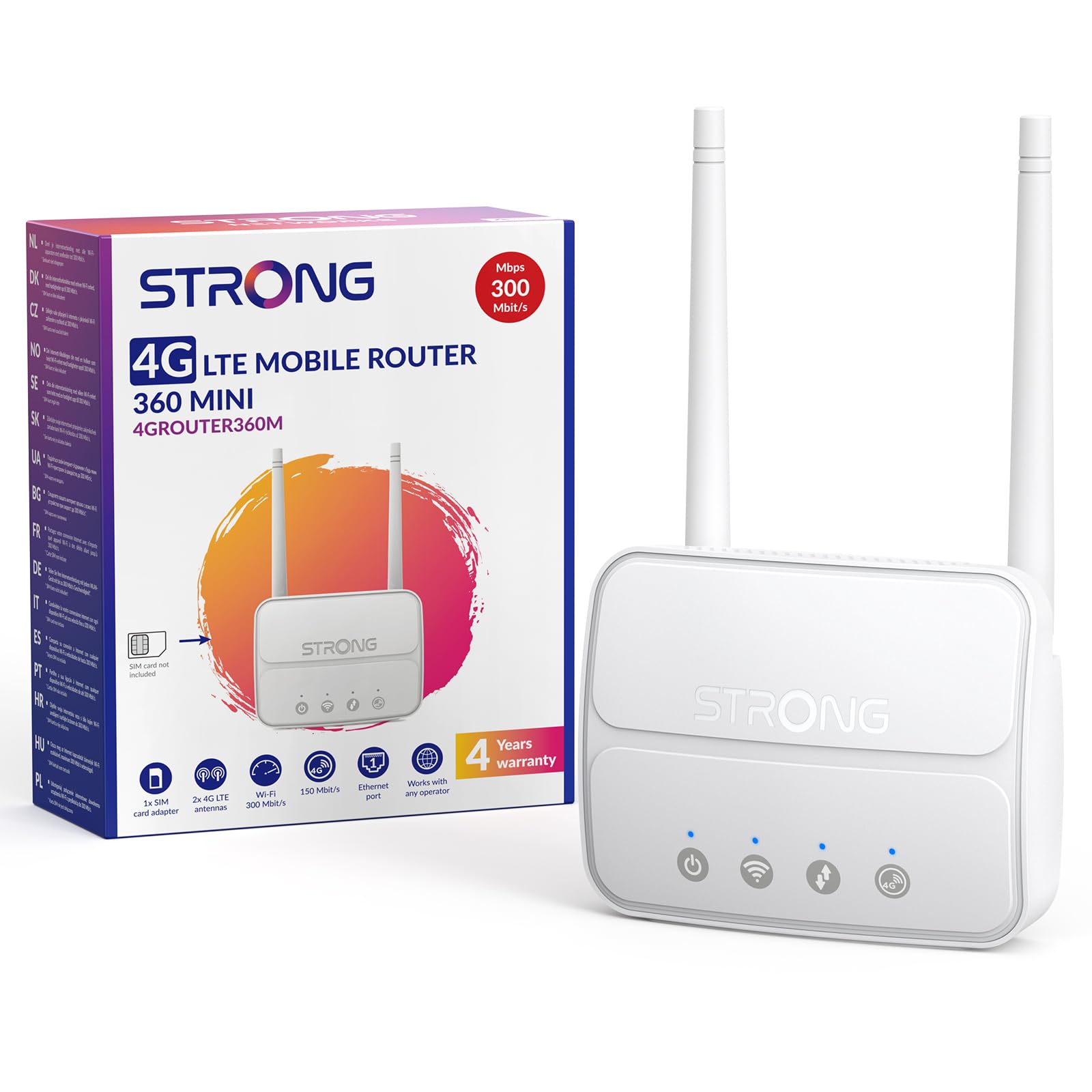
Image 1: The Strong 4G LTE N300 WiFi Router, a compact device with two external antennas for enhanced signal reception.
2. Що в коробці
Будь ласка, уважно перевірте вміст упаковки. Якщо будь-які елементи відсутні або пошкоджені, зверніться до служби підтримки клієнтів.
- Strong 4G LTE N300 WiFi Router
- External Antennas (2 units)
- Ethernet-кабель RJ45
- Зовнішнє джерело живлення
- Nano to Micro SIM Card Adapter
- Посібник із швидкого встановлення
- Картка безпеки та гарантії
3. Посібник із налаштування
Follow these steps for a quick and easy setup of your Strong 4G LTE N300 WiFi Router.
3.1. Prepare Your SIM Card
Before inserting your SIM card, ensure that any PIN protection is disabled. You can do this by inserting the SIM card into a smartphone and disabling the PIN request through the phone's settings.
3.2. Insert the SIM Card
- Знайдіть слот для SIM-картки на роутері.
- If you have a Nano SIM, use the provided Nano to Micro SIM adapter to fit it into the standard SIM slot.
- Gently insert the prepared SIM card into the slot until it clicks into place.
3.3. Attach External Antennas
Screw the two external 4G antennas onto the designated connectors at the back of the router. Adjust their orientation for optimal signal reception.
3.4. Power On the Router
Connect the external power supply to the router's DC-in port and then plug it into a power outlet. The router will automatically power on and begin the startup sequence.
3.5. Connect to the Network (Plug & Play)
The router is designed for Plug & Play operation. Once powered on and with a valid SIM card, it will automatically connect to the 4G LTE network. You can then connect your devices via Wi-Fi or Ethernet.

Image 2: Visual guide for SIM card insertion and powering on the router for instant connection. The image also shows the SIM card slot supporting standard, micro, and nano SIMs with an adapter.
3.6. Доступ до Web Інтерфейс
Для розширених налаштувань та керування мережею перейдіть до налаштувань маршрутизатора web інтерфейс шляхом введення 192.168.188.1 у ваш web browser's address bar. Refer to the Quick Installation Guide for default login credentials.
4. Інструкція з експлуатації
This section details how to use your Strong 4G LTE N300 WiFi Router for optimal performance.
4.1. Підключення пристроїв
The router supports connections for up to 32 devices simultaneously.
- Wi-Fi підключення: Знайдіть назву мережі Wi-Fi (SSID) та пароль, надруковані на етикетці внизу маршрутизатора. Виберіть цю мережу на своєму пристрої та введіть пароль для підключення.
- Підключення Ethernet: Use an RJ45 Ethernet cable to connect devices such as PCs, game consoles, or Smart TVs to the router's 100 Mbps LAN port for a stable wired connection.
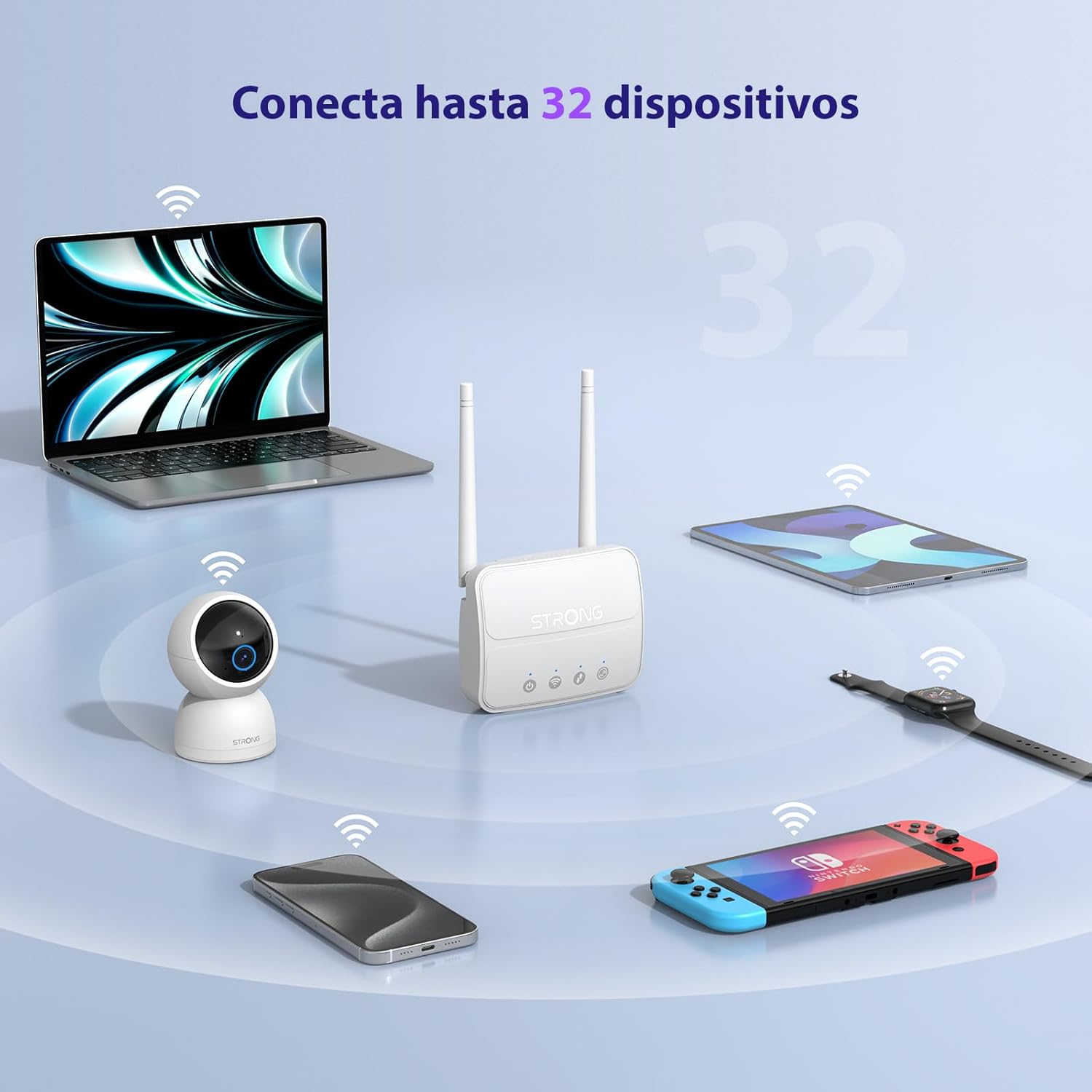
Image 3: The router connecting various devices including laptops, tablets, smartphones, and gaming consoles, demonstrating its capacity for up to 32 simultaneous connections.
4.2. Network Management and Security
Маршрутизатор пропонує надійні функції безпеки для захисту вашої мережі:
- Шифрування WPA / WPA2: Ensures secure wireless communication.
- PIN Control: Manage SIM card PIN settings.
- Фільтр MAC: Control which devices can connect to your network based on their MAC addresses.
- Advanced Firewall Settings: Customize firewall rules for enhanced protection.
All these settings can be managed through the easy-to-use web інтерфейс (192.168.188.1).

Image 4: A user managing network settings on a laptop, illustrating the router's WPA/WPA2 encryption and PIN control features for secure network management.
5. Технічне обслуговування
Правильне обслуговування забезпечує довговічність та оптимальну продуктивність вашого маршрутизатора.
- Прибирання: Використовуйте м’яку суху тканину для очищення зовнішньої поверхні маршрутизатора. Не використовуйте рідкі засоби для чищення або аерозолі.
- Розміщення: Розмістіть роутер у добре провітрюваному приміщенні, подалі від прямих сонячних променів, джерел тепла та сильних електромагнітних полів.
- Оновлення прошивки: The router features a USB port specifically for firmware updates. Regularly check the Strong official website for the latest firmware versions to ensure improved performance and security. Follow the instructions provided with the firmware update package carefully.
6. Вирішення проблем
Якщо у вас виникли проблеми з маршрутизатором, зверніться до наступних поширених кроків усунення несправностей:
- Немає підключення до Інтернету:
- Переконайтеся, що SIM-картка правильно вставлена та має активний тарифний план.
- Verify that the SIM card's PIN protection is disabled.
- Check the signal strength indicators on the router. If the signal is weak, try adjusting the external antennas or relocating the router.
- Перезавантажте маршрутизатор, відключивши та знову підключивши адаптер живлення.
- Wi-Fi Not Visible or Connecting:
- Ensure the Wi-Fi function is enabled (check the router's LED indicators).
- Переконайтеся, що ви вводите правильний пароль Wi-Fi (SSID та пароль вказані на етикетці маршрутизатора).
- Try connecting a device via Ethernet to confirm the router has internet access.
- Повільні швидкості:
- Check the 4G signal strength. Weak signal can lead to slower speeds.
- Переконайтеся, що жодні інші програми чи пристрої не споживають надмірну пропускну здатність.
- Consider the number of connected devices; the router supports up to 32, but performance may vary with heavy usage.
- Немає доступу Web Інтерфейс:
- Переконайтеся, що ваш пристрій підключено до мережі маршрутизатора (Wi-Fi або Ethernet).
- Confirm you are typing the correct IP address: 192.168.188.1.
- Спробуйте інше web браузер.
If these steps do not resolve the issue, please contact Strong customer support.
7. Технічні характеристики
Detailed technical specifications for the Strong 4G LTE N300 WiFi Router (Model 4GROUTER360M).
| Особливість | Специфікація |
|---|---|
| Бренд | Сильний |
| Назва моделі | 4ФРУТЕР360М |
| Технологія підключення | 4G, Ethernet, LTE, Wi-Fi |
| Бездротовий стандарт | 802.11n (N300 Mbps) |
| Швидкість 4G LTE | Up to 150 Mbps (Cat4) |
| Порти Ethernet | 1 x 100 Mbps LAN Port |
| Слот для SIM-карти | Standard (2FF), includes Nano to Micro adapter |
| Тип антени | 2 x External, Detachable 4G Antennas; 2 x Internal Wi-Fi Antennas |
| Максимальна кількість підключених пристроїв | До 32 |
| Функції безпеки | WPA/WPA2 Encryption, PIN Control, MAC Filtering, Firewall |
| Операційна система | StrongOS |
| Розміри (упаковка) | 18.1 х 15.6 х 7.3 см |
| Вага продукту | 204 г |
| Джерело живлення | Зовнішній адаптер живлення |
| Особливості | Secure Network Management, Plug & Play, Connect up to 32 devices, USB port for firmware updates |
8. Гарантія та підтримка
Strong is committed to providing reliable products and excellent customer service.
8.1. Інформація про гарантію
Your Strong 4G LTE N300 WiFi Router comes with a 4-year protection plan, ensuring long-term peace of mind. Please refer to the included Safety and Warranty Card for detailed terms and conditions.
8.2. Підтримка клієнтів
For any technical assistance, troubleshooting, or warranty inquiries, please contact our expert support team:
- Електронна пошта: support_at@strong-eu.com
Our support team offers solid service and extended coverage to assist you.

Image 5: Visual representation of Strong's reliable support, highlighting the 4-year protection and contact email for assistance.


