1. Вступ
This manual provides detailed instructions for the installation and operation of your ANYFAR Wireless CarPlay/Android Auto Decoder Adapter. This device is designed to upgrade your vehicle's infotainment system, offering enhanced connectivity and features while retaining the original car controls.
1.1 Сумісні моделі транспортних засобів
This decoder is specifically compatible with 2012–2015 Audi A8 models equipped with the MMI 3G system. Please verify your vehicle's compatibility before proceeding with installation.
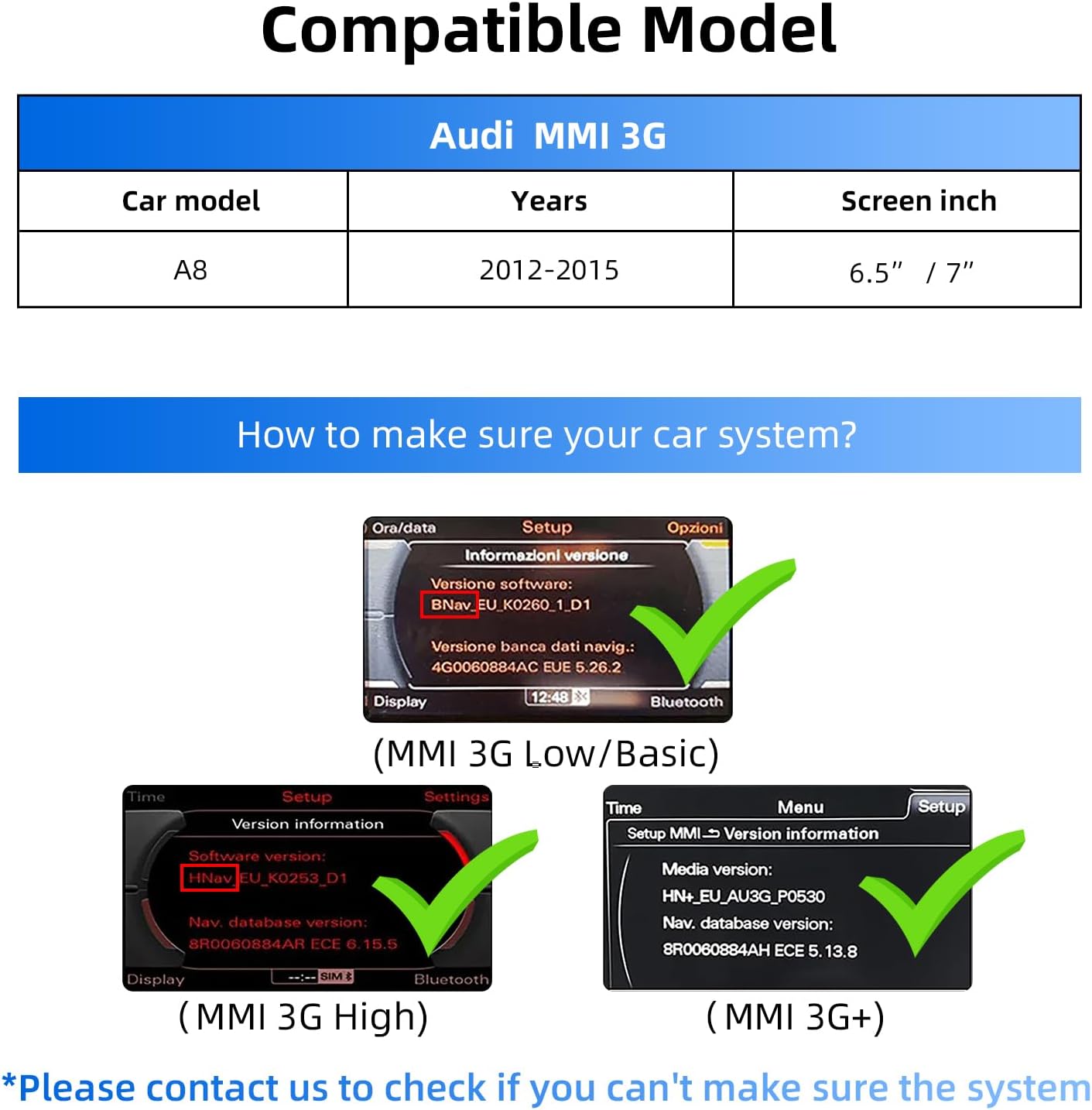
Image: Compatibility table showing Audi MMI 3G models and years.
1.2 Основні характеристики
- Бездротовий CarPlay та Android Auto: Enjoy full smartphone integration without cables.
- Відтворення з Mirror Link та USB-накопичувача: Mirror your phone's display or play media from a USB drive.
- Автомобільна Hi-Fi аудіосистема: Digital transmission for high-quality, uninterrupted sound.
- Збережіть оригінальні елементи керування автомобілем: Continue using your touchscreen, voice control, physical buttons, and knobs.
- Підтримка входу для камери заднього виду: Connect a backup or front camera for enhanced safety.
2. Вміст упаковки
Будь ласка, переконайтеся, що всі предмети присутні в упаковці:
- ANYFAR Decoder Box
- Кабель RCA/USB
- Жгут живлення
- LVDS IN/OUT Cable
- WiFi антена
- Посібник користувача (цей документ)

Image: The decoder box, RCA/USB cable, power harness, LVDS cables, and WiFi antenna.
3. Посібник із встановлення
Важливо: Before starting the installation, turn off the car and disconnect the power to prevent electrical damage.
Video: Detailed installation guide for the ANYFAR CarPlay Decoder in an Audi vehicle.
3.1 Етапи розбирання
- Remove Passenger Side Glove Compartment Panel: Use a plastic trim tool to carefully detach the side cover panel of the passenger-side glove compartment. Slowly pry up the edge of the panel and remove it.
- Remove Horizontal Panel Screws: Remove the upper 8mm screw on the side, then remove the lower 8mm screw.
- Open Glove Compartment & Remove Screws: Open the glove compartment. Remove the first screw on the upper part inside the compartment. Then remove the second screw.
- Remove Horizontal Trim Strip: Using a plastic trim tool, pry open and gradually remove the horizontal trim strip along its bottom edge.
- Remove Small Panel Below Screen: Continue to pry open and remove the small panel below the screen.
- Remove Screen Screws: Use an 8mm tool to remove the screw on the right side of the screen, then the screw on the left side of the screen.
- Remove Center Console Air Outlet Screws: On the center console, remove four screws from above the passenger side glove compartment to below the steering wheel in the driver's seat. This allows the entire central control air outlet component to be removed. Remove the first, second, and third screws.
- Remove Steering Wheel Screws: Finally, remove the screws under the steering wheel.
- Unplug Cross Panel Clips: Use a plastic pry bar to unplug the red clips on the cross panel so that the central air outlet component can be removed later.
- Remove Horizontal Center Console Air Vent Component: Remove the entire horizontal center console air vent component. When disassembling, pay attention to the clips at the edge. Hold it in one hand and release the clip by holding it upward with the other hand. Then the whole air outlet component is removed.
- Remove Bottom Glove Compartment Screws: Next, remove the bottom two screws from the glove compartment.
- Remove Interior Left Side Glove Compartment Screws: In the interior left side of the Audi glove compartment, remove the screws.
- Remove Audio Multimedia Unit: Then remove the audio multimedia unit.
- Extract LVDS Wiring Harness: Extract the LVDS wiring harness of the audio multimedia unit.
3.2 Wiring & Connection
- Підключення кабелів LVDS: Connect one end of the product's LVDS IN/OUT wiring harness to the wire end that was just pulled out from the original multimedia unit, and plug the other end into the LVDS interface of the Audi decoder box.
- Unplug Original Power Plug: Unplug the multimedia power plug of the original car audio.
- Connect Power Cable Bundle: Remove the power cable bundle from the product packaging box and connect the non-clasp connector to the original vehicle power cable. The power cable for audio and multimedia is connected to the snap-on connector.
- Маршрутні дроти: Pass several original wire ends of the vehicle through the bottom rear part of the glove compartment and route them to the front. This will facilitate placing the Audi decoder inside the glove compartment later.
- Connect Decoder Box: The white connector of the power cable is inserted into the white socket on the left side of the Audi decoder box. Plug the blue end of the LVDS wiring harness into the LVDS interface of the Audi decoder. The RCA/USB wiring harness is inserted into another white port of the Audi decoder box. Insert the WiFi antenna into the Audi decoder box.
3.3 Повторне складання
Install all components back in accordance with the disassembly steps in reverse order. After installation, testing is required to check the screen display and switching functions.
4. Налаштування та сполучення
4.1 Створення пари Bluetooth
To enable wireless CarPlay or Android Auto, you need to pair your smartphone via Bluetooth with the decoder adapter. Follow these steps:
- On your car's screen, switch to the CarPlay/Android Auto interface.
- На своєму смартфоні перейдіть до Налаштування > Bluetooth.
- шукати available devices and select the device name displayed on your car's screen (e.g., "CAR-6094").
- Confirm the pairing request on both your phone and the car's screen.
- Allow contacts and favorites sync if prompted.

Image: Bluetooth pairing process between a smartphone and the car's infotainment system.
5. Інструкція з експлуатації
5.1 Перемикання між системами
The adapter allows seamless switching between the original Audi MMI system and the CarPlay/Android Auto interface. Use the designated button or control on your car's console to toggle between the systems.

Image: Car screen displaying CarPlay, OEM system, and Android Auto interfaces, demonstrating the dual system switch.
5.2 Using CarPlay / Android Auto
Once connected, your car's screen will display the CarPlay or Android Auto interface. You can navigate through apps using the original car controls (touchscreen, steering wheel buttons, MMI knob) or voice commands.
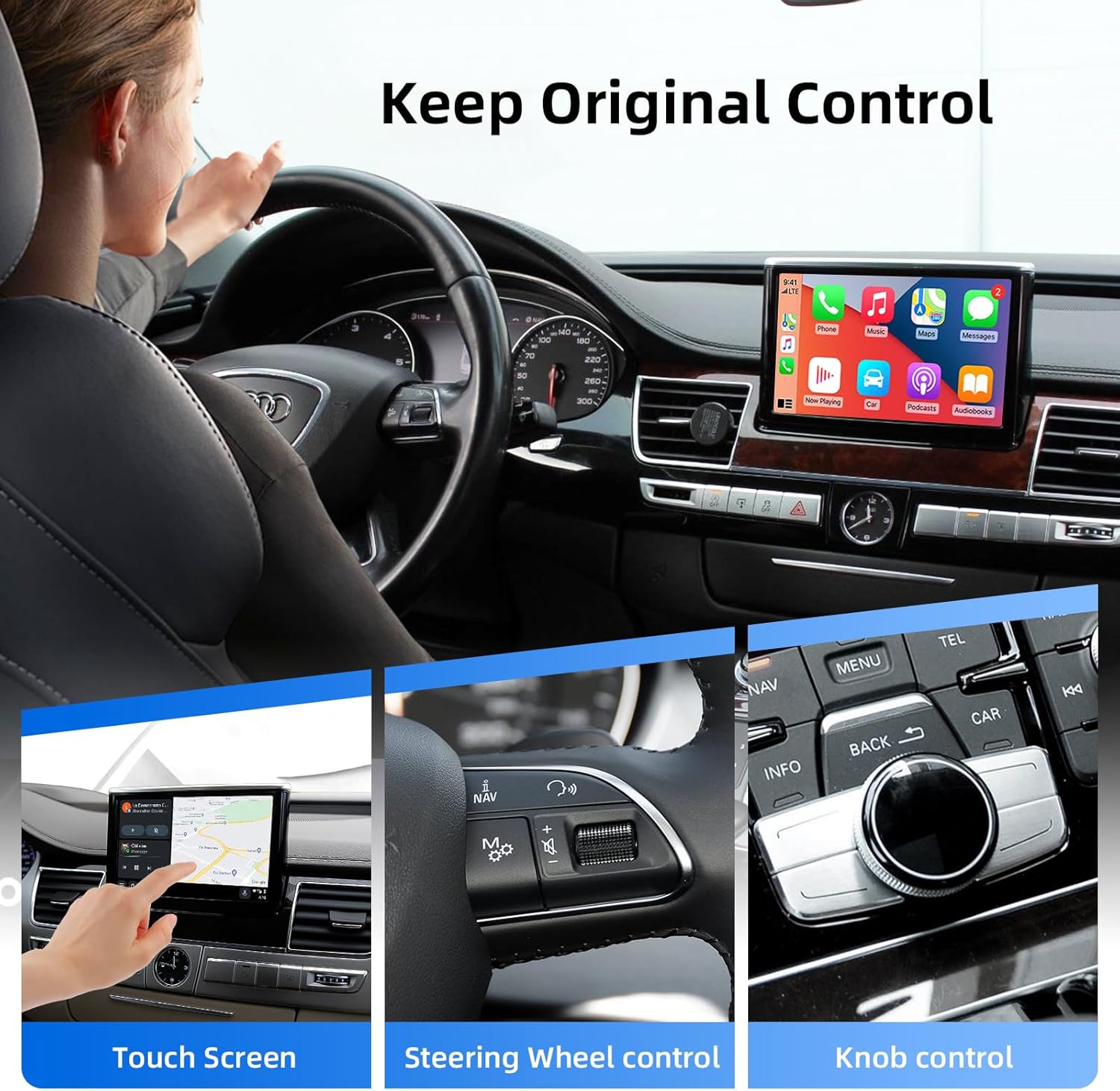
Image: Demonstrates how original car controls (touchscreen, steering wheel, knob) are retained and functional with the adapter.
5.3 Голосове керування
Activate your smartphone's voice assistant (Siri for CarPlay, Google Assistant for Android Auto) using the dedicated voice control button on your steering wheel or by saying the wake word. This allows for hands-free operation of navigation, music, calls, and messages.

Image: Illustration of the Smart Voice Assistant feature, supporting both Siri and Google Voice for hands-free operation.
5.4 Дзеркальне посилання
The Mirror Link feature allows you to cast your phone's screen directly onto the car's display. This is ideal for viewing videos or other content from your device.

Image: A smartphone screen is mirrored onto the car's display, showcasing the Mirror Link functionality.
6. Технічне обслуговування
To ensure the longevity and optimal performance of your ANYFAR Decoder Adapter, follow these maintenance guidelines:
- Keep the device and connections clean and free from dust or debris.
- Уникайте впливу на пристрій екстремальних температур або вологи.
- Ensure all cables are securely connected to prevent signal loss or intermittent functionality.
- Periodically check for firmware updates from the manufacturer to ensure compatibility and access to new features.
7. Вирішення проблем
If you encounter any issues with your ANYFAR Decoder Adapter, please refer to the following common troubleshooting steps:
- Немає дисплея/чорний екран:
- Check all cable connections, especially the LVDS cables, to ensure they are securely plugged in.
- Verify that the car's power is properly connected to the decoder.
- Ensure the correct input source is selected on your car's MMI system.
- Немає звуку:
- Check the audio output settings on both your smartphone and the car's MMI system.
- Ensure the AUX input is selected on your car's audio system if required.
- CarPlay/Android Auto Not Connecting Wirelessly:
- Ensure Bluetooth is enabled on your smartphone and paired with the decoder.
- Check your phone's Wi-Fi settings; some systems use Wi-Fi for data transfer after initial Bluetooth pairing.
- Restart your smartphone and the car's infotainment system.
- Original Controls Not Responding:
- Verify that all original wiring harnesses are correctly reconnected.
- Ensure the decoder is receiving power and functioning correctly.
If the issue persists after trying these steps, please contact ANYFAR customer support for further assistance.
8. Технічні характеристики
| Особливість | Деталь |
|---|---|
| Номер моделі | RM-AD3505Q |
| Розміри упаковки | 10.63 x 6.69 x 4.33 дюймів |
| Вага товару | 1.76 фунта |
| Технологія підключення | USB |
| Тип контролера | Ручне керування |
| Особливість | Дзвінки в режимі "вільні руки". |
| Сумісні пристрої | Смартфон |
| Тип роз'єму | Micro USB |
| Режим аудіовиходу | Стерео |
9. Гарантія та підтримка
ANYFAR products are designed for reliability and performance. For warranty information and customer support, please refer to the documentation included with your purchase or visit the official ANYFAR webсайт. Зберігайте чек про покупку як підтвердження покупки для гарантійних претензій.
For technical assistance or inquiries, please contact ANYFAR customer service through their official channels.


