вступ
This manual provides instructions for the OMOTON Illuminated Keyboard. Designed with extra-large fonts, this keyboard offers enhanced visibility, making it suitable for users who benefit from clearer visual experiences, including seniors, students, and office workers. It aims to reduce eye fatigue and typing errors. The keyboard features a wired 2-in-1 USB-A/C interface for broad compatibility and includes multimedia keys for efficient control of various functions.
Особливості продукту
- Large Font Keys: Keys feature oversized characters for improved readability, minimizing typing errors.
- Multimedia Functionality: Dedicated multimedia keys provide quick access to functions such as music, video playback, and volume control.
- Dual USB A/C Compatibility: Equipped with a 2-in-1 USB-A/C cable, allowing connection to a wide range of devices.
- Ергономічний дизайн: Features a user-friendly, ergonomic design with an adjustable kickstand for comfortable typing positions, reducing strain during extended use.
- Сумісність з Windows: Specifically designed for seamless operation with Windows operating systems.
Налаштування
The OMOTON Illuminated Keyboard is designed for simple plug-and-play setup.
- Підключення клавіатури: Locate an available USB-A or USB-C port on your computer.
- Плагін: Connect the keyboard's 2-in-1 USB cable to the chosen port. The keyboard will be automatically recognized by your operating system (Windows).
- Перевірте підключення: Once connected, the keyboard should be ready for use. The backlight will illuminate.

Image: The keyboard features a versatile 2-in-1 USB-A/C cable for easy connection to various devices, including laptops and desktop PCs.
Інструкція з експлуатації
Керування підсвічуванням
The keyboard features an adjustable white backlight. Use the following key combinations to control it:
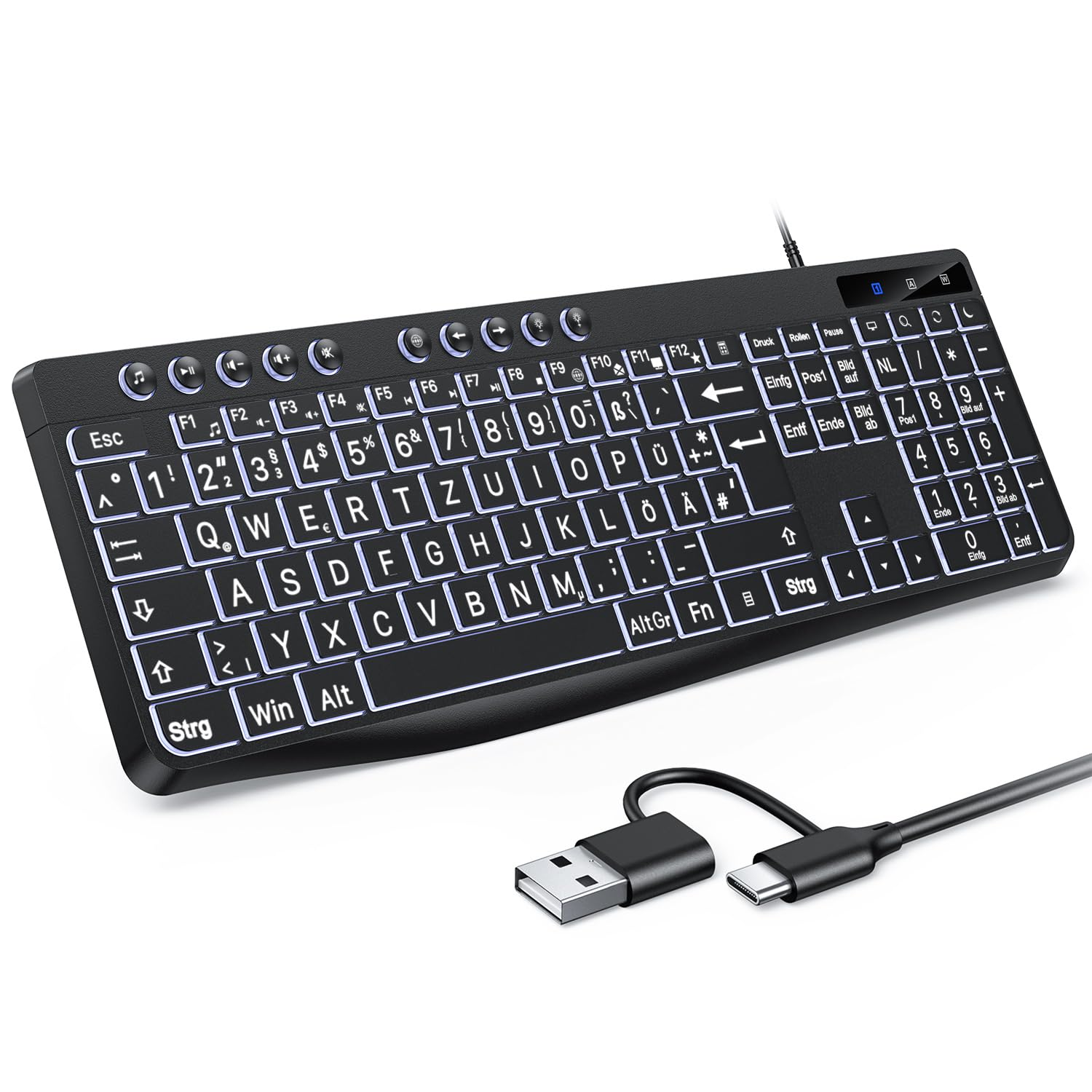
Image: Visual guide for backlight control functions.
- Fn + Print Screen (Druck): Toggles the backlight on or off.
- Fn + Scroll Lock (Rollen): Switches between constant illumination mode and 'breathing' mode.
- In Constant Illumination Mode:
- Fn + стрілка вгору: Збільшує яскравість підсвічування.
- Fn + стрілка вниз: Зменшує яскравість підсвічування.
- In 'Breathing' Mode:
- Fn + стрілка вліво: Adjusts breathing frequency (slower).
- Fn + стрілка вправо: Adjusts breathing frequency (faster).
Мультимедійні клавіші
The keyboard includes dedicated multimedia keys (F1-F12) that provide quick access to various functions when pressed in combination with the Fn ключ.

Image: The multimedia keys (F1-F12) offer convenient shortcuts for common tasks.
- Fn + F1-F12: Access functions such as volume control, media playback, email, web browser, and calculator. Refer to the icons on the F-keys for specific functions.
Технічне обслуговування
To ensure the longevity and optimal performance of your OMOTON Illuminated Keyboard, follow these maintenance guidelines:
- Прибирання: Regularly clean the keyboard with a soft, dry, lint-free cloth. For stubborn dirt, slightly dampПротріть тканину водою або м’яким миючим розчином. Уникайте агресивних хімікатів або абразивних матеріалів.
- Видалення пилу: Використовуйте стиснене повітря, щоб видалити пил та сміття між клавішами.
- Розливи рідини: У разі розлиття рідини негайно від’єднайте клавіатуру від комп’ютера. Переверніть її догори дном, щоб стекла рідина, і дайте їй повністю висохнути перед повторним підключенням.
- Зберігання: Зберігайте клавіатуру в прохолодному, сухому місці, подалі від прямих сонячних променів та екстремальних температур.
Усунення несправностей
If you encounter issues with your OMOTON Illuminated Keyboard, refer to the following common troubleshooting steps:
- Клавіатура не реагує:
- Переконайтеся, що USB-кабель надійно підключено як до клавіатури, так і до комп’ютера.
- Спробуйте підключити клавіатуру до іншого USB-порту на комп'ютері.
- Перезавантажте комп'ютер.
- Якщо ви використовуєте USB-хаб, спробуйте підключити клавіатуру безпосередньо до комп’ютера.
- Підсвічування не працює:
- Прес Fn + Print Screen to ensure the backlight is not turned off.
- Відрегулюйте яскравість за допомогою Fn + стрілка вгору/вниз ключі.
- Клавіші не працюють належним чином:
- Перевірте наявність будь-яких фізичних перешкод або сміття під клавішами.
- Ensure your operating system drivers are up to date (though typically plug-and-play for keyboards).
Технічні характеристики
| Бренд | ОМОТОН |
| Сумісні пристрої | PC |
| Технологія підключення | USB-A/C |
| Опис клавіатури | Мультимедіа |
| Рекомендоване використання продукту | Щоденне використання |
Гарантія та підтримка
OMOTON products are designed for reliability and performance. For specific warranty details regarding your Illuminated Keyboard, please refer to the warranty card included with your purchase or visit the official OMOTON webсайт.
If you require technical assistance or have questions not covered in this manual, please contact OMOTON customer support through their official channels. Contact information can typically be found on the product packaging or the brand's webсайт.


