Introduction to Your Meta Quest 3
This manual provides a clear, step-by-step guide to understanding and utilizing your Meta Quest 3 virtual reality headset. Designed for beginners and new users, it covers everything from initial setup to advanced features like mixed reality, gaming, and troubleshooting common issues. Our goal is to help you confidently explore the full potential of your VR experience without technical jargon.
The information presented here is derived from the Meta Quest 3 User Manual for Beginners book by Piper A. Rowen, offering practical advice for a seamless VR journey.
1. Initial Setup of Your Meta Quest 3
Getting started with your Meta Quest 3 is straightforward. Follow these steps to prepare your headset for its first use.
1.1 Charging and Powering On
- Зарядіть гарнітуру: Connect the provided charging cable to your Meta Quest 3 and a power source. Ensure it is fully charged before initial setup.
- Увімкнення: Press and hold the power button located on the side of the headset until the Meta logo appears.
1.2 Meta Account and Wi-Fi Connection
- Create/Log In to Meta Account: You will be prompted to set up or log in to your Meta account. This is essential for accessing apps and features.
- Підключіться до Wi-Fi: Follow the on-screen instructions to connect your headset to a stable Wi-Fi network. A strong connection is crucial for downloads and online experiences.
1.3 Adjusting for Comfort and Fit
- Регулювання ремінця на голову: Adjust the top and side straps to ensure the headset fits snugly but comfortably on your head.
- Регулювання IPD: Use the IPD (interpupillary distance) wheel to adjust the lens spacing until the image appears clear and comfortable for your eyes. This is important for visual clarity and reducing eye strain.
- Носіння окулярів: If you wear glasses, ensure they fit comfortably within the headset. The Quest 3 often includes a spacer for glasses users.
2. Operating Your Meta Quest 3
Once set up, familiarize yourself with the basic operations and navigation of your Meta Quest 3.
2.1 Navigating the Home Screen and Menus
- Контролери: Use the Meta Quest Touch Plus controllers to point, select, and interact with virtual objects. The trigger button is typically for selection, and the grip button for grabbing.
- Hand Tracking: The Quest 3 supports hand tracking, allowing you to navigate menus and interact with some applications using only your hands. Enable this feature in the settings.
- Швидкі налаштування: Access quick settings for Wi-Fi, volume, brightness, and other common adjustments by pressing the Meta button on your right controller to bring up the universal menu.
2.2 App Management and Gaming
- Встановлення програм: Browse the Meta Quest Store to find and install games, experiences, and applications.
- Організація програм: Your installed apps can be found in the App Library. You can organize them into folders for easier access.
2.3 Understanding Mixed Reality (MR)
The Meta Quest 3 features advanced mixed reality capabilities, allowing you to blend virtual content with your physical environment.
- Прохідний режим: Easily switch between full VR and a full-color passthrough view of your surroundings. This allows you to see your room while wearing the headset.
- MR Applications: Explore applications designed to integrate virtual objects into your real-world space, creating interactive mixed reality experiences.
3. Enhancing Your Meta Quest 3 Experience
Beyond basic usage, there are many ways to expand and enrich your Meta Quest 3 experience.
3.1 Entertainment and Productivity
- Movies & TV: Access streaming services and watch content in a virtual cinema environment.
- Fitness & Social Apps: Engage in VR fitness routines or connect with friends in social VR platforms.
3.2 Connecting to a PC for SteamVR
- Wired Connection (Link Cable): Use a compatible USB-C cable to connect your Quest 3 to a VR-ready PC and access PC VR games via Meta Quest Link.
- Wireless Connection (Air Link/Virtual Desktop): For a wireless PC VR experience, utilize Meta Quest Air Link or third-party software like Virtual Desktop.
3.3 Recommended Accessories
Consider these accessories for improved comfort and extended playtime:
- Elite Strap: An alternative head strap for enhanced comfort and weight distribution.
- Док-станція для зарядки: For convenient charging and storage of your headset and controllers.
- Лінзи за рецептом: Custom lenses that fit into the headset, eliminating the need to wear glasses.
4. Safety and Well-being
Prioritize your safety and comfort while using your Meta Quest 3.
4.1 Reducing Motion Sickness
- Почніть повільно: Begin with stationary or less intense VR experiences.
- Робіть перерви: Step out of VR if you feel discomfort.
- Ginger: Some users find ginger (e.g., ginger chews) helpful for motion sickness.
4.2 Protecting Your Eyes
- Правильна посадка: Ensure the headset is adjusted correctly to prevent light leakage and maintain optimal visual clarity.
- Час екрану: Робіть регулярні перерви, щоб відпочити очам.
4.3 Setting Up Safe Play Spaces (Guardian System)
- Define Your Boundary: Use the Guardian system to draw a safe play area in your physical space. This boundary will appear in VR if you get too close to its edge.
- Очистити перешкоди: Ensure your play space is free of furniture, pets, and other obstacles before starting a VR session.
5. Parental Controls and Privacy
Manage access and privacy settings for a secure experience.
- Батьківський контроль: Set up parental controls through the Meta Quest mobile app to manage app access, purchases, and screen time for younger users.
- Налаштування конфіденційності: Review and adjust your privacy settings within the headset and Meta account to control data sharing and social interactions.
- Кілька облікових записів: The Quest 3 supports multiple user accounts, allowing each user to have their own profile and app library.
6. Усунення поширених проблем
Here are solutions for frequently encountered problems with your Meta Quest 3.
| Випуск | Рішення |
|---|---|
| Нечіткий зір | Adjust the IPD (interpupillary distance) wheel and ensure the headset is positioned correctly on your face. Clean the lenses with a microfiber cloth. |
| Wi-Fi Drops | Ensure your Wi-Fi router is within range and has a strong signal. Restart your router and the Quest 3. Check for firmware updates. |
| Controller Tracking Problems | Check controller battery levels. Ensure your play space has adequate lighting. Restart the controllers by removing and reinserting batteries, or restart the headset. |
| Headset Not Turning On | Ensure the headset is fully charged. Try holding the power button for 30 seconds for a hard reset. |
7. Product Specifications (Manual Book)
The following specifications pertain to the physical instruction manual book, Meta Quest 3 User Manual for Beginners, and not the Meta Quest 3 device itself.
- Видавець: Незалежно опубліковано
- Дата публікації: 3 вересня 2025 р
- мова: англійська
- Довжина друку: 114 сторінки
- ISBN-13: 979-8263724030
- Вага товару: 5.7 унції
- Розміри: 6 x 0.26 x 9 дюймів
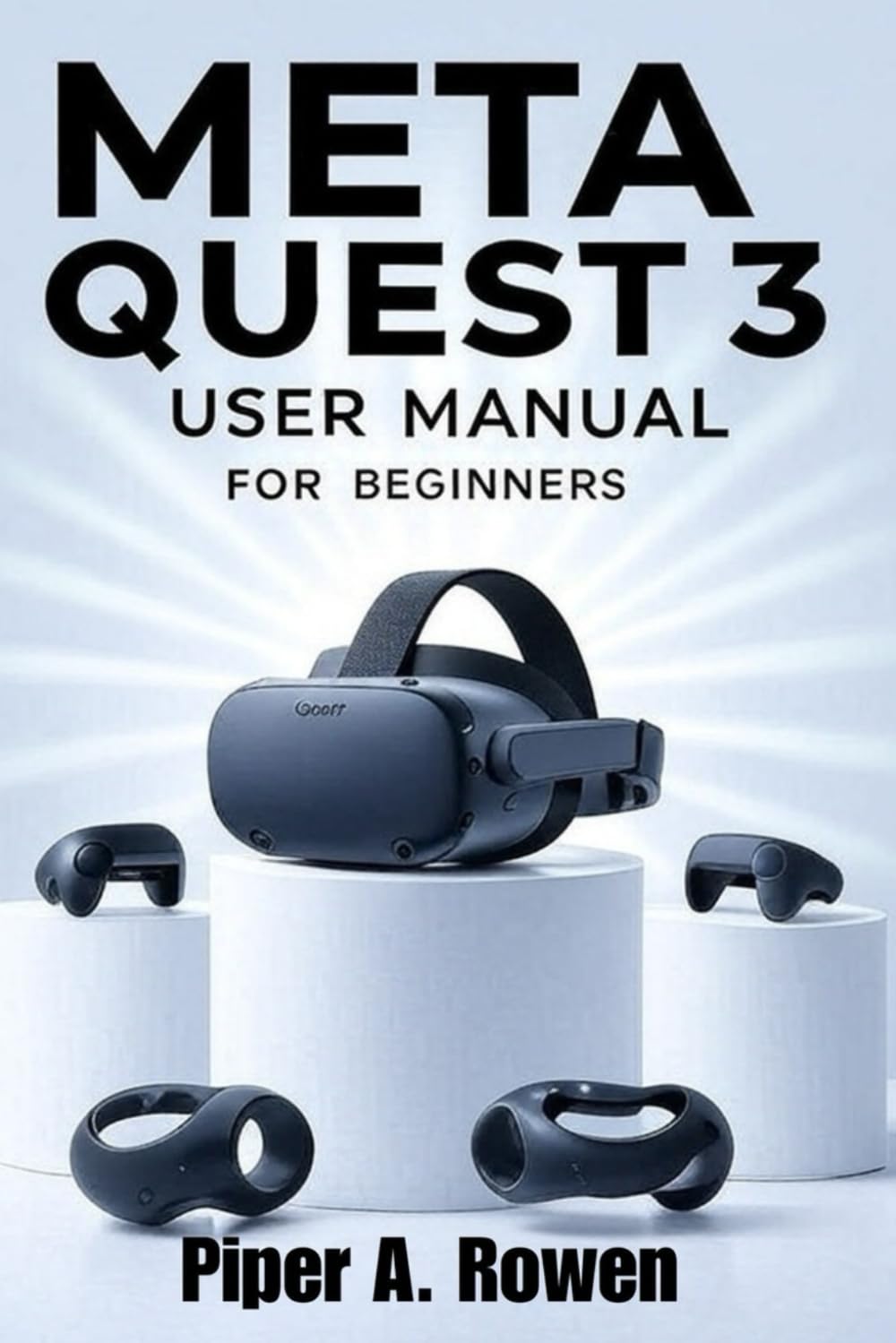
Image: Front cover of the Meta Quest 3 User Manual for Beginners book. The cover features the title prominently with a graphic related to virtual reality.

Image: Back cover of the Meta Quest 3 User Manual for Beginners book. It displays the ISBN barcode and publishing information.
8. Інформація про підтримку та гарантію
For official support regarding your Meta Quest 3 device, please refer to the manufacturer's official website and documentation. This manual is a guide to help you understand and use the device, but it does not replace official product support or warranty information.
- Official Meta Support: Відвідайте Meta Quest Support Center щоб дізнатися про поширені запитання, усунення несправностей та варіанти зв’язку.
- Гарантія на продукт: Information regarding the Meta Quest 3 device warranty can be found on Meta's official website or within the documentation included with your device purchase.


