вступ
Thank you for choosing the MEETION BTC1100 Wireless Keyboard and Mouse Combo. This product is designed to enhance your productivity and comfort across multiple devices. It features versatile connectivity options, an ergonomic design, and convenient multimedia controls. Please read this manual carefully to ensure proper setup and optimal use.
Вміст упаковки
- MEETION BTC1100 Wireless Keyboard
- MEETION Wireless Mouse
- Зарядний кабель від USB-C до USB-A
- USB-приймач 2.4G
- User Manual (Instruction Card)
Налаштування
1. Заряджання пристроїв
Both the keyboard and mouse are equipped with built-in rechargeable batteries. Use the provided USB-C cable to charge them. A full charge typically takes 2-3 hours.

Image: The keyboard and mouse connected to charging cables, illustrating the Type-C rechargeable feature.
2. Operating System Selection (Keyboard)
On the top right side of the keyboard, locate the switch to select your operating system: Windows (Win) or Mac (iOS). Slide the switch to the appropriate position for your device. This ensures correct key mapping for your system.
3. Підключення до пристроїв
The combo offers triple-device connectivity: one 2.4G USB connection and two Bluetooth connections (BT1, BT2).
3.1. 2.4G USB Receiver Connection
- Take the 2.4G USB receiver out of its storage compartment (located on the underside of the mouse or keyboard).
- Підключіть USB-приймач до вільного порту USB-A на вашому комп’ютері.
- On the keyboard, press the 2.4G connection button (often indicated by a Wi-Fi-like symbol). The corresponding indicator light will illuminate.
- On the mouse, press the Mode Switching Button (M) until the 2.4G indicator light illuminates.
- Your keyboard and mouse should now be connected via 2.4G.
3.2. З’єднання Bluetooth (BT1 / BT2)
- On the keyboard, press either the Bluetooth 1 (BT1) or Bluetooth 2 (BT2) button. The corresponding indicator light will turn blue and begin to blink, indicating pairing mode.
- On the mouse, press the Mode Switching Button (M) until the desired Bluetooth indicator (BT1 or BT2) lights up blue and starts blinking.
- На комп’ютері або пристрої перейдіть до налаштувань Bluetooth та знайдіть нові пристрої.
- Select the device named 'MEETION KB-BT1' (for keyboard) and 'MEETION MS-BT1' (for mouse) for Bluetooth 1, or 'MEETION KB-BT2' and 'MEETION MS-BT2' for Bluetooth 2.
- Once connected, the indicator lights on the keyboard and mouse will stop blinking and remain solid blue.

Image: The keyboard and mouse connected to a tablet, phone, and monitor, demonstrating multi-device connectivity.
4. Adjustable Tilt Legs (Keyboard)
For a more natural and relaxed typing experience, you can adjust the keyboard's angle using the tilt legs located on the underside. There are two levels of adjustment available.

Image: Close-up of the keyboard's underside showing the adjustable tilt legs in two different positions (4 and 7 degrees).
Інструкція з експлуатації
1. Функції клавіатури
- Ергономічний дизайн з підставкою для зап'ястя: The keyboard features a generous, textured palm rest designed to reduce wrist pressure and provide comfort during extended typing sessions.
- Integrated Tablet/Phone Holder: A 9.2-inch slot at the top of the keyboard securely holds most phones and tablets (up to 11 inches), allowing for easy viewing and a tidier workspace.
- Scissor Keys: The soft scissor-foot buttons provide a quiet and smooth typing experience, ideal for office environments.
- Multimedia and Shortcut Keys: The keyboard includes 6 dedicated multimedia keys, 12 shortcuts, and a numeric keypad for fast navigation and data entry.
- Перемикання між кількома пристроями: Easily switch between up to three connected devices (2.4G, Bluetooth 1, Bluetooth 2) using the dedicated buttons at the top of the keyboard.
- Dual OS Compatibility: Keys are dual-labeled for both Windows and Mac operating systems, ensuring full functionality regardless of your device.

Зображення: Над головою view of the full-size keyboard with its integrated wrist rest, highlighting its ergonomic design.

Image: Close-up of the keyboard's integrated 9.18-inch phone holder with a smartphone placed inside.
2. Функції миші
- Тихі клацання: The mouse is designed for quiet operation, reducing click noise by 95% for a less disruptive work environment.
- Регульований DPI: Cycle through 4 DPI levels (1200, 1600, 2400, 3200) using the DPI Speed Switch Button on the underside to match your preference for cursor sensitivity.
- Mode Switching Button (M): Use this button to switch between connected devices (2.4G, Bluetooth 1, Bluetooth 2).
- Desktop Return Key (Q): The magnifying glass button instantly returns you to your desktop on both Windows and Mac.
- Кнопки «Вперед/Назад»: Convenient side buttons for easy web навігація по сторінці.
- Зберігання USB-приймача: The 2.4G USB receiver can be stored securely in a compartment on the underside of the mouse when not in use.
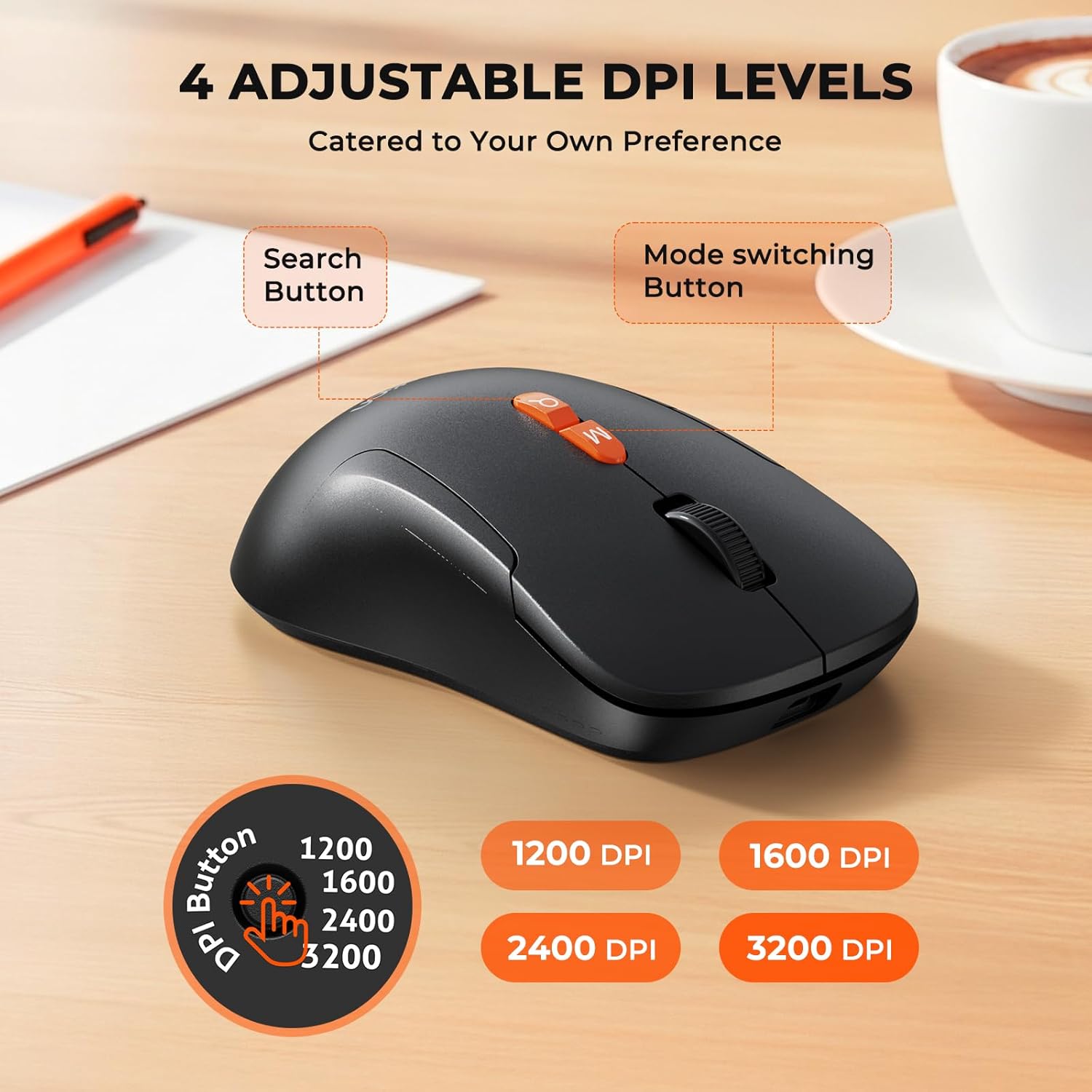
Image: The wireless mouse highlighting its 4 adjustable DPI levels (1200, 1600, 2400, 3200) and dedicated buttons.
3. Official Product Video: Keyboard and Mouse Overview
Відео: Посадовець надview of the MEETION C1100 Wireless Keyboard and Mouse, demonstrating its features including the phone holder and multi-device connectivity.
Технічне обслуговування
- Keep the keyboard and mouse clean by wiping them with a soft, dry cloth.
- Avoid exposing the devices to extreme temperatures, direct sunlight, or liquids.
- Store the USB receiver in its designated compartment when not in use to prevent loss.
Усунення несправностей
Проблеми з підключенням
- Немає з'єднання: Ensure the keyboard/mouse is switched to the correct operating system (Windows/Mac) and connection mode (2.4G, BT1, or BT2).
- Помилка сполучення Bluetooth: Make sure the device is in pairing mode (blinking blue light). Remove previous pairings from your device's Bluetooth settings and try pairing again.
- 2.4G Receiver Not Detected: Ensure the USB receiver is fully plugged into a working USB port. Try a different USB port if necessary.
Проблеми з продуктивністю
- Затримка або не реагує: Check battery levels and recharge if low. Ensure the device is within range of your computer. For 2.4G connection, try moving the receiver closer to the devices.
- Стрибки/неточність курсора миші: Adjust the DPI settings on the mouse to find a comfortable sensitivity. Ensure the mouse sensor is clean.
Проблеми з акумулятором
- Низький заряд батареї: Recharge the devices using the provided USB-C cable. The indicator light will show charging status.
- Пристрій не вмикається: Ensure the power switch is in the 'On' position and the battery is charged.
Технічні характеристики
| Особливість | опис |
|---|---|
| Бренд | ЗУСТРІЧ |
| Модель | BTC1100 |
| Технологія підключення | Bluetooth, 2.4G USB |
| Особливості | Ergonomic, Full-Size, Phone Holder, Rechargeable, Wrist Rest |
| Сумісні пристрої | Ноутбук, персональний комп'ютер, смартфон |
| Колір | чорний |
| Вага товару | 2.98 фунта |
| Розміри упаковки | 17.28 x 9.21 x 2.56 дюймів |
| Акумулятори | 1 9V batteries required. (included) - Note: Product is rechargeable via USB-C, internal batteries are included. |
| Виробник | MEETION Inc |
Гарантія та підтримка
For warranty information and technical support, please contact MEETION Inc directly. Refer to the product packaging or the official MEETION webсайт, щоб отримати найактуальнішу контактну інформацію та гарантійні умови.


