1. Вступ
The Rongta F81S Tattoo Stencil Printer is a portable, wireless thermal printer designed for creating high-definition tattoo stencils. It offers compatibility with Android, iOS, Windows, and macOS devices, providing a versatile solution for tattoo artists and beginners. This manual provides detailed instructions for setup, operation, and maintenance to ensure optimal performance.
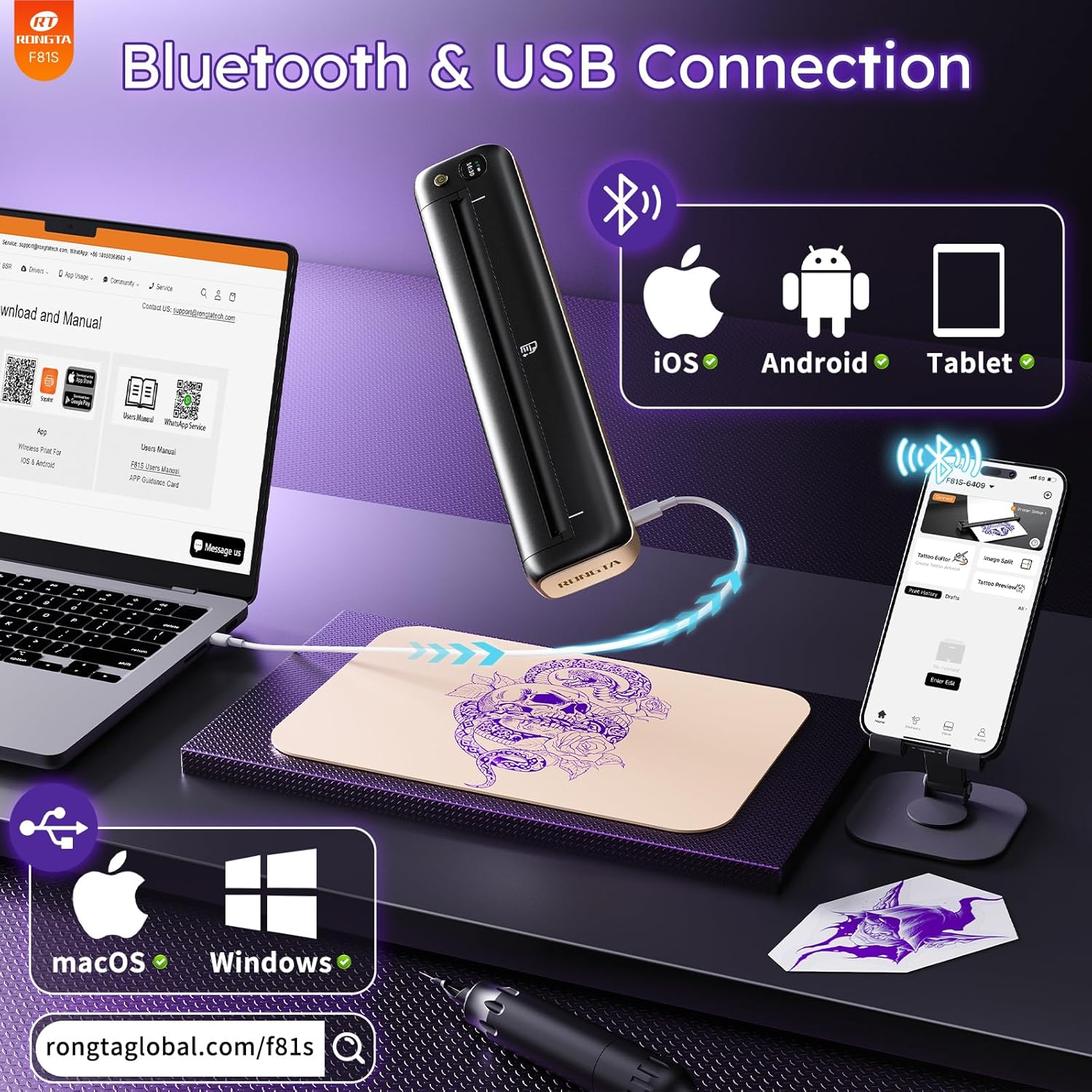
Image: The Rongta F81S Tattoo Stencil Printer, a compact and portable device.
2. Інформація про безпеку
- Use only the original USB cable for charging.
- Переконайтеся, що принтер розміщено на стійкій, рівній поверхні під час роботи.
- Do not expose the printer to extreme temperatures, direct sunlight, or moisture.
- Зберігати в недоступному для дітей місці.
- Only use tattoo transfer paper with this device; thermal paper is not supported.
- If the print head overheats, the app will pause printing. Allow the device to cool down for at least ten minutes before resuming.
3. Вміст упаковки
Перевірте наявність усіх предметів у вашій упаковці:
- Rongta F81S Tattoo Stencil Printer
- Зарядний кабель USB Type-C
- 5pcs Tattoo Transfer Papers
- Посібник користувача
- Сумка для зберігання

Image: Contents of the Rongta F81S Tattoo Stencil Printer package, including the printer, transfer paper, and cables.
4. Продукт закінчивсяview
Familiarize yourself with the main components of your Rongta F81S printer:
- Кнопка живлення: Вмикає/вимикає принтер.
- РК-панель: Displays status indicators (e.g., battery, Bluetooth connection).
- Paper Input Slot: Where tattoo transfer paper is inserted.
- Вихід паперу: Where printed stencils exit.
- Flip Cover: Protects the print head and paper path.
- Порт зарядки Type-C: Для підключення USB-кабелю для зарядки.
- Отвір для скидання: Для скидання до заводських налаштувань, якщо потрібно.
- Друкувальна головка: The thermal component responsible for printing.
Відео: Оверview of the F81S tattoo printer's components and app download process.
5. Налаштування
5.1. Заряджання принтера
- Connect the provided USB Type-C cable to the printer's charging port.
- Підключіть інший кінець кабелю до відповідного USB-адаптера живлення (не входить до комплекту) або USB-порту комп’ютера.
- The LCD panel will indicate charging status. Ensure the printer is fully charged before first use.
Video: Demonstrates how to charge the F81S tattoo printer using the Type-C charging port.
5.2. Loading Tattoo Transfer Paper
- Separate the tattoo transfer paper: remove the protective sheet and tear off the yellow backing sheet, leaving the white tracing sheet and blue carbon sheet.
- Insert the transfer paper into the paper input slot with the white paper facing up. The printer will automatically feed the paper into position.

Image: Step-by-step guide on how to prepare and load tattoo transfer paper into the printer.
5.3. App Download and Bluetooth Connection (iOS/Android)
- Download the "SoPrint" app from the Google Play Store (for Android) or the Apple App Store (for iOS).
- Переконайтеся, що Bluetooth увімкнено на вашому мобільному пристрої.
- Open the SoPrint app and follow the on-screen instructions to connect to your F81S printer via Bluetooth. The printer's name will typically appear as "F81S-XXXX".

Image: Instructions for downloading the SoPrint app and connecting the printer via Bluetooth to a mobile device.
5.4. USB Connection and Driver Installation (Windows/macOS)
For PC (Windows) and Mac (macOS) devices, a wired USB connection is required. Bluetooth is not supported for PC connections.
- Connect the F81S printer to your computer using the provided USB cable.
- Download and install the appropriate drivers for your operating system (Windows or macOS) from the official Rongta webсайт: Ронгtaglobal.com/f81s.
- Дотримуйтеся вказівок на екрані, щоб завершити встановлення драйвера.

Image: Steps for connecting the F81S printer to a PC or laptop via USB and installing necessary drivers.
Video: Demonstrates the USB connection process for macOS devices.
Video: Demonstrates the USB connection process for Windows devices.
6. Експлуатація принтера
6.1. Printing with the SoPrint App
- Open the SoPrint app and ensure your printer is connected via Bluetooth.
- Select "Tattoo Editor" or "Image Split" to import or create your tattoo design.
- Use the app's editing functions to zoom, rotate, adjust size, orientation, and layout of your design. The "Tattoo Preview" function allows you to see the actual effect before printing.
- Once satisfied with the design, tap the print icon. Adjust print density and number of copies if necessary.
- Tap "Print Immediately" to start printing your stencil.

Image: A user operating the Rongta F81S printer to create a tattoo stencil.
Video: A comprehensive guide on how to use the F81S Tattoo Printer with the mobile app.
6.2. Transferring Stencil to Skin
- Clean the skin area thoroughly with a wipe or alcohol.
- Apply a small, even amount of tattoo transfer gel to the cleaned skin area.
- Carefully place the printed tattoo stencil (white tracing sheet) onto the prepared skin.
- Press gently for 5-10 seconds, then slowly peel off the white tracing paper. The stencil should now be transferred to the skin.

Image: Visual steps for preparing the skin and transferring the tattoo stencil.
7. Технічне обслуговування
- Regularly clean the exterior of the printer with a soft, dry cloth.
- Keep the paper input and output slots free from dust and debris.
- Avoid touching the print head directly to prevent damage.
- Зберігайте принтер у прохолодному сухому місці, коли він не використовується.
8. Вирішення проблем
- Принтер не підключається: Ensure Bluetooth is on (for mobile) or USB drivers are installed (for PC/Mac). Restart the printer and your device.
- Погана якість друку: Ensure you are using Rongta tattoo paper. Clean the print head if necessary. For best results, print monochrome and simple tattoo designs.
- Зминання паперу: Gently pull out any jammed paper from the input or output slots. Ensure paper is loaded correctly.
- Printer overheating: If the app indicates overheating, pause printing and allow the printer to cool down for at least 10 minutes.
9. Технічні характеристики
| Особливість | Деталь |
|---|---|
| Назва моделі | F81S |
| Бренд | Ронгта |
| Технологія друку | Теплові |
| Технологія підключення | Bluetooth, USB |
| Максимальна роздільна здатність чорно-білого друку | 203 dpi |
| Максимальний розмір носія | 216 мм |
| Максимальна ємність вхідного аркуша | 210 sheets (on a full charge) |
| Розміри продукту | 10.43 дюйми Г x 1.06 дюймів Ш x 2.17 дюймів В (приблизно 10.55 x 1.18 x 2.28 дюймів) |
| Вага товару | 15.9 унції (приблизно 450 грамів) |
| Акумулятори | Internal rechargeable battery (1 AAA batteries required listed in specs is likely an error) |
| Особливість | Портативний |
| Колір | чорний |
10. Гарантія та підтримка
For warranty information, technical support, or service inquiries, please contact Rongta customer support. Refer to the contact details provided on the official Rongta webсайті або в упаковці вашого продукту.
Офіційна підтримка Webсайт: Ронгtaglobal.com
Електронна пошта: support@rongtatech.com
WhatsApp: +86 18150388963


