вступ
This manual provides essential information for setting up, operating, maintaining, and troubleshooting your Microsoft Surface Pro 7+ Tablet PC. Please read this guide thoroughly to ensure optimal performance and longevity of your device.
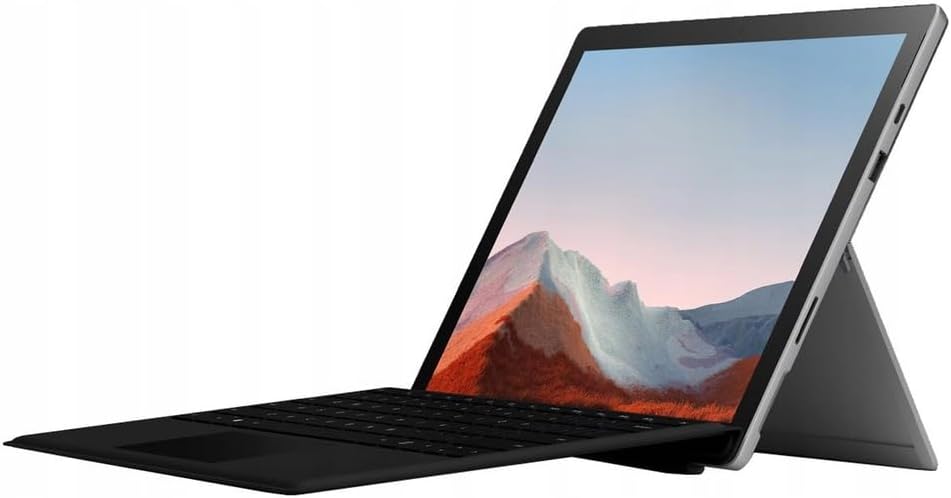
Image: The Microsoft Surface Pro 7+ in tablet mode with an attached keyboard, showcasinйого універсальний дизайн.
The Microsoft Surface Pro 7+ is a versatile 2-in-1 device, functioning as both a powerful tablet and a laptop. It features a 12.3-inch PixelSense touchscreen display with a resolution of 2736 x 1824 pixels, powered by an Intel Core i7-1165G7 processor. This model comes with 16GB RAM and a 512GB Solid State Drive, running on Windows 11 Pro.
Налаштування
1. Розпакування та первинна перевірка
Обережно вийміть усі компоненти з упаковки. Перевірте наявність наступних елементів:
- Microsoft Surface Pro 7+ Tablet PC
- Адаптер/кабель живлення
Перш ніж продовжити, перевірте пристрій на наявність видимих пошкоджень.

Image: The Microsoft Surface Pro 7+ tablet shown alongside its detachable keyboard, illustrating the two main components.
2. Підключення до живлення
Connect the power adapter to the Surface Connect port on your device and then plug the adapter into a wall outlet. The battery indicator will illuminate to show that the device is charging.
3. Початкове завантаження та налаштування Windows
Press the power button located on the top edge of the device to turn it on. Follow the on-screen prompts to complete the Windows 11 Pro setup, including language selection, network connection, and user account creation.
4. Attaching the Type Cover (Keyboard)
Align the magnetic connector of the Surface Type Cover with the bottom edge of the Surface Pro 7+. The magnets will snap the keyboard into place. You can adjust the angle of the keyboard for comfortable typing.

Image: The Microsoft Surface Pro 7+ with its keyboard attached, set up on a wooden surface, demonstrating its portability and usability in various environments.
Операційна
1. Основна навігація
- Сенсорний екран: Use gestures for navigation, zooming, and scrolling.
- Type Cover: Utilize the keyboard for typing and the integrated trackpad for cursor control.
- Surface Pen (Optional): If you have a Surface Pen, it can be used for writing, drawing, and precise interaction with the screen.
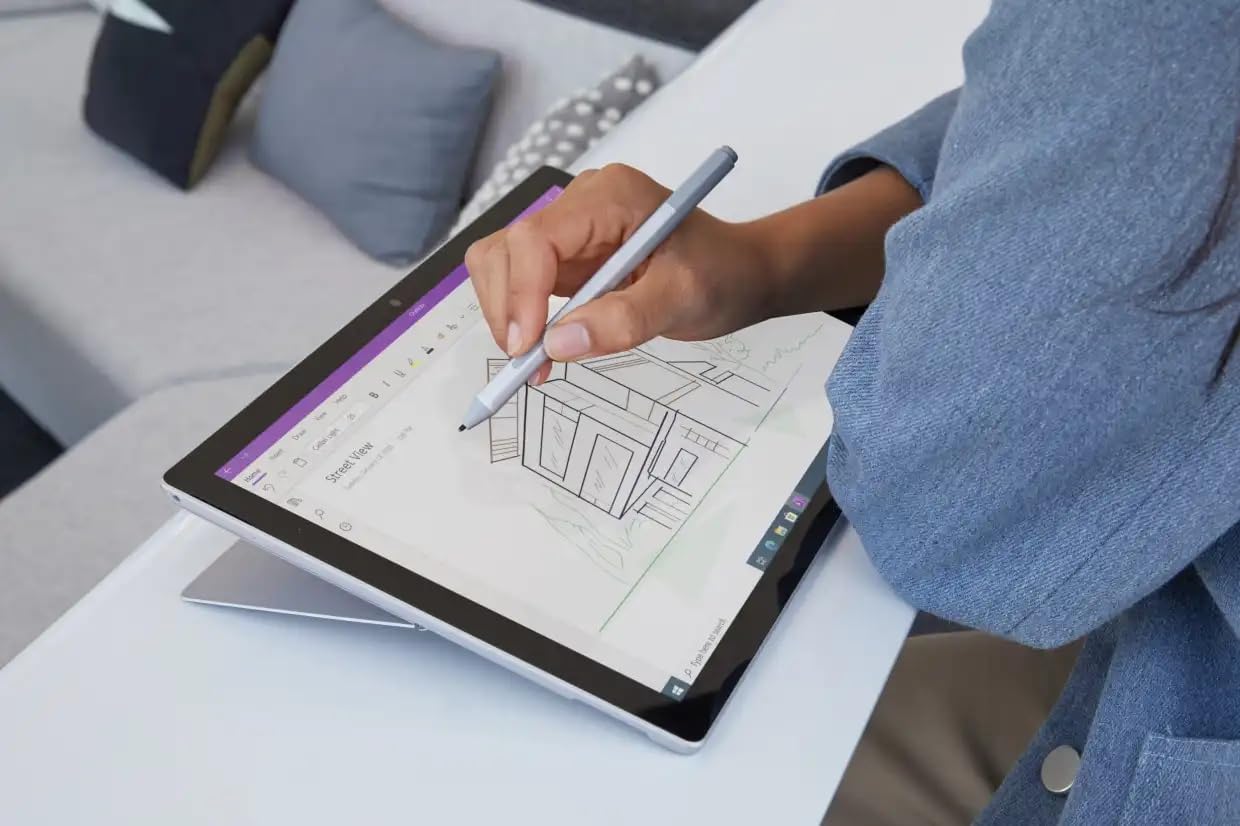
Image: A user interacting with the Microsoft Surface Pro 7+ using a Surface Pen, highlighting its capabilities for creative and precise tasks.
2. Порти та підключення
Your Surface Pro 7+ includes various ports for connecting peripherals:
- Порт USB-C: For data transfer, video output, and charging compatible devices.
- Порт USB-A: For connecting standard USB devices like flash drives or mice.
- 3.5-мм роз'єм для навушників: Для виведення звуку на навушники або зовнішні динаміки.
- Порт Surface Connect: For power and connecting Surface Dock accessories.
- Micro SDXC Card Reader: Для розширення сховища або перенесення fileз карт пам’яті.

Зображення: Побічний професіоналfile view of the Microsoft Surface Pro 7+, clearly showing the various input/output ports available for connectivity.
Бездротове підключення: The device supports Wi-Fi 6 (802.11ax) for high-speed internet access and Bluetooth 5.0 for connecting wireless accessories.
3. Windows 11 Pro Features
Leverage the advanced features of Windows 11 Pro, including enhanced security, powerful management tools, and improved productivity with features like Snap Layouts and virtual desktops. Regular updates will ensure your system remains secure and up-to-date.
Технічне обслуговування
1. Очищення пристрою
- екран: Злегка протріть м’якою тканиною без ворсу dampводою або засобом для чищення екранів. Уникайте агресивних хімікатів.
- Тіло: Протріть зовні м’якою сухою тканиною.
- Порти: Тримайте порти чистими від пилу та сміття. За потреби використовуйте стиснене повітря, але робіть це обережно.
2. Оновлення програмного забезпечення
Ensure your Surface Pro 7+ is always up-to-date by regularly checking for Windows updates. Go to Налаштування > Оновлення Windows to check for and install available updates. This helps maintain security and performance.
3. Догляд за акумулятором
Щоб максимально збільшити термін служби батареї:
- Уникайте екстремальних температур.
- Не розряджайте акумулятор постійно до 0% або не тримайте його на 100% протягом тривалого часу.
- Use the provided official power adapter.
Усунення несправностей
Поширені проблеми та рішення
- Пристрій не вмикається:
Ensure the device is charged. Connect the power adapter and wait a few minutes before attempting to power on again. If unresponsive, perform a force restart by holding the power button for 30 seconds.
- Проблеми з відображенням:
If the screen is blank or flickering, try restarting the device. Check display settings in Windows. Ensure drivers are updated.
- Проблеми з підключенням Wi-Fi/Bluetooth:
Toggle Wi-Fi/Bluetooth off and on. Restart your router. Check device drivers in Device Manager.
- Повільна продуктивність:
Закрийте непотрібні програми. Перевірте фонові процеси. Переконайтеся, що достатньо вільного місця на диску. Виконайте очищення диска.
For more detailed troubleshooting, refer to the official Microsoft Surface support webсайт.
Технічні характеристики
| Особливість | Деталь |
|---|---|
| Бренд | Microsoft |
| Модель | Surface Pro 7+ |
| ЦП | Intel Core i7-1165G7 Processor (3.4GHz up to 4.6GHz) |
| Пам'ять (RAM) | 16 ГБ |
| Зберігання | Твердотільний накопичувач (SSD) на 512 ГБ |
| Графіка | Графіка Intel Iris Plus |
| Операційна система | Windows 11 Pro 64-бітна версія |
| Дисплей | 12.3-inch Full HD (2736 x 1824) 2K PixelSense Touchscreen |
| Wi-Fi | 802.11ax (Wi-Fi 6) |
| Bluetooth | BT5.0 |
| Порти | 1 x USB-C, 1 x USB-A, 1 x Surface Connect port, 1 x 3.5 mm headphone jack, 1 x Micro SDXC card reader |
| Розміри | 20.1 x 29.2 x 0.85 см (7.9 x 11.5 x 0.33 дюйма) |
| вага | 0.77 кг (1.7 фунта) |
Гарантія та підтримка
This Microsoft Surface Pro 7+ comes with a 90-day warranty. For warranty claims or technical support, please contact the vendor or refer to the official Microsoft support resources.
For additional assistance, visit the official Microsoft Surface support webсайт: support.microsoft.com/surface


