вступ
This manual provides essential information for setting up, operating, and maintaining your AKASO 360 Action Camera. The AKASO 360 captures immersive 360° video in 5.7K clarity and 72MP 360 photos, featuring advanced stabilization, AI tracking, and a weatherproof design.
Що в коробці
- AKASO 360 Camera
- Невидима паличка для селфі
- Акумулятор (x3)
- Зарядний футляр
- Кабель USB-C
Ключові характеристики
- 5.7K 360° відео: Captures fully immersive 360° video in 5.7K clarity, ensuring you never miss the action.
- 360° SuperSmooth Video: Advanced in-app stabilization algorithms smooth out shakes and jitters for silky smooth footage.
- 360° Horizon Steady: Зберігає вашу їжуtage level at all times, regardless of camera orientation.
- Ефект невидимої селфі-палиці: Creates third-person shots by automatically disappearing the selfie stick from your footage.
- Dual 1/2" 48MP Sensors: Equipped with two massive 1/2" 48MP sensors for sharper, clearer images.
- 72MP 360° Photos: Captures high-resolution 360-degree photos with exceptional clarity.
- AI Subject Tracking: Intelligently detects your subject and keeps it centered in every frame.
- Shoot First, Frame Later: Allows you to record all angles and choose the best perspectives during editing.
- DNG8 RAW Photos: Enhances image quality in low light, providing greater dynamic range and editing flexibility.
- AKASO 360 Studio: Dedicated software for editing 360° videos and photos.
Налаштування
1. Зарядка батареї
Insert the included batteries into the charging case. Connect the USB-C cable to the charging case and a power source. The indicator lights on the charging case will show the charging status. Ensure batteries are fully charged before first use.
2. Вставлення карти MicroSD
Locate the microSD card slot on the camera. Insert a compatible microSD card (up to 512GB, U3 rated for 4K video) into the slot until it clicks into place. Ensure the camera is powered off before inserting or removing the card.

Image: AKASO 360 camera showing the microSD card slot and battery compartment.
Керування камерою
1. Увімкнення/вимкнення живлення
Press and hold the Power button (located on the side) to turn the camera on or off. The touchscreen will illuminate upon power-on.
2. Навігація за допомогою сенсорного екрана
The 2.29-inch touchscreen allows for intuitive control. Swipe left or right to switch between different shooting modes (Video, Time-lapse, Loop Recording, Photo). Tap on icons to adjust settings such as resolution, frame rate, and exposure.
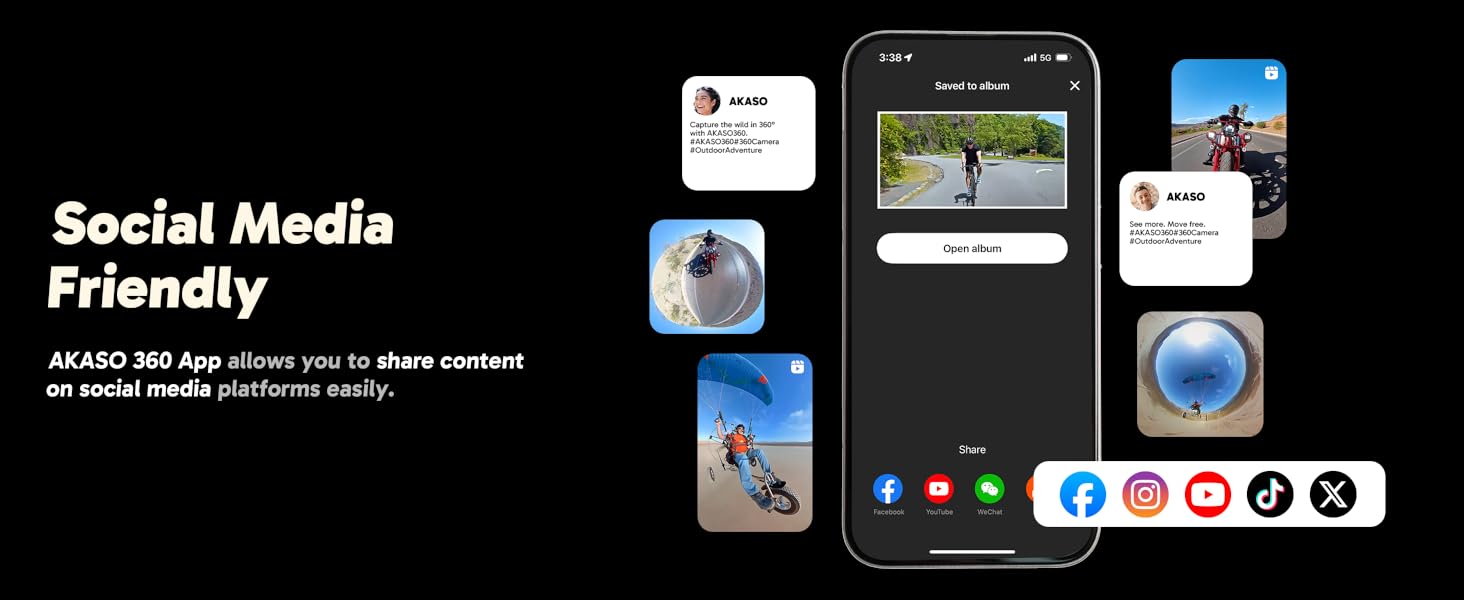
Image: The AKASO 360 camera's touchscreen interface, showing various settings and modes.
3. Recording Video and Taking Photos
In your desired mode, press the Shutter button (usually a prominent button on the front or top) to start or stop recording video, or to take a photo. The camera will indicate recording status.
4. Switching Lenses (Action Camera Mode)
The camera can operate using a single lens for traditional action camera footage. Use the touchscreen controls to select either the front or rear lens for recording. This eliminates the need for 360-degree editing if a standard perspective is desired.
Using the AKASO 360 Studio App and Desktop Software
The AKASO 360 Studio is available as a mobile app and desktop software for comprehensive editing of your 360-degree footage.
1. Connecting and Transferring Files
Connect your AKASO 360 camera to your smartphone via Wi-Fi using the AKASO 360 app. Follow the in-app instructions to browse and download your recorded videos and photos. For desktop editing, connect the camera via USB-C or insert the microSD card directly into your computer.
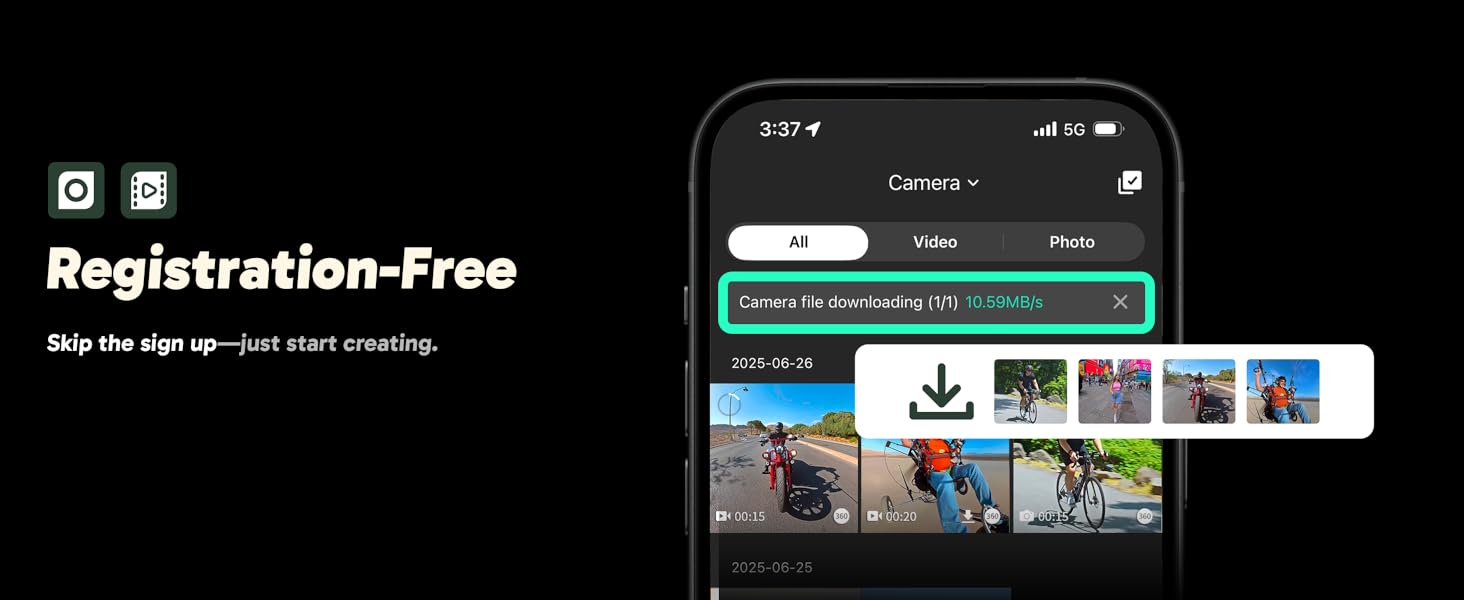
Image: The AKASO 360 mobile application displaying file download status, indicating ease of content transfer.
2. Reframing and AI Tracking
The "Shoot First, Frame Later" feature allows you to record all angles and then choose your desired perspective in the app. Utilize AI Subject Tracking by drawing a box around your subject; the AI will automatically keep it centered. This simplifies complex tracking shots.
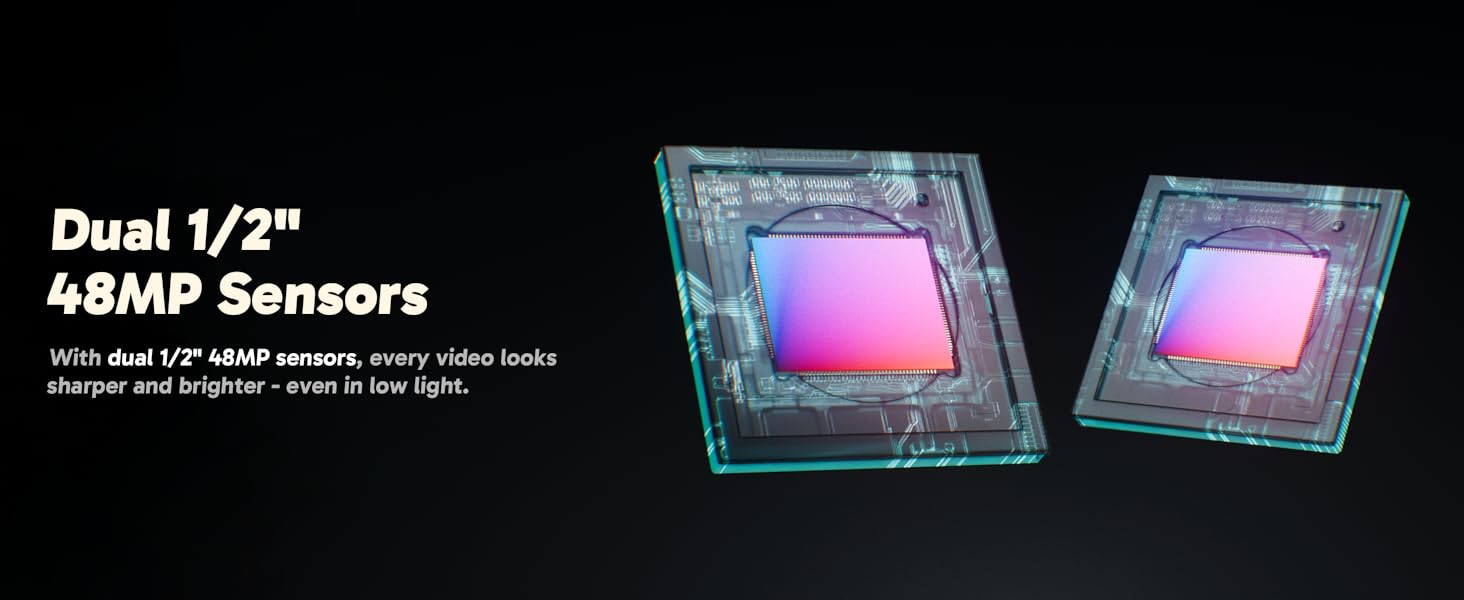
Image: The AKASO 360 app demonstrating AI tracking, where a subject is highlighted and automatically kept in frame.
3. Editing Features
The Studio app and software offer various editing tools, including color correction, filters, speed adjustments, and creative templates (e.g., Asteroid, Dolly Zoom, Motion Delay). You can also export your reframed content directly to social media platforms.

Image: The AKASO 360 app showcasing different creative templates like Asteroid, Dolly Zoom, and Motion Delay for video editing.
Stabilization and Image Quality
The AKASO 360 is equipped with advanced features to ensure high-quality and stable footage.
- Роздільна здатність відео 5.7K: Records detailed 360-degree videos.
- Роздільна здатність фото 72 МП: Captures high-resolution 360-degree still images.
- SuperSmooth Stabilization: Minimizes shakes and jitters for fluid video.
- Horizon Steady: Keeps the horizon level, even during dynamic movements.
- DNG8 RAW: Provides enhanced detail and dynamic range for photos, especially in challenging lighting.
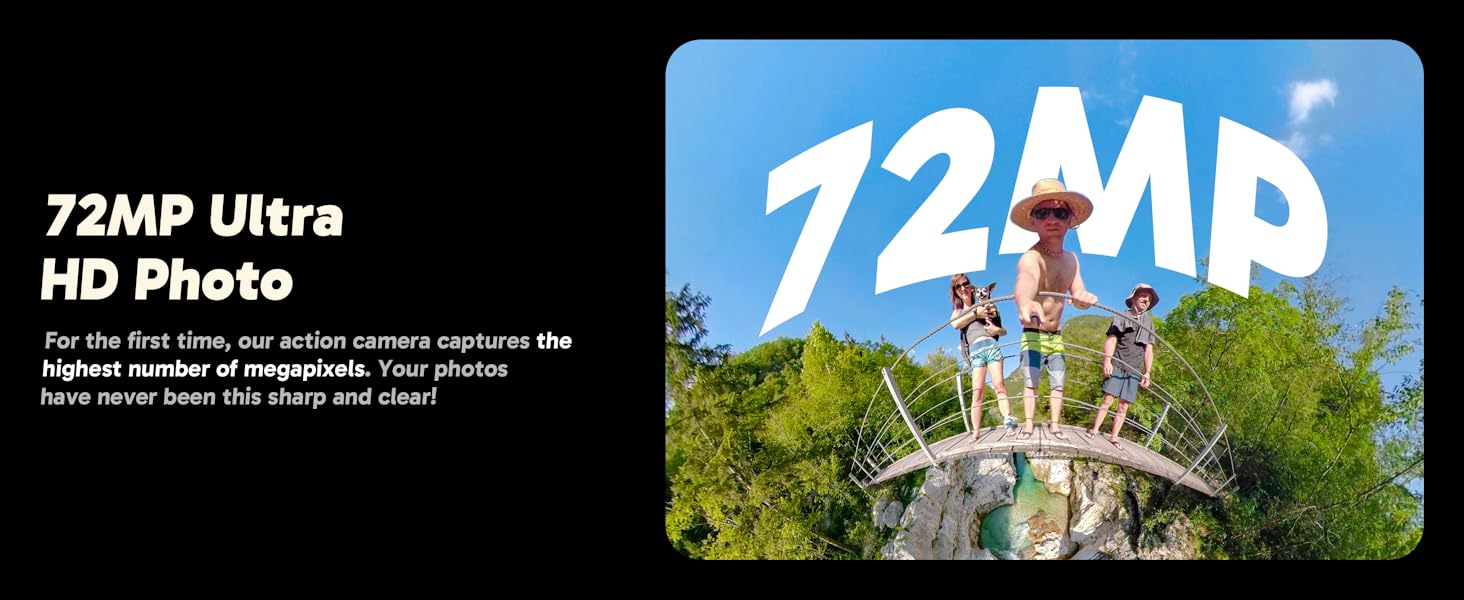
Image: A visual comparison demonstrating the effectiveness of the AKASO 360's SuperSmooth stabilization, showing a clear image versus a blurred one.
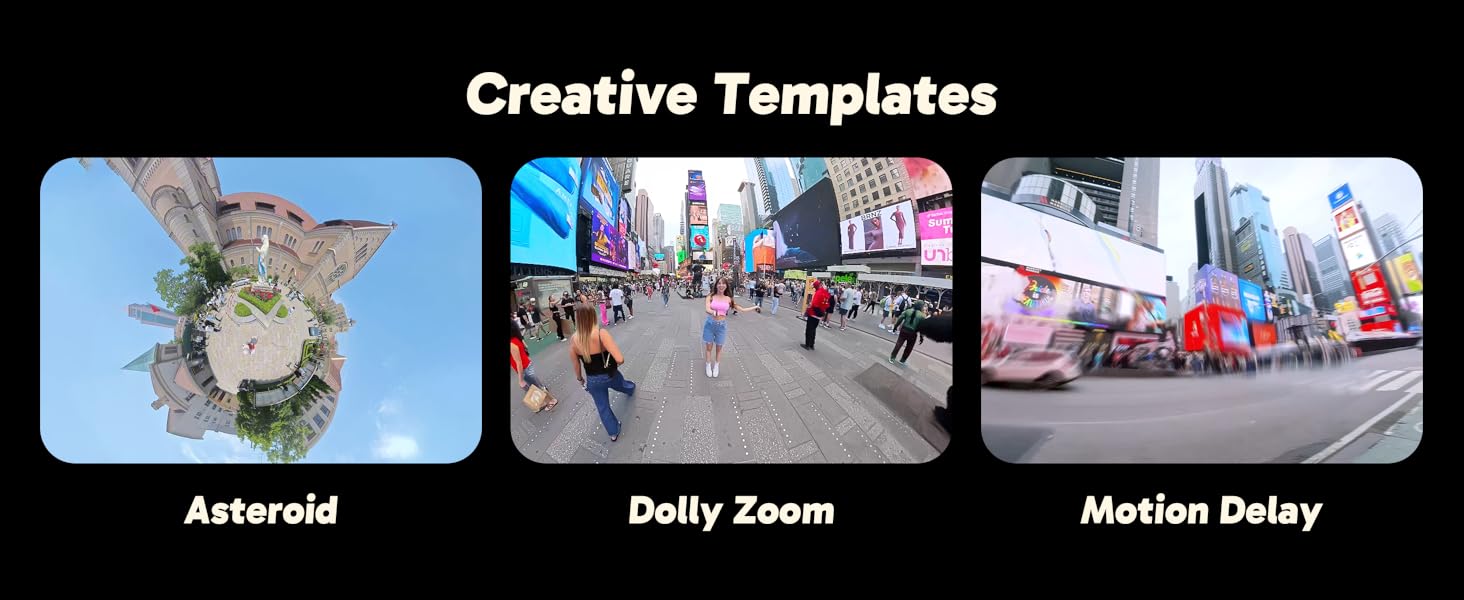
Image: A side-by-side comparison illustrating the improved detail and dynamic range of DNG8 Multi-Frame RAW photos compared to standard photos.
Аксесуари
The AKASO 360 Creator Combo includes an Invisible Selfie Stick, which is designed to be automatically removed from 360-degree footage. This allows for unique third-person and "drone-like" shots without a visible pole.
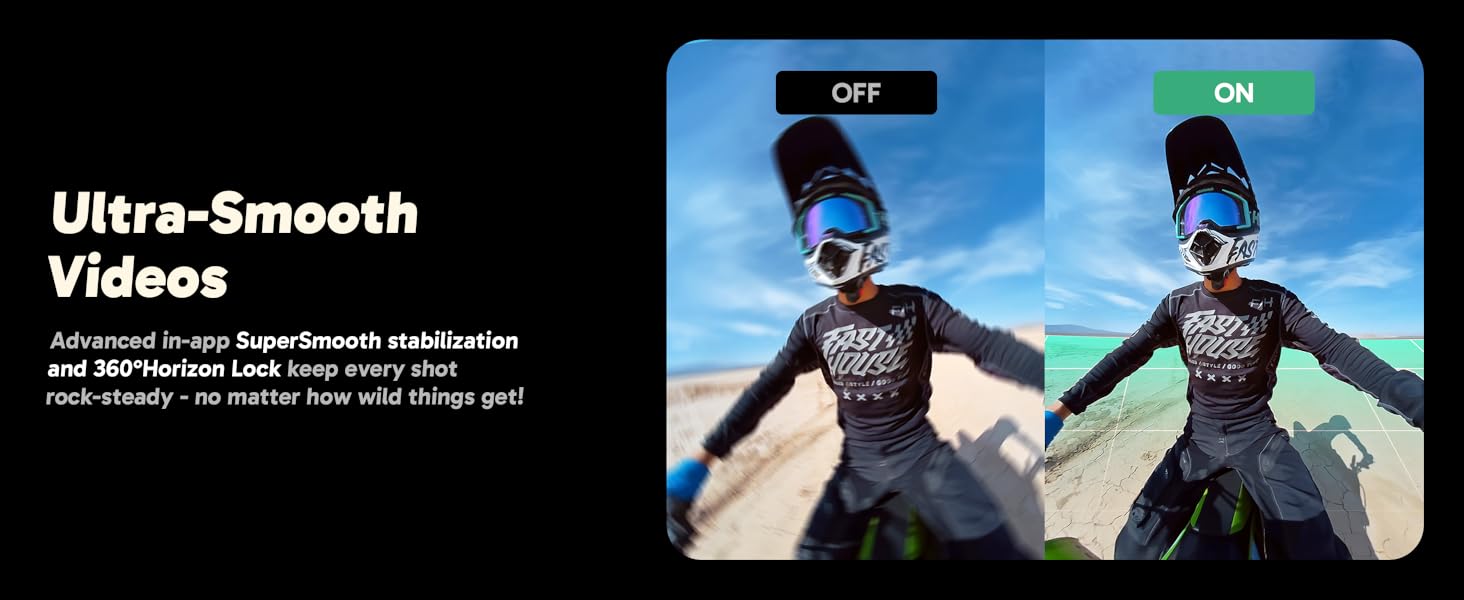
Image: A demonstration of the Invisible Selfie Stick effect, showing a family on a beach with the selfie stick seamlessly removed from the 360-degree footage.
The camera also features a standard 1/4-inch screw mount on its base, allowing compatibility with a wide range of third-party tripods, mounts, and other accessories for various shooting scenarios.
Технічне обслуговування
- Прибирання: Use a soft, lint-free cloth to clean the camera lenses and touchscreen. Avoid abrasive materials or harsh chemicals.
- Зберігання: Store the camera in a cool, dry place away from direct sunlight and extreme temperatures. Use the provided protective sock to prevent scratches on the lenses.
- Водонепроникність: The AKASO 360 is weatherproof against rain and snow. For underwater use, a separate waterproof case is required.
Усунення несправностей
- Камера не вмикається: Ensure the battery is fully charged. Try a different battery if available.
- Помилки картки MicroSD: Use a high-speed (U3 rated) microSD card from a reputable brand. Format the card within the camera's settings.
- Проблеми з підключенням програми: Ensure Wi-Fi is enabled on both the camera and your smartphone. Restart both devices and try reconnecting.
- Перегрів: Continuous high-resolution recording, especially in warm environments, can cause the camera to heat up. Allow it to cool down if this occurs.
Технічні характеристики
| Номер моделі товару | AKASO 360 |
| Бренд | АКАСО |
| Роздільна здатність захоплення відео | 5.7 тис |
| Технологія фотосенсора | CMOS |
| Максимальна діафрагма | 2.25 ф |
| Розмір екрана | 2.29 дюймів |
| Технологія підключення | Wi-Fi |
| Вага товару | 1.17 фунта |
| Акумулятори | Потрібні 3 нестандартні батарейки (в комплекті) |
Гарантія та підтримка
For warranty information and customer support, please visit the official AKASO website or contact their customer service directly. Ensure you register your product for potential warranty benefits.
Additional protection plans may be available for purchase separately. Refer to your purchase documentation for details.
Офіційні відео про продукти
AKASO 360 Action Camera Creator Combo Overview
Відео: Посадовець надview of the AKASO 360 Action Camera Creator Combo, highlighting its key features and capabilities. This video demonstrates the camera's design, various shooting modes, and the quality of its 360-degree footage.