1. Вступ
Чорнийview Tab20WIFI is a 10.1-inch Android 15 tablet designed for versatile use, from entertainment to productivity. It features a vibrant HD+ IPS display, a powerful quad-core processor, and ample storage with expansion capabilities. This manual provides essential information for setting up, operating, maintaining, and troubleshooting your device.

Чорнийview Tab20WIFI tablet offers a 10.1-inch display, WiFi 5 connectivity, Android 15, 12GB RAM + 64GB storage, a 6600mAh battery, and Widevine L1 support.
2. Налаштування
2.1 Вміст упаковки
Перед початком роботи переконайтеся, що всі елементи присутні в упаковці:
- чорнийview Tab20WIFI Tablet
- Кабель USB типу C
- Адаптер живлення 10 Вт
- Захисна плівка для екрана (попередньо нанесена або в комплекті)
- Захисний футляр
- Посібник користувача
2.2 Початкове заряджання
It is recommended to fully charge the tablet before first use. Connect the provided Type-C USB cable to the tablet's charging port and the 10W power adapter to a wall outlet. The charging indicator will show the battery status.
2.3 Увімкнення/вимкнення живлення
- Щоб увімкнути: Press and hold the Power Button located on the side of the tablet until the Blackview logo appears on the screen.
- Щоб вимкнути: Press and hold the Power Button until the power options menu appears. Select "Power Off" and confirm.
- Щоб перезапустити: Press and hold the Power Button until the power options menu appears. Select "Restart" and confirm.
2.4 Початкова конфігурація
Upon first power-on, follow the on-screen prompts to set up your tablet:
- Виберіть потрібну мову.
- Підключіться до мережі Wi-Fi.
- Увійдіть за допомогою свого облікового запису Google або створіть новий.
- Review та прийміть умови та положення.
- Налаштуйте блокування екрана (PIN-код, графічний ключ, пароль або розблокування обличчям).
2.5 Розширення сховища
The tablet supports up to 1TB TF (microSD) card expansion. To insert a TF card:
- Locate the Micro SD slot on the side of the tablet.
- Обережно вставте TF-карту в слот, доки вона не зафіксується на місці.
- The tablet will detect the new storage. You may be prompted to format it for use as portable or internal storage.

The tablet features 12GB RAM (4GB physical + 8GB virtual) and 64GB internal storage, expandable up to 1TB with a TF card (not included).
3. Керування планшетом
3.1 Display and Touch Interaction
The tablet features a 10.1-inch HD+ IPS display with an 800x1280 resolution and 149 PPI, offering clear visuals. It supports 10-point multi-touch and a 120Hz sampшвидкість затримки для реагування на реакцію.
3.2 Навігація та інтерфейс
Your tablet runs on Android 15. Navigate using gestures or on-screen buttons:
- Головний екран: Проведіть пальцем ліворуч або праворуч, щоб отримати доступ до різних головних екранів.
- Ящик програм: Проведіть вгору від нижньої частини екрана до view всі встановлені програми.
- Сповіщення та швидкі налаштування: Swipe down from the top of the screen to access notifications and quick settings toggles (Wi-Fi, Bluetooth, brightness, etc.).
3.3 Підключення
The tablet supports 5G Wi-Fi and Bluetooth 5.0 for wireless connections.
- Wi-Fi: Перейти до Налаштування > Мережа та інтернет > Wi-Fi для підключення до доступних мереж.
- Bluetooth: Перейти до Налаштування > Підключені пристрої > Bluetooth to pair with Bluetooth devices like headphones, keyboards, or mice.

Bluetooth 5.0 allows connection to various external devices such as keyboards, mice, styluses, USB drives, headsets, and speakers.
3.4 Камери
The tablet is equipped with an 8MP rear camera and a 5MP front camera. Open the Camera app to capture photos and videos.
- Торкніться кнопки затвора, щоб зробити фото.
- Перемикайтеся між передньою та задньою камерами за допомогою значка камери.
- Ознайомтеся з різними режимами, такими як відео, портрет або панорама, якщо вони доступні.
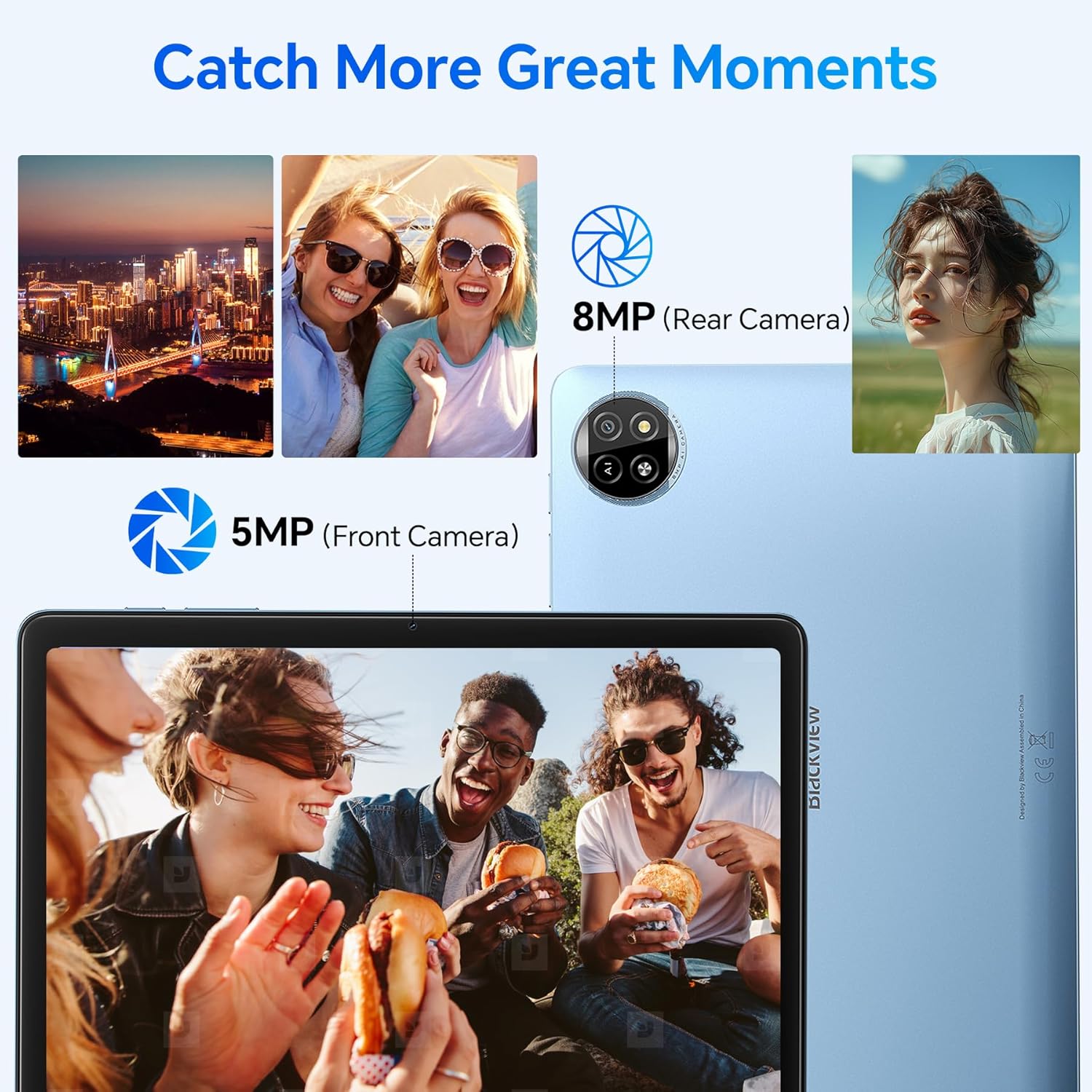
The tablet features an 8MP rear camera and a 5MP front camera for capturing moments.
3.5 Розблокування обличчям
Set up Face Unlock for convenient and secure access to your tablet.
- Перейти до Налаштування > Безпека та конфіденційність > Розблокування пристрою > Розблокування обличчям.
- Дотримуйтеся вказівок на екрані, щоб зареєструвати своє обличчя.
- Once set up, simply look at the front camera to unlock your device.
3.6 Apps and Features
- Встановлення програм: Завантажте та встановіть програми з магазину Google Play.
- Функція розділеного екрана: To use two apps simultaneously, open one app, then swipe up from the bottom of the screen and hold to access recent apps. Drag one app to the top or side of the screen, then select another app for the remaining space.

The split-screen function allows you to boost productivity by using two applications simultaneously.
- Casting Screen: Share your tablet's screen to a compatible smart TV or display. Go to Settings > Connected devices > Connection preferences > Cast and select your desired device.

Utilize the casting screen feature to display your tablet's content on a larger screen.
- Підтримка Widevine L1: Enjoy high-quality streaming from platforms like Netflix, YouTube, HBO, and Prime Video due to Widevine L1 certification.

Widevine L1 support ensures high-quality streaming experiences for various media platforms.
- Doke AI: The tablet integrates Doke AI, powered by advanced AI models, to provide intelligent services such as smart assistance, content generation, and image processing.

Doke AI offers intelligent services through applications like Hi Doki, Soundle, VidGen, and ImageX.
4. Технічне обслуговування
4.1 Догляд за акумулятором
The tablet is equipped with a 6600mAh Lithium Polymer battery. To maximize battery life:
- Уникайте екстремальних температур.
- Не допускайте регулярної повної розрядки акумулятора.
- Для оптимального заряджання використовуйте зарядний пристрій та кабель, що додаються.
- Закрийте невикористовувані програми, що працюють у фоновому режимі.
- Налаштуйте яскравість екрана до комфортного рівня.

The 6600mAh battery provides approximately 7 hours of web browsing, 6 hours of video playback, 6 hours of gaming, 22 hours of audio playback, and 6 days of standby time.
4.2 Очищення
Щоб очистити планшет:
- Використовуйте м’яку тканину без ворсу.
- Для стійких плям злегкаampпротріть тканину водою або засобом для чищення екранів, призначеним для електроніки.
- Уникайте агресивних хімікатів, абразивних матеріалів або надмірної вологості.
4.3 Оновлення програмного забезпечення
Регулярно перевіряйте наявність оновлень програмного забезпечення та встановлюйте їх, щоб забезпечити оптимальну продуктивність, безпеку та доступ до нових функцій. Перейдіть до Налаштування > Система > Оновлення системи.
5. Вирішення проблем
Here are solutions for common issues you might encounter:
| Випуск | Можливе рішення |
|---|---|
| Планшет не вмикається | Переконайтеся, що акумулятор заряджений. Підключіть зарядний пристрій і зачекайте кілька хвилин, перш ніж спробувати знову ввімкнути пристрій. Якщо пристрій не реагує, натисніть і утримуйте кнопку живлення протягом 10-15 секунд, щоб примусово перезавантажити пристрій. |
| Проблеми з підключенням Wi-Fi | Check if Wi-Fi is enabled in Quick Settings or Settings. Restart your Wi-Fi router. Forget the network and reconnect. Ensure you are within range of the Wi-Fi signal. |
| Повільна продуктивність або збої програм | Close unused background apps. Clear cache for problematic apps (Settings > Apps > [App Name] > Storage & cache > Clear cache). Restart the tablet. Ensure sufficient storage space is available. |
| Екран не реагує | Перезавантажте планшет. Переконайтеся, що екран чистий і на ньому немає сміття. Якщо проблема не зникає, може знадобитися скидання до заводських налаштувань (спочатку створіть резервну копію даних). |
| Акумулятор швидко розряджається | Reduce screen brightness. Disable Wi-Fi/Bluetooth when not in use. Close power-intensive apps. Check battery usage in Settings to identify draining apps. |
If these solutions do not resolve your issue, please refer to the Warranty & Support section for further assistance.
6. Технічні характеристики
Детальні технічні характеристики для Blackview Tab20WIFI tablet:
| Особливість | Деталь |
|---|---|
| Назва моделі | Tab20WIFI |
| Номер моделі товару | T310 |
| Операційна система | Android 15 |
| Розмір екрана | 10.16 дюймів |
| Максимальна роздільна здатність екрана | 800x1280 пікселів |
| ОЗУ | 4GB (expandable with 8GB virtual RAM) |
| Розмір флеш-пам'яті (ROM) | 64 ГБ |
| Розширюване сховище | До 1 ТБ через TF-карту |
| Бездротовий тип | 802.11ax (5G Wi-Fi), Bluetooth 5.0 |
| Тип батареї | Полімер літію 6600mAh |
| Середній термін служби батареї | 8 hours (average use) |
| Вага товару | 2.57 фунта |
| Розміри продукту | 12 x 6 x 0.5 дюймів |
| Колір | Сірий |

Фізичний закінчивсяview Чорногоview Tab20WIFI, detailing component locations.
7. Гарантія та підтримка
7.1 Чорнийview Two-Year Warranty Support
чорнийview products undergo strict quality control from design to production. The Blackview Tab20WIFI tablet comes with a 24-month free repair warranty and lifetime technician support.

чорнийview provides a two-year warranty and lifetime technical support for its products.
7.2 Звернення до служби підтримки
For technical assistance, warranty claims, or any product-related inquiries, please contact Blackview customer support through their official channels. Refer to the packaging or the official Blackview webсайт для контактної інформації.


