вступ
The GAMDIAS Aura GC10m V2 WH is a micro-tower computer case designed for Micro-ATX and Mini-ITX motherboards. It features a dual-chamber design, panoramic tempered glass panels, and comes equipped with three Addressable RGB (ARGB) fans to enhance system aesthetics and cooling. This manual provides essential information for the proper installation, operation, and maintenance of your computer case.
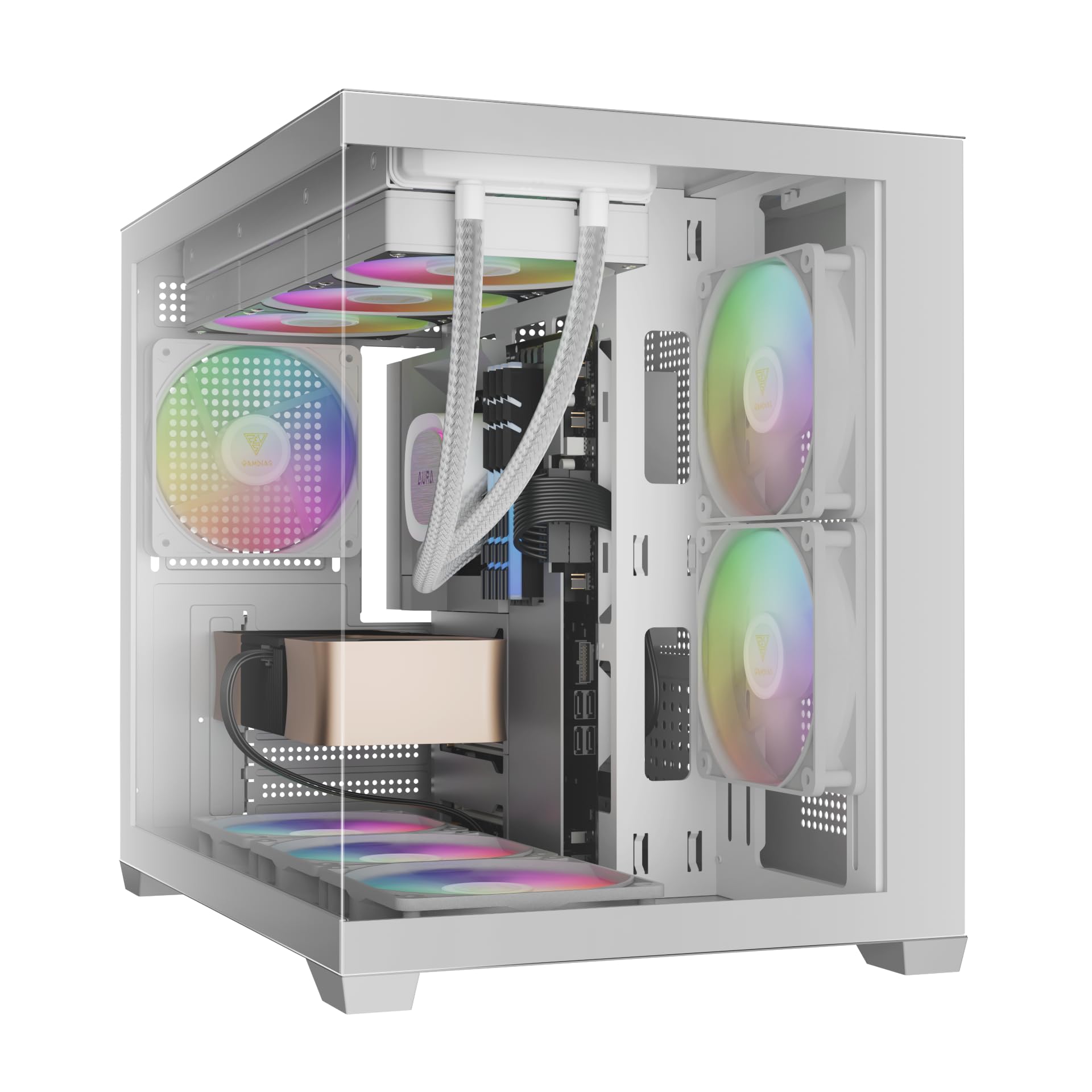
Зображення: спереду view of the GAMDIAS Aura GC10m V2 WH Micro-Tower Computer Case, showcasing its tempered glass panels and pre-installed ARGB fans.
Налаштування та встановлення
Перш ніж розпочати встановлення, переконайтеся, що у вас є всі необхідні компоненти та інструменти. Зверніться до посібників користувача вашої материнської плати та компонентів для отримання конкретних інструкцій з встановлення.
1. Підготовка справи
Carefully remove the tempered glass side and front panels. These are typically secured with thumbscrews or a latch mechanism. Place them on a soft, flat surface to prevent scratches.

Зображення: Кутове view of the case with the tempered glass side panel removed, showing the internal structure and fan mounts.
2. Встановлення материнської плати
- Встановіть панель вводу/виводу (якщо вона не попередньо прикріплена до материнської плати) у задній отвір корпусу.
- Вирівняйте материнську плату Micro-ATX або Mini-ITX з виступами всередині корпусу.
- Закріпіть материнську плату за допомогою наданих гвинтів.

Зображення: Внутрішнє view of the case, highlighting the motherboard tray area and fan mounting points.
3. Встановлення блоку живлення (БЖ)
- Install your PSU into its designated compartment, typically at the rear bottom of the case.
- Закріпіть блок живлення гвинтами ззаду корпусу.
- Ensure the PSU fan faces the correct direction for optimal airflow (usually downwards if there's a vent, or upwards if not).

Image: Rear internal view of the case, showing the PSU mounting area and cable routing options.
4. Встановлення диска
- 3.5" / 2.5" Drive Bay (HDD Cage): Locate the HDD cage. Install one 3.5" HDD or one 2.5" SSD/HDD.
- Відсіки для 2.5-дюймових накопичувачів: The case supports three additional 2.5" SSDs/HDDs. Mount these drives to the designated brackets or locations within the case.
5. Встановлення вентилятора та радіатора
The case comes with three pre-installed ARGB fans (two side, one rear). Additional fans or radiators can be installed in the following locations:
- Вгорі: Supports 3 x 120mm or 2 x 140mm fans; 360mm or 280mm radiators.
- Сторона: Supports 2 x 120mm or 2 x 140mm fans; 240mm radiators. (Pre-installed 2 x 120mm ARGB fans)
- Внизу: Підтримує 3 x 120 мм або 2 x 140 мм вентилятори.
- задній: Supports 1 x 120mm or 1 x 140mm fan; 120mm radiators. (Pre-installed 1 x 120mm ARGB fan)

Зображення: Внутрішнє view showing the pre-installed ARGB fans on the side and rear, illustrating fan placement.
6. Connecting Front I/O Ports and ARGB
Connect the following cables from the case to your motherboard:
- USB 2.0: Connect the USB 2.0 header cable.
- Тип C: Connect the USB Type-C header cable (if your motherboard supports it).
- HD-аудіо: Connect the HD Audio header cable.
- Power/Reset/LEDs: Connect the front panel power, reset, HDD LED, and power LED cables according to your motherboard manual.
- ARGB Fans: Connect the ARGB fan cables to your motherboard's 5V ARGB header or to the integrated ARGB controller (if applicable). The case includes an LED Switch Button for controlling ARGB lighting if connected to the case's internal controller.

Зображення: Верх view of the case, showing the front I/O panel with USB ports and the LED switch button.
Операція
Увімкнення
Once all components are installed and connected, close the side panels. Connect your monitor, keyboard, mouse, and power cable. Press the power button on the front panel of the case to start your system.
Керування освітленням ARGB
Попередньо встановленими ARGB-вентиляторами можна керувати двома способами:
- Світлодіодна кнопка перемикання: If the ARGB fans are connected to the case's internal controller, press the dedicated LED Switch Button on the front I/O panel to cycle through various lighting effects and colors.
- Програмне забезпечення материнської плати: If the ARGB fans are connected directly to a compatible 5V ARGB header on your motherboard, you can control the lighting effects using your motherboard's proprietary RGB software (e.g., ASUS Aura Sync, MSI Mystic Light, Gigabyte RGB Fusion, ASRock Polychrome Sync).
Технічне обслуговування
Регулярне технічне обслуговування допомагає забезпечити оптимальну продуктивність та довговічність компонентів вашого комп'ютера.
- Пилові фільтри: The case features removable dust filters (e.g., on the top and bottom). Periodically remove and clean these filters with compressed air or water (ensure they are completely dry before reinstallation).
- Очищення корпусу: Використовуйте м'який, damp cloth to clean the exterior surfaces of the case. For tempered glass panels, use a glass cleaner and a microfiber cloth. Avoid abrasive cleaners.
- Внутрішнє видалення пилу: Every few months, open the case and use compressed air to remove dust from internal components, especially fan blades and heatsinks.
Усунення несправностей
Якщо у вас виникли проблеми, розгляньте такі поширені рішення:
- Система не вмикається:
- Переконайтеся, що блок живлення увімкнено та правильно підключено до розетки.
- Verify all power cables (24-pin ATX, CPU, GPU, drives) are securely connected.
- Перевірте, чи кабель кнопки живлення на передній панелі правильно підключений до материнської плати.
- ARGB Fans Not Lighting Up/Spinning:
- Confirm ARGB cables are securely connected to a 5V ARGB header on the motherboard or the case's controller.
- Ensure fan power cables are connected to appropriate fan headers on the motherboard or PSU.
- If using motherboard software, verify it is installed and configured correctly.
- Не працюють передні порти вводу/виводу:
- Check that the USB and HD Audio cables from the front panel are correctly connected to their respective headers on the motherboard.
For persistent issues, consult your motherboard manual or contact GAMDIAS support.
Технічні характеристики
| Модель | AURA GC10 V2 WH |
| Тип корпусу | Мікро-вежа |
| Підтримка материнської плати | Micro-ATX, Mini-ITX |
| Розміри (ДxШxВ) | 42 х 29 х 37 см |
| вага | 5 кг |
| Привідні відсіки | 1 x 3.5 дюйма або 1 x 2.5 дюйма (корзина для жорсткого диска), 3 x 2.5 дюйма |
| Порти введення/виведення | 1 x Type-C, 1 x USB 2.0, 1 x HD Audio, 1 x LED Switch Button |
| Попередньо встановлені вентилятори | 2 x 120 мм ARGB (збоку), 1 x 120 мм ARGB (ззаду) |
| Підтримка фанів |
|
| Опора радіатора |
|
| Обмеження висоти кулера ЦП | 165 мм |
| Обмеження довжини VGA | 400 мм |
| Обмеження довжини блоку живлення | 160 мм |
Інформація про гарантію
Детальні умови гарантії дивіться на офіційному сайті GAMDIAS. webсайт або гарантійний талон, що додається до вашого продукту. Зберігайте підтвердження покупки для гарантійних претензій.
Підтримка клієнтів
If you require further assistance or have questions regarding your GAMDIAS Aura GC10m V2 WH computer case, please contact GAMDIAS customer support.
- Виробник: GAMDIAS TAIWAN
- Адреса: No. 113, Jian 2nd Rd., Zhonghe, Dist., New Taipei City 235, Taiwan
- Імпортер (Індія): Allway Distributions Pvt Ltd, No-49, H.B. Samajha Road, Baswangudi , Bengaluru- 560004
- Контактна особа імпортера (Індія): 8904307700
- Офіційний Webсайт: www.gamdias.com (Будь ласка, перевірте офіційну website for the most up-to-date support contact information and resources.)


