1. Вступ
Thank you for choosing the Tiqvi 10-inch Digital Photo Frame. This device allows you to easily display and share your cherished memories with family and friends. Featuring a vibrant IPS display, Wi-Fi connectivity, and integration with the Frameo app, this digital photo frame offers a convenient way to enjoy your photos and videos. This manual provides detailed instructions for setup, operation, maintenance, and troubleshooting to ensure you get the most out of your new device.

Image 1.1: Tiqvi 10-inch Digital Photo Frame with Frameo App.
This image shows the Tiqvi 10-inch Digital Photo Frame displaying a family photo on its screen. Next to it, a smartphone screen illustrates the Frameo application interface, demonstrating how photos can be managed and shared with the frame.
2. Що в коробці
Будь ласка, перевірте вміст упаковки після розпакування, щоб переконатися в наявності всіх елементів:
- Tiqvi 10-inch Digital Photo Frame
- Адаптер живлення
- стенд
- Посібник користувача (цей документ)

Зображення 2.1: Комплектація.
This image displays the items included in the product package: the Tiqvi 10-inch Digital Photo Frame, its power adapter, and a stand. Dimensions of the frame (26cm width, 18cm height) are also indicated.
3. Продукт закінчивсяview
The Tiqvi Digital Photo Frame is designed for ease of use and vibrant display of your memories.
Ключові характеристики:
- 10-дюймовий IPS дисплей: Offers vivid colors and sharp details for photos and videos.
- З'єднання Wi-Fi: Enables easy sharing of photos and videos via the Frameo app.
- Frameo App Compatibility: Share memories with up to 500 users.
- 32 ГБ вбудованої пам'яті: Stores thousands of photos and videos, expandable with a microSD card.
- Інтерфейс сенсорного екрану: Intuitive navigation and easy operation.
- Автоматичне обертання: Adjusts photo orientation for perfect display in portrait or landscape mode.
- Варіанти монтажу: Includes a stand and supports wall mounting.
- Енергоефективний: Розроблено для низького енергоспоживання.

Image 3.1: Frame in a home setting.
This image shows the Tiqvi Digital Photo Frame placed on a white desk in a minimalist room, displaying a family photo. It highlights the frame's aesthetic integration into a home environment.
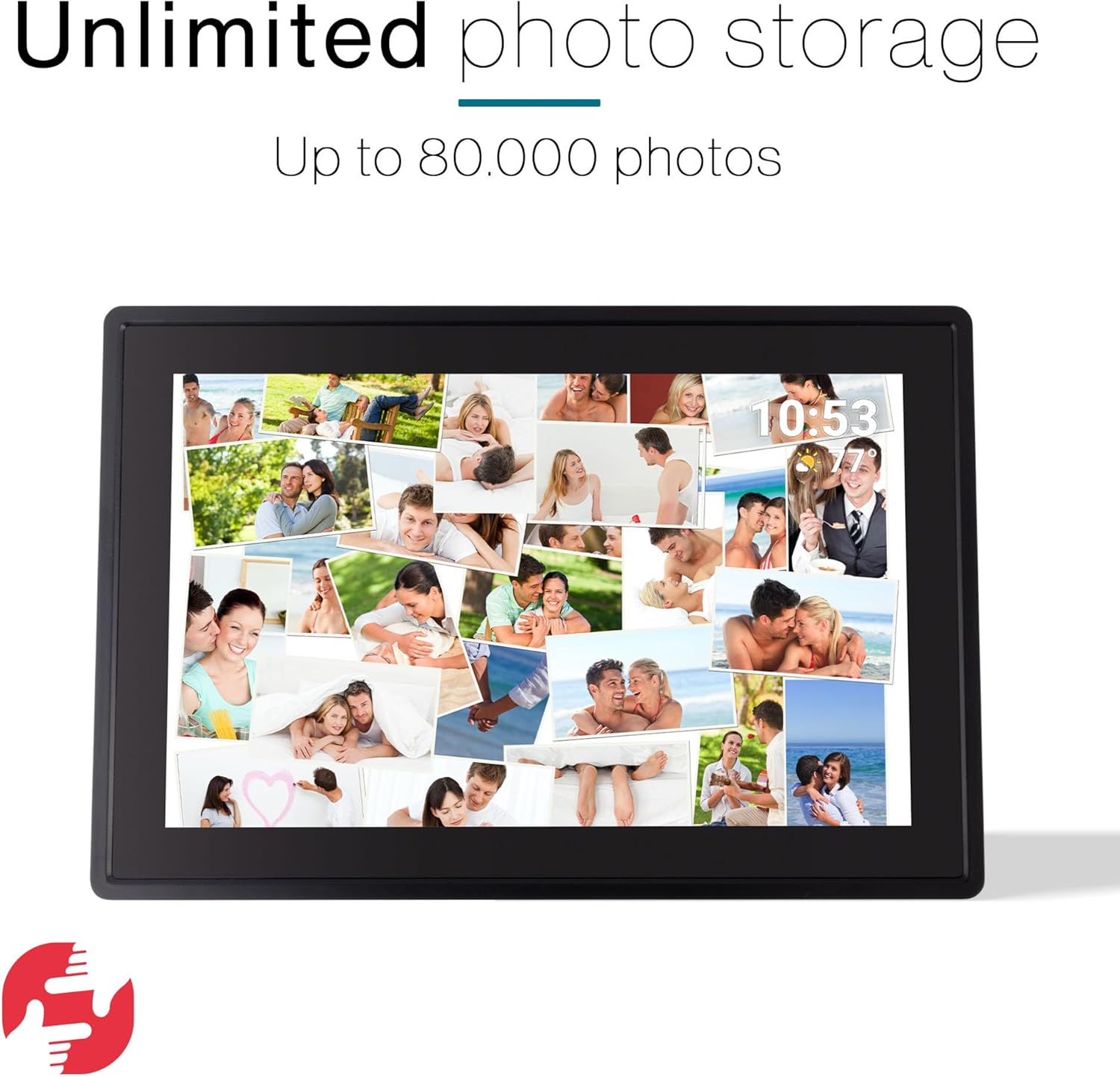
Image 3.2: Unlimited Photo Storage.
The image depicts the digital photo frame filled with a collage of numerous personal photos, emphasizing its large storage capacity for up to 80,000 photos.
4. Налаштування
4.1 Початкове ввімкнення
- Unpack the digital photo frame and all accessories.
- Attach the stand to the back of the frame, or prepare for wall mounting if desired.
- Connect the power adapter to the frame's power port and then plug it into a power outlet.
- Рамка автоматично увімкнеться та відобразить екран початкового налаштування.
4.2 Підключення Wi-Fi
- На початковому екрані налаштування виберіть потрібну мову.
- Follow the on-screen prompts to connect to your Wi-Fi network. Select your network from the list and enter the password.
- Once connected, the frame will synchronize with the current date and time.
4.3 Frameo App Setup
- Download the Frameo app from the Google Play Store or Apple App Store on your smartphone or tablet.
- Open the Frameo app and create an account.
- On your digital photo frame, locate the unique code (usually found in the settings under 'Add friend' or 'Connect').
- In the Frameo app, enter this code to link your device to the frame.

Image 4.1: Connect with the Frameo App.
This image shows the Tiqvi Digital Photo Frame displaying a scenic landscape. Above the frame, the Google Play and App Store logos are visible, indicating where users can download the Frameo application to connect with the device.
5. Інструкція з експлуатації
5.1 Навігація за допомогою сенсорного екрана
The Tiqvi Digital Photo Frame features a responsive touchscreen for easy navigation:
- Проведіть пальцем: Гортайте ліворуч або праворуч, щоб переглядати фотографії.
- Торкніться: Tap on a photo to view it in full screen or access options.
- Масштабування за допомогою розведення пальців: Use two fingers to zoom in or out on a photo.
- Налаштування: Access the settings menu by swiping down from the top of the screen or tapping the gear icon.
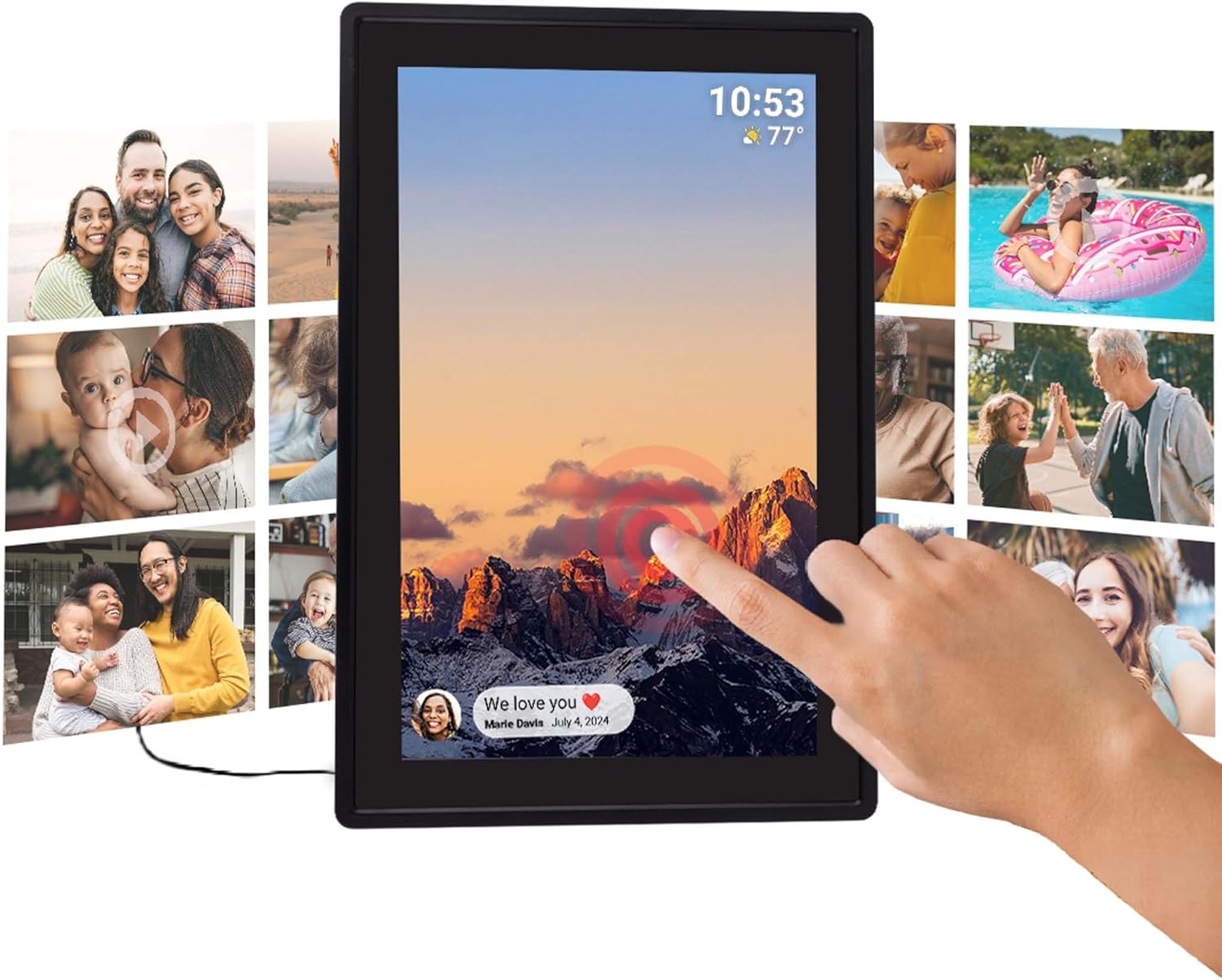
Image 5.1: Touchscreen Interaction.
This image illustrates a hand touching the screen of the Tiqvi Digital Photo Frame, which displays a mountain landscape and a notification bubble at the bottom left, demonstrating the interactive touchscreen functionality.
5.2 Додавання фотографій та відео
Photos and videos can be added to your frame primarily through the Frameo app. Refer to Section 6 for detailed instructions on using the app.
You can also transfer media via a microSD card (not included). Insert the microSD card into the designated slot on the frame. The frame will prompt you to import photos/videos from the card.
5.3 Автоматичне обертання
The frame features an auto-rotate function that automatically adjusts the orientation of your photos and videos to match how the frame is positioned (portrait or landscape). This ensures your content is always displayed correctly.

Image 5.2: Auto-Rotate Function.
This image shows two Tiqvi Digital Photo Frames side-by-side, one in landscape orientation and the other in portrait. Both frames display the same mountain sunset image, illustrating the automatic rotation feature that adjusts the display based on the frame's physical orientation.
5.4 Керування налаштуваннями
Access the settings menu to customize various aspects of your frame, including:
- Дисплей: Adjust brightness, sleep mode, and slideshow interval.
- Wi-Fi: Change or connect to new Wi-Fi networks.
- Зберігання: View використання та керування сховищем files.
- Друзі: Manage connected Frameo users.
- про: View device information and check for software updates.
6. Frameo App Integration
The Frameo app is the primary method for sending photos and videos to your Tiqvi Digital Photo Frame. It allows you to share moments instantly with connected frames, no matter where you are.
6.1 Надсилання фотографій та відео
- Відкрийте застосунок Frameo на своєму смартфоні або планшеті.
- Виберіть фотографії або відео, які ви хочете надіслати, з галереї вашого пристрою.
- Choose the Tiqvi frame (or multiple frames) you want to send the media to.
- Add a caption if desired and tap 'Send'.
- The photos/videos will appear on your digital photo frame shortly, provided it is connected to Wi-Fi.

Image 6.1: Sharing via Frameo App.
This image shows the Tiqvi Digital Photo Frame displaying a family photo. A smartphone next to it shows the Frameo app interface, demonstrating the process of selecting and sharing photos to the frame.
6.2 Connecting with Friends and Family
The Frameo app allows you to connect with up to 500 users, enabling multiple people to send photos to your frame. Each user needs to download the Frameo app and use the unique code from your frame to establish a connection.

Image 6.2: Connect with Anyone.
This image illustrates the global sharing capability of the Frameo app. The digital photo frame displays a selfie, while a smartphone shows a person sending a photo from America to a frame located in the Netherlands, highlighting the ability to share photos and videos with anyone, anywhere.
7. Технічне обслуговування
7.1 Очищення екрана
Щоб очистити сенсорний екран, обережно протріть його м’якою тканиною без ворсу. Для стійких плям злегкаampen the cloth with water or a screen-cleaning solution. Avoid using harsh chemicals or abrasive materials, as these can damage the screen.
7.2 Загальний догляд
- Keep the frame away from direct sunlight, extreme temperatures, and high humidity.
- Avoid dropping the frame or subjecting it to strong impacts.
- Ensure proper ventilation around the frame to prevent overheating.
- Не намагайтеся розбирати або ремонтувати пристрій самостійно. У разі виникнення проблем зверніться до служби підтримки клієнтів.
8. Вирішення проблем
If you encounter any issues with your Tiqvi Digital Photo Frame, please refer to the following common solutions:
| проблема | Можливе рішення |
|---|---|
| Рамка не вмикається. | Переконайтеся, що адаптер живлення надійно підключено як до рами, так і до справної розетки. Спробуйте іншу розетку. |
| Неможливо підключитися до Wi-Fi. | Check if your Wi-Fi router is on and working. Re-enter the Wi-Fi password carefully. Move the frame closer to the router. Restart the frame and your router. |
| Фотографії не відображаються на рамці. | Verify the frame is connected to Wi-Fi. Ensure the Frameo app is linked correctly and photos were sent successfully. Check the frame's storage capacity. |
| Сенсорний екран не реагує. | Перезавантажте рамку, від’єднавши та знову підключивши адаптер живлення. Переконайтеся, що екран чистий та не містить сміття. |
| Frame is slow or freezing. | Restart the frame. Clear some storage space if it's nearly full. Check for and install any available software updates. |
9. Технічні характеристики
| Особливість | Деталь |
|---|---|
| Номер моделі | TVH10006 |
| Бренд | Tiqvi |
| Розмір екрана | 10 дюймів |
| Тип дисплея | IPS сенсорний екран |
| Підключення | Wi-Fi |
| Внутрішня пам'ять | 32 ГБ (з можливістю розширення за допомогою карти microSD) |
| Джерело живлення | Електричний |
| Розміри продукту | 35 х 20 х 2.51 см |
| Вага продукту | 7.1 г |
| Країна походження | Китай |
10. Гарантія та підтримка
For warranty information, please refer to the documentation provided at the time of purchase or contact your retailer. Tiqvi is committed to providing quality products and customer satisfaction.
If you require technical assistance or have questions not covered in this manual, please contact Tiqvi customer support through the contact information provided on the official Tiqvi webсайт або ваша платформа для покупок.
Software updates are provided as available; please check the frame's settings for the latest updates to ensure optimal performance and features.


