1. Інформація про безпеку
Please read all instructions carefully before using the printer. Keep this manual for future reference.
- Do not expose the printer to water or moisture.
- Уникайте розміщення принтера під прямими сонячними променями або поблизу джерел тепла.
- Використовуйте лише наданий адаптер живлення.
- Не намагайтеся розбирати або ремонтувати принтер самостійно. Зверніться до служби підтримки клієнтів, якщо потрібне обслуговування.
- Забезпечте належну вентиляцію навколо принтера під час роботи.
2. Продукт закінчивсяview
The Bewinner Portable 58mm Thermal Receipt Printer is designed for efficient and reliable receipt printing in various environments such as restaurants, takeaways, supermarkets, and convenience stores. It features dual USB and Bluetooth connectivity and operates inklessly.
2.1 Вміст упаковки
Перевірте наявність усіх елементів в упаковці:
- 1 x Receipt Printer
- 1 x Power Supply Cord (US Plug)
- 1 x Printing Paper Roll
- 1 x USB кабель
- 1 х посібник користувача

Малюнок 2.1: Вміст пакета
2.2 Компоненти принтера
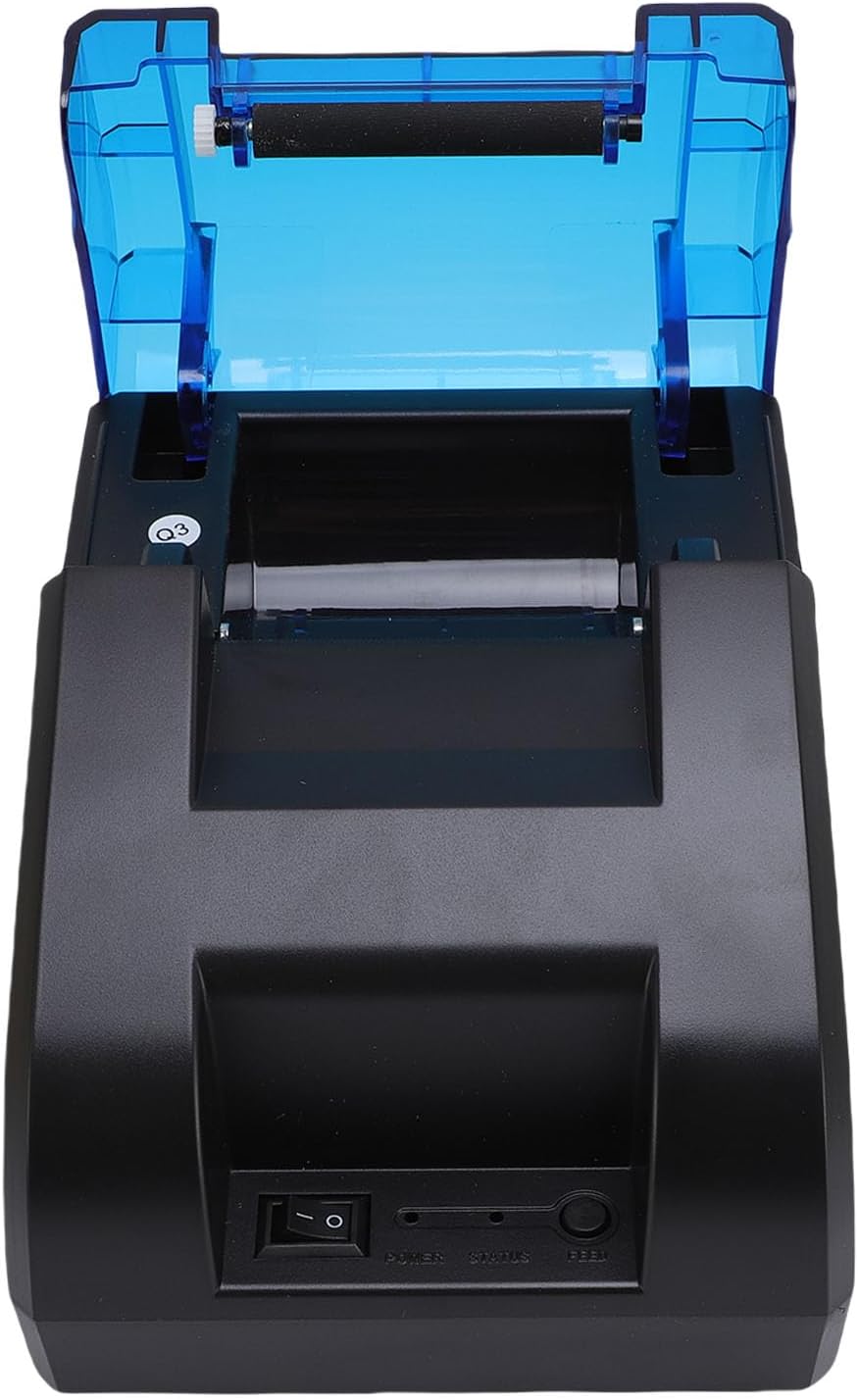
Familiarize yourself with the main parts of the printer:
Малюнок 2.2: Верх View (Power Switch, Status Indicator, Feed Button)
Малюнок 2.3: Задня частина View (USB Port, Power Port)
3. Налаштування
3.1 Встановлення рулону паперу
- Open the top cover of the printer by pressing the release button or lifting the cover firmly.
- Insert the thermal paper roll into the compartment, ensuring the paper feeds from the bottom and the leading edge is straight.
- Pull a small amount of paper out past the cutting edge.
- Щільно закрийте верхню кришку, доки вона не зафіксується почутим клацанням.

Figure 3.1: Paper Roll Compartment
3.2 Підключення живлення
- Connect the power supply cord to the power port on the rear of the printer.
- Plug the other end of the power supply cord into a standard electrical outlet.
- Flip the power switch (located on the front of the printer) to the 'ON' position. The power indicator light should illuminate.
4. Підключення
The printer supports both USB and Bluetooth connections for versatile use with various devices.
4.1 Підключення USB
- Переконайтеся, що принтер увімкнено.
- Connect one end of the provided USB cable to the USB port on the rear of the printer.
- Підключіть інший кінець USB-кабелю до вільного USB-порту на вашому комп’ютері або POS-системі.
- Install the necessary printer drivers on your computer. Refer to the driver installation guide (if provided separately) or the manufacturer's webсайт для отримання конкретних інструкцій.
4.2 Підключення Bluetooth
The printer can connect to up to 7 Android phones simultaneously and one additional phone for maximum convenience.
- Переконайтеся, що принтер увімкнено та знаходиться в зоні дії вашого пристрою.
- On your mobile device or computer, enable Bluetooth.
- шукати available Bluetooth devices. The printer will typically appear as a device named 'POS Printer' or similar.
- Select the printer from the list to pair. If prompted for a PIN, enter '0000' or '1234'.
- Once paired, you can select the printer within your application for printing.

Figure 4.1: Bluetooth Connection Example
5. Операція
5.1 Базовий друк
After connecting the printer via USB or Bluetooth and installing any necessary drivers or applications, you can initiate printing from your software. The printer supports ESC/POS commands for various printing functions.
- Кнопка подачі: Press the 'FEED' button on the front of the printer to advance the paper manually.
- Індикатор стану: The status light indicates the printer's current state (e.g., solid blue for ready, flashing for error).

Figure 5.1: High-Performance Print Head and Inkless Operation
5.2 Supported Receipt Types
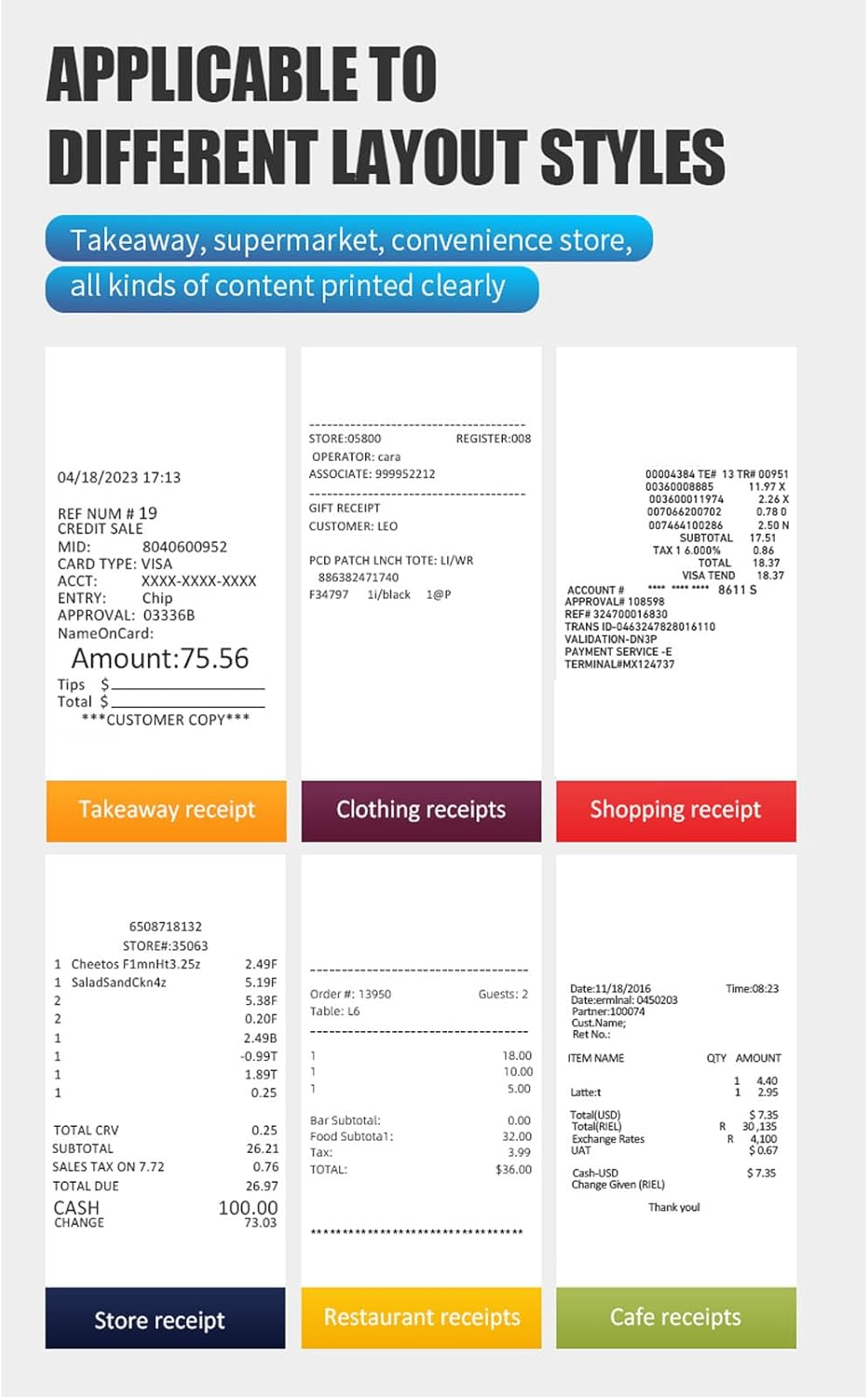
The printer is capable of printing various receipt layouts clearly, making it suitable for diverse business needs.

Малюнок 5.2: Впрample of a Printed Receipt
6. Технічне обслуговування
6.1 Очищення принтера
Регулярне очищення допомагає підтримувати якість друку та подовжує термін служби принтера.
- Перед чищенням вимкніть принтер і від’єднайте шнур живлення від мережі.
- Злегка протріть м’якою тканиною без ворсу dampводою або ізопропіловим спиртом для очищення зовнішньої частини принтера.
- Gently wipe the print head with a cotton swab dampзмочений ізопропіловим спиртом. Дайте йому повністю висохнути перед використанням.
- Remove any paper dust or debris from the paper compartment.
6.2 Replacing the Paper Roll
Follow the steps outlined in Section 3.1 for paper roll installation when the current roll runs out.
7. Вирішення проблем
Якщо у вас виникли проблеми з принтером, зверніться до наступних поширених проблем та способів їх вирішення:
| проблема | Можлива причина | Рішення |
|---|---|---|
| Принтер не вмикається | Power cord not connected, power outlet faulty, power switch off | Check power connections, try a different outlet, ensure power switch is ON. |
| Принтер не підключається через Bluetooth | Bluetooth off on device, printer not in pairing mode, incorrect PIN | Ensure Bluetooth is enabled, restart printer, re-attempt pairing with correct PIN. |
| No printing or blank pages | Paper installed incorrectly, paper roll empty, print head dirty, driver issue | Reinstall paper correctly, replace paper roll, clean print head, reinstall drivers. |
| Погана якість друку | Low quality paper, dirty print head, print density settings | Use recommended thermal paper, clean print head, adjust print density in software. |
| Зминання паперу | Incorrect paper loading, foreign object | Turn off printer, open cover, carefully remove jammed paper, ensure no obstructions. |
If the problem persists after trying these solutions, please contact Bewinner customer support.
8. Технічні характеристики
Detailed technical specifications for the Bewinner Portable 58mm Thermal Receipt Printer:
- Номер моделі товару: Bewinnerm4f6ydgk7q-12
- Розміри продукту: 6.69 x 5.12 x 4.72 дюймів
- Вага товару: 1.19 фунта
- Інтерфейс: USB, BT
- Команда друку: ESC, POS command
- Швидкість друку: 70 мм/с
- роздільна здатність: 203DPI (8 points/mm)
- TPH Reliability: 50 км
- Підтримка логотипів: Download and print logo
- Щільність друку: 384 точок / лінія
- Розмір символу: ANK, font A: 1.5x3.0mm (12x24 dots); font B: 1.1x2.1mm (9x17 dots) Chinese; Traditional Chinese: 3.0x3.0mm (24x24 dots)
- 1D штрих -коди: UPC A / UPC E / JAN13 (EAN13) / JAN8 (EAN8) / CODE39 / ITF / CODABAR / CODE93 / CODE128
- 2D штрих -коди: QR Code, PDF417
- Підтримка операційної системи: For Windows, for Linux, for OS X, for OPOS, for Android
- Ширина друку: прибл. 48 мм/1.89 дюйма
- Діаметр рулону паперу: ≤50 мм
- Ширина паперу: ≤58 мм
- Споживана потужність: Постійний струм 5 В/2 А
9. Гарантія та підтримка
For warranty information, technical support, or service inquiries, please refer to the documentation included with your purchase or contact Bewinner customer support directly. Keep your purchase receipt as proof of purchase.


