1. Вступ
This manual provides essential information for the safe and efficient use of your KOORUI G2711P 27-inch IPS Full HD Gaming Monitor. Please read it thoroughly before operating the device and retain it for future reference.
The KOORUI G2711P monitor features a 27-inch IPS non-glare panel with Full HD (1920x1080) resolution, a 200Hz refresh rate, and a 1ms MPRT response time, designed for an immersive gaming and viewing experience. It includes multiple connectivity options and eye-care features.

Зображення 1.1: спереду view of the KOORUI G2711P 27-inch IPS Full HD Gaming Monitor.
2. Інформація про безпеку
- Не піддавайте монітор впливу дощу або вологи, щоб запобігти пожежі або ураженню електричним струмом.
- Не відкривайте монітор casing. Усередині немає деталей, які може обслуговувати користувач. Звертайтеся до кваліфікованого сервісного персоналу з усіх питань щодо обслуговування.
- Розмістіть монітор на стійкій, рівній поверхні, щоб запобігти його падінню.
- Забезпечте належну вентиляцію навколо монітора. Не блокуйте вентиляційні отвори.
- Використовуйте лише адаптер живлення, що постачається з монітором.
- Від’єднуйте монітор від розетки під час грози або якщо він не використовується протягом тривалого часу.
3. Налаштування
3.1 Розпакування
Carefully remove all components from the packaging. Ensure all parts listed in the packing list are present and undamaged. Keep packaging materials for future transport or return.
3.2 Збірка підставки
- Прикріпіть основу підставки до горловини підставки.
- Secure the assembled stand to the back of the monitor panel. Refer to the product images for visual guidance on the attachment method.

Image 3.1: Monitor dimensions and side view, illustrating the stand attachment area.
3.3 Підключення до пристрою
The monitor supports various input options:
- HDMI: Connect an HDMI cable from your computer or other device to one of the two HDMI 2.0 ports on the monitor.
- DisplayPort (DP): Connect a DisplayPort cable from your computer to the DP 1.4 port on the monitor.
- Audio Out (A/O): Connect external speakers or headphones to the audio output port if desired, as the monitor does not have built-in speakers.

Зображення 3.2: Ззаду view of the monitor showing HDMI, DisplayPort, and Audio Out connections, along with the 75x75mm VESA mount.
3.4 Підключення живлення
Connect the power adapter to the monitor's power input, then plug the power cable into a wall outlet. The monitor is designed for 110V power input.
4. Інструкція з експлуатації
4.1 Увімкнення/вимкнення живлення
Press the power button, typically located on the back or bottom of the monitor, to turn the monitor on or off. An indicator light will show the power status.
4.2 Навігація по екранному меню (OSD)
The monitor features a 5-way joystick for intuitive OSD menu navigation. This joystick allows you to access and adjust various display settings.
- Натисніть джойстик: Підтвердіть вибір.
- Move joystick up/down: Adjust or select options.
- Move joystick left/right: Adjust or select options.
- Move joystick back (usually left): Exit menu or go back.

Image 4.1: Illustration of the 5-way joystick control for OSD menu navigation.
4.3 Налаштування дисплея
- роздільна здатність: The native resolution is 1920x1080 Full HD. Ensure your device is set to this resolution for optimal display quality.
- Частота оновлення: The monitor supports up to 200Hz. Adjust your graphics card settings to utilize the higher refresh rate for smoother visuals.
- Час відгуку (MPRT): The monitor features 1ms MPRT (Moving Picture Response Time) for reduced motion blur. This setting can usually be enabled or adjusted in the OSD menu.
- Адаптивна синхронізація: This technology synchronizes the monitor's refresh rate with your graphics card's frame rate to eliminate screen tearing and stuttering. Enable it in the OSD menu and your graphics card control panel.
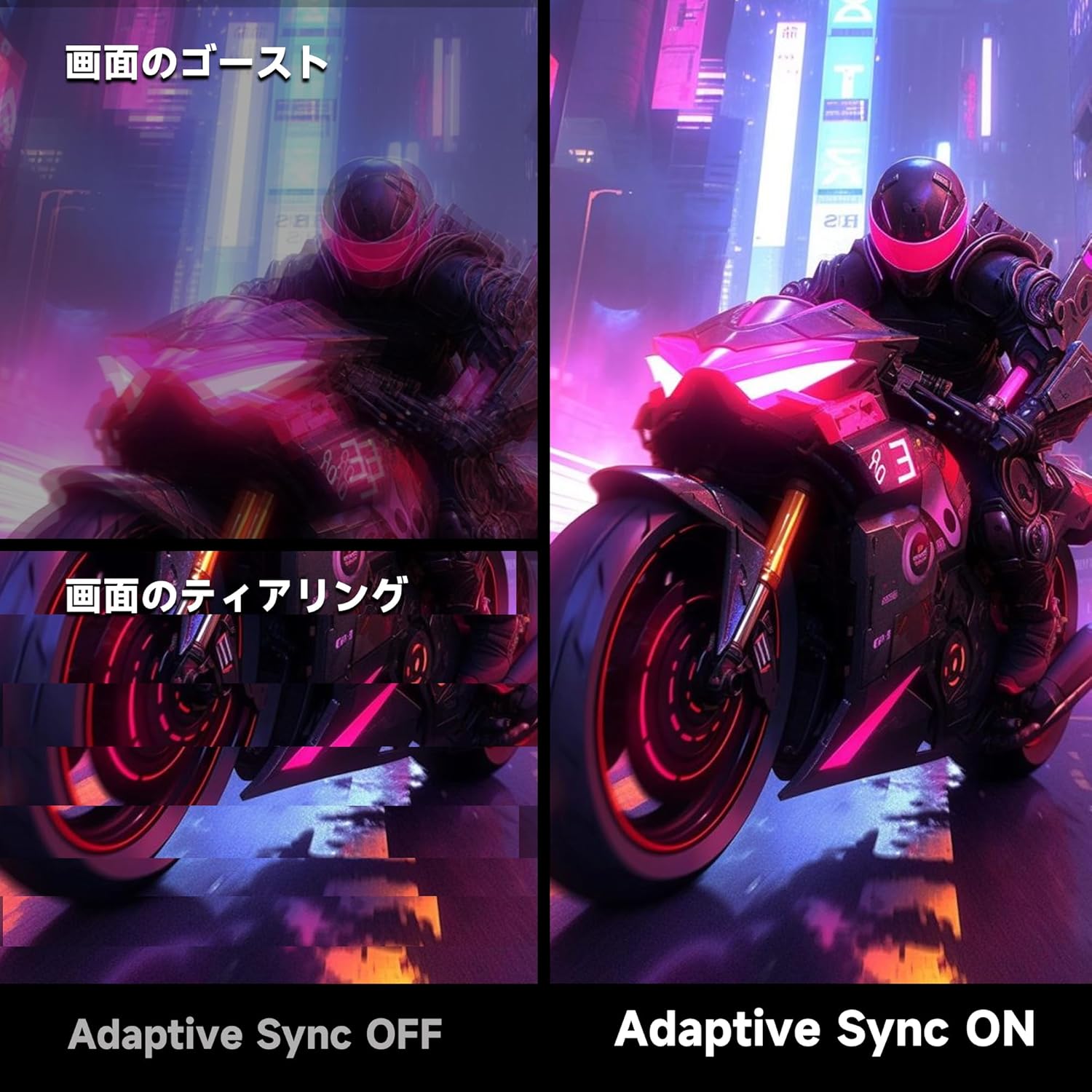
Image 4.2: Visual comparison demonstrating the effect of Adaptive Sync being OFF (showing ghosting and tearing) versus ON (smooth image).

Image 4.3: Comparison illustrating the difference in motion clarity between 200Hz 1ms MPRT and 75Hz 5ms settings.
- HDR 400: The monitor supports HDR 400 for enhanced contrast and color depth. Enable HDR in your operating system settings for compatible content.

Image 4.4: Visual representation of HDR 400 providing more impressive and vibrant images compared to standard HDR 10.
- Параметри кольору: The monitor offers 93% DCI-P3 color gamut for accurate and vibrant color reproduction. Adjust brightness, contrast, and color temperature via the OSD menu.

Image 4.5: Display showing a wide range of colors, indicating 93% DCI-P3 color gamut coverage for accurate and vivid visuals.
- Функції догляду за очима: The monitor incorporates 'Blue Light Reduction' and 'Flicker-Free' technologies to minimize eye strain during prolonged use. These settings can be adjusted in the OSD menu.
- Функція перехрестя: For shooting games, a built-in crosshair overlay can be enabled via the OSD menu to assist with aiming.

Image 4.6: A gaming scene demonstrating the monitor's crosshair function, which can be toggled ON or OFF to assist players in shooting games.
5. Технічне обслуговування
5.1 Очищення екрана
Обережно протріть екран м’якою тканиною без ворсу. Для стійких плям, dampen the cloth with a small amount of screen cleaner specifically designed for monitors. Do not spray cleaner directly onto the screen.
5.2 Очищення Casing
Використовуйте м’яку суху тканину для протирання монітора casing. Avoid using abrasive cleaners or solvents that may damage the surface.
6. Вирішення проблем
- Немає живлення: Переконайтеся, що кабель живлення надійно підключено як до монітора, так і до розетки. Перевірте, чи розетка працює.
- Немає сигналу: Verify that the video cable (HDMI or DisplayPort) is correctly connected to both the monitor and your computer. Ensure the correct input source is selected in the monitor's OSD menu.
- Мерехтіння екрана: Check the video cable connection. Try a different cable or port. Ensure your graphics card drivers are up to date.
- Image Distortion/Tearing: Ensure Adaptive Sync is enabled in both the monitor's OSD and your graphics card settings. Check for correct resolution and refresh rate settings.
- Poor Color Quality: Adjust color settings (brightness, contrast, color temperature) in the OSD menu. Ensure HDR is enabled for HDR content.
7. Технічні характеристики
| Особливість | Специфікація |
|---|---|
| Бренд | KOORUI |
| Модель | G2711P |
| Розмір екрана | 27 дюймів |
| Тип панелі | IPS, Non-Glare |
| роздільна здатність | 1920 x 1080 (Full HD) |
| Співвідношення сторін | 16:9 |
| Частота оновлення | 200 Гц |
| Час відгуку | 1ms MPRT (GTG) |
| Яскравість | 300 кд/м² |
| Коефіцієнт контрастності | 1000:1 |
| Viewкут нахилу | 178° (горизонтально/вертикально) |
| Колірна гамма | 93% DCI-P3 |
| Підтримка HDR | HDR 400 |
| Підключення | 2x HDMI 2.0, 1x DisplayPort 1.4, 1x аудіовихід |
| Доповідачі | Не включено |
| Сумісність з кріпленням VESA | 75х75 мм |
| Розміри (Ш x В x Г) | 61.34 x 47.23 x 21.49 см (з підставкою) |
| вага | 5.8 кг |
| Вхідна потужність | 110 В |
8. Гарантія
The KOORUI G2711P monitor screen is covered by a Гарантія 1 рік from the date of purchase. All other included accessories are covered by a Гарантія 3 рікБудь ласка, збережіть чек про покупку для гарантійного обслуговування. Гарантія поширюється на виробничі дефекти та несправності за нормальних умов використання.
9. Підтримка
For technical assistance, troubleshooting, or warranty inquiries, please contact KOORUI customer support through the retailer where you purchased the product or visit the official KOORUI website for contact information. When contacting support, please have your monitor model number (G2711P) and proof of purchase readily available.


