1. Вступ і даліview
The Dell Pro 27 Plus QHD USB-C Hub Monitor P2725DE is a 27-inch LED monitor designed for productivity and visual clarity. It features a QHD (2560 x 1440) resolution at 100Hz, an IPS panel for wide viewing angles, and a built-in USB-C hub for streamlined connectivity. This manual provides essential information to help you set up, operate, and maintain your monitor effectively.
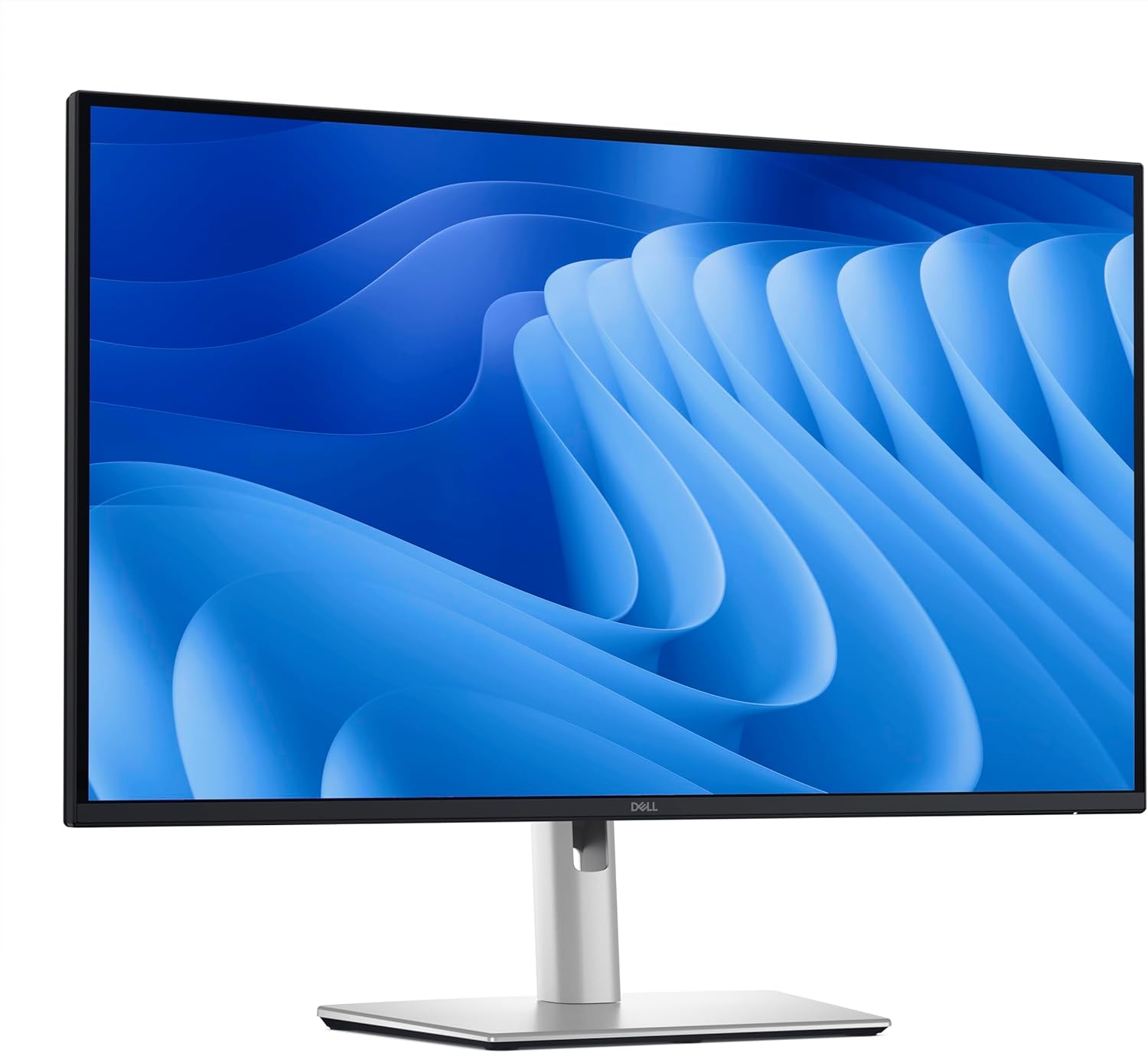
Малюнок 1.1: Спереду view of the Dell Pro 27 Plus QHD USB-C Hub Monitor P2725DE.
2. Налаштування
2.1 Розпакування монітора
Carefully remove all components from the packaging. Ensure that all parts listed in the packing slip are present. Retain the packaging materials for future transport or service needs.
2.2 Збірка підставки
- Покладіть панель монітора екраном донизу на м’яку чисту тканину, щоб запобігти подряпинам.
- Прикріпіть підставку до панелі монітора до клацання.
- Прикріпіть основу підставки до підйомника підставки та затягніть гвинт, що кріпиться внизу основи.
2.3 З'єднувальні кабелі
Connect the necessary cables to the monitor and your computer. The monitor supports HDMI, DisplayPort, and USB-C video inputs.
- Кабель живлення: Підключіть кабель живлення до порту живлення монітора, а потім до розетки.
- Відеокабель: Connect one end of the HDMI, DisplayPort, or USB-C cable to the corresponding port on your monitor and the other end to your computer's video output port. For USB-C functionality, use a USB-C to USB-C cable.
- USB-C Upstream Cable (for Hub functionality): If using USB-C for video, this single cable also enables the integrated USB hub. If using HDMI or DisplayPort for video, connect a USB-A to USB-C cable from your computer to the monitor's USB-C upstream port to enable the USB hub.

Малюнок 2.1: Задня частина view монітора, на якому відображаються різні вхідні та вихідні порти.
2.4 Початкове ввімкнення
Press the power button located on the bottom right side of the monitor. The power indicator will illuminate, and the display will turn on. Your computer should automatically detect the monitor. If not, adjust display settings in your operating system.
3. Експлуатація монітора
3.1 Увімкнення/вимкнення живлення
Press the power button to turn the monitor on or off. The power LED indicates the monitor's status: solid white for on, amber for standby.
3.2 Екранне меню (OSD)
The OSD menu allows you to adjust various monitor settings. Use the control buttons located on the bottom right of the monitor to navigate the menu.
- Press any control button to activate the OSD menu.
- Use the navigation buttons to move through menu options.
- Натисніть кнопку вибору, щоб підтвердити вибір або ввійти до підменю.
- Press the back button to return to the previous menu or exit the OSD.
3.3 Вибір джерела вхідного сигналу
To switch between video inputs (HDMI, DisplayPort, USB-C), access the OSD menu and navigate to the 'Input Source' section. Select your desired input.
3.4 Налаштування параметрів дисплея
В екранному меню можна налаштувати такі параметри, як:
- Яскравість/Контрастність: Налаштуйте загальну яскравість та різницю між світлими та темними ділянками.
- Параметри кольору: Змінити колірну температуру, гаму та окремі рівні RGB.
- Picture-in-Picture (PIP)/Picture-by-Picture (PBP): If supported, configure multiple input sources to display simultaneously.
- Час відгуку: Adjust for faster pixel transitions.
3.5 Ергономічні налаштування
Підставка для монітора дозволяє здійснювати різні налаштування для оптимізації viewкомфорт:
- Регулювання висоти: Підніміть або опустіть монітор до рівня очей.
- Нахил: Відрегулюйте кут нахилу екрана вперед або назад.
- Поворотний: Поверніть монітор горизонтально ліворуч або праворуч.
- Опорна точка: Поверніть монітор вертикально (портретний режим).

Малюнок 3.1: Сторона view illustrating the monitor's ergonomic stand adjustments.
4. Технічне обслуговування
4.1 Очищення монітора
To clean the monitor screen, gently wipe it with a soft, lint-free cloth lightly dampened with water or a non-ammonia, non-alcohol based screen cleaner. Avoid using abrasive cleaners or spraying liquid directly onto the screen.
Для монітора casing, use a soft, dry cloth. Do not use any liquid cleaners on the casing.
4.2 Заходи безпеки
- Не перекривайте вентиляційні отвори.
- Не піддавайте монітор впливу дощу або вологи.
- Уникайте розміщення монітора під прямими сонячними променями або поблизу джерел тепла.
- Only use the power adapter provided with the monitor.
5. Вирішення проблем
У цьому розділі розглядаються поширені проблеми, з якими ви можете зіткнутися під час використання монітора.
5.1 Немає зображення або чорний екран
- Переконайтеся, що кабель живлення надійно підключено як до монітора, так і до розетки.
- Verify that the video cable (HDMI, DisplayPort, or USB-C) is firmly connected to both the monitor and your computer.
- Перевірте, чи в екранному меню вибрано правильне джерело вхідного сигналу.
- Перезавантажте комп'ютер.
5.2 Flickering or Unstable Image
- Check the video cable for damage or loose connections. Try a different cable if available.
- Переконайтеся, що графічний драйвер вашого комп'ютера оновлений.
- Налаштуйте частоту оновлення в налаштуваннях дисплея вашого комп'ютера.
5.3 USB Hub Not Functioning
- If using HDMI or DisplayPort for video, ensure the USB-C upstream cable is connected from your computer to the monitor.
- If using USB-C for video, ensure the USB-C cable supports data transfer.
- Try connecting the USB device to a different port on the monitor.
5.4 Світлодіод живлення вимкнено
- Verify the power cable is connected and the power outlet is functional.
- Міцно натисніть кнопку живлення.
6. Технічні характеристики
Below are the technical specifications for the Dell Pro 27 Plus QHD USB-C Hub Monitor P2725DE.
| Особливість | Специфікація |
|---|---|
| Номер моделі | P2725DE |
| Розмір екрана | 27 дюймів (68.47 см по діагоналі) |
| Тип панелі | IPS |
| роздільна здатність | 2560 x 1440 (QHD) |
| Частота оновлення | 100 Гц |
| Співвідношення сторін | 16:9 |
| Яскравість | 350 кд/м² |
| Коефіцієнт контрастності | 1500:1 |
| Час відгуку | 5 мс (від сірого до сірого) |
| Відеовходи | HDMI, DisplayPort, USB-C |
| USB порти | 5 (USB-C Hub functionality) |
| Поверхня екрана | Матовий |
| Потужність випtage | 240 вольт (перемінний струм) |
| Вага товару | 10.12 фунта (4.59 кг) |
| Розміри виробу (упаковка) | 32.68 x 17.72 x 5.91 дюймів |
7. Гарантія та підтримка
Your Dell monitor is covered by a limited hardware warranty. For specific warranty details, please refer to the documentation included with your product or visit the official Dell support webсайт.
For technical assistance, troubleshooting, or to contact Dell support, please visit www.dell.com/support. Have your monitor's service tag or express service code ready for faster assistance.


