1. Вступ
This manual provides detailed instructions for the setup, operation, and maintenance of your 8BitDo Retro R8 Mouse with Charging Dock. Please read this manual thoroughly before using the product to ensure optimal performance and longevity.

Image 1.1: The 8BitDo Retro R8 Mouse with its charging dock.
2. Вміст упаковки
Перевірте наявність усіх предметів у вашій упаковці:
- 8BitDo Retro R8 Mouse - N Edition x 1
- Док-станція для зарядки х 1
- 2.4G adapter x 1
- USB-кабель x 1
- Інструкція з експлуатації x 1
3. Продукт закінчивсяview
The 8BitDo Retro R8 Mouse is designed for precision and versatility, featuring a PAW 3395 optical sensor and Kailh Sword GM X Micro Switches. It offers multiple connectivity options and customizable controls.
3.1 Функції миші
- PAW 3395 Optical Sensor: Provides 6 sensitivity levels from 50 DPI to 26,000 DPI for precise tracking.
- Kailh Sword GM X Micro Switches: Engineered for up to 100 million clicks, offering tactile feedback.
- Програмовані кнопки: Customizable side buttons for personalized control.
- Left/Right-Hand Mode Switching: Symmetrical design for comfortable use by both left and right-handed users.
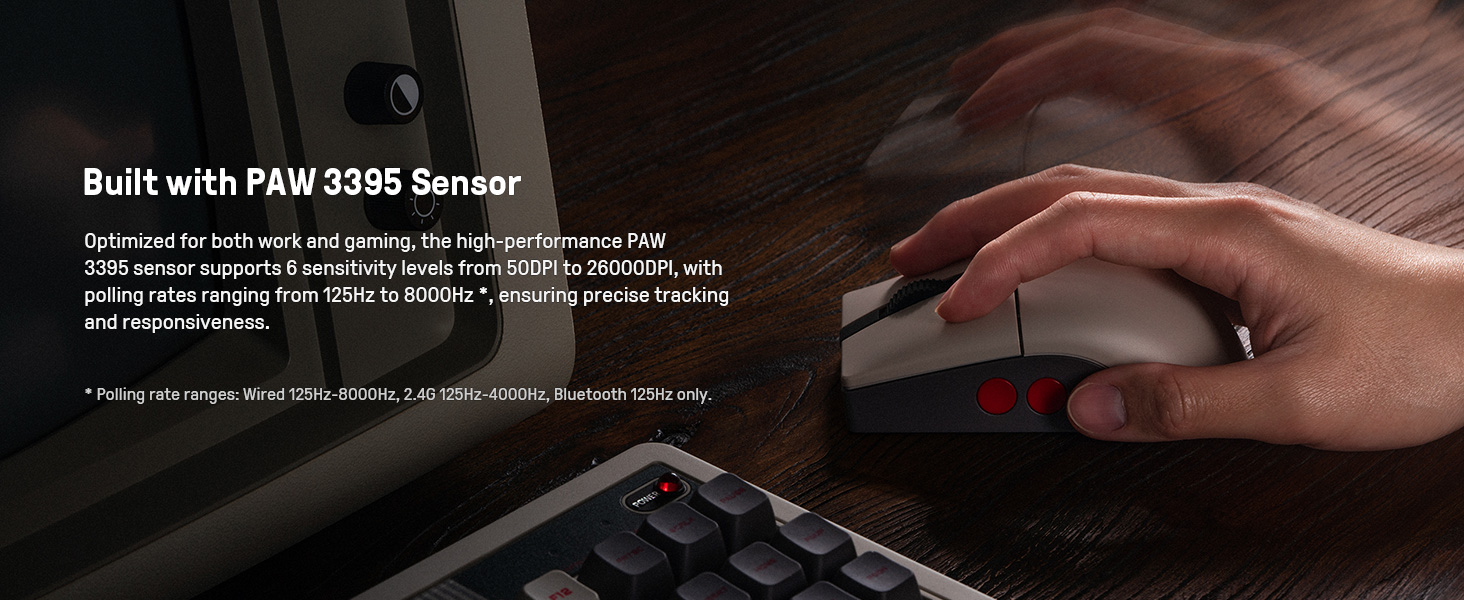
Image 3.1: The mouse highlighting its PAW 3395 sensor for precise tracking.
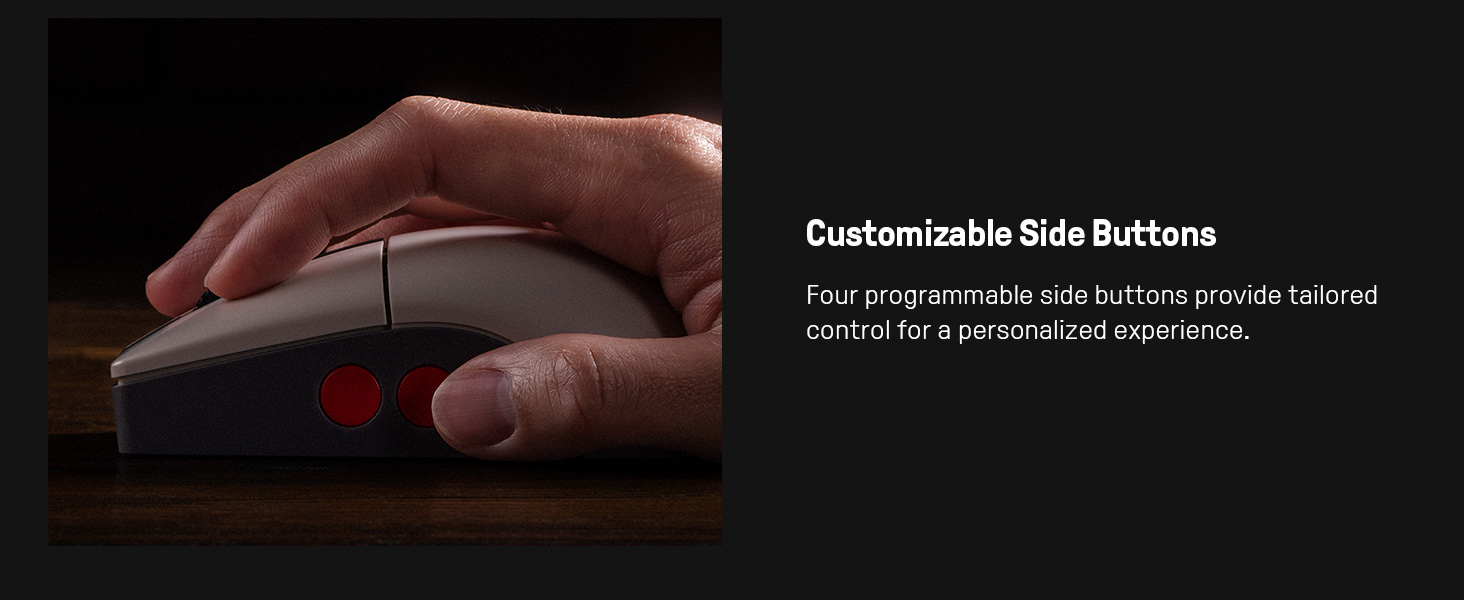
Image 3.2: Close-up of the mouse showing the customizable side buttons.
3.2 Charging Dock Features
- Функціональність зарядки: Keeps the mouse powered.
- 2.4G Adapter Storage: Doubles as a storage compartment for the 2.4G wireless adapter.
- Розширення сигналу: Extends the wireless signal for robust connectivity.
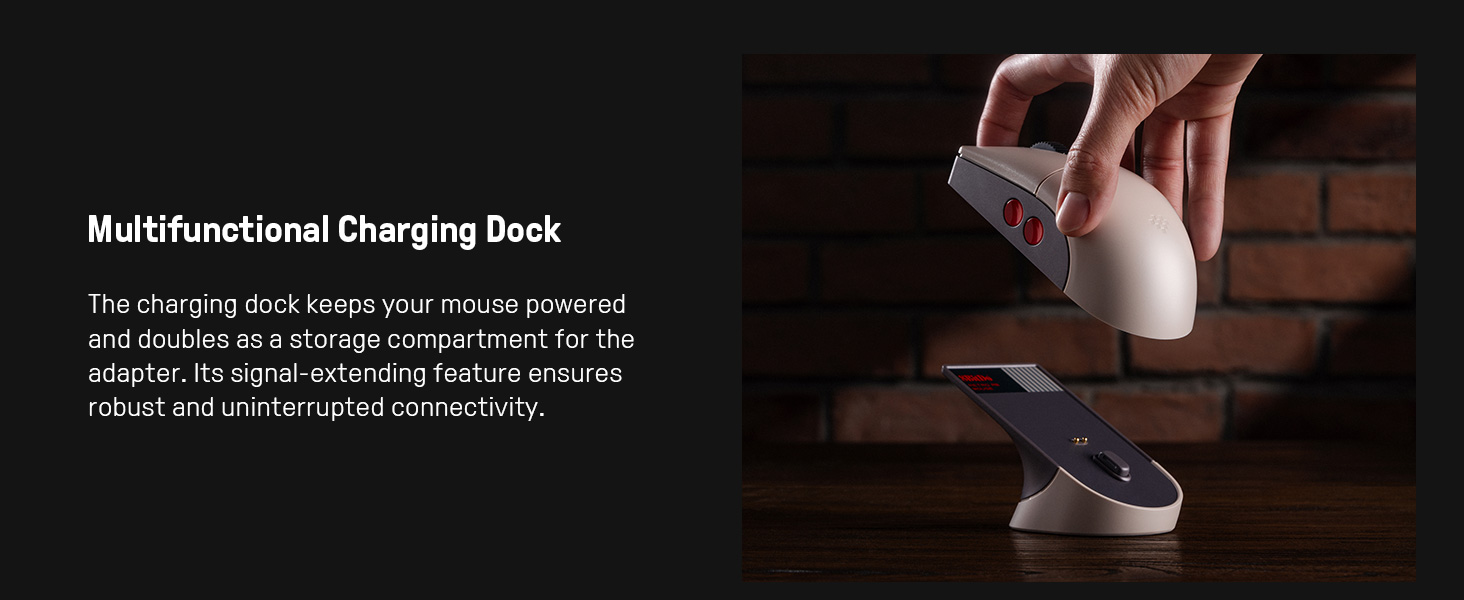
Image 3.3: The multifunctional charging dock, also serving as a signal extender and adapter storage.
4. Налаштування
4.1 Заряджання миші
- Connect the USB cable to the charging dock and a power source (e.g., computer USB port, USB wall adapter).
- Place the 8BitDo Retro R8 Mouse onto the charging dock. Ensure the charging contacts align. The mouse will begin charging.
4.2 Підключення миші
The mouse supports three connection modes: 2.4G Wireless, Bluetooth, and Wired USB-C.
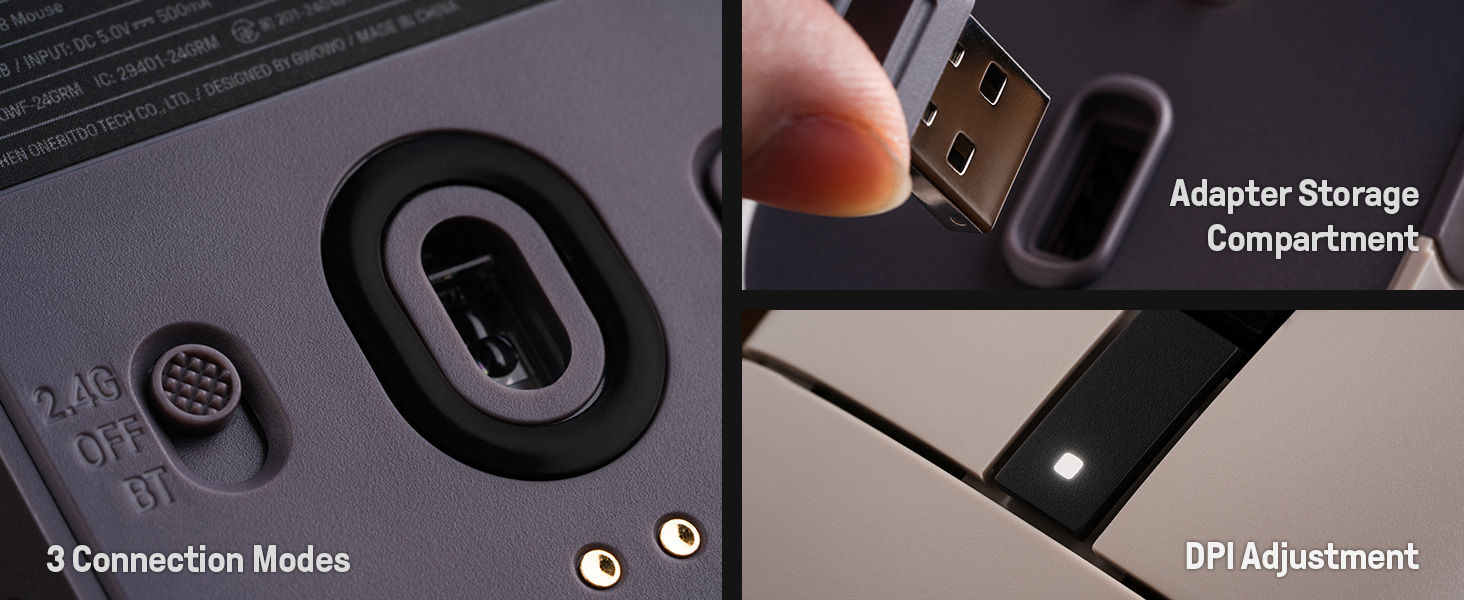
Image 4.1: The bottom of the mouse showing the connection mode switch and the adapter storage compartment.
4.2.1 Бездротове з'єднання 2.4G
- Locate the 2.4G wireless adapter, typically stored in the charging dock or the mouse's bottom compartment.
- Insert the 2.4G adapter into an available USB port on your computer.
- Slide the switch on the bottom of the mouse to the "2.4G" position.
- Миша повинна автоматично підключитися до комп'ютера.

Image 4.2: The 2.4G USB adapter being inserted into its storage slot on the charging dock.
4.2.2 Підключення Bluetooth
- Slide the switch on the bottom of the mouse to the "BT" position.
- Press and hold the "PAIR" button on the bottom of the mouse for 3 seconds until the LED indicator starts blinking rapidly.
- На комп’ютері або пристрої перейдіть до налаштувань Bluetooth та знайдіть нові пристрої.
- Select "8BitDo Retro R8 Mouse" from the list of available devices to pair.
4.2.3 Дротове підключення USB-C
- Підключіть кінець USB-C наданого кабелю до миші, а кінець USB-A – до комп’ютера.
- The mouse will automatically switch to wired mode and function without needing a battery charge.
5. Інструкція з експлуатації
5.1 Налаштування DPI
The mouse supports 6 levels of DPI adjustment. You can cycle through these levels using the dedicated DPI button or through the 8BitDo Ultimate Software V2.
5.2 Програмовані кнопки
The 8BitDo Retro R8 Mouse features programmable side buttons. These can be customized using the 8BitDo Ultimate Software V2 to assign specific functions or macros.
5.3 Left/Right-Hand Mode Switching
The mouse's symmetrical design allows for easy switching between left-hand and right-hand modes. This can be configured via the 8BitDo Ultimate Software V2.
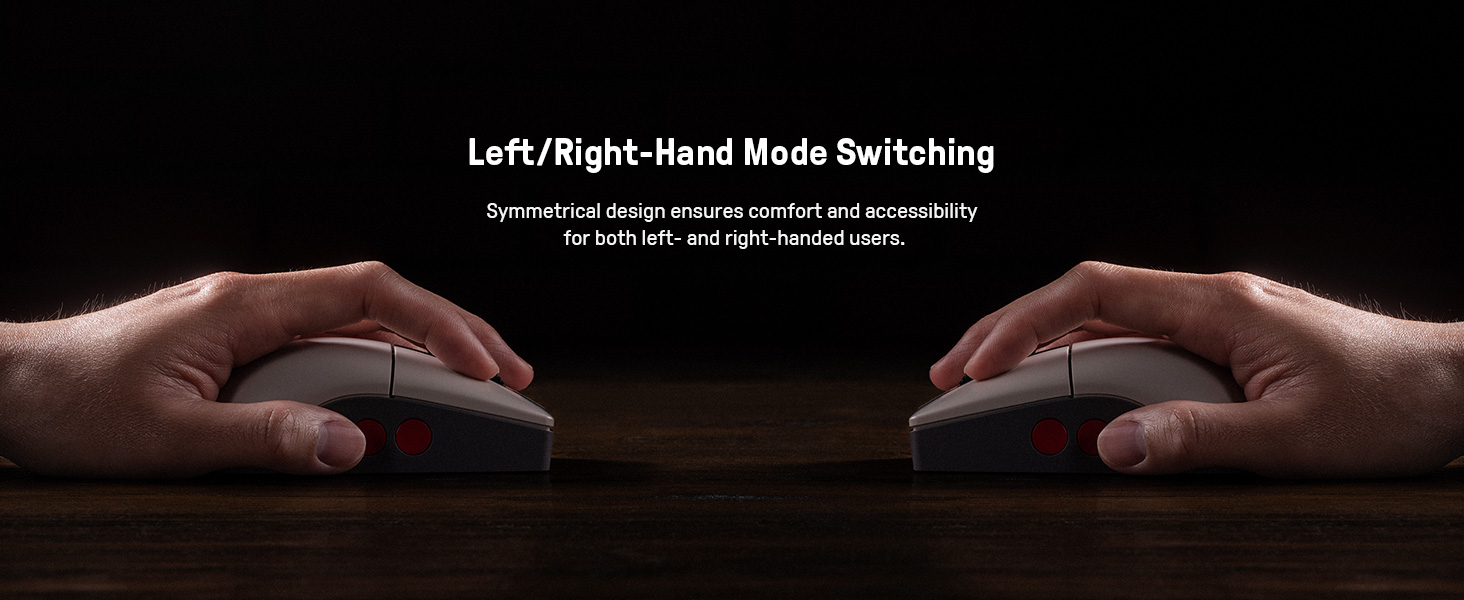
Image 5.1: Illustration of the mouse's symmetrical design for left/right-hand use.
5.4 Програмне забезпечення 8BitDo Ultimate V2
For advanced customization, download and install the 8BitDo Ultimate Software V2 on your PC. This software allows you to:
- Map buttons to different functions.
- Create and assign macros.
- Налаштуйте рівні чутливості DPI.
- Fine-tune polling rate, scroll direction, and lift-off distance.
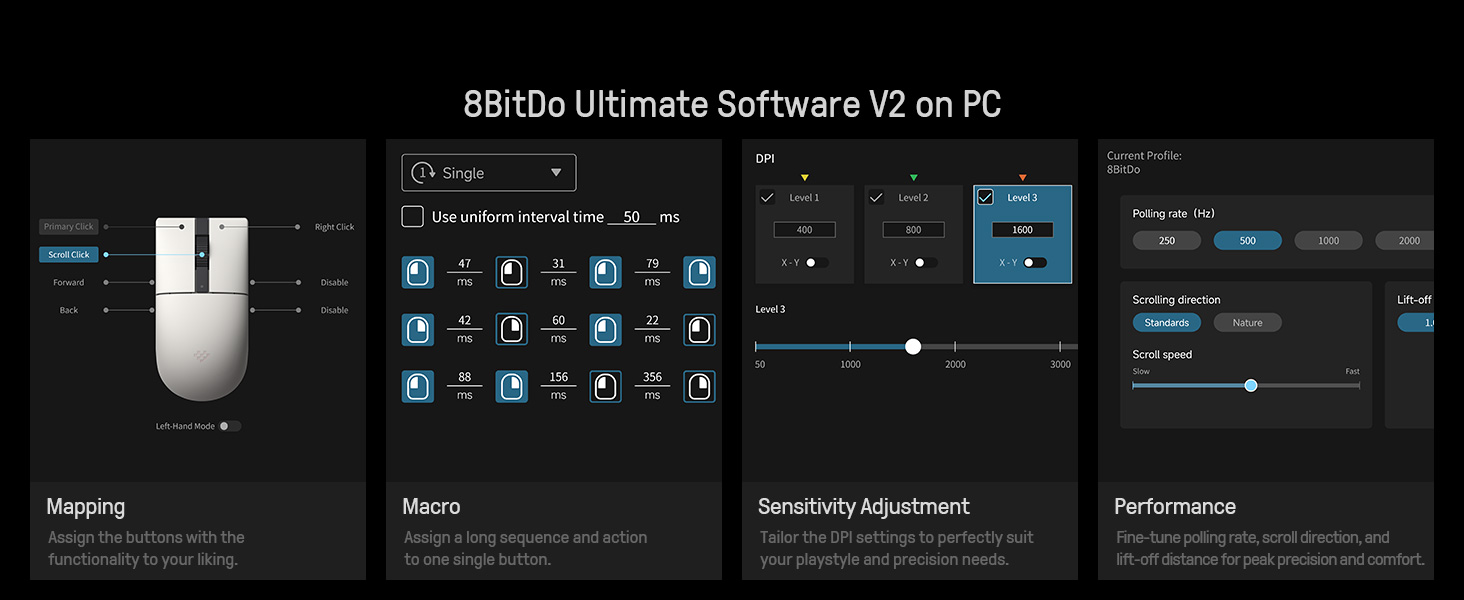
Image 5.2: The 8BitDo Ultimate Software V2 interface for advanced customization.
5.5 Налаштування частоти опитування
The polling rate can be adjusted via the Ultimate Software V2. Polling rate ranges are: Wired 250Hz-8000Hz, 2.4G 250Hz-4000Hz, Bluetooth 125Hz only.
6. Технічне обслуговування
- Прибирання: Використовуйте м’яку суху тканину для очищення миші та зарядної док-станції. Уникайте використання агресивних хімікатів або абразивних матеріалів.
- Зберігання: Store the mouse and dock in a cool, dry place when not in use.
- Догляд за акумулятором: Щоб продовжити термін служби батареї, уникайте частого повного розрядження миші. Регулярно заряджайте її.
7. Вирішення проблем
- Миша не реагує: Ensure the mouse is charged and the connection mode switch (2.4G, BT, OFF) is in the correct position. For 2.4G, verify the adapter is securely plugged in. For Bluetooth, ensure it's paired correctly. Try a wired connection to rule out wireless issues.
- Затримка або відключення: For wireless connections, ensure the mouse is within range of the adapter/device. Minimize interference from other wireless devices. The charging dock acts as a signal extension for 2.4G.
- Проблеми із зарядкою: Check the USB cable and power source. Ensure the mouse is correctly seated on the charging dock.
- Програмне забезпечення не розпізнає мишу: Ensure the mouse is connected to the PC (preferably wired or 2.4G for initial setup) and the 8BitDo Ultimate Software V2 is up to date.
8. Технічні характеристики
| Особливість | Деталь |
|---|---|
| Номер моделі | 6922621507093 |
| Підключення | Bluetooth LE 5.3, Wireless 2.4G, Wired USB |
| датчик | Оптичний датчик PAW 3395 |
| Діапазон DPI | 50 - 26 000 точок на дюйм (6 рівнів) |
| Мікроперемикачі | Kailh Sword GM X (100 million click lifespan) |
| Частота опитування (дротовий зв'язок) | 250 Гц - 8000 Гц |
| Частота опитування (2.4G) | 250 Гц - 4000 Гц |
| Частота опитування (Bluetooth) | 125 Гц |
| Джерело живлення | Живлення від батареї (1 літій-іонна батарея в комплекті) |
| Вага товару | 1.19 фунта |
| Розміри продукту | 11.81 x 9.84 x 15.75 дюймів |
9. Офіційне відео продукту
Відео 9.1: Короткий попереднійview video demonstrating the features and usage of the 8BitDo Retro R8 Mouse, including its adapter storage and customizable buttons.
10. Гарантія та підтримка
Щоб отримати інформацію про гарантію та технічну підтримку, зверніться до офіційного веб-сайту 8BitDo. website or contact their customer service. Protection plans may also be available for purchase separately.
- 3-річний план захисту: Доступно для придбання.
- 4-річний план захисту: Доступно для придбання.
- Повний захист: Щомісячний план, що охоплює відповідні минулі та майбутні покупки.


