1. Вступ
Thank you for choosing the ATTACK SHARK×Magic-Refiner G6 Wireless Gaming Mouse. This manual provides detailed instructions on how to set up, operate, and maintain your new gaming mouse. The G6 mouse features tri-mode connectivity, a high-precision PixArt PAW3311 sensor, and a lightweight ergonomic design, making it ideal for various computing tasks and gaming scenarios.
2. Вміст упаковки
Будь ласка, поставте позначку у відповідному полі для наступних пунктів:
- ATTACK SHARK×Magic-Refiner G6 Wireless Gaming Mouse
- USB-приймач 2.4G
- Зарядний кабель USB-C
- Anti-Slip Grip Tape Set

Image: The ATTACK SHARK G6 Wireless Gaming Mouse in white, shown with its accompanying USB receiver.
3. Продукт закінчивсяview
The G6 gaming mouse is designed for versatility and performance. Familiarize yourself with its key components and features.

Image: Detailed diagram of the G6 mouse, highlighting its buttons and features including the Left Button, Scroll Wheel + Middle Button, Right Button, Back Button, Forward Button, Power Toggle Switch (2.4G-OFF-Bluetooth), DPI Cycle Button, Atmosphere Light Switch & Wireless Mode Frequency Binding Button, Battery & DPI Indicator Light, Atmosphere Light, and USB Receiver storage.
3.1. Ключові характеристики
- Трирежимне підключення: Seamlessly switch between USB-C wired, 2.4GHz wireless, and Bluetooth 5.0 connections. The 2.4GHz mode offers a polling rate of 125-1000Hz, while Bluetooth operates at 125Hz. This allows for flexible use across various devices and scenarios.
- Високоточний датчик: Equipped with the PixArt PAW3311 optical sensor, offering six adjustable DPI levels from 800 to 24000. Features a 1000Hz polling rate, 1ms response time, 300 IPS tracking, and 35G acceleration for precise control.
- Lightweight Design & Long Battery Life: Weighs approximately 72±3g, minimizing hand fatigue during extended use. The built-in 750mAh battery provides over 150 hours of wireless usage on a single charge.
- Durable Switches & Customization: Features 10M micro switches with a 10 million click lifespan. Includes a 1.5m braided USB-C cable. Customize rear RGB lighting via a bottom button for various effects.
- Anti-Slip Grips: Comes with a set of 6 DIY anti-slip grip tapes for enhanced control and sweat resistance.

Image: The G6 mouse illustrating its 2.4GHz Wireless, USB-C Wired, and Bluetooth connection modes.
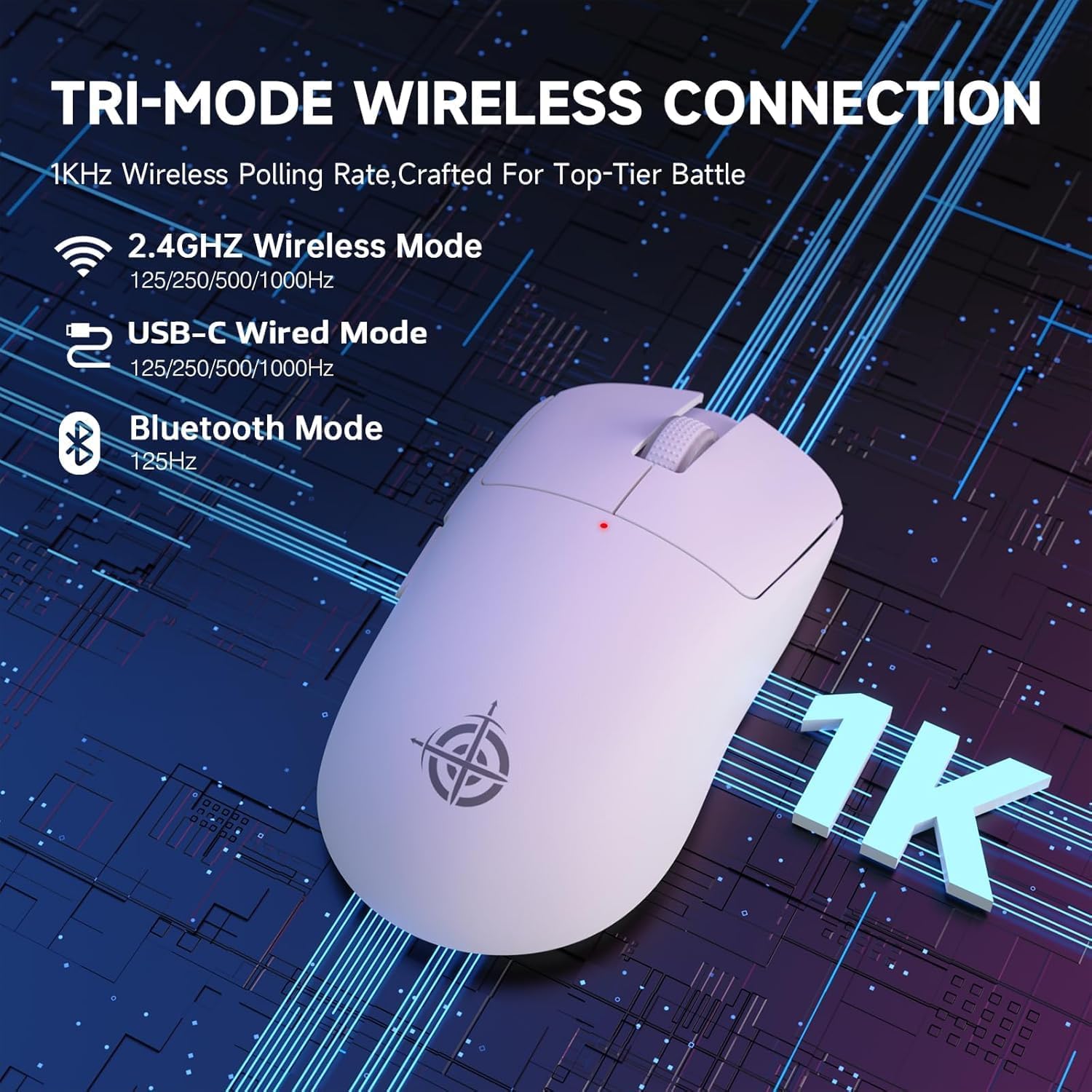
Image: The G6 mouse with an overlay indicating DPI levels (800-24000) and their associated indicator light colors (Red, Green, Blue, Yellow, Cyan, Purple).

Image: The G6 mouse displaying its customizable RGB lighting effects, including rainbow and single color options.

Image: The G6 mouse with its practical non-slip stickers applied, showing the textured surface for improved grip.
4. Посібник із налаштування
The G6 mouse offers three connection methods. Choose the one that best suits your needs.
4.1. Бездротовий режим 2.4 ГГц
- Знайдіть USB-приймач 2.4G, що зберігається у відсіку на нижній частині миші.
- Підключіть USB-приймач у вільний USB-порт на комп’ютері.
- Slide the power toggle switch on the bottom of the mouse to the '2.4G' position.
- The mouse should automatically connect. If not, press the 'Atmosphere light switch & wireless mode frequency binding button' on the bottom of the mouse to initiate pairing.
4.2. Режим Bluetooth
- Slide the power toggle switch on the bottom of the mouse to the 'Bluetooth' position.
- Індикатор миші почне блимати, що свідчить про те, що вона перебуває в режимі сполучення.
- На комп’ютері або пристрої перейдіть до налаштувань Bluetooth та знайдіть нові пристрої.
- Select 'ATTACK SHARK G6' (or similar name) from the list of available devices to pair.
4.3. Дротовий режим USB-C
- Підключіть наданий кабель USB-C до переднього порту миші.
- Підключіть інший кінець кабелю USB-C до вільного USB-порту на вашому комп’ютері.
- Миша автоматично перейде в дротовий режим і почне заряджатися.
5. Інструкція з експлуатації
5.1. Налаштування роздільної здатності
The G6 mouse has a dedicated DPI cycle button on the bottom. Press this button to cycle through the preset DPI levels (800, 1600, 2400, 3200, 6400, 24000). The indicator light will change color to reflect the current DPI setting (Red, Green, Blue, Yellow, Cyan, Purple respectively).
5.2. Функції кнопок
The G6 mouse features 5 programmable buttons:
- Ліва кнопка: Стандартний клік лівою кнопкою миші.
- Права кнопка: Стандартний клік правою кнопкою миші.
- Scroll Wheel + Middle Button: Прокручування вгору/вниз, клацання середньою кнопкою миші.
- Кнопка вперед: Переміщується вперед web браузери або file дослідники.
- Кнопка "Назад": Переміщується назад web браузери або file дослідники.
For advanced customization of button functions and macros, please download the official driver software from the ATTACK SHARK webсайт.
5.3. Керування RGB-підсвічуванням
The G6 mouse features customizable RGB lighting. Use the 'Atmosphere light switch' button on the bottom of the mouse to cycle through different lighting effects (e.g., Rainbow Lighting, Single Lighting) or to turn the lighting off.
6. Технічне обслуговування
To ensure the longevity and optimal performance of your G6 gaming mouse, follow these maintenance guidelines:
- Прибирання: Використовуйте м’яку суху тканину для протирання поверхні миші. Для стійкого бруду злегкаampПротріть тканину водою або м’яким миючим розчином. Уникайте агресивних хімікатів або абразивних матеріалів.
- Догляд за датчиком: Тримайте оптичний датчик на нижній частині миші чистим та без пилу чи сміття. За потреби використовуйте ватний тампон або стиснене повітря.
- Зберігання: Якщо миша не використовується протягом тривалого часу, зберігайте її в прохолодному, сухому місці, подалі від прямих сонячних променів та екстремальних температур.
- Батарея: Уникайте частого повного розряджання акумулятора. Регулярно заряджайте мишу, щоб підтримувати його в робочому стані.
7. Вирішення проблем
If you encounter any issues with your G6 gaming mouse, please refer to the following common solutions:
- Миша не реагує:
- Переконайтеся, що миша заряджена. Підключіть її за допомогою кабелю USB-C для заряджання.
- Check the power toggle switch on the bottom of the mouse is in the correct position (2.4G, BT, or OFF for wired).
- For 2.4GHz mode, ensure the USB receiver is securely plugged into a working USB port. Try a different USB port.
- For Bluetooth mode, ensure Bluetooth is enabled on your device and the mouse is paired. Try unpairing and re-pairing.
- Рух курсора нерівномірний або неточний:
- Очистіть оптичний датчик на нижній частині миші.
- Ensure you are using the mouse on a suitable surface. Some surfaces (e.g., plain black neoprene pads, highly reflective surfaces) may interfere with optical tracking. Try a different mouse pad or surface.
- Налаштуйте параметр DPI за допомогою кнопки циклічного перемикання DPI.
- 2.4GHz dongle not working:
- Ensure the mouse is switched to 2.4G mode.
- Try plugging the dongle into a different USB port on your computer.
- If issues persist, try re-pairing the mouse with the dongle by pressing the binding button on the mouse while the dongle is connected.
- Проблеми з підключенням Bluetooth:
- Ensure the mouse is in Bluetooth pairing mode (indicator light blinking).
- Видаліть мишу зі списку Bluetooth вашого пристрою та спробуйте знову підключитися.
- Переконайтеся, що драйвери Bluetooth вашого пристрою оновлені.
8. Технічні характеристики
| Особливість | Специфікація |
|---|---|
| Номер моделі | G6 |
| Технологія підключення | 2.4Ghz / Bluetooth / USB-C Wired |
| Технологія виявлення руху | Optical (PixArt PAW3311) |
| Рівні DPI | 800-24000 (6 регульованих рівнів) |
| Швидкість опитування | 125-1000Hz (2.4Ghz), 125Hz (Bluetooth) |
| Ємність акумулятора | 750 мАг |
| Вага товару | 72±3g (2.54 ounces) |
| Розміри | 116.2 x 62.2 x 37.3 мм (прибл.) |
| Перемкніть тривалість життя | 10 мільйонів кліків |
| Довжина кабелю | 1.5m (Braided USB-C) |
| Сумісність | Windows, macOS, Linux, Chrome OS, Consoles, Tablets, Smartphones |
9. Гарантія та підтримка
The ATTACK SHARK×Magic-Refiner G6 Wireless Gaming Mouse comes with a standard manufacturer's warranty. Please refer to the product packaging or the official ATTACK SHARK webсайт для отримання інформації про конкретні гарантійні умови.
For technical support, troubleshooting assistance, or warranty claims, please contact ATTACK SHARK customer service through their official webсайт або магазин, де ви придбали товар.
Примітка: Офіційних відео від продавця для вбудовування в цей посібник не було.


