1. Вступ
Welcome to the user manual for your new UXD A5 Android 13 Tablet. This guide provides essential information on setting up, operating, maintaining, and troubleshooting your device to ensure optimal performance and user experience. Please read this manual thoroughly before using your tablet.
2. Вміст упаковки
Перевірте, чи всі перелічені нижче предмети входять до вашої упаковки:
- UXD A5 Android 13 Tablet
- Стилус
- Захист екрану
- OTG Dongle
- Клавіатура
- миша
- Foldable Bag
- Зарядний кабель
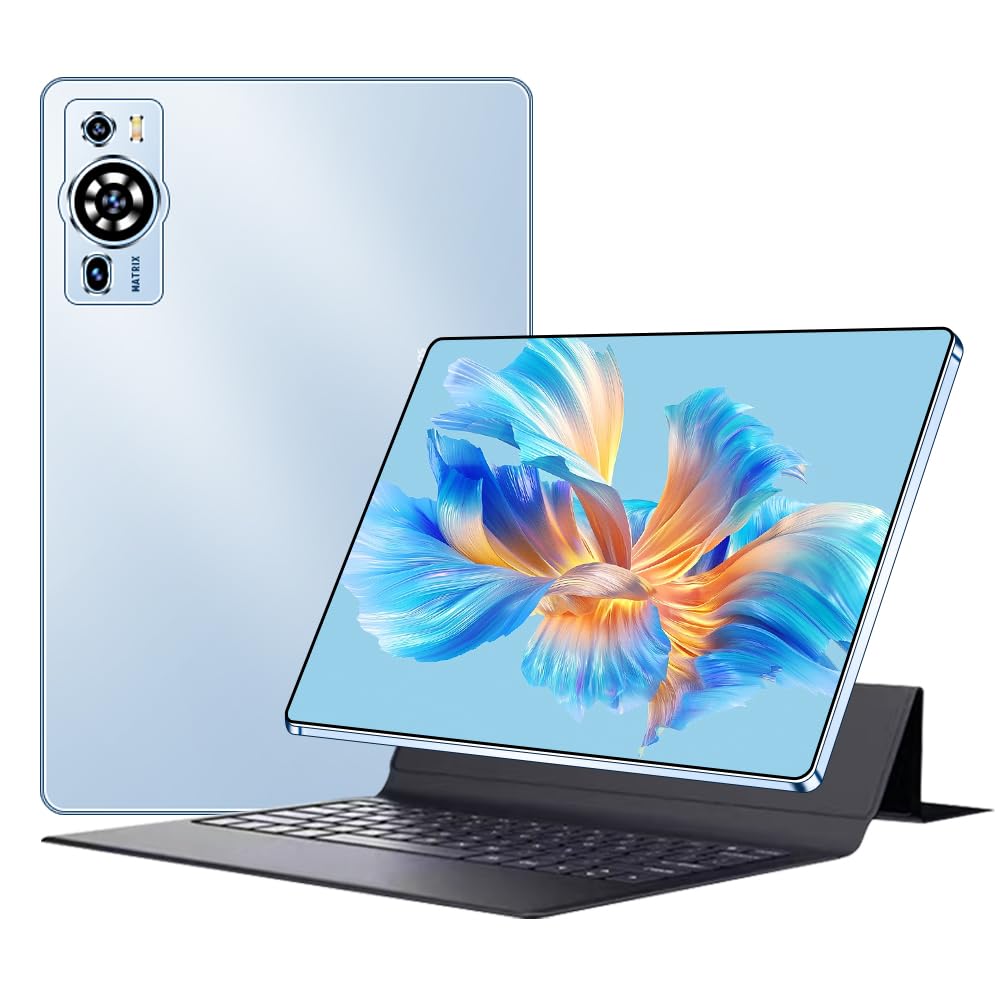
Image 2.1: UXD A5 Tablet with keyboard, mouse, stylus, and other accessories.
3. Продукт закінчивсяview
Ознайомтеся з фізичними компонентами вашого планшета:

Image 3.1: Diagram illustrating the tablet's ports and buttons.
- Роз'єм для навушників: Для підключення дротових навушників.
- Кнопка живлення: Press and hold to power on/off or restart. Press briefly to wake/sleep the screen.
- Клавіші гучності: Відрегулюйте гучність планшета.
- Charging Port (Type C): Connect the provided USB-C cable for charging.
- Фронтальна камера: Для відеодзвінків та селфі.
- Слот для SIM-карти: Insert a Nano-SIM card for 4G cellular connectivity and a microSD card for expandable storage.
- Доповідачі: Стереодинаміки для виведення звуку.
4. Початкове налаштування
4.1. Зарядка планшета
Before first use, fully charge your tablet. Connect the provided USB-C charging cable to the tablet's charging port and plug the other end into a power adapter (not always included) or a computer's USB port. The battery indicator on the screen will show charging status.
4.2. Увімкнення/вимкнення живлення
- Щоб увімкнути: Press and hold the Power Button until the UXD logo appears.
- Щоб вимкнути: Press and hold the Power Button until the power options menu appears, then select "Power off."
- Щоб перезапустити: Press and hold the Power Button until the power options menu appears, then select "Restart."
4.3. Встановлення SIM-карт та карт MicroSD
Locate the SIM card slot on the side of the tablet. Use the provided SIM ejector tool (if included) to open the tray. Carefully place your Nano-SIM card and/or microSD card into the designated slots on the tray, ensuring correct orientation. Insert the tray back into the tablet until it clicks into place.
4.4. Підключення аксесуарів
- Клавіатура та миша: These accessories typically connect via Bluetooth. Go to Налаштування > Підключені пристрої > Bluetooth on your tablet, turn on Bluetooth, and pair with the keyboard and mouse. Follow the specific pairing instructions for each accessory.
- Стилус: The stylus can be used directly on the screen for drawing, writing, and navigation. No pairing is usually required for basic functionality.
- OTG Dongle: Connect the OTG dongle to the tablet's USB-C port to connect USB devices like flash drives or external hard drives.
5. Інструкція з експлуатації
5.1. Навігація в Android 13
Your tablet runs on Android 13, offering an intuitive user interface. Swipe up from the bottom for the app drawer, swipe down from the top for quick settings and notifications. Use gestures or the navigation bar for Home, Back, and Recent Apps functions.
5.2. Підключення
- Wi-Fi 6: To connect to Wi-Fi, go to Налаштування > Мережа й Інтернет > Інтернет, select your desired network, and enter the password.
- Bluetooth 5.0: For connecting wireless headphones, speakers, or other Bluetooth devices, go to Налаштування > Підключені пристрої > Bluetooth.
- 4G стільниковий зв'язок: If you have inserted a SIM card, enable mobile data in Налаштування > Мережа та Інтернет > Мобільна мережа.
5.3. Налаштування дисплея
The 10.1-inch HD IPS display offers vibrant visuals. Adjust brightness, dark theme, and font size in Налаштування > Дисплей. The tablet supports features like eye protection modes to reduce strain.

Image 5.1: Tablet display highlighting key features like connectivity and eye protection.
5.4. Використання камери
Your tablet is equipped with dual cameras. Open the Camera app to take photos or record videos. Tap on the screen to focus and use the on-screen controls for various modes and settings.
5.5. Керування батареєю
The 8000 mAh battery provides extended usage. To optimize battery life, adjust screen brightness, close unused apps, and enable battery saver mode when needed. Avoid extreme temperatures.

Зображення 5.2: Продуктивність акумулятора протягомview for various activities.
5.6. Сценарії використання
The UXD A5 tablet is versatile for various tasks:

Зображення 5.3: Наприкладamples of tablet use for creative, entertainment, and productivity tasks.
- Painting & Drawing: Utilize the stylus for creative applications.
- Ігри: Enjoy a smooth gaming experience with the Octa-Core processor and 12GB RAM.
- Навчання та робота: Use the keyboard and mouse for productivity, and the stylus for note-taking.
- Споживання медіа: Watch videos and listen to music on the HD display and stereo speakers.
6. Догляд і технічне обслуговування
- Прибирання: Використовуйте м’яку тканину без ворсу для очищення екрана та корпусу. Уникайте агресивних хімікатів.
- Зберігання: Зберігайте таблетку в прохолодному, сухому місці, захищеному від прямих сонячних променів та екстремальних температур.
- Оновлення програмного забезпечення: Регулярно перевіряйте наявність та встановлюйте оновлення системи, щоб забезпечити оптимальну продуктивність і безпеку. Перейдіть до Налаштування > Система > Оновлення системи.
- Protecting the Screen: Apply the included screen protector to prevent scratches.
7. Посібник з усунення несправностей
У цьому розділі розглядаються поширені проблеми, з якими ви можете зіткнутися:
- Планшет не вмикається: Ensure the tablet is charged. Connect it to a charger for at least 30 minutes, then try powering on again. If it still doesn't turn on, perform a forced restart by holding the power button for 10-15 seconds.
- Екран не реагує: Перезавантажте планшет. Якщо проблема не зникає, переконайтеся, що екран чистий і на ньому немає сміття.
- Проблеми з підключенням Wi-Fi: Перевірте, чи ввімкнено Wi-Fi у налаштуваннях. Перезавантажте маршрутизатор і планшет. Забудьте про мережу та підключіться знову.
- Повільна продуктивність: Close unused applications. Clear cache data from apps. Consider performing a factory reset (back up your data first).
- Аксесуари не підключаються: Ensure Bluetooth is enabled on the tablet and the accessory is in pairing mode. Check battery levels of wireless accessories.
8. Технічні характеристики
| Бренд | UXD |
| Номер моделі | A5 |
| Операційна система | Android 13 |
| Марка процесора | MediaTek Octa Core |
| ОЗУ | 12 ГБ |
| Ємність зберігання | 256 ГБ |
| Розмір екрана | 10.1 дюймів |
| Роздільна здатність дисплея | 1920 x 1200 пікселів (HD IPS) |
| Ємність акумулятора | 8000 мАг |
| Термін служби батареї | До 8 годин |
| Бездротове підключення | Wi-Fi 6 (802.11ax, 802.11b), Bluetooth 5.0, 4G Cellular |
| Інтерфейси | USB Type-C, Bluetooth |
| Розміри (Д x Ш x В) | 24 х 16 х 0.9 см |
| Вага продукту | 1 кілограм |
| Особливості | Detachable Keyboard, Stereo Speakers, USB OTG Support, Stylus Support |

Image 8.1: Tablet showcasing its ultra-slim design and weight.
9. Гарантія та підтримка
Information regarding specific warranty terms and availability of spare parts is not provided in the product details. For warranty claims, technical support, or inquiries about spare parts, please refer to the manufacturer's official website or contact their customer service directly. Please retain your proof of purchase for any warranty-related requests.


