1. Вступ
Welcome to the CyberpowerPC Gamer Xtreme GXi3200BSTV10 Gaming Desktop PC. This manual provides essential information for setting up, operating, maintaining, and troubleshooting your new gaming system. Designed for high-performance gaming and demanding applications, this PC features an Intel Core i5-14400F processor, NVIDIA GeForce RTX 5060 graphics, 16GB DDR5 RAM, and a 1TB PCIe SSD, all running on Windows 11 Home.
For optimal performance and longevity, please read this manual thoroughly before using your computer.
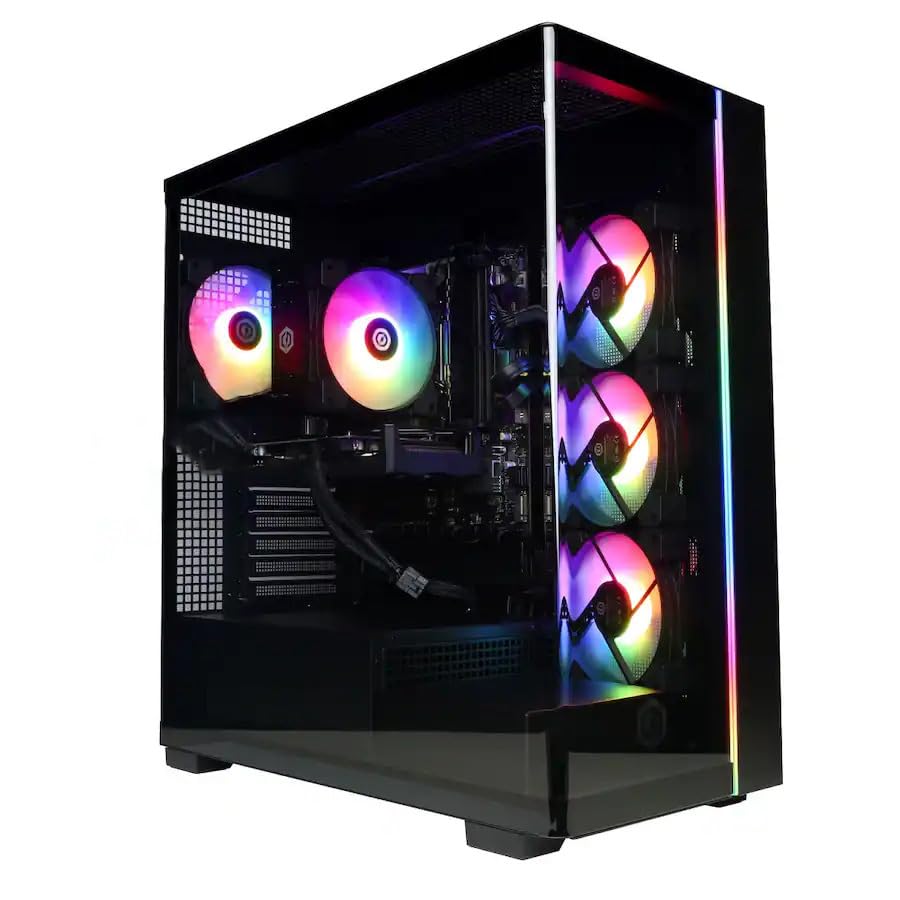
Зображення: спереду view of the CyberpowerPC Gamer Xtreme GXi3200BSTV10 Gaming Desktop PC, showcasing its sleek design and RGB lighting elements.
2. Що в коробці
Upon unpacking your CyberpowerPC Gamer Xtreme GXi3200BSTV10, please ensure all the following items are present:
- CyberpowerPC Gamer Xtreme GXi3200BSTV10 Desktop PC
- Кабель живлення
- Ігрова клавіатура RGB
- Ігрова миша RGB
- Документація (включно з цим посібником)

Image: The included CyberpowerPC NOHI 2 Black Wired RGB 104-Key Keyboard and CyberPowerPC Elite M2 Black Wired RGB 4-Button Mouse.
3. Посібник із налаштування
Follow these steps to set up your new CyberpowerPC Gamer Xtreme desktop:
3.1 Розпакування та розміщення
- Carefully remove the PC and all accessories from the packaging. Retain the packaging for future transport or warranty claims.
- Place the PC on a stable, flat surface with adequate ventilation. Ensure there is clear space around the air intake and exhaust vents.
- Remove any protective films or internal packing materials from the PC case.
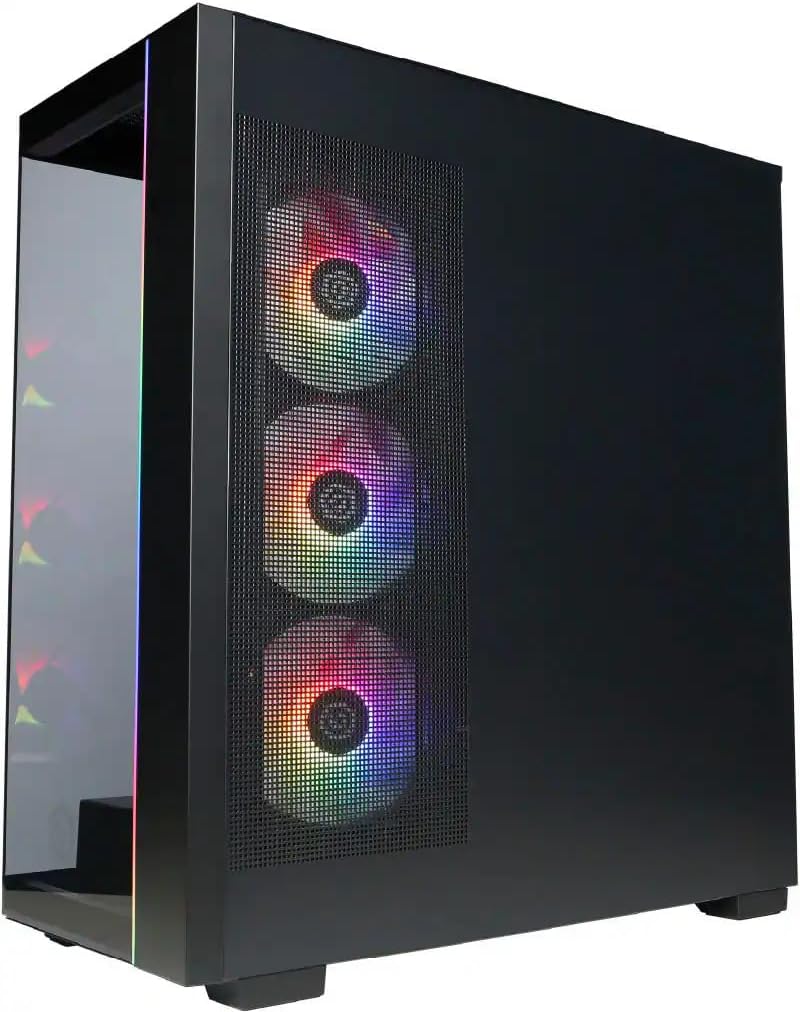
Зображення: Збоку view of the PC case, highlighting the mesh panel for airflow and the RGB fans visible through it.
3.2 Підключення периферійних пристроїв
Connect your monitor, keyboard, mouse, and other devices to the appropriate ports on the back of the PC.
- Монітор: Connect your monitor to one of the graphics card's display outputs (DisplayPort or HDMI). Ensure it's connected to the dedicated graphics card (NVIDIA GeForce RTX 5060), not the motherboard's integrated graphics ports.
- Клавіатура та миша: Connect the included RGB keyboard and mouse to any available USB ports.
- Мережа: For wired internet, connect an Ethernet cable to the RJ-45 port. For wireless internet, ensure the Wi-Fi antennas (if provided) are attached.
- Аудіо: Підключіть динаміки або навушники до аудіовиходів.
3.3 Підключення живлення та початкове завантаження
- Connect the power cable to the PC's power supply unit (PSU) and then to a grounded electrical outlet.
- Натисніть кнопку живлення, розташовану на передній або верхній панелі ПК.
- Follow the on-screen instructions to complete the Windows 11 Home setup process. This may include setting up your user account, network connection, and privacy settings.
4. Керування ПК
This section covers basic operation of your CyberpowerPC Gamer Xtreme.
4.1 Увімкнення/вимкнення та перезапуск
- Увімкнення: Натисніть кнопку живлення один раз.
- Вимкнути: Натисніть кнопку «Пуск» у Windows, а потім виберіть «Живлення» > «Завершити роботу».
- Перезапуск: Натисніть кнопку «Пуск» у Windows, а потім виберіть «Живлення» > «Перезавантажити».
- Примусове вимкнення: If the system is unresponsive, press and hold the power button for 5-10 seconds until the PC turns off. Use this only as a last resort.
4.2 Підключення до мережі
- Дротове з’єднання (Ethernet): Once the Ethernet cable is connected, Windows 11 should automatically detect and connect to the network.
- Бездротовий зв'язок (Wi-Fi): Клацніть значок Wi-Fi на панелі завдань, виберіть потрібну мережу, введіть пароль і натисніть «Підключитися».
4.3 Керування RGB-підсвічуванням
Your system features customizable RGB lighting for fans, case, and CPU cooler. Control software for RGB lighting may be pre-installed or available for download from the CyberpowerPC website. Refer to the specific software's instructions for detailed customization options.

Зображення: Детальне view of the RGB fans, illustrating the vibrant lighting effects within the PC case.

Image: Close-up of the CPU cooler, showing its design and integrated RGB lighting.
5. Технічне обслуговування
Регулярне технічне обслуговування допомагає забезпечити довговічність та оптимальну продуктивність вашого ПК.
5.1 Очищення
- Зовні: Використовуйте м'який, damp cloth to clean the exterior of the case. Avoid harsh chemicals.
- Пил: Periodically clean dust from the internal components, especially fans and heatsinks, using compressed air. Ensure the PC is powered off and unplugged before opening the case.
- Повітряні фільтри: If your case has removable air filters, clean them regularly to maintain optimal airflow.
5.2 Оновлення програмного забезпечення
- Оновлення Windows: Regularly check for and install Windows updates to ensure security and performance improvements. Go to Settings > Windows Update.
- Оновлення драйверів: Keep your graphics card drivers (NVIDIA GeForce) and other component drivers updated for best performance and compatibility. Visit the respective manufacturer's webсайти з найновішими драйверами.
5.3 Резервне копіювання даних
Regularly back up your important data to an external drive or cloud storage to prevent data loss in case of hardware failure or other issues.
6. Вирішення проблем
У цьому розділі наведено рішення для поширених проблем, з якими ви можете зіткнутися.
6.1 Немає живлення
- Ensure the power cable is securely connected to both the PC and the wall outlet.
- Check if the power switch on the PSU (located at the back of the PC) is in the 'ON' position.
- Перевірте розетку за допомогою іншого пристрою, щоб переконатися, що вона має живлення.
6.2 Немає зображення на моніторі
- Verify that the monitor is powered on and its video cable is securely connected to the graphics card (NVIDIA GeForce RTX 5060) on the PC.
- Переконайтеся, що джерело вхідного сигналу монітора налаштовано правильно (наприклад, HDMI 1, DisplayPort).
- Спробуйте підключити монітор до іншого порту виходу дисплея на відеокарті.
6.3 System Running Slowly
- Check Task Manager (Ctrl+Shift+Esc) for applications consuming excessive CPU, RAM, or disk resources.
- Переконайтеся, що Windows та драйвери оновлені.
- Виконайте повне сканування системи на наявність шкідливих програм або вірусів.
- Verify that the PC has adequate ventilation and is not overheating.
7. Технічні характеристики
Detailed technical specifications for your CyberpowerPC Gamer Xtreme GXi3200BSTV10:

Image: Infographic summarizing key specifications including Intel Core i5-14400F, NVIDIA GeForce RTX 5060, 16GB DDR5 RAM, and 1TB PCIe NVMe M.2 SSD.
| компонент | Специфікація |
|---|---|
| Процесор | Intel Core i5-14400F (10-Core, 2.5 GHz base, up to 4.7 GHz Turbo Boost) |
| Графічна карта | NVIDIA GeForce RTX 5060 8 ГБ GDDR7 |
| ОЗУ | 16 ГБ DDR5 6000 МГц |
| Зберігання | Твердотільний накопичувач PCIe NVMe M.2 ємністю 1 ТБ |
| Операційна система | Windows 11 Домашня |
| Бездротове підключення | Wi-Fi (802.11ax), Bluetooth |
| Аудіо | 7.1-канальний звук високої чіткості |
| Виходи дисплея | 3x DisplayPort, 1x HDMI |
| USB порти | 1x USB-C 3.2, 3x USB-A 3.2, 4x USB-A 2.0 |
| Розміри (ДxШxВ) | 18.1 x 9.2 x 20 дюймів |
| Вага товару | 40 фунта |
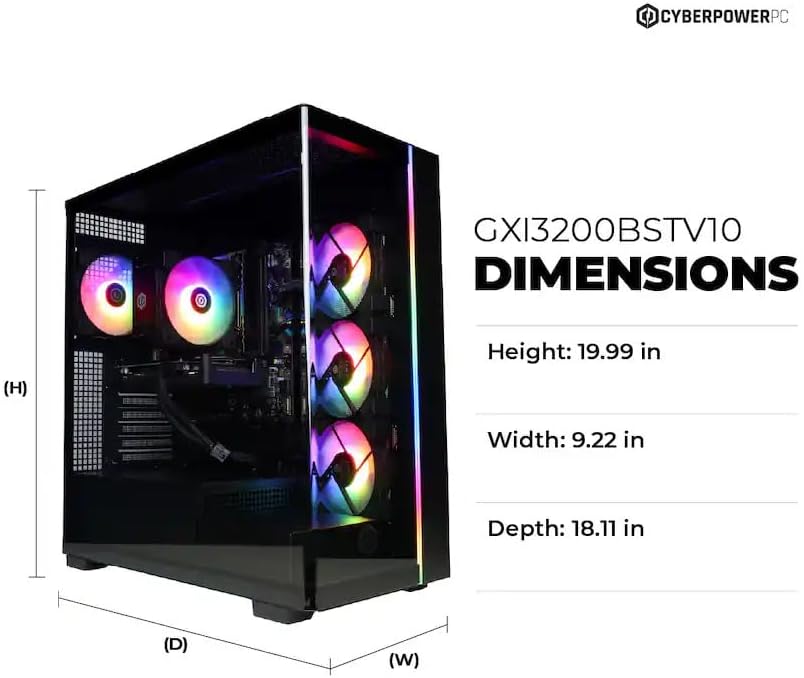
Image: Diagram illustrating the dimensions of the CyberpowerPC Gamer Xtreme GXi3200BSTV10: Height 19.99 in, Width 9.22 in, Depth 18.11 in.
8. Гарантія та підтримка
8.1 Гарантія виробника
Your CyberpowerPC Gamer Xtreme GXi3200BSTV10 comes with a Гарантія від виробника 1 рікЦя гарантія поширюється на дефекти матеріалів та виготовлення за умов нормального використання. Будь ласка, збережіть чек про покупку для пред'явлення претензій за гарантією.
For specific terms and conditions of the warranty, please refer to the documentation included with your PC or visit the official CyberpowerPC webсайт.
8.2 Технічна підтримка
If you encounter issues that cannot be resolved using the troubleshooting steps in this manual, please contact CyberpowerPC technical support. Have your model number (GXi3200BSTV10) and serial number ready when contacting support.
You can typically find support contact information on the CyberpowerPC webсайті або в документації, що постачається з вашою системою.


