1. Вступ
The Vretti K2 is a portable thermal label printer designed for various labeling needs in home, office, and business environments. It offers inkless printing, Bluetooth connectivity for mobile devices (Android and iOS), and a compact design for ease of use. This manual provides detailed instructions for setup, operation, maintenance, and troubleshooting to ensure optimal performance of your device.
2. Вміст упаковки
Перш ніж почати, перевірте, чи всі елементи присутні в упаковці:
- Vretti K2 Label Maker x1
- Кабель типу C x1
- 50x30mm Paper Rolls x1 (pre-installed inside the machine)
- Посібник користувача x1
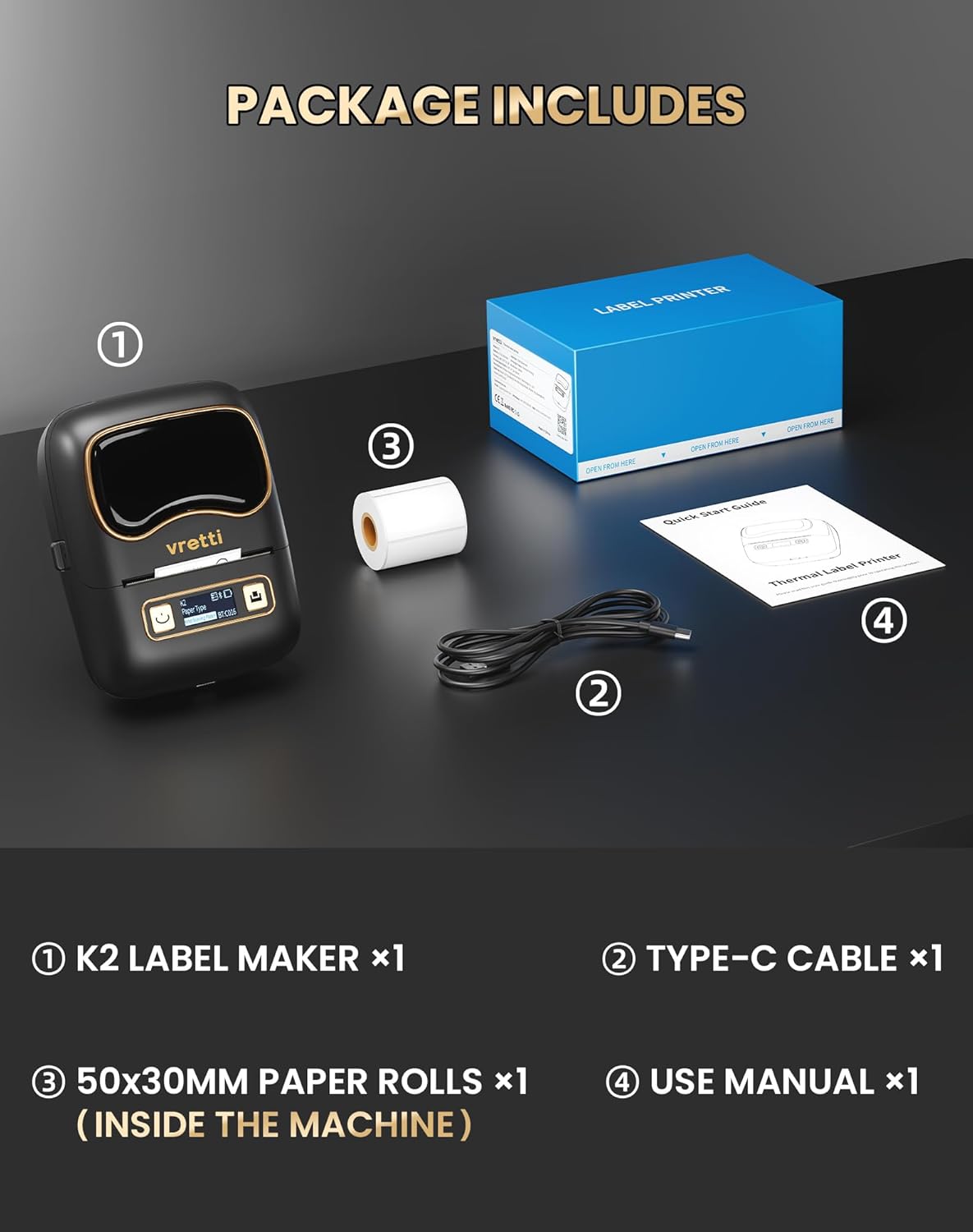
Image: Contents of the Vretti K2 label printer package, including the printer, USB-C cable, a roll of labels, and the user manual.
3. Технічні характеристики
| Особливість | Специфікація |
|---|---|
| Назва моделі | K2 |
| Технологія друку | Теплові |
| Технологія підключення | Bluetooth, USB |
| Сумісні пристрої | Ноутбук, ПК, смартфон, планшет |
| Max Print Resolution (DPI) | 203 dpi |
| Швидкість друку | 9 мм/с |
| Максимальна місткість аркушів | 100 |
| Підтримувана ширина етикетки | 20-50 мм |
| Ємність акумулятора | 1500 мАг |
| Інтерфейс зарядки | USB Type-C |
| Розміри (Д x Ш x В) | 15.7 x 9.5 x 6.4 см (4.53 x 3.54 x 2.44 дюйма) |
| вага | 0.49 фунта |

Зображення: Оверview of Vretti K2 features including no ink needed, Bluetooth connectivity, lightweight, 1500mAh battery, wireless printing, high resolution, 9mm/s fast printing, and USB Type-C.
4. Налаштування
4.1 Заряджання принтера
Before first use, fully charge the Vretti K2 printer using the provided Type-C cable. Connect the cable to the printer's charging port and a compatible USB power adapter (not included). The charging indicator light will show the charging status.
4.2 Завантаження етикеток
- Open the printer cover by gently pressing the release button or sliding the cover open, depending on the model.
- Insert the label roll into the paper compartment, ensuring the labels face upwards and the roll is properly aligned.
- Витягніть невелику частину етикеткового паперу повз друкуючу головку.
- Надійно закрийте кришку принтера.
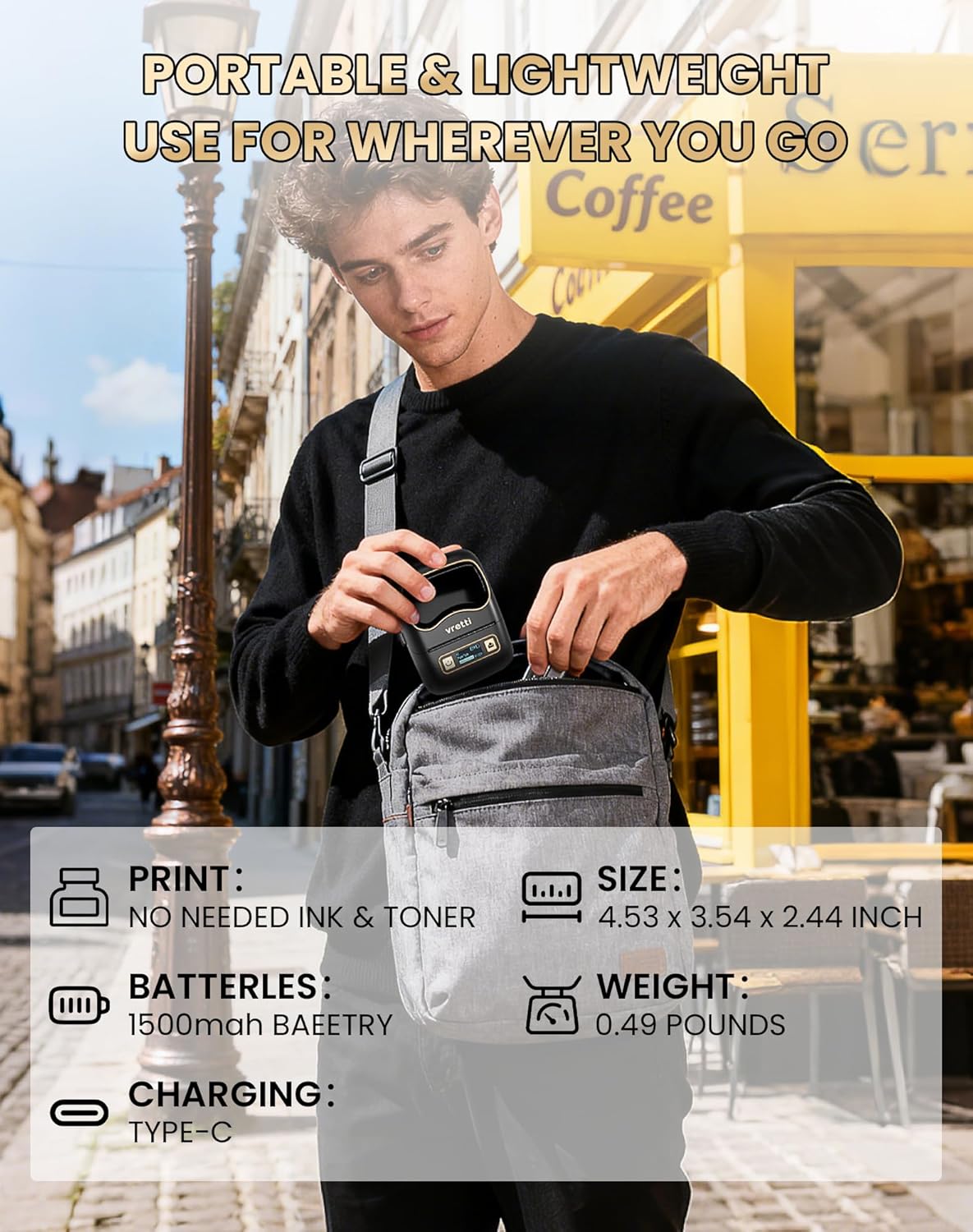
Image: The Vretti K2 printer with various label sizes (20-50mm width) shown, demonstrating how different label rolls fit into the printer.
4.3 Завантаження та встановлення програми
The Vretti K2 printer operates with the XeasyLabel mobile application. Download the app from your device's app store:
- Для пристроїв Android: шукати "XeasyLabel" on the Google Play Store.
- Для пристроїв iOS: шукати "XeasyLabel" on the Apple App Store.
Встановіть програму на свій смартфон або планшет.

Image: The Vretti K2 printer next to a smartphone displaying the XEasyLabel app interface, highlighting Bluetooth 5.0 connectivity and app download options for Android and iOS.
4.4 Підключення Bluetooth
- Ensure your Vretti K2 printer is powered on.
- Увімкніть Bluetooth на своєму мобільному пристрої.
- Open the XeasyLabel application.
- Within the app, navigate to the device connection section.
- Select your Vretti K2 printer (usually identified as "K2" or a similar name) from the list of available devices to establish a Bluetooth connection.

Image: A three-step guide showing how to connect the Vretti K2 printer via Bluetooth and begin editing and printing labels using the XEasyLabel app on a smartphone.
5. Інструкція з експлуатації
5.1 Створення та друк етикеток
- After connecting your printer via Bluetooth, open the XeasyLabel app.
- Select a template or create a new label design. The app offers various fonts, icons, frames, and intelligent features like scanning and image recognition.
- Customize your label with text, images, barcodes, or serial numbers.
- попередньоview your label to ensure it appears as desired.
- Tap the print button in the app. The printer will automatically detect the label size and print without requiring ink or toner.
5.2 Сценарії застосування
The Vretti K2 printer is versatile and suitable for a wide range of applications:
- офіс: File labels, lamp labels, memo labels, visitor labels.
- Бізнес: Address labels, product labels, price labels, gift labels.
- Головна: Toy labels, food labels, drug labels, general organization labels.
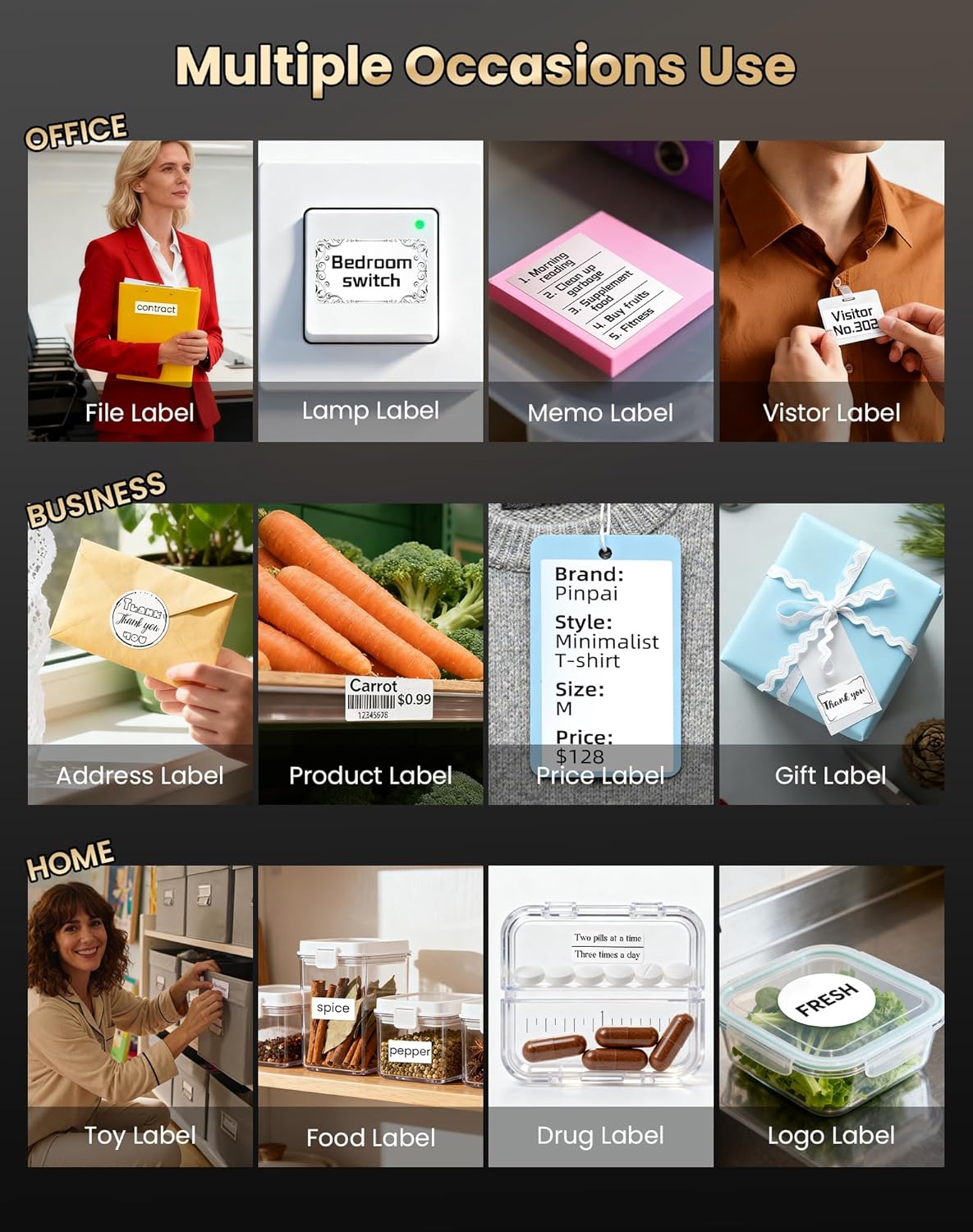
Зображення: Прamples of Vretti K2 label printer use in office, business, and home settings, showing various label types like file, product, and food labels.

Зображення: Подальший ексamples of Vretti K2 label printer applications, including clothing tags, food containers, and cable labeling, demonstrating its versatility.
6. Технічне обслуговування
6.1 Очищення друкуючої головки
To maintain print quality, regularly clean the print head. Use a cotton swab lightly dampзмочений ізопропіловим спиртом. Обережно протріть поверхню друкуючої головки. Перед використанням переконайтеся, що принтер вимкнений і повністю сухий.
6.2 Догляд за акумулятором
- Уникайте частого повного розряджання акумулятора.
- Charge the printer regularly, even if not in use, to prolong battery life.
- Зберігайте принтер у прохолодному, сухому місці, якщо він не використовується протягом тривалого часу.
7. Вирішення проблем
If you encounter issues with your Vretti K2 printer, refer to the following common problems and solutions:
- Принтер не підключається через Bluetooth:
- Переконайтеся, що принтер увімкнено та знаходиться в зоні дії вашого мобільного пристрою.
- Перевірте, чи Bluetooth увімкнено на вашому пристрої.
- Перезавантажте принтер і мобільний пристрій.
- Check if the XeasyLabel app has Bluetooth permissions enabled.
- Погана якість друку:
- Очистіть друкувальну головку, як описано в розділі «Технічне обслуговування».
- Переконайтеся, що ви використовуєте високоякісні термоетикетки.
- Check the label roll for proper installation and ensure it is not damaged.
- Етикетки не подаються належним чином:
- Ensure the label roll is inserted correctly and aligned.
- Перевірте наявність будь-яких перешкод на шляху проходження паперу.
- Make sure the label type selected in the app matches the physical labels.
- Принтер не вмикається:
- Charge the printer for at least 30 minutes.
- Спробуйте інший кабель USB-C та адаптер живлення.
For further assistance, consult the XeasyLabel app's help section or contact customer support.
8. Гарантія та підтримка
8.1 Інформація про гарантію
The Vretti K2 Thermal Label Printer comes with a standard manufacturer's warranty. Please refer to the warranty card included in your package or contact Vretti customer service for specific details regarding warranty duration and coverage.
8.2 Підтримка клієнтів
If you require technical support, have questions about your product, or need assistance with warranty claims, please contact Vretti customer support through their official webсайт або контактну інформацію, надану в документації до вашого продукту.


