1. Вступ
This manual provides comprehensive instructions for the installation, operation, maintenance, and troubleshooting of your Sapphire Pulse AMD Radeon RX 9070 Gaming graphics card. Please read this manual thoroughly before installing and using your new graphics card to ensure proper functionality and to maximize its performance and lifespan.
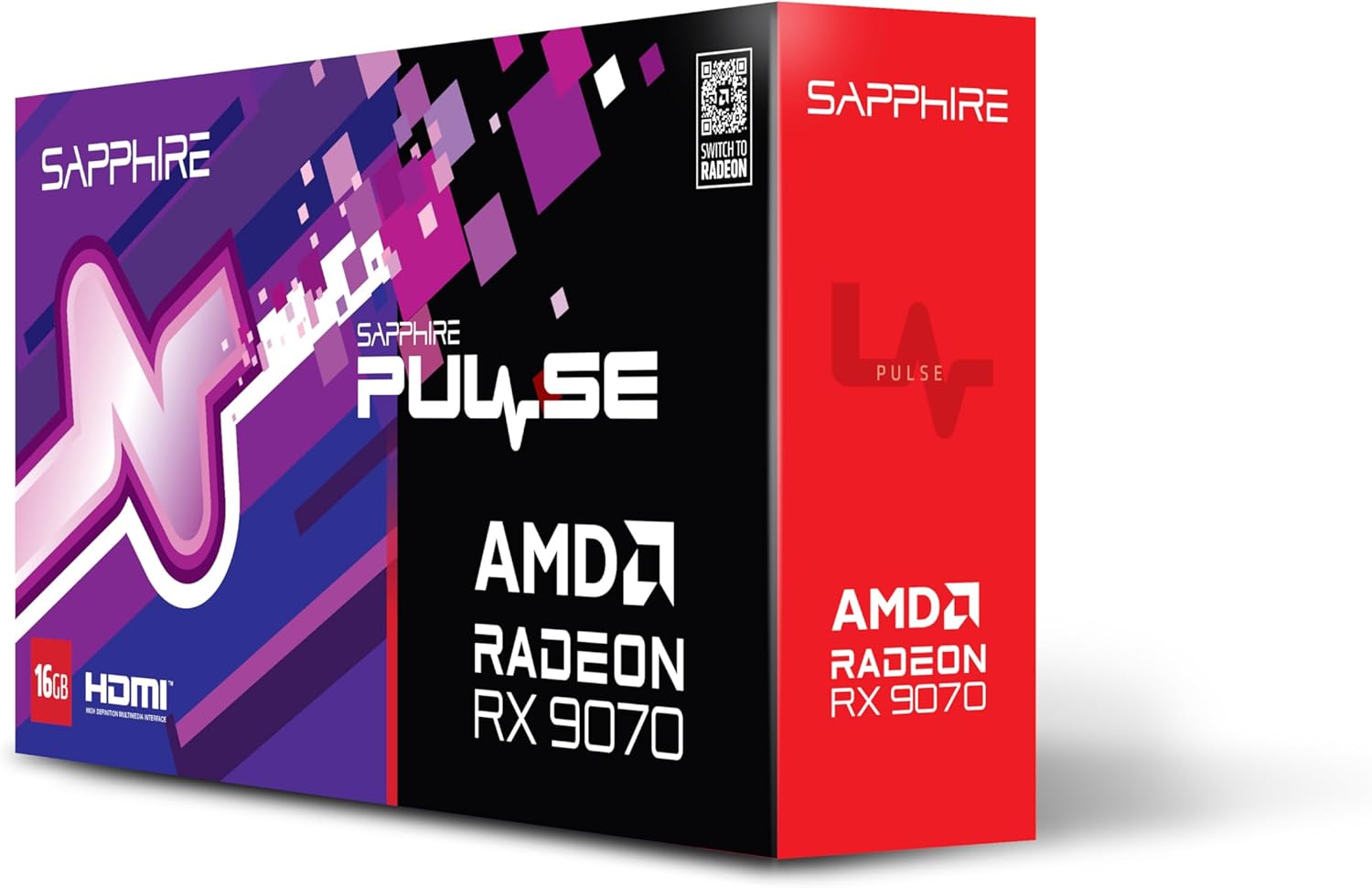
Зображення 1.1: спереду view of the Sapphire Pulse AMD Radeon RX 9070 Gaming graphics card packaging, showcasing the product branding and model.
2. Вміст упаковки
Verify that all items are present in your package. If any items are missing or damaged, please contact your retailer or Sapphire support.
- Sapphire Pulse AMD Radeon RX 9070 Gaming Graphics Card
- Quick Installation Guide or Documentation
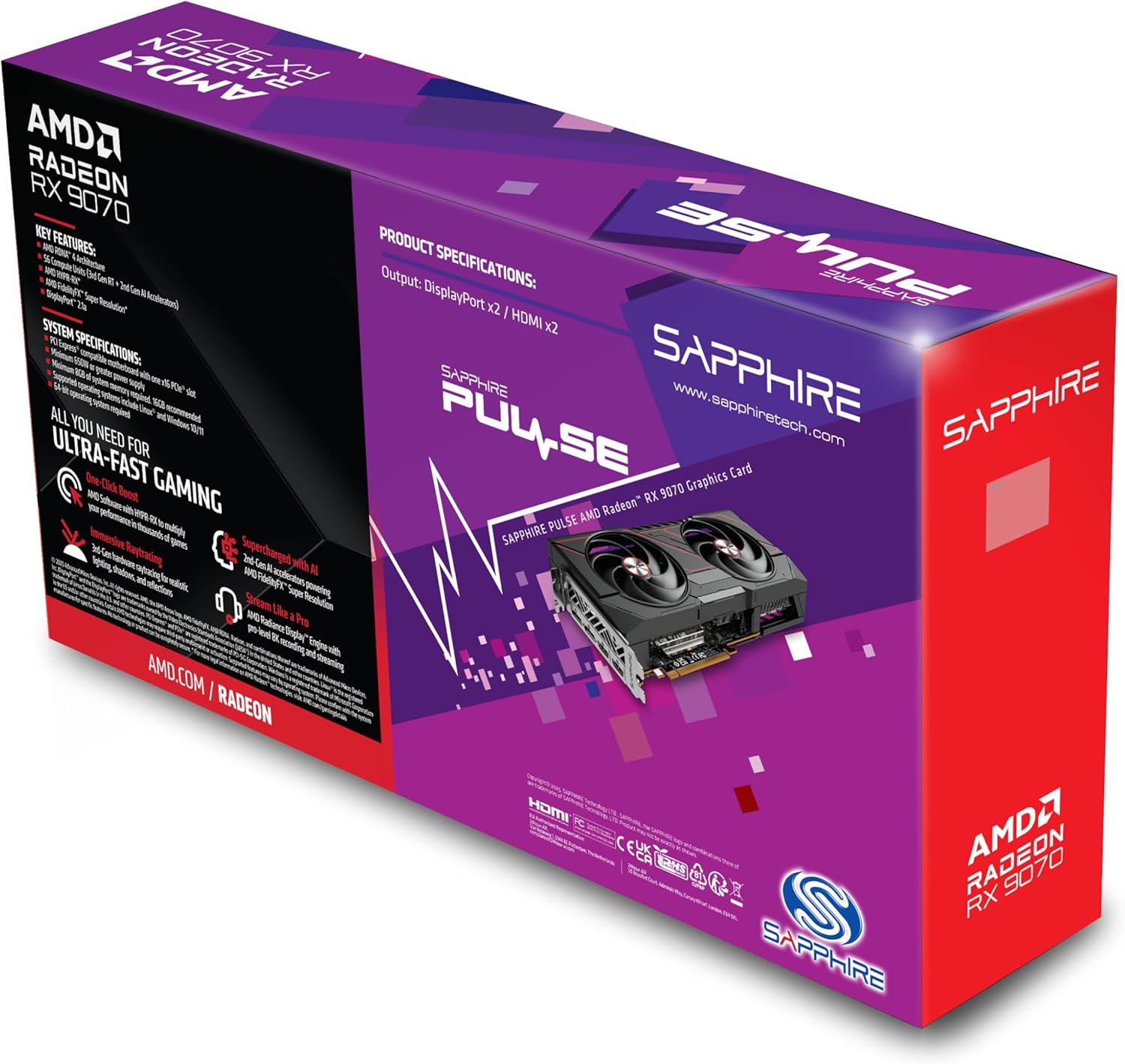
Зображення 2.1: Ззаду view of the Sapphire Pulse AMD Radeon RX 9070 Gaming graphics card packaging, displaying key features and specifications.
3. Системні вимоги
Перед встановленням відеокарти переконайтеся, що ваша система відповідає наступним мінімальним вимогам:
- PCI Express-compliant motherboard with one X16 graphics slot.
- Minimum 650W Power Supply Unit (PSU) with appropriate PCIe power connectors (e.g., 8-pin + 6-pin or dual 8-pin, depending on specific model). Refer to your PSU manual for details.
- Minimum 8GB System Memory (RAM); 16GB or more recommended for optimal performance.
- Операційна система: Windows 10/11 64-розрядна версія або Linux 64-розрядна версія.
- підключення до Інтернету for driver installation and updates.
- Монітор дисплея with DisplayPort or HDMI input.
4. Монтаж
Follow these steps to install your Sapphire Pulse AMD Radeon RX 9070 Gaming graphics card:
- Підготуйте свою систему:
- Turn off your computer and disconnect the power cable from the wall outlet.
- Відкрийте корпус комп'ютера.
- Ground yourself by touching a metal part of the case to discharge static electricity.
- Remove Existing Graphics Card (if applicable):
- Disconnect any power cables from the old graphics card.
- Unscrew the retaining screw(s) holding the card to the case.
- Carefully unlatch the PCIe slot retention clip and gently pull the old card straight out of the slot.
- Install the New Graphics Card:
- Знайдіть вільний слот PCI Express x16 на материнській платі.
- Remove the metal bracket cover(s) from the back of your computer case corresponding to the slot.
- Align the graphics card with the PCIe slot and press it firmly until it is fully seated and the retention clip locks into place.
- Secure the graphics card to the case with the retaining screw(s).
- Важливо: This graphics card is substantial in weight. It is highly recommended to use a GPU support bracket to prevent sag and potential damage to the PCIe slot over time.
- Підключення кабелів живлення:
- Connect the appropriate PCIe power cables from your power supply to the power connectors on the graphics card. Ensure all connectors are securely attached.
- Закрийте корпус та підключіть периферійні пристрої:
- Закрийте корпус комп'ютера.
- Підключіть монітор(и) до виходів DisplayPort або HDMI на відеокарті.
- Reconnect the power cable to your computer and turn it on.
5. Встановлення драйвера
After physical installation, you need to install the latest drivers for your graphics card:
- Завантажити драйвери:
- Відвідайте офіційний сайт AMD webсайт (www.amd.com/en/support) or the Sapphire support page (www.sapphiretech.com/en/support).
- Navigate to the driver download section and select your graphics card model (AMD Radeon RX 9070).
- Download the latest recommended drivers for your operating system.
- Встановити драйвери:
- Run the downloaded driver installer.
- Follow the on-screen prompts to complete the installation. It is generally recommended to perform a "Clean Installation" to remove any previous driver remnants.
- Your screen may flicker or go black temporarily during the installation process. This is normal.
- Перезапустити систему:
- Після завершення інсталяції перезавантажте комп'ютер.
- After restarting, your graphics card should be fully functional.
6. Робота з відеокартою
Once installed and drivers are updated, your graphics card will automatically handle graphics processing for your system. You can further optimize its performance and settings using the AMD Radeon Software.
- AMD Radeon Software: This utility allows you to monitor performance, adjust game settings, manage display configurations (including FreeSync), and update drivers. Access it via the system tray icon or by right-clicking on your desktop.
- Display Connections: The card supports Dual HDMI and Dual DisplayPort outputs. Connect your monitors to the available ports. For multi-monitor setups, configure display arrangements within Windows Display Settings or AMD Radeon Software.
- роздільна здатність: The card supports a maximum screen resolution of 7680x4320. Ensure your monitor and cables support the desired resolution and refresh rate.
7. Технічне обслуговування
Proper maintenance helps ensure the longevity and optimal performance of your graphics card.
- Видалення пилу: Periodically clean dust from the graphics card heatsink and fans using compressed air. Ensure the computer is powered off and unplugged before cleaning. Hold the fan blades gently to prevent over-spinning during cleaning.
- Потік повітря: Ensure your computer case has adequate airflow to prevent overheating. Keep cables tidy and ensure intake and exhaust fans are clear.
- Оновлення драйверів: Regularly check for and install the latest graphics drivers from AMD or Sapphire to benefit from performance improvements, bug fixes, and new features.
8. Вирішення проблем
Якщо у вас виникли проблеми з відеокартою, зверніться до наступних поширених кроків усунення несправностей:
- Немає виводу на дисплей:
- Ensure the monitor is connected to the graphics card, not the motherboard's integrated graphics port.
- Переконайтеся, що всі кабелі живлення надійно підключені до відеокарти та блока живлення.
- Перевстановіть відеокарту в слот PCIe.
- Якщо можливо, протестуйте з іншим кабелем дисплея або монітором.
- Нестабільність або збої системи:
- Ensure your power supply unit (PSU) meets the minimum wattage вимога.
- Perform a clean installation of the latest graphics drivers.
- Monitor GPU temperatures using AMD Radeon Software to check for overheating.
- Перевірте наявність оновлень BIOS/UEFI для вашої материнської плати.
- Погана продуктивність в іграх/додатках:
- Переконайтеся, що встановлено найновіші драйвери графіки.
- Verify that the game/application is using the dedicated graphics card and not integrated graphics (if applicable).
- Перевірте налаштування в грі; за потреби зменште роздільну здатність або якість графіки.
- Monitor GPU utilization and temperatures to identify bottlenecks or thermal throttling.
- Шум вентилятора:
- Висока швидкість вентилятора є нормальною за умов високого навантаження для підтримки оптимальної температури.
- If fans are excessively loud at idle, check fan profiles in AMD Radeon Software.
- Ensure no cables or obstructions are interfering with fan rotation.
9. Технічні характеристики
Key technical specifications for the Sapphire Pulse AMD Radeon RX 9070 Gaming graphics card:
| Особливість | Деталь |
|---|---|
| Номер моделі | 11349-03-20G |
| Графічний співпроцесор | AMD Radeon RX 9070 |
| Video Memory (RAM) | 16 ГБ GDDR6 |
| Швидкість пам'яті | 950 МГц |
| Тактова частота | 2520 MHz (as per card description) |
| Максимальна роздільна здатність екрана | 7680x4320 |
| Інтерфейс відеовиходу | Dual DisplayPort, Dual HDMI |
| Розміри виробу (ДхШхВ) | 11.81 x 11.81 x 0.04 дюймів |
| Вага товару | 2.99 фунта |
| Виробник | Сапфір |
10. Гарантія та підтримка
For warranty information, technical support, or service inquiries, please refer to the official Sapphire webсайт або зверніться безпосередньо до служби підтримки клієнтів.
- Офіційний Сапфір Webсайт: www.sapphiretech.com
- Сторінка підтримки: www.sapphiretech.com/en/support
- Зберігайте докази покупки для гарантійних претензій.


