1. Вступ
This manual provides detailed instructions for the setup, operation, maintenance, and troubleshooting of your Phomemo D520BT Bluetooth Thermal Label Printer. Please read this manual thoroughly before using the device to ensure proper functionality and to extend the product's lifespan.

Figure 1: Phomemo D520BT printer in purple, printing a shipping label, with a smartphone displaying a label design connected via Bluetooth. This image illustrates the printer's compact design and wireless printing capability.
2. Вміст упаковки
Перевірте, чи всі перелічені нижче предмети входять до вашої упаковки. Якщо будь-які предмети відсутні або пошкоджені, зверніться до служби підтримки клієнтів.
- Phomemo D520BT Thermal Printer
- Roll Label (sampле)
- Короткий посібник
- Посібник користувача (цей документ)
- Шнур живлення
- USB кабель
- Адаптер Type-C
- Адаптер живлення

Figure 2: All components included in the Phomemo D520BT product package.
3. Посібник із налаштування
3.1 Розпакування
- Обережно вийміть принтер та всі аксесуари з упаковки.
- Remove any protective films or packing materials from the printer.
3.2 Завантаження етикеток
The Phomemo D520BT supports both roll paper and folding paper labels.
- Обережно підніміть кришку принтера та відкрийте її.
- For Roll Paper: Place the label roll into the internal paper holder, ensuring the labels feed from the bottom and the printing side faces upwards. Guide the first label through the output slot until it is slightly visible.
- For Folding Paper: Place the stack of folding labels behind the printer, ensuring the labels feed smoothly into the rear input slot and the printing side faces upwards. Guide the first label through the output slot until it is slightly visible.
- Надійно закрийте кришку принтера.

Figure 3: The Phomemo D520BT printer supports both folding paper and roll paper labels.
3.3 Підключення принтера
The D520BT offers both USB and Bluetooth connectivity.
3.3.1 USB Connection (Windows, Mac, Chrome OS, Linux)
- Підключіть один кінець USB-кабелю до принтера, а інший – до комп’ютера.
- Підключіть адаптер живлення до принтера та вставте його в розетку.
- Увімкніть принтер.
- Install the necessary printer drivers for your operating system. Drivers can typically be found on the official Phomemo webсайт.
3.3.2 Bluetooth Connection (Android, iOS, iPad)
- Підключіть адаптер живлення до принтера та вставте його в розетку.
- Увімкніть принтер.
- Завантажте та встановіть “Labelife” додаток з магазину додатків вашого пристрою.
- Open the Labelife app and follow the in-app instructions to pair your device with the D520BT printer via Bluetooth.

Figure 4: The Phomemo D520BT supports both Bluetooth and USB connectivity for various devices and operating systems.
4. Інструкція з експлуатації
4.1 Увімкнення/вимкнення живлення
- Увімкнення: Press the power button located on the printer. The indicator light will illuminate.
- Вимкнення живлення: Натисніть і утримуйте кнопку живлення, доки індикатор не згасне.
4.2 Друк етикетки
- Ensure the printer is powered on and connected to your device (computer via USB or mobile device via Bluetooth).
- Відкрийте документ або програму, з якої потрібно друкувати.
- Select the Phomemo D520BT as your printer.
- Adjust print settings as needed (e.g., label size, orientation). The printer supports a width range of 1 to 4.6 inches.
- Ініціюйте команду друку.
The Labelife app provides various free templates for customizing shipping labels, address labels, barcode labels, and thank-you stickers.
4.3 Основні характеристики
- Високошвидкісний друк: The D520BT can print up to 72 labels per minute (150mm/s), suitable for high-volume printing tasks.
- Висока роздільна здатність: Prints at 203 DPI, ensuring sharp and precise details on each label.
- Wide Printing Range: Supports label widths from 1 inch to 4.6 inches, accommodating various label types including 4x6 inch shipping labels.
- Ink-Free Thermal Technology: Utilizes direct thermal printing, eliminating the need for ink or toner cartridges.
- Компактний дизайн: Features a built-in paper holder, reducing the need for external label racks and optimizing desktop space.
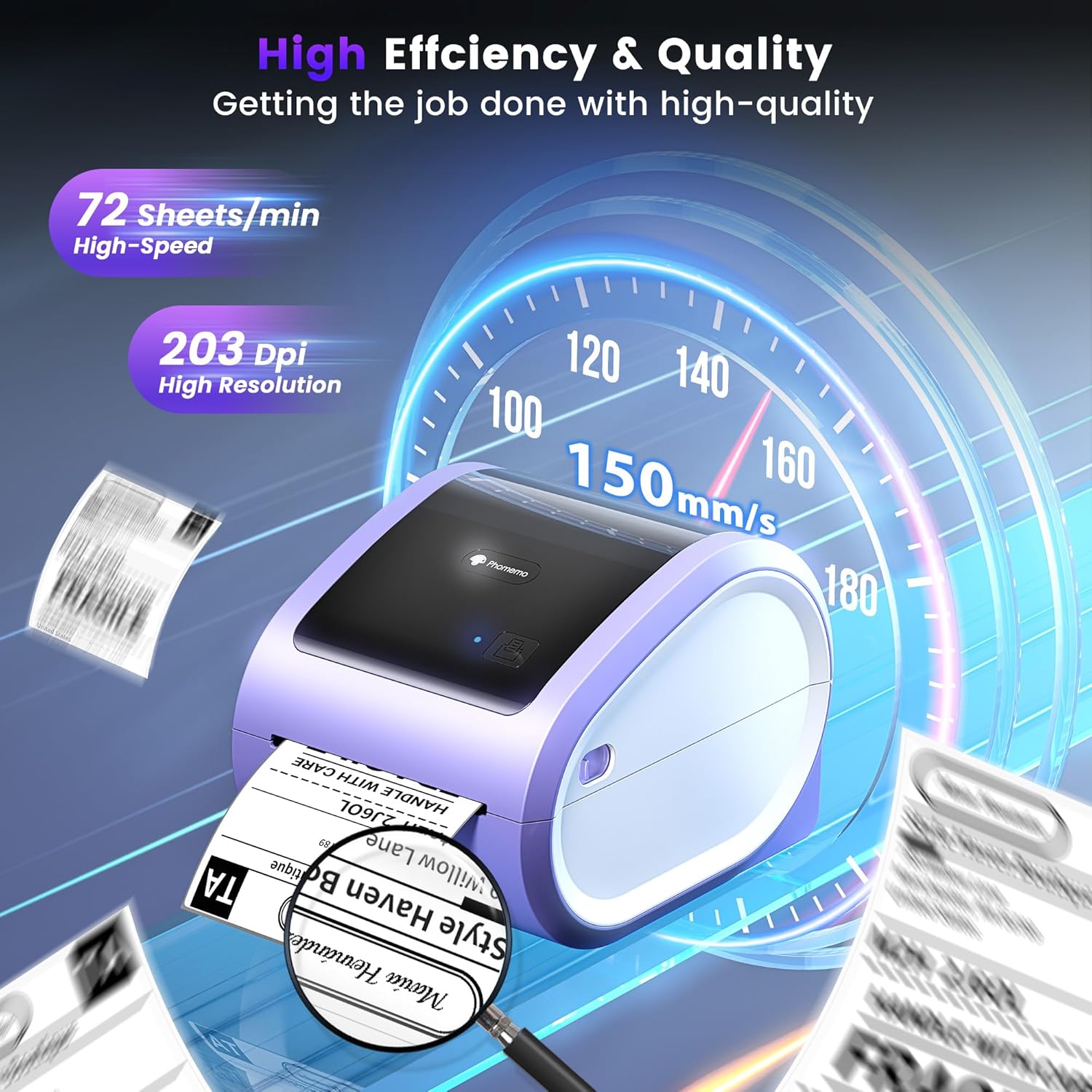
Figure 5: The Phomemo D520BT offers high efficiency and quality with a print speed of 150mm/s and 203 DPI resolution.

Figure 6: The Phomemo D520BT is compatible with various label sizes, from 1 inch to 4.6 inches wide.

Figure 7: The Phomemo D520BT supports multi-scenario applications for various labeling needs.

Figure 8: The Phomemo D520BT is compatible with all major shipping and sales platforms.
5. Технічне обслуговування
5.1 Очищення друкуючої головки
Regular cleaning of the print head ensures optimal print quality and extends the printer's life.
- Вимкніть принтер і від’єднайте шнур живлення.
- Відкрийте кришку принтера.
- Обережно протріть друкувальну головку спиртовим тампоном або м’якою тканиною без ворсу, злегкаampзмішаний ізопропіловим спиртом.
- Дайте друкуючій голівці повністю висохнути, перш ніж закривати кришку та вмикати принтер.
5.2 Зберігання
Store the printer in a cool, dry place away from direct sunlight and extreme temperatures. Avoid exposing the printer to dust or moisture.
6. Вирішення проблем
If you encounter issues with your Phomemo D520BT printer, refer to the following common problems and solutions:
- Принтер не вмикається:
- Переконайтеся, що адаптер живлення надійно підключено як до принтера, так і до справної розетки.
- Перевірте, чи кнопка живлення була щільно натиснута.
- Labels not printing or feeding incorrectly:
- Verify that labels are loaded correctly with the printing side facing up.
- Переконайтеся, що на шляху етикетки немає перешкод.
- Check if the label roll or stack is depleted.
- Poor print quality (faded, streaky, or blank labels):
- Очистіть друкувальну головку, як описано в розділі 5.1.
- Переконайтеся, що ви використовуєте високоякісні термоетикетки.
- Перевірте налаштування щільності друку в налаштуваннях принтера.
- Проблеми з підключенням Bluetooth:
- Переконайтеся, що Bluetooth увімкнено на вашому мобільному пристрої та принтері.
- Перезавантажте принтер і мобільний пристрій.
- Ensure you are within the Bluetooth range.
- Re-pair the printer through the Labelife app.
- Проблеми з USB-підключенням:
- Переконайтеся, що USB-кабель надійно підключено як до принтера, так і до комп’ютера.
- Ensure the correct printer drivers are installed.
- Спробуйте інший USB-порт або кабель.
For further assistance, refer to the detailed video tutorials and user manuals available online, or contact Phomemo customer support.
7. Технічні характеристики
| Особливість | Специфікація |
|---|---|
| Бренд | Фомемо |
| Назва моделі | D520BT |
| Технологія підключення | Bluetooth, USB |
| Технологія друку | Теплові |
| Особливість | Portable, Built-in Holder |
| Вихід на принтер | Монохромний |
| Максимальна швидкість друку | 150 mm/s (72 labels/min) |
| Роздільна здатність друку | 203 DPI |
| Максимальна ширина друку | 4.6 дюймів |
| Вага товару | 2.4 фунта |
| Розміри продукту | 10.31" Г x 10.31" Ш x 7.87" В |
8. Гарантія та підтримка
Phomemo provides customer support to assist with any questions or issues you may encounter. For detailed warranty information, please refer to the warranty card included with your product or visit the official Phomemo website. Our customer support team is available via phone, email, or remote support.
For additional resources, including video tutorials and updated user manuals, please visit the Phomemo support page.


