1. Вступ
This manual provides essential information for the proper installation, operation, and maintenance of your GAMEON Pro Series 27-inch Fast IPS Gaming Monitor (Model: GOAE27QHD165IPS). Please read this manual thoroughly before using the product to ensure optimal performance and safety. Keep this manual for future reference.

Зображення 1.1: спереду view of the GAMEON Pro Series 27-inch Fast IPS Gaming Monitor, showcasinйого тонкі рамки та підставка.
The GAMEON Pro Series 27-inch Fast IPS Gaming Monitor features a QHD 2K (2560x1440p) resolution, a 165Hz refresh rate, and a 0.5ms MPRT response time. It supports Adaptive-Sync and Variable Refresh Rate (VRR) technologies for smooth, tear-free gameplay. Connectivity options include dual HDMI 2.1 ports and dual DisplayPort 1.4 ports, along with an audio-out jack and integrated speakers. This monitor is compatible with various gaming consoles and PCs, including PS5.
2. Вміст упаковки
Будь ласка, перевірте вміст упаковки після розпакування. Якщо будь-які елементи відсутні або пошкоджені, зверніться до продавця.
- GAMEON Pro Series 27-inch Fast IPS Gaming Monitor
- Підставка для монітора (основа та шия)
- Адаптер живлення та кабель живлення
- Кабель HDMI
- Кабель DisplayPort
- Посібник користувача
3. Налаштування
3.1 Збірка монітора
- Обережно вийміть монітор з упаковки, захищаючи екран.
- Прикріпіть шийку підставки до панелі монітора. Переконайтеся, що вона надійно зафіксована на місці або закріплена гвинтами, якщо вони є в комплекті.
- Прикріпіть основу підставки до шиї підставки та затягніть гвинт у нижній частині основи.
- Помістіть зібраний монітор на стійку, рівну поверхню.
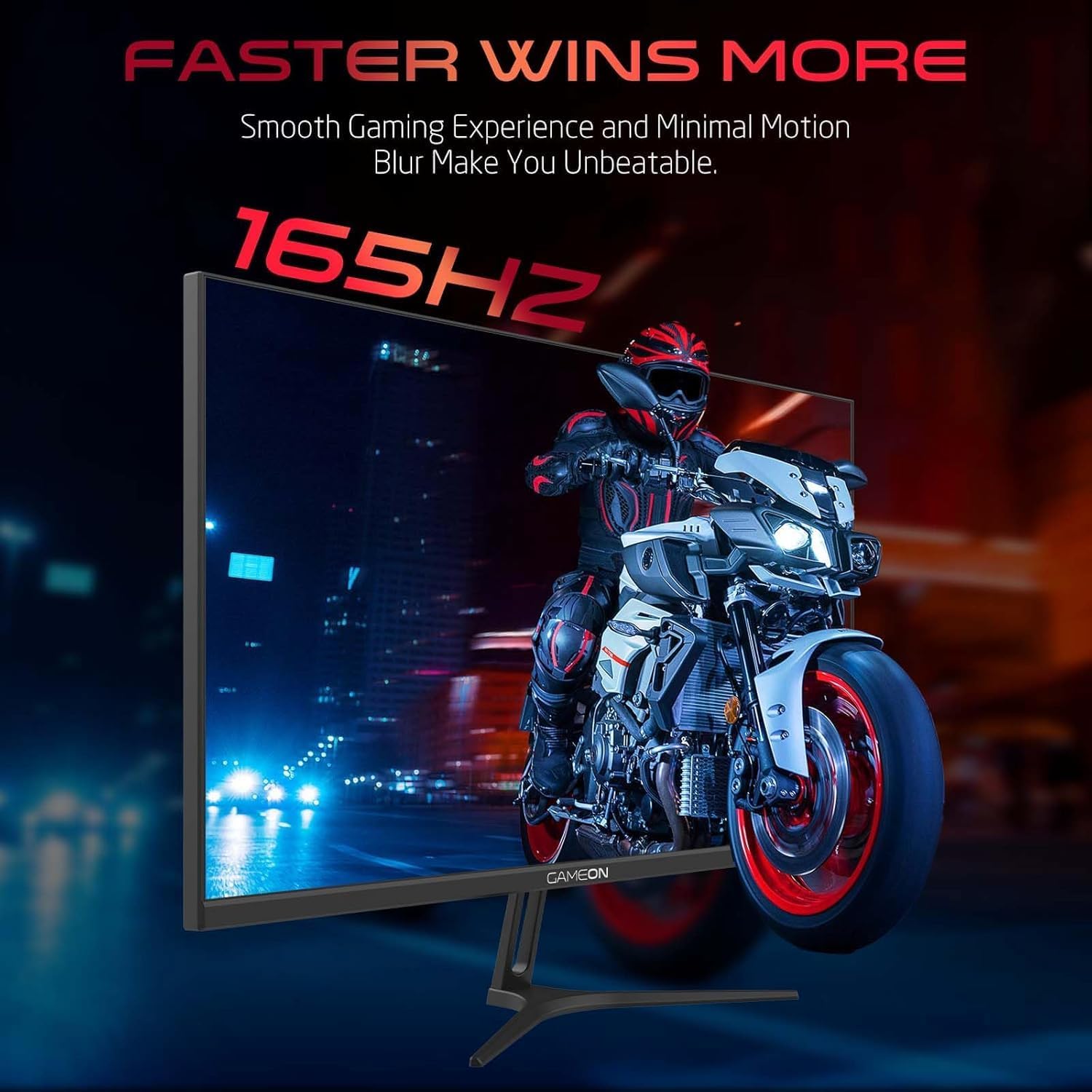
Image 3.1: Illustration of the monitor with its stand, ready for assembly.
3.2 Підключення до пристроїв
The monitor offers multiple input options. Choose the appropriate cable for your device (PC, gaming console, etc.).

Зображення 3.2: Ззаду view of the monitor, highlighting the input ports and VESA mounting points.

Image 3.3: Detailed diagram illustrating the various input/output ports and their corresponding devices.
- Підключення HDMI: Connect one end of the HDMI cable to the HDMI output port of your device (PC, PS5, Xbox, TV box) and the other end to one of the HDMI 2.1 ports on the monitor.
- Підключення DisplayPort: Connect one end of the DisplayPort cable to the DisplayPort output of your PC and the other end to one of the DisplayPort 1.4 ports on the monitor.
- Аудіовихід: For external audio, connect headphones or external speakers to the 3.5mm audio-out jack on the monitor.
3.3 Підключення живлення
- Підключіть адаптер живлення до порту DC IN на моніторі.
- Plug the power cable into the power adapter, then plug the other end of the power cable into a power outlet.
4. Інструкція з експлуатації
4.1 Увімкнення/вимкнення живлення
Натисніть кнопку живлення, розташовану на моніторі, щоб увімкнути або вимкнути його. Індикатор живлення світитиметься, коли монітор увімкнено.
4.2 Екранне меню (OSD)
The monitor features a menu button (often a joystick or a series of buttons) usually located on the back or bottom right of the monitor. Use this to navigate the OSD menu and adjust settings.
- Press the menu button to open the OSD menu.
- Use the navigation controls to move through menu options.
- Press the menu button again (or a designated 'Enter' button) to select an option.
- Use the navigation controls to adjust values or select sub-menus.
- Select 'Exit' or press the menu button repeatedly to close the OSD menu.
4.3 Загальні налаштування екранного меню
- Параметри зображення: Налаштуйте яскравість, контрастність, різкість, гаму та колірну температуру.
- Параметри кольору: Fine-tune RGB values, hue, and saturation.
- Джерело введення: Вручну виберіть між HDMI 1, HDMI 2, DisplayPort 1 або DisplayPort 2.
- Аудіо: Налаштуйте гучність вбудованих динаміків або підключених навушників.
- Особливості гри: Enable/disable Adaptive-Sync/FreeSync, adjust overdrive settings, and activate crosshair overlays if available.
4.4 PS5 120Hz Setup Guide
To enable 120Hz output on your PlayStation 5 with this monitor, follow these steps:

Image 4.1: Visual guide for configuring 120Hz refresh rate on a PlayStation 5 console.
- Enable 120Hz from PS5 Settings:
- Перейти до Налаштування > Screen and Video > Відеовихід.
- встановити Enable 120Hz Output до Автоматичний.
- встановити роздільна здатність до 1080p or Автоматичний. (Note: While the monitor supports 1440p, some PS5 games may require 1080p for 120Hz output.)
- Enable Performance Mode for Gamers:
- Перейти до Налаштування > Save Data and Game App Settings > Ігрові пресети.
- встановити Режим продуктивності за замовчуванням.
- Check In-Game Settings:
- Go to the specific game's Налаштування гри > Налаштування відео і виберіть 120 кадрів/с or Режим продуктивності.
5. Технічне обслуговування
5.1 Очищення екрана
- Вимкніть монітор та від’єднайте кабель живлення.
- Злегка протріть м’якою тканиною без ворсу dampводою або спеціалізованим засобом для чищення екранів.
- Wipe the screen gently. Do not press hard or use abrasive materials.
- Avoid using alcohol, ammonia, or benzene-based cleaners, as they may damage the screen surface.
5.2 Очищення Casing
- Використовуйте м’яку суху тканину для протирання монітора casing.
- Для стійких плям злегка dampпротріть тканину водою з м’яким мийним засобом, потім витріть насухо.
6. Вирішення проблем
Якщо у вас виникли проблеми з монітором, зверніться до наступного посібника з усунення несправностей:
| проблема | Можлива причина | Рішення |
|---|---|---|
| На екрані немає зображення | No power; Incorrect input source; Loose video cable | Ensure power cable is securely connected and power outlet is active. Press power button. Check OSD menu to select correct input source (HDMI/DP). Reconnect video cable firmly. |
| Зображення розмите або спотворене | Incorrect resolution; Video cable issue | Set display resolution to 2560x1440p in your device's display settings. Try a different video cable. |
| Ні звуку | Volume too low; Incorrect audio output selected; Loose audio cable | Adjust monitor volume via OSD. Ensure monitor is selected as the audio output device on your PC/console. Check external audio cable connection if using headphones/speakers. |
| Мерехтіння екрана | Refresh rate mismatch; Adaptive-Sync/VRR issue | Ensure your device's refresh rate is set to 165Hz. If flickering persists with Adaptive-Sync/VRR enabled, try disabling it in the OSD or your graphics card settings. |
| Monitor not detected by PC/console | Video cable issue; Driver issue | Try a different video cable or port. Update your graphics card drivers. Restart your PC/console. |
7. Технічні характеристики
Below are the technical specifications for the GAMEON Pro Series 27-inch Fast IPS Gaming Monitor (GOAE27QHD165IPS):
| Особливість | Специфікація |
|---|---|
| Розмір дисплея | 27 дюймів |
| Тип панелі | Майже IPS |
| роздільна здатність | QHD 2K (2560x1440p) |
| Частота оновлення | 165 Гц |
| Час відгуку | 0.5 мс MPRT |
| Коефіцієнт контрастності | 1000:1 |
| Яскравість | 280 (±30) nits typical |
| Viewкути нахилу | Широкий viewing angles (IPS technology) |
| Технологія адаптивної синхронізації | Adaptive-Sync, FreeSync, VRR Compatible |
| Підключення | 2x HDMI 2.1, 2x DisplayPort 1.4, 1x аудіовихід (3.5 мм) |
| Аудіо | Built-in 4Ω2W speakers |
| Сумісність з кріпленням VESA | 100х100 мм |
| Вхідна потужність | Зовнішній адаптер постійного струму 12 В 4 А |
| Максимальне енергоспоживання | 48 Вт |
| Розміри виробу (з підставкою) | 16.2 х 61.4 х 45.3 см |
| Вага продукту | 5.84 кг |
| Номер моделі | GOAE27QHD165IPS |
8. Гарантія та підтримка
The GAMEON Pro Series 27-inch Fast IPS Gaming Monitor comes with a Гарантія 2 рік з дати покупки. Ця гарантія поширюється на виробничі дефекти за умови нормального використання. Будь ласка, збережіть чек про покупку для пред'явлення претензій по гарантії.
For technical support, warranty inquiries, or service requests, please contact GAMEON customer service through their official website or the retailer where the product was purchased. Provide your monitor's model number (GOAE27QHD165IPS) and a detailed description of the issue to expedite assistance.


