1. Вступ
This manual provides detailed instructions for the setup, operation, maintenance, and troubleshooting of your ATTACK SHARK X66 Gasket Wireless Mechanical Keyboard. Please read this manual thoroughly before using the product to ensure optimal performance and longevity.

Зображення: Зверху вниз view of the ATTACK SHARK X66 Gasket Wireless Mechanical Keyboard, showcasinзавдяки компактному розташуванню та дизайну клавіш.
2. Продукт закінчивсяview
2.1 Основні характеристики
- Компактний дизайн на 60%: Features 66 keys and a volume knob, optimizing desktop space while maintaining portability.
- Upgraded Gasket Mount: Incorporates 5 layers of sound insulation (PORON Sandwich Foam, Foamed IXPE Under Shaft Pads, PET Acoustic Premium Pads, Shaft Seat Sound Deadening Foam, Customized Bottom Foams) for reduced noise and a smooth typing experience.
- Потрійний режим підключення: Supports Bluetooth, 2.4GHz wireless, and USB-C wired connections.
- Multi-Device Tasking: Three Bluetooth channels (FN+Q/FN+W/FN+E) for efficient switching between devices.
- Довговічний акумулятор: Equipped with a 3000mAh large-capacity rechargeable battery.
- Hot Swappable Switches: Full hot-swappable design compatible with 3-pin/5-pin switches, featuring pre-lubed Strawberry switches for a creamy sound and smooth keystroke.
- Динамічне RGB-підсвічування: Offers 9 backlight colors and 18 lighting effects with 16 million LED colors, customizable via software.
- Міцні ковпачки: Features side-printed gradient PBT keycaps that are resistant to oiling, non-slip, and wear-resistant.

Зображення: Оверview of the X66 keyboard highlighting key features such as RGB Backlight, Triple Mode Connectivity, Hot Swappable switches, PBT Keycaps, 60% Layout, 3000mAh Battery, and Gasket Structure.
2.2 Вміст упаковки
- ATTACK SHARK X66 Mechanical Keyboard
- USB-C Cable (1.5 meters)
- 2-in-1 Key Puller and Switch Puller
- Additional Strawberry Switches (2 pieces)
- Посібник користувача
3. Налаштування
3.1 Режими підключення
The X66 keyboard supports three connection modes: 2.4GHz wireless, Bluetooth, and USB-C wired.

Image: Diagram illustrating the three connectivity modes: Bluetooth 5.0, 2.4GHz Wireless with a USB dongle, and Type-C Wired connection.
- Бездротове підключення 2.4 ГГц:
- Locate the 2.4GHz USB receiver.
- Підключіть приймач до вільного порту USB на комп’ютері.
- On the keyboard, slide the mode switch to the '2.4G' position. The keyboard will automatically connect.
- Підключення Bluetooth:
- On the keyboard, slide the mode switch to the 'BT' position.
- Щоб увійти в режим сполучення, натисніть і утримуйте FN + Q, FN+W, або FN + E for 3-5 seconds until the corresponding key's backlight flashes rapidly.
- On your device (PC, Mac, Tablet), search for Bluetooth devices and select 'ATTACK SHARK X66' to pair.
- Once paired, the key's backlight will stop flashing and remain steadily lit. You can pair up to three Bluetooth devices and switch between them using FN + Q/W/E.
- Дротове підключення USB-C:
- Підключіть наданий кабель USB-C до порту USB-C клавіатури.
- Підключіть інший кінець кабелю до вільного порту USB на комп’ютері.
- Клавіатура автоматично перейде в дротовий режим і почне заряджатися.
3.2 Перемикач операційної системи
The keyboard features a dedicated switch for Windows and Mac operating systems.
- Locate the 'Win/Mac' switch on the side or back of the keyboard.
- Slide the switch to the appropriate operating system setting for optimal key mapping.
4. Інструкція з експлуатації
4.1 Функціональність ручки регулювання гучності
The aluminum CNC metal knob provides convenient control over audio.
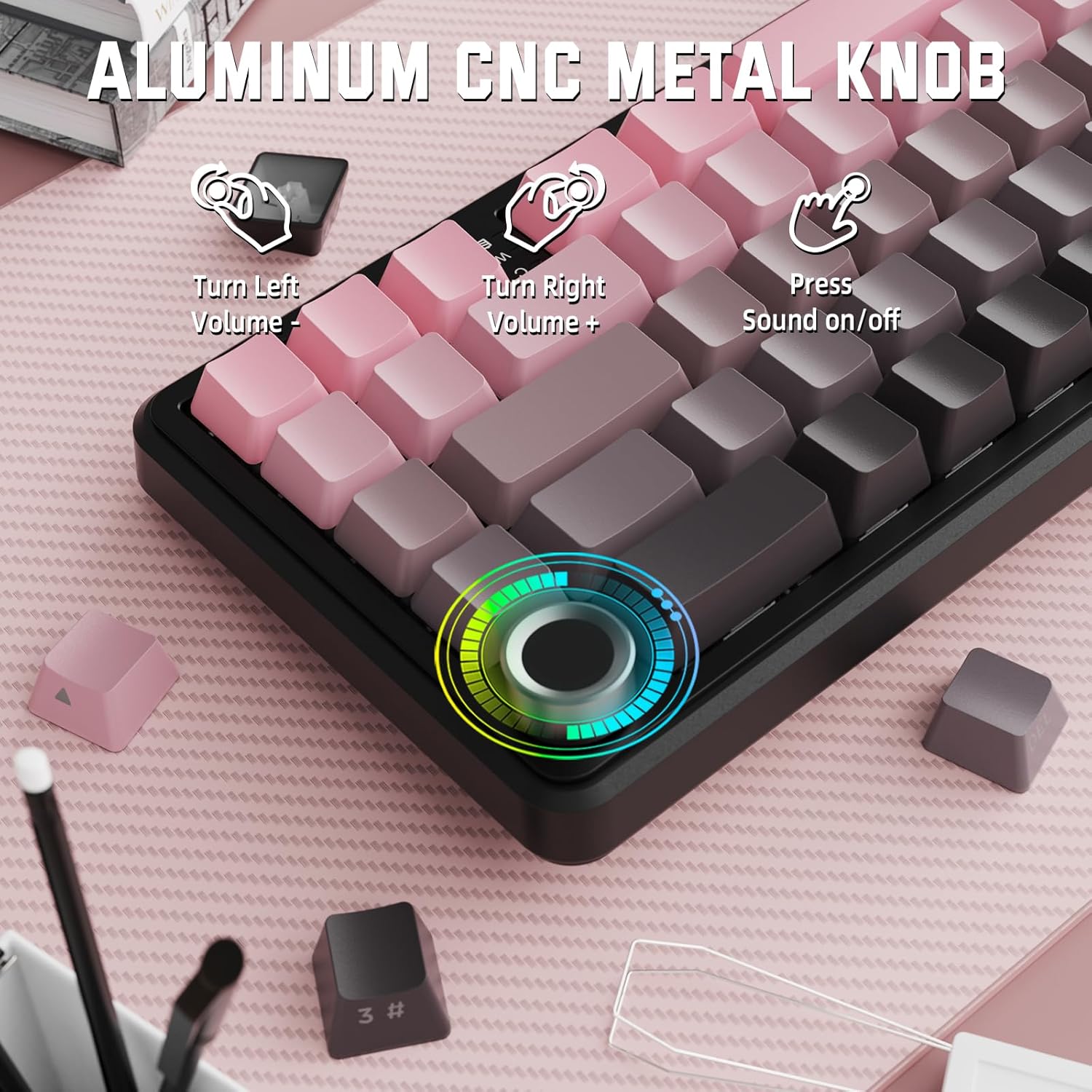
Image: Close-up of the volume knob with icons indicating its functions: Turn Left (Volume -), Turn Right (Volume +), Press (Sound on/off).
- Поверніть наліво: Зменшити гучність.
- Поверніть праворуч: Збільшити гучність.
- Натисніть: Вимкнути/увімкнути звук.
4.2 Комбінації функціональних клавіш (клавіша FN)
Due to the compact 60% layout, some functions are accessed via the FN key.
| Комбінація | функція |
|---|---|
| FN + Q/W/E | Switch between Bluetooth devices 1, 2, and 3 |
| FN + Backspace | Перевірте ємність акумулятора |
| FN + 1-0 (top row) | F1-F10 functions (e.g., FN+1 for F1) |
| FN + -/= | F11/F12 functions |
| FN + \| | Видалити |
| FN+P | Print Screen |
| FN + [ { | додому |
| FN + ] } | Кінець |
| FN + ; : | Page Up |
| FN + ' " | Сторінка вниз |
| FN + клавіші зі стрілками | Navigation (e.g., FN+Up Arrow for Page Up) |
5. Налаштування
5.1 RGB Backlight Settings
The keyboard features dynamic RGB backlighting with multiple effects and colors.

Image: Visual representation of RGB backlight controls including turning on/off, changing lighting mode, speed, direction, brightness, and color, often in combination with the FN key.
- Turn on/off Lighting / Power Saving Mode: Specific key combination (refer to keyboard legends or software).
- Режим освітлення: Перемикайтеся між 18 світловими ефектами.
- Швидкість освітлення: Налаштуйте швидкість динамічних світлових ефектів.
- Напрямок освітлення: Change the direction of certain lighting effects.
- Яскравість освітлення: Adjust the intensity of the backlight.
- Колір освітлення: Select from 9 preset backlight colors or customize via software.
5.2 Програмне забезпечення
For advanced customization of RGB modes, macros, and key remapping, dedicated software is available.
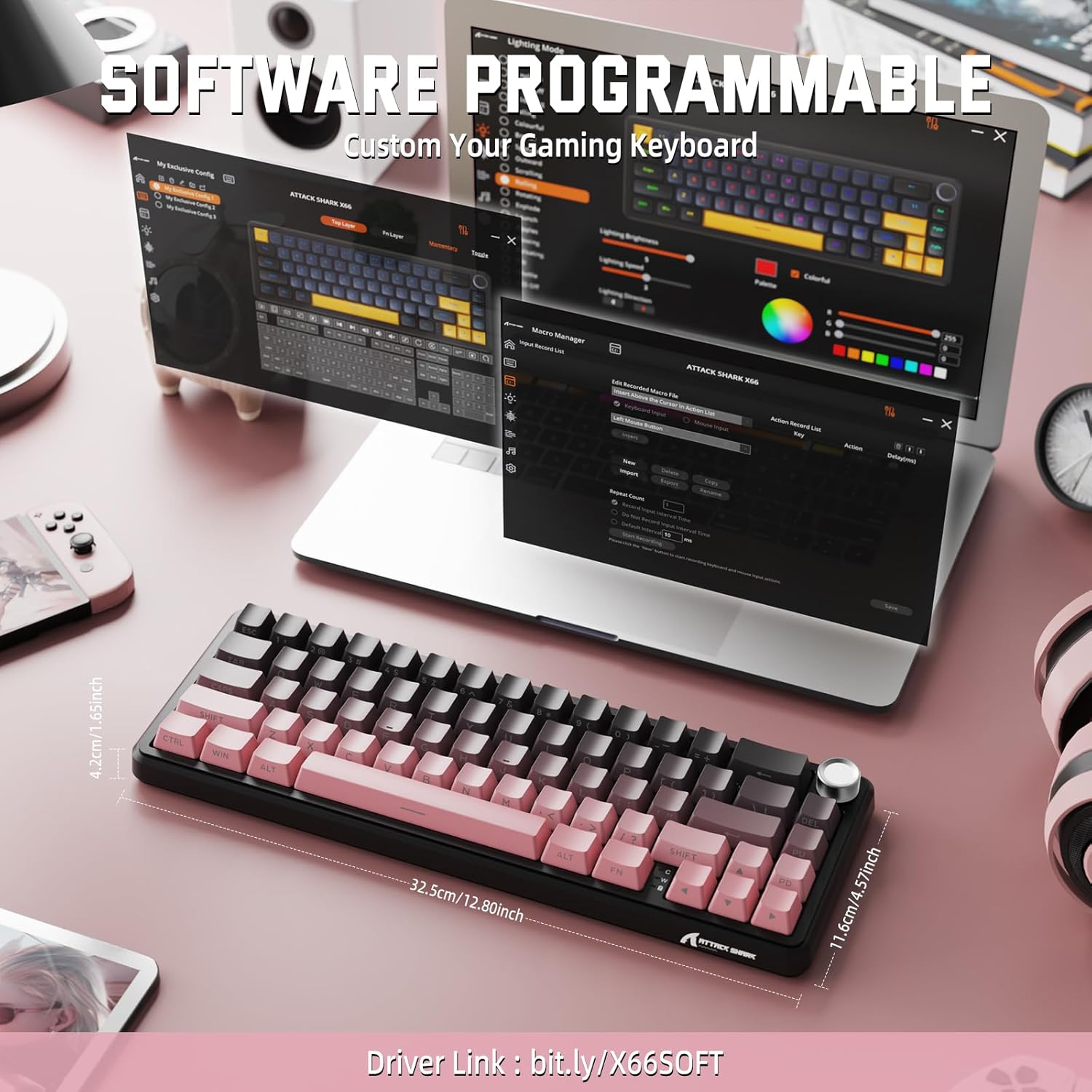
Image: Screenshot of the keyboard's software interface, showing options for custom key assignments, macro recording, and RGB lighting customization. A driver link is provided for download.
Download the official software from the manufacturer's webсайт. Програмне забезпечення дозволяє вам:
- Налаштуйте ефекти та кольори RGB-підсвічування.
- Програмуйте макроси для складних комбінацій клавіш.
- Remap individual keys to different functions.
- Створення та збереження кількох професіоналівfileдля різних програм або ігор.
6. Технічне обслуговування
6.1 Очищення клавіатури
- Перед чищенням від’єднайте клавіатуру від усіх джерел живлення.
- Злегка протріть м’якою тканиною без ворсу dampводою або м’яким миючим розчином, щоб протерти ковпачки клавіш і корпус.
- Для видалення пилу та сміття між клавішами використовуйте стиснене повітря.
- Уникайте використання агресивних хімікатів, абразивів або розчинників.
6.2 Hot Swappable Switch Replacement
The keyboard's hot-swappable design allows for easy switch replacement without soldering.

Image: Illustration showing how to remove and insert mechanical switches on the X66 keyboard, highlighting compatibility with 3-pin and 5-pin switches.
- Використовуйте наданий знімач для ковпачків клавіш, щоб обережно зняти потрібний ковпачок.
- Використовуйте наданий знімач для вимикача, щоб обережно взятися за верхній та нижній затискачі вимикача та потягнути його прямо вгору.
- Вирівняйте контакти нового перемикача з отворами на друкованій платі. Переконайтеся, що контакти розташовані прямо, щоб уникнути згинання.
- Обережно натисніть на новий перемикач, доки він надійно не клацне.
- Знову прикріпіть ковпачок клавіші.
6.3 Керування батареєю
The keyboard is equipped with a 3000mAh rechargeable battery.

Image: Visual guide on how to check the battery capacity using FN + Backspace, showing different battery level indicators (30%, 50%, 100%) with corresponding key light patterns.
- Зарядка: Connect the keyboard via the USB-C cable to a computer or a USB power adapter. The charging indicator will show the charging status.
- Перевірка рівня заряду батареї: Прес FN + Backspace to display the current battery capacity via the key backlights.
- Термін служби батареї: A full charge provides long-lasting usage, but actual duration varies based on RGB lighting usage and connection mode.
7. Вирішення проблем
| проблема | Можлива причина | Рішення |
|---|---|---|
| Клавіатура не відповідає | Low battery, incorrect connection mode, driver issue. | Charge the keyboard. Ensure the mode switch is set correctly (2.4G, BT, or Wired). Reconnect the USB receiver/cable. Re-pair Bluetooth. Try a different USB port. |
| З’єднання Bluetooth нестабільне | Перешкоди, відстань, низький заряд батареї. | Ensure no strong interference sources nearby. Move closer to the device. Charge the keyboard. Re-pair the Bluetooth connection. |
| 2.4GHz wireless not connecting | Receiver not plugged in, incorrect mode, interference. | Ensure the 2.4GHz receiver is securely plugged in. Set the keyboard mode switch to '2.4G'. Try a different USB port for the receiver. |
| RGB-підсвічування не працює або працює неправильно | Lighting settings, software issue. | Check lighting control key combinations (FN + lighting keys). Ensure software is installed and updated. Reset lighting settings via software. |
| Клавіші не реєструються або друкуються двічі | Несправний перемикач, сміття під ковпачком клавіші. | Remove keycap and clean around the switch. If issue persists, replace the switch using the provided switch puller and spare switches. |
| Ручка гучності не працює | Конфлікт програмного забезпечення, фізична перешкода. | Ensure no software is overriding media controls. Check for any physical debris around the knob. Restart the computer. |
8. Технічні характеристики
| Особливість | Деталь |
|---|---|
| Номер моделі | X66 |
| Макет | 66 Keys, 60% Compact QWERTY |
| Підключення | Bluetooth (5.0), 2.4GHz Wireless, USB-C Wired |
| Перемикачі | Hot Swappable (3-pin/5-pin compatible), Pre-lubed Strawberry Mechanical Switches |
| Клавіатури | Side-printed Gradient PBT |
| Підсвічування | RGB (16+ Million Colors, 9 preset colors, 18 effects) |
| Ємність акумулятора | 3000 мАг |
| Сумісні пристрої | Windows, Mac OS, Laptop, PC, Tablet |
| матеріал | Polybutylene Terephthalate, Polycarbonate |
| Вага товару | 2 фунта (приблизно 0.91 кг) |
| Розміри упаковки | 14.02 x 6.54 x 2.05 дюймів (приблизно 35.6 x 16.6 x 5.2 см) |
| Виробник | АТАКА АКУЛИ |
9. Гарантія та підтримка
For warranty information and technical support, please refer to the official ATTACK SHARK webсайт або зверніться до продавця. Зберігайте чек про покупку для гарантійних претензій.
Виробник: АТАКА АКУЛИ
Продавець: MAGIC-REFINER US
10. Відео про продукт
Відео: Офіційна відеопрезентація продуктуasing the features and design of the ATTACK SHARK X66 Gasket Wireless Mechanical Keyboard, including its compact size, RGB lighting, hot-swappable switches, and multi-mode connectivity. The video highlights the keyboard's aesthetic appeal and functional aspects.


