1. Вступ
This manual provides detailed instructions for the setup, operation, and maintenance of your ATTACK SHARK X98PRO Wireless Mechanical Keyboard. The X98PRO features tri-mode connectivity (Bluetooth, 2.4GHz wireless, USB-C wired), hot-swappable switches, a customizable TFT screen, and a multi-function CNC knob, designed for both gaming and productivity across various operating systems.
2. Вміст упаковки
- ATTACK SHARK X98PRO Mechanical Keyboard
- USB-C to USB-A Braided Cable
- Бездротовий приймач 2.4 ГГц
- Знімач ключів
- Знімач перемикача
- Посібник користувача (цей документ)
3. Keyboard Layout and Components
The X98PRO features a compact 98-key layout, integrating a numeric keypad while maintaining a smaller footprint than a full-size keyboard. Key components include:
- 1.14-inch TFT Screen: Located above the numeric keypad, this screen displays various information and allows for customization.
- CNC Multi-Function Knob: Positioned next to the TFT screen, this knob controls volume, brightness, RGB effects, and connection modes.
- Порт USB-C: Для дротового підключення та заряджання.
- 2.4GHz Wireless Receiver Storage: Typically located in a dedicated slot on the keyboard for safekeeping.


4. Налаштування
4.1. Заряджання клавіатури
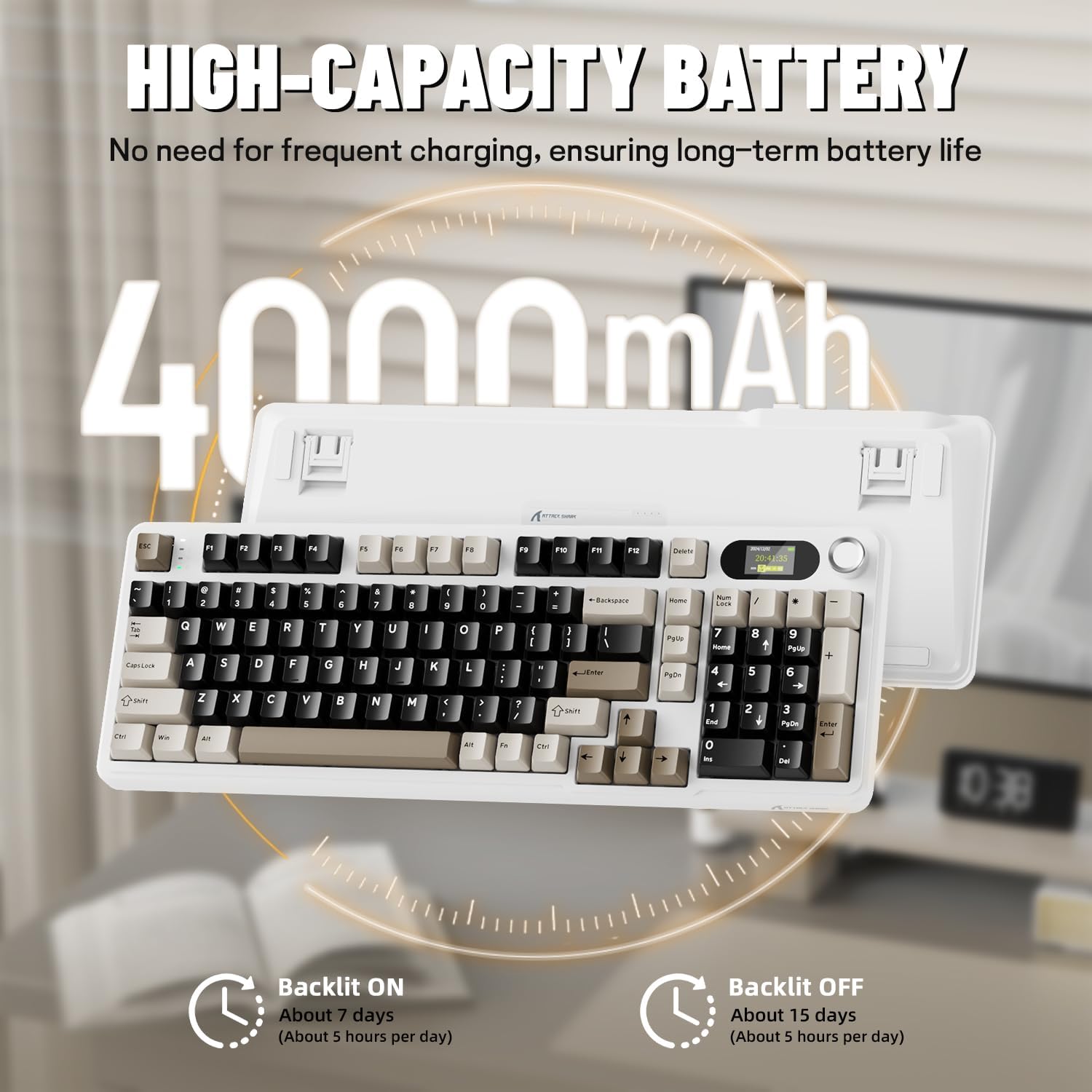
Before first use, it is recommended to fully charge the keyboard. Connect the provided USB-C cable to the keyboard's USB-C port and the other end to a USB-A power source (e.g., computer, wall adapter). The TFT screen will indicate charging status. The keyboard features a 4000mAh battery for extended wireless use.
4.2. Режими підключення
The X98PRO supports three connection modes:
- Дротовий режим USB-C: Підключіть клавіатуру безпосередньо до пристрою за допомогою кабелю USB-C. У цьому режимі також заряджається клавіатура.
- Бездротовий режим 2.4 ГГц:
- Insert the 2.4GHz wireless receiver into an available USB port on your computer.
- Switch the keyboard's mode selector to 2.4G. The keyboard should automatically connect.
- Режим Bluetooth 5.0: Клавіатура може підключатися до трьох пристроїв Bluetooth.
- Switch the keyboard's mode selector to Bluetooth.
- Натисніть і утримуйте Fn + 1, Fn + 2, або Fn + 3 for 3-5 seconds until the indicator light flashes, indicating pairing mode.
- On your device (PC, Mac, Tablet), search for Bluetooth devices and select "ATTACK SHARK X98PRO" to pair.
- Щоб перемикатися між сполученими пристроями Bluetooth, натисніть Fn + 1, Fn + 2, або Fn + 3 коротко.

4.3. Початкова конфігурація (Web-based Driver)
The X98PRO utilizes an intuitive web-based driver for advanced customization. This allows you to edit, upload, and switch display content for the TFT screen, customize RGB lighting, remap keys, and set macros without installing dedicated software. Access the official ATTACK SHARK webсайт для web driver interface.

5. Інструкція з експлуатації
5.1. TFT Screen Functions
The 1.14-inch TFT screen can display various information:
- Стан системи: Connection mode (wired, 2.4G, BT1/2/3), operating system (Win/Mac).
- Термін служби батареї: Рівень заряду батареї в режимі реального часу.
- час: Поточний час.
- Custom GIFs: Upload personalized animations via the web водій.
To navigate the TFT screen menu, rotate the CNC knob to scroll through options and press the knob to confirm a selection.
5.2. CNC Multi-Function Knob
The CNC knob provides intuitive control over several keyboard features:
- Регулювання гучності: By default or after switching, rotate to adjust system volume.
- Контроль яскравості: Відрегулюйте яскравість підсвічування.
- RGB-ефекти: Перемикайтеся між різними ефектами RGB-підсвічування.
- Режими підключення: Switch between wired, 2.4GHz, and Bluetooth modes.
To switch the knob's function (e.g., between volume and RGB control), press Fn + ручка (press the knob down).
5.3. Підсвічування RGB
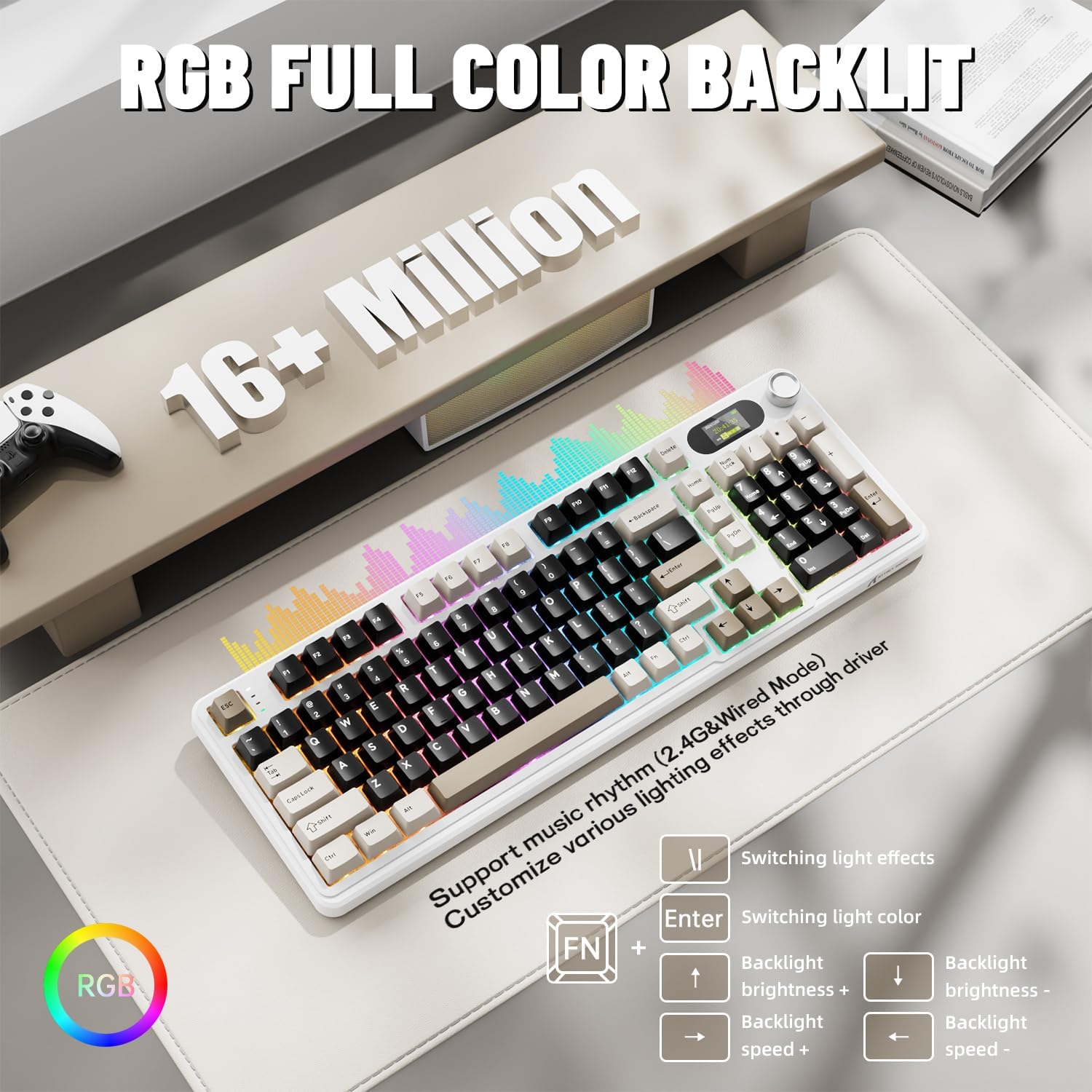
The X98PRO features full RGB backlighting with multiple effects. Control options include:
- Перемикання світлових ефектів: Прес Fn + Enter.
- Switching Light Color: Прес Fn + \|.
- Яскравість підсвічування: Прес Fn + стрілка вгору (збільшити) або Fn + стрілка вниз (зменшення).
- Швидкість підсвічування: Прес Fn + стрілка вліво (зменшення) або Fn + стрілка вправо (збільшення).
Further customization of RGB lighting, including per-key lighting and custom profiles, is available through the webдрайвер на основі.
5.4. Комутатори з можливістю гарячої заміни
The X98PRO features a hot-swappable PCB, allowing you to easily change mechanical switches without soldering. It is compatible with most 3-pin and 5-pin mechanical switches.
- Using the provided switch puller, carefully grip the switch and pull it straight up to remove it.
- Зіставте контакти нового перемикача з отворами на друкованій платі. Переконайтеся, що контакти розташовані рівно.
- Gently press the new switch into place until it clicks. Do not force it.

6. Технічне обслуговування
6.1. прибирання
- Перед чищенням від’єднайте клавіатуру від усіх джерел живлення.
- Використовуйте знімач для ковпачків клавіш, щоб зняти їх та ретельно очистити.
- Протріть поверхню клавіатури м’якою тканиноюamp тканина. Уникайте агресивних хімікатів.
- Використовуйте стиснене повітря, щоб видалити пил та сміття між клавішами.
6.2. Заміна перемикача та ковпачка клавіш
Refer to Section 5.4 for instructions on replacing switches. Keycaps can be removed using the provided keycap puller and replaced with compatible sets.
7. Вирішення проблем
- Клавіатура не реагує: Ensure the keyboard is charged. Check the connection mode (wired, 2.4G, BT) and ensure it matches your device. For 2.4GHz, ensure the receiver is properly inserted. For Bluetooth, re-pair if necessary.
- TFT screen not updating/syncing: Ensure the keyboard is connected to a device. For time synchronization or custom GIFs, use the webдрайвер на основі.
- Короткий час автономної роботи: Ensure the keyboard is fully charged. Reduce backlight brightness or disable RGB effects to conserve battery.
- Ключі не реєструються: If a specific key is not working, try removing and re-inserting its switch. If the issue persists, consider replacing the switch.
- Проблеми з налаштуванням: Ensure you are using the official web-based driver. Clear browser cache or try a different browser if experiencing issues.
8. Технічні характеристики
| Бренд | АТАКА АКУЛИ |
| Модель | X98PRO |
| Технологія підключення | 2.4GHz, Bluetooth 5.0, USB-C Wired |
| Опис клавіатури | Механічний |
| Тип перемикача | Linear (Blueberry switches) |
| Гаряча заміна | Так (сумісність з 3- та 5-контактними роз'ємами) |
| Ємність акумулятора | 4000 мАг |
| Особливості | Customizable TFT Display, Multi-Function CNC Knob, RGB Backlit, Gasket Mount |
| Сумісні пристрої | Laptop, PC, Tablet (Windows, Mac, Linux) |
| Розміри | 16.4 x 5.8 x 1.8 дюйми (приблизно) |
| Вага товару | 2.9 фунта |
9. Гарантія та підтримка
For warranty information and technical support, please refer to the official ATTACK SHARK webсайт або зверніться до служби підтримки клієнтів. Зберігайте чек про покупку для гарантійних претензій.


