1. Вступ
The Canon PIXMA TS3750i is a compact, affordable, and user-friendly multifunction inkjet printer designed for home and small office use. It offers versatile functionalities including printing, copying, and scanning. This printer supports wireless connectivity, enabling convenient operation from various devices, and features borderless photo printing. It is also compatible with the PIXMA Print Plan for automated ink delivery.
2. Інформація про безпеку
Please read all safety instructions before using the printer to ensure safe and proper operation. Keep this manual for future reference.
- Не ставте принтер у нестійких місцях.
- Тримайте принтер подалі від води або вологи.
- Використовуйте лише шнур живлення, що постачається з принтером.
- Do not attempt to disassemble or modify the printer.
- Від’єднайте принтер від розетки перед чищенням або якщо він не використовуватиметься протягом тривалого часу.
3. Вміст упаковки
Перевірте, чи всі наступні елементи входять до вашої упаковки:
- Canon PIXMA TS3750i Printer
- Inkjet Cartridges (initial set)
- Кабель живлення
- Інсталяційний компакт-диск (лише для Windows)
- Посібники та інші документи
4. Налаштування
4.1 Розпакування та розміщення
- Вийміть принтер з упаковки та видаліть усі захисні стрічки та пакувальні матеріали.
- Розмістіть принтер на стійкій, рівній поверхні з достатнім простором навколо нього для вентиляції та роботи.
4.2 Підключення живлення
- Connect the supplied power cable to the printer's power input.
- Підключіть інший кінець кабелю живлення до розетки.
- Натисніть кнопку живлення, щоб увімкнути принтер.
4.3 Встановлення чорнильного картриджа
- Open the printer's top cover to access the cartridge holder.
- Remove the protective tape from the ink cartridges.
- Вставте кольоровий та чорний чорнильні картриджі у відповідні гнізда до клацання.
- Закрийте верхню кришку.
4.4 Завантаження паперу
- Відкрийте підставку для паперу та витягніть лоток виведення паперу.
- Load paper (e.g., A4, photo paper) into the rear paper tray, ensuring it is aligned with the paper guides.
- Adjust the paper guides to fit the width of the paper.
4.5 Налаштування програмного забезпечення та бездротового зв'язку
For initial setup and to enable wireless printing, follow these steps:
- Для ПК: Insert the Setup CD-ROM (Windows only) and follow the on-screen instructions to install drivers and software.
- For PC/Mac/Mobile: Відвідайте Canon website for your region and download the latest drivers and the Canon PRINT Inkjet/SELPHY app.
- Follow the instructions within the software or app to connect the printer to your Wi-Fi network. The printer supports one-touch wireless connectivity for easier setup.
- For mobile devices, ensure your device is connected to the same Wi-Fi network as the printer.
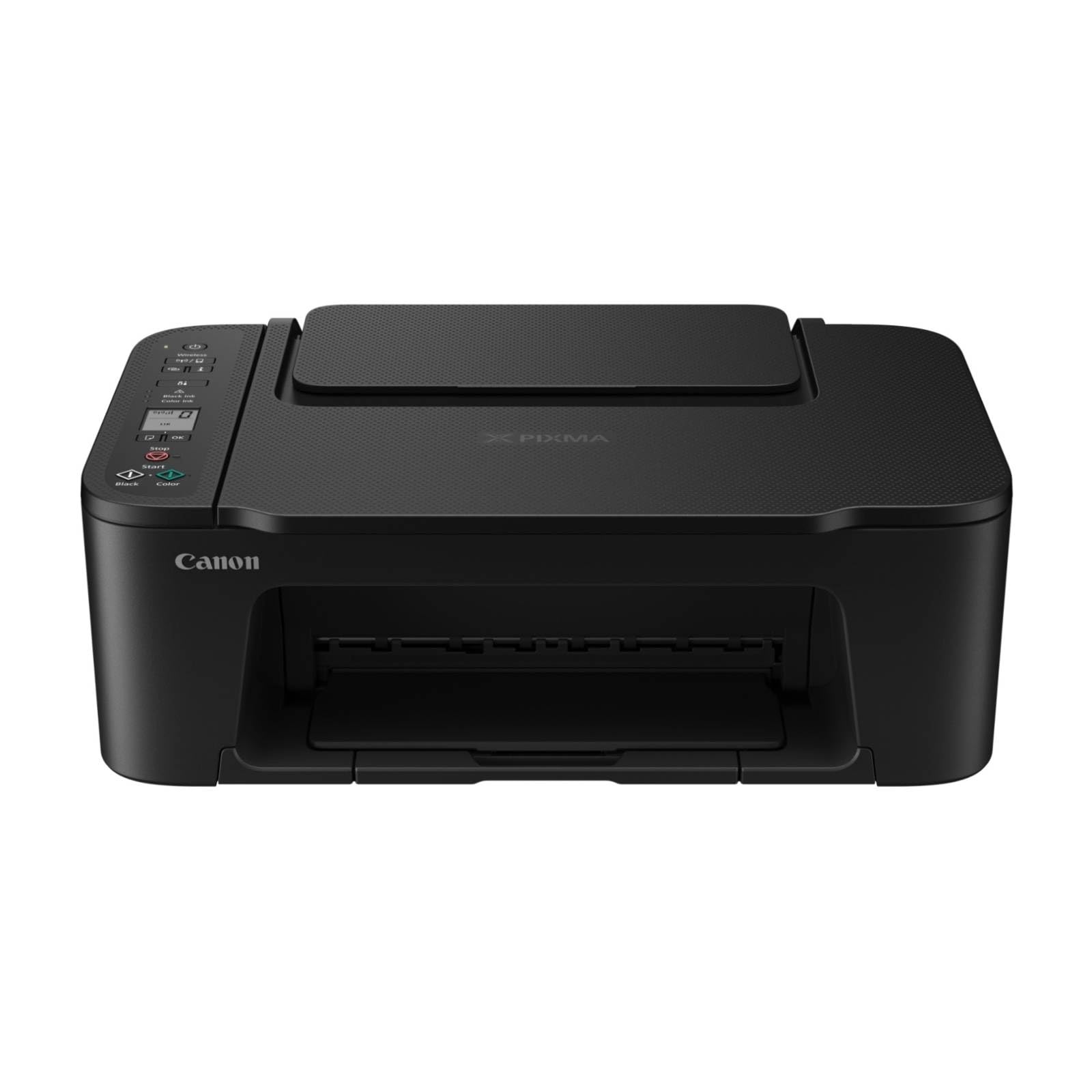
Малюнок 1: Спереду view of the Canon PIXMA TS3750i printer, showing its compact design and control panel.
5. Інструкція з експлуатації
5.1 Друк документів і фотографій
- Ensure the printer is powered on and connected to your device (via Wi-Fi or USB).
- Завантажте папір відповідного типу та розміру в задній лоток для паперу.
- Відкрийте документ або фотографію, яку потрібно роздрукувати, на комп’ютері або мобільному пристрої.
- Виберіть опцію друку у вашій програмі.
- In the print dialog, select the Canon PIXMA TS3750i as your printer. Adjust settings such as paper size, media type, print quality, and borderless printing (for photos up to 12.7 x 18 cm).
- Натисніть кнопку «Друк».
5.2 Копіювання документів
- Підніміть кришку сканера.
- Покладіть документ лицьовою стороною вниз на скло сканера, вирівнявши його з міткою вирівнювання.
- Обережно закрийте кришку сканера.
- On the printer's control panel, press the Black button for a monochrome copy or the Color button for a color copy.
- To make multiple copies (up to 20), press the desired copy button repeatedly for the number of copies needed.
5.3 Сканування документів і фотографій
- Ensure the printer is connected to your computer or mobile device.
- Покладіть документ або фотографію на скло сканера лицьовою стороною вниз.
- On your computer, open the scanning software (e.g., Canon IJ Scan Utility) or on your mobile device, open the Canon PRINT Inkjet/SELPHY app.
- Select the scan option and adjust settings such as document type, resolution, and destination folder.
- Розпочніть сканування. Відскановане зображення буде збережено у вказаному вами місці.
5.4 Мобільний друк та сканування
The Canon PIXMA TS3750i supports printing and scanning directly from smartphones and tablets using the Canon PRINT Inkjet/SELPHY app or Apple AirPrint. Ensure your mobile device and printer are connected to the same Wi-Fi network.
- Canon PRINT Inkjet/SELPHY App: Download and install the app from your device's app store. Use the app to select photos or documents for printing, or to initiate scans directly to your mobile device.
- Apple AirPrint: For iOS devices, you can print directly from AirPrint-enabled applications without installing additional drivers. Select the print option from the app and choose your PIXMA TS3750i printer.
- Wi-Fi PictBridge: Connect directly to compatible cameras for photo printing.
6. Технічне обслуговування
6.1 Очищення принтера
- Зовні: Протріть зовнішню частину принтера м’якою,amp, тканина без ворсу. Не використовуйте абразивні засоби для чищення або розчинники.
- Скло сканера: Обережно протріть скло сканера м’якою тканиною без ворсу, змоченою невеликою кількістю засобу для чищення скла. Переконайтеся, що на ньому не залишилося жодних залишків.
- Друкувальна головка: If print quality declines (e.g., streaks, faded colors), perform a print head cleaning from the printer's utility software on your computer or through the Canon PRINT Inkjet/SELPHY app.
6.2 Заміна чорнильних картриджів
- When an ink cartridge is low or empty, a message will appear on the printer's display or in the software.
- Open the printer's top cover. The cartridge holder will move to the replacement position.
- Натисніть на порожній картридж, щоб вивільнити його, а потім витягніть.
- Unpack the new Canon genuine ink cartridge and remove the protective tape.
- Insert the new cartridge into the correct slot until it clicks firmly into place.
- Закрийте верхню кришку. Принтер виконає процес ініціалізації.
6.3 Усунення застрягання паперу
- If a paper jam occurs, an error message will appear.
- Вимкніть принтер і від’єднайте шнур живлення.
- Carefully open the printer covers (top cover, rear cover if applicable) to locate the jammed paper.
- Обережно витягніть застряглий папір у напрямку тракту проходження паперу. Уникайте розриву паперу.
- Переконайтеся, що всі порвані шматочки паперу видалені.
- Закрийте всі кришки, підключіть шнур живлення та увімкніть принтер.
7. Вирішення проблем
Refer to the following common issues and their solutions. For more detailed troubleshooting, consult the Canon support webсайт.
- Printer is not turning on: Переконайтеся, що кабель живлення надійно підключено як до принтера, так і до справної електричної розетки.
- Cannot print:
- Check if the printer is powered on and connected to your device (Wi-Fi or USB).
- Verify that ink cartridges are installed correctly and have sufficient ink.
- Ensure paper is loaded correctly in the paper tray.
- Restart your computer/mobile device and the printer.
- Check printer drivers and software for updates.
- Погана якість друку:
- Perform a print head cleaning and nozzle check from the printer utility.
- Переконайтеся, що ви використовуєте оригінальні чорнильні картриджі Canon.
- Check print settings for appropriate paper type and print quality.
- Проблеми з бездротовим підключенням:
- Переконайтеся, що принтер і ваш пристрій підключені до однієї мережі Wi-Fi.
- Restart your wireless router, printer, and device.
- Re-run the wireless setup process.
- Check for any firewall settings blocking communication.
- Зминання паперу: Follow the instructions in Section 6.3 to clear any jammed paper.
8. Технічні характеристики
| Назва моделі | PIXMA TS3750i |
| Технологія друку | струменевий |
| Функції | Друк, копіювання, сканування |
| Технологія підключення | USB, Wi-Fi |
| Максимальна швидкість друку (монохромний) | 7.7 ppm |
| Максимальна швидкість друку (кольоровий) | 4 ppm |
| Вихід на принтер | Колір |
| Двосторонній друк | так |
| Максимальний розмір носія | A4 |
| Підтримка розмірів аркушів | A4, A5, B5, Custom (Width 89 mm - 215.9 mm, Length 127 mm - 676 mm) |
| Максимальна вхідна ємність | 60 аркушів |
| Тип сканера | Планшетний |
| Max Copies per Run | 20 |
| Сумісні пристрої | Ноутбуки, ПК, смартфони, планшети |
| Особливості | Borderless printing, Lightweight, Auto Power On, Display screen |
| Розміри продукту (Д x Ш x В) | 32.7 х 43.5 х 14.5 см |
| Вага продукту | 4.19 кг |
| Споживана потужність | 9 Вт |
9. Гарантія та підтримка
This Canon PIXMA TS3750i printer comes with a standard manufacturer's warranty. Please refer to the warranty card included in your package for specific terms and conditions, including warranty period and coverage details.
For technical support, product registration, driver downloads, and additional troubleshooting resources, please visit the official Canon support website for your region. You can also find contact information for customer service there.
- Інтернет-підтримка: www.canon.com/support (Please replace with your regional Canon support link)
- Реєстрація товару: Registering your product helps Canon provide you with better service and support.


