1. Вступ
This manual provides comprehensive instructions for the Zenwire W2503 Wireless 1D/2D/QR Barcode Scanner. Please read this manual carefully before using the device to ensure proper operation and to maximize its lifespan.
2. Вміст упаковки
Перевірте наявність усіх елементів в упаковці. Якщо якісь елементи відсутні або пошкоджені, зверніться до служби підтримки клієнтів.
- Zenwire W2503 Wireless Barcode Scanner
- Док-станція для зарядки
- USB кабель
- Посібник користувача (цей документ)
3. Продукт закінчивсяview
The Zenwire W2503 barcode scanner system consists of the scanner unit and a charging dock.
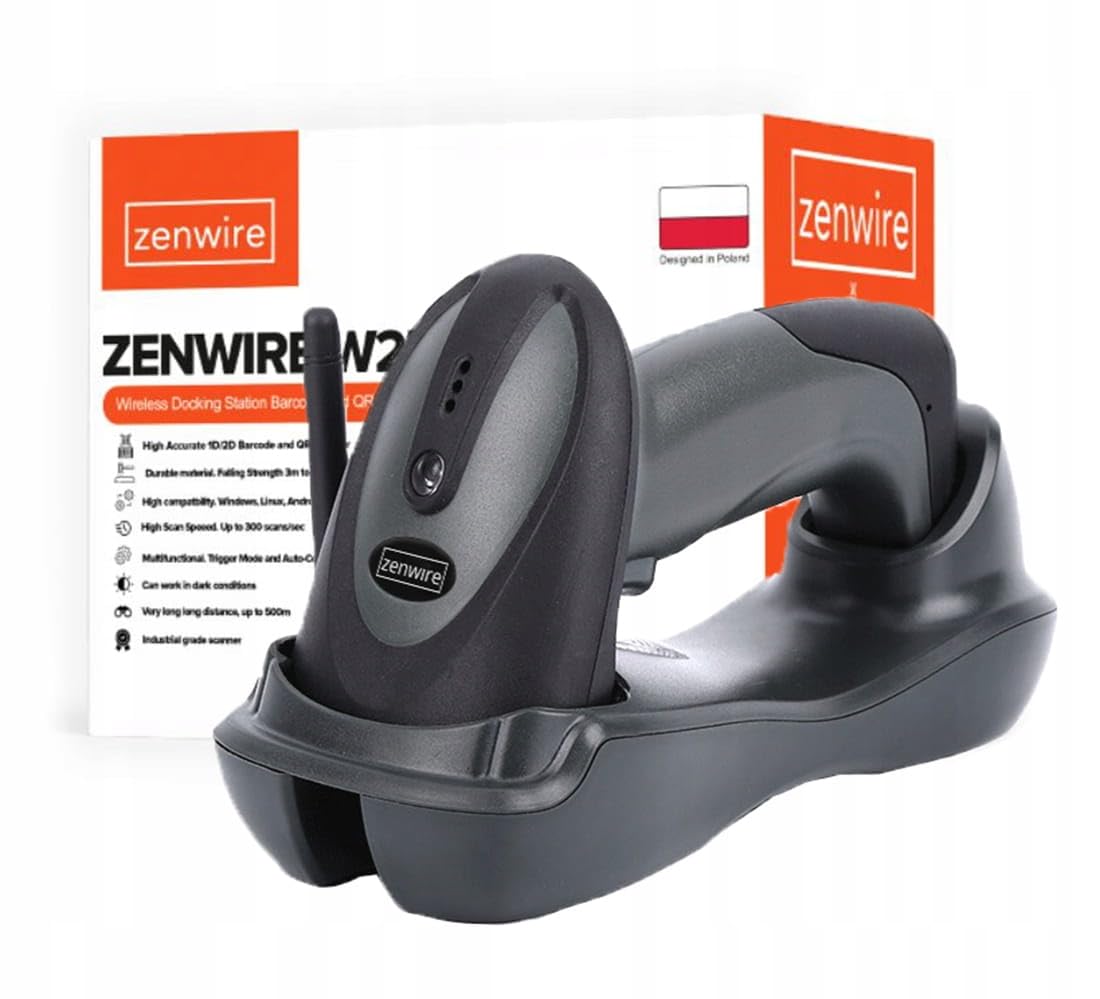
Image: Zenwire W2503 Wireless Barcode Scanner placed in its charging dock. The scanner features a green indicator light.
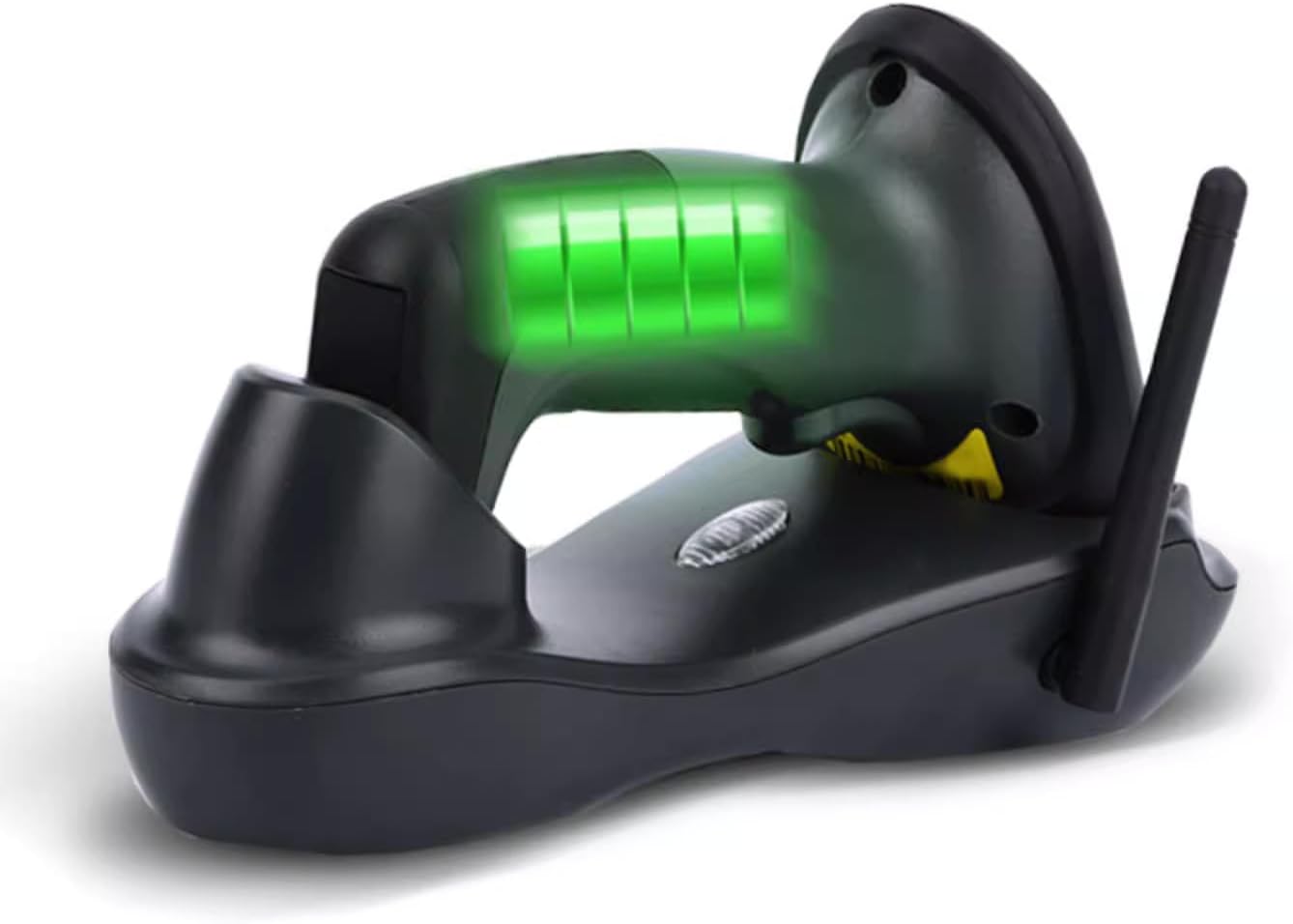
Image: The Zenwire W2503 Barcode Scanner and its charging dock shown separately. The dock has an antenna.
3.1 Scanner Components
- Вікно сканування: Зона, де зчитуються штрих-коди.
- Тригерна кнопка: Activates the scanning beam in manual mode.
- Світлові індикатори: Provide status information (e.g., power, connection, scan success).
- Контакти для зарядки: Підключається до зарядної док-станції.
3.2 Charging Dock Components
- Зарядний слот: Holds the scanner for charging.
- Порт USB: Connects the dock to a host computer.
- Антена: Enhances wireless communication range.
- Кнопка сполучення: Used for establishing wireless connection.
4. Налаштування
- Підключення зарядної док-станції: Plug the USB cable into the charging dock's USB port and connect the other end to an available USB port on your computer or a USB power adapter.
- Зарядіть сканер: Place the Zenwire W2503 scanner into the charging slot of the dock. Ensure the charging contacts align. The indicator light on the scanner will show charging status.
- Встановити з'єднання: The scanner and dock are typically pre-paired. If not, press the pairing button on the dock and then scan the pairing barcode (usually found in a quick start guide or on the dock itself) with the scanner.
- Встановлення драйвера (Plug & Play): The device is plug-and-play. For Windows, Mac, and Linux operating systems, drivers should install automatically upon connection. No additional software is usually required.
5. Інструкція з експлуатації
5.1 Режими сканування
The Zenwire W2503 supports two primary scanning modes:
- Ручний режим: Press the trigger button to activate the scanning beam and read a barcode. Release the button after a successful scan.
- Автоматичний режим: The scanner continuously emits a scanning beam, automatically detecting and reading barcodes placed within its field of view. This mode is suitable for high-volume scanning.
To switch between modes, refer to the configuration barcodes provided in the full user manual (if applicable) or contact support.
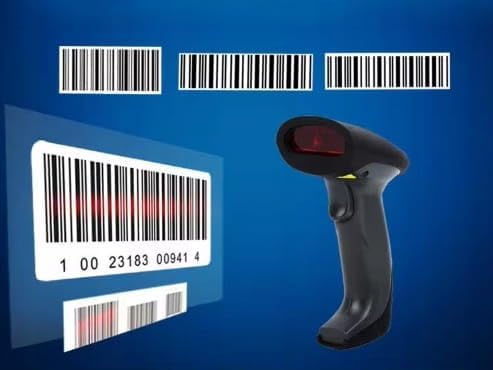
Image: A barcode scanner actively reading a 1D barcode, illustrating the scanning process.
5.2 Scanning a Barcode
- Ensure the scanner is powered on and connected to the charging dock (which is connected to your computer).
- Point the scan window at the barcode you wish to read.
- If in manual mode, press the trigger button. If in automatic mode, simply position the barcode.
- A successful scan is typically indicated by an audible beep and/or a change in the indicator light. The barcode data will be transmitted to your connected device.
The scanner supports 1D, 2D, and QR codes.
6. Технічне обслуговування
- Прибирання: Use a soft, dry cloth to clean the scanner's exterior and scan window. Do not use abrasive cleaners or solvents.
- Зберігання: Store the scanner and dock in a cool, dry place away from direct sunlight and extreme temperatures.
- Догляд за акумулятором: For optimal battery life, avoid fully discharging the scanner frequently. Charge it regularly using the provided dock.

Image: A Zenwire barcode scanner depicted with a cracked surface effect, symbolizing durability. While the image suggests robustness, proper care is still recommended.
7. Вирішення проблем
| проблема | Можлива причина | Рішення |
|---|---|---|
| Scanner not connecting | Out of range, not paired, USB cable loose | Move closer to the dock, re-pair the scanner, check USB connection |
| Cannot read barcodes | Barcode damaged, incorrect scanning angle, low battery | Try a different barcode, adjust angle, charge scanner |
| No data transmitted | Software issue, incorrect configuration | Restart computer, check software settings, reset scanner to factory defaults (if applicable) |
For further assistance, please contact Zenwire customer support.
8. Технічні характеристики
| Особливість | Деталь |
|---|---|
| Модель | W2503 |
| Типи штрих-коду | 1D, 2D, QR-код |
| Підключення | Wireless (up to 400m range), USB |
| Режими сканування | Автоматична, ручна |
| Сумісність | Windows, Mac, Linux |
| потужність | Rechargeable via Charging Dock |
| Dimensions (Scanner in Dock) | Приблизно 22 см (Д) x 8.5 см (Ш) x 12 см (В) |

Image: Diagram showing the approximate dimensions of the Zenwire W2503 barcode scanner when placed in its charging dock: 22cm length, 8.5cm width, and 12cm height.
9. Гарантія та підтримка
Zenwire products are designed for reliability and performance. For warranty information, please refer to the documentation included with your purchase or visit the official Zenwire webсайт.
If you encounter any issues or have questions regarding your Zenwire W2503 barcode scanner, please contact Zenwire customer support.
Контактна інформація:
- Webсайт: www.zenwire.eu (Вихampфактичне посилання може відрізнятися)
- Електронна пошта: support@zenwire.eu (Exampфактична електронна адреса може відрізнятися)


