1. Вступ
This manual provides detailed instructions for the setup, operation, maintenance, and troubleshooting of your NIIMBOT B1 Portable Thermal Label Printer. Please read this manual thoroughly before using the device to ensure proper function and longevity.

Image 1.1: The NIIMBOT B1 Label Maker shown with examples of printed labels for various applications.
2. Продукт закінчивсяview
2.1 Вміст упаковки
Перевірте наявність усіх предметів у вашій упаковці:
- NIIMBOT B1 Label Maker x1
- Кабель типу C x1
- Посібник користувача x1
- Roll label tape (50x30mm) x1 (pre-installed in some models)

Image 2.1: The NIIMBOT B1 Label Maker and its included accessories.
2.2 Основні характеристики
- 2-Inch Label Printing: Supports label widths from 20mm to 50mm (1-2 inches).
- Термодрук: No ink or toner required, reducing operational costs.
- Автоматична ідентифікація етикетки: For faster and easier printing.
- Підключення: Compatible with iOS & Android smartphones via Bluetooth, and PC via USB.
- NIIMBOT App: Offers 10+ fonts/languages, 100+ borders, 1500+ symbols, barcodes, QR codes, icons, time stamps, pictures, photos, and OCR print functions.
- Портативний дизайн: Compact and lightweight for easy transport and use.
- Автоматичне вимкнення: Customizable auto-off settings (15min, 30min, 60min, never) to conserve battery.
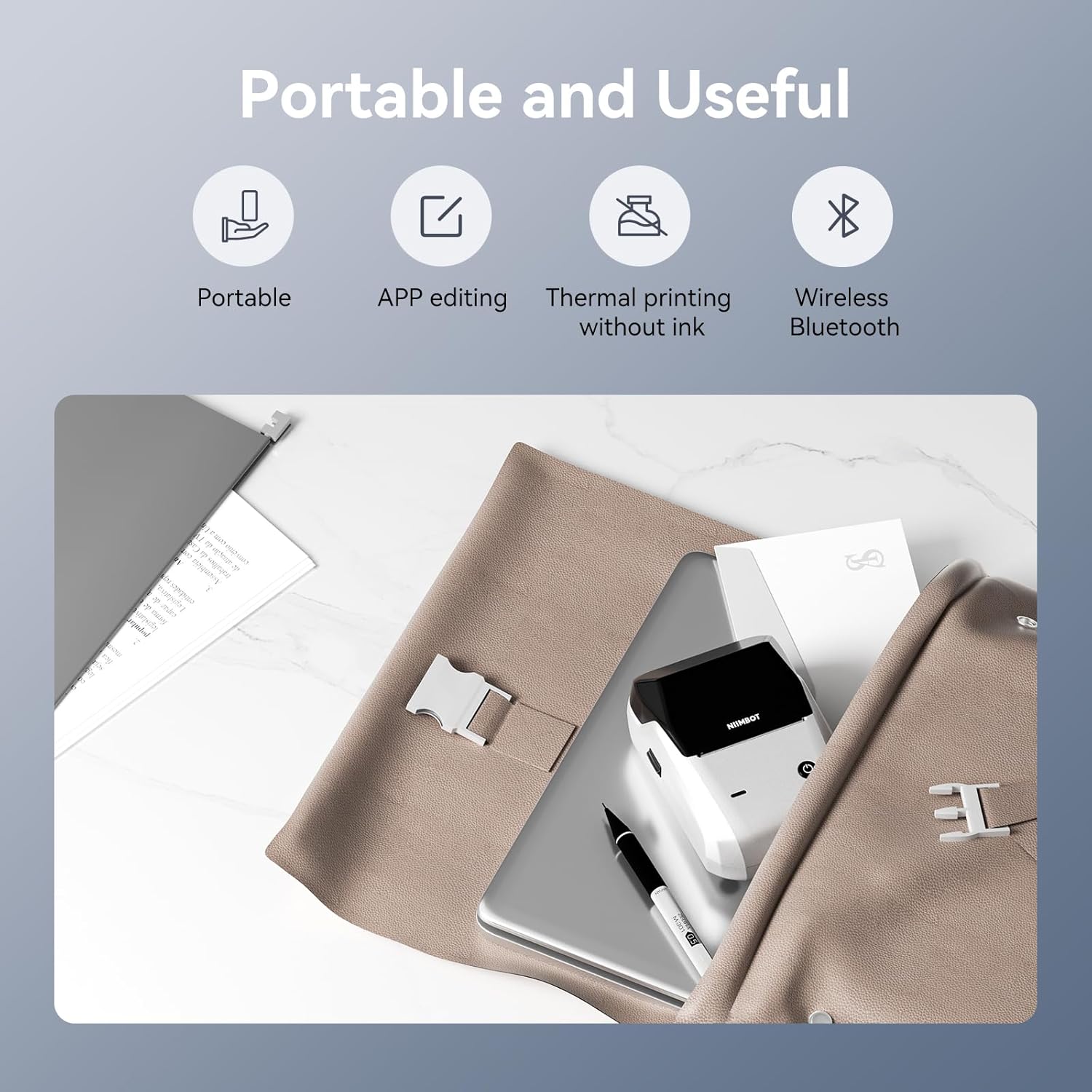
Зображення 2.2: закінченоview of the NIIMBOT B1's portable and useful features.
3. Налаштування
3.1 Завантаження етикеткової стрічки
- Rotate the side latch to open the tape slot.
- Load the label tape into the slot, ensuring the label side faces upwards.
- Adjust the guide plate to fit the label roll snugly.
- Close the tape slot, leaving a small portion of the label tape extending for smooth feeding.

Image 3.1: Proper installation of label tape in the NIIMBOT B1.
3.2 Встановлення та підключення програми
The NIIMBOT B1 requires the NIIMBOT app for smartphone operation.
- Download the NIIMBOT app from the App Store (iOS) or Google Play Store (Android). шукати "NIIMBOT".
- Переконайтеся, що Bluetooth на вашому телефоні увімкнено.
- Open the NIIMBOT app and click "Connect" to search for nearby devices.
- Select your B1 printer from the list (e.g., B1-XXXXXX) to pair. If prompted for a pairing code, enter 0000 or 1234.
- Once connected, the app will automatically identify the label tape in the printer.

Image 3.2: NIIMBOT App download and connection process.
3.3 PC Connection (Windows)
For PC connectivity, you will need to download the driver from the official NIIMBOT webсайт.
- Відвідайте офіційний NIIMBOT website and download the B1 printer driver for Windows 7/10.
- Install the driver on your PC.
- Connect the NIIMBOT B1 printer to your PC using the provided USB Type-C cable.
- Open the NIIMBOT desktop software to begin printing.

Image 3.3: Connecting the NIIMBOT B1 to a PC via USB.
3.4 Quick Start Video Guide
Watch this video for a quick visual guide on setting up and using your B1 Label Maker.
Video 3.4: A quick start guide demonstrating the initial setup and basic operation of the NIIMBOT B1 Label Maker.
4. Інструкція з експлуатації
4.1 Створення та редагування міток
- In the NIIMBOT app, select a template or create a new label.
- Use the various editing tools to add text, images, icons, barcodes, QR codes, and other elements.
- Customize font styles, sizes, alignment, and other layout options.
- The app supports features like OCR (Optical Character Recognition) for converting images to text.

Image 4.1: The NIIMBOT App interface for creating and editing labels.
4.2 Друк етикеток
- After designing your label, click the "Print" button in the app.
- Adjust the number of copies and print density as needed.
- Confirm the print settings and initiate printing.
- The printer will automatically feed and print the labels. Gently tear off the printed labels.

Image 4.2: Smartphone printing process with the NIIMBOT B1.
4.3 Значення світлового індикатора
Understand the status of your printer through its indicator light:
- Спалах блакитний: Триває оновлення прошивки.
- Постійний синій: Printer is in standby mode.
- Зелений спалах: Printer is actively printing.
- Постійний зелений: Bluetooth is successfully connected.
- Спалах червоний: Printer is charging.
- Стійкий червоний: Cover is open, out of paper, or low battery.

Image 4.3: Guide to the NIIMBOT B1 indicator light statuses.
4.4 Використання Прampлес
The NIIMBOT B1 is versatile for various labeling needs:
- Домашнє використання: Kitchen labels, gift labels, kids' item labels, trip item labels.
- Business Use: Beauty & personal care, DIY item labels, mail labels, perfume labels, bakery food labels.

Зображення 4.4: Наприкладamples of NIIMBOT B1 usage for home organization.

Зображення 4.5: Наприкладamples of NIIMBOT B1 usage for small businesses.

Зображення 4.6: Наприкладamples of labels for bakery and food products.
Video 4.7: Demonstration of the NIIMBOT B1 Label Maker's ease of use for various labeling tasks.
Відео 4.8: Шоуasing the multipurpose capabilities of the NIIMBOT B1 Label Maker for different applications.
5. Технічне обслуговування
5.1 Очищення друкуючої головки
Регулярне очищення друкуючої головки забезпечує оптимальну якість друку.
- Вимкніть принтер і від’єднайте кабель живлення.
- Відкрийте відділення для етикеток.
- Обережно протріть друкувальну головку ватним тампоном, злегкаampзмішаний ізопропіловим спиртом.
- Allow the print head to dry completely before closing the compartment and turning on the printer.
5.2 Догляд за акумулятором
- Регулярно заряджайте принтер, навіть якщо він використовується нечасто, щоб підтримувати справність акумулятора.
- Avoid exposing the printer to extreme temperatures.
- Використовуйте для заряджання лише кабель Type-C, що постачається в комплекті.
6. Вирішення проблем
6.1 Поширені проблеми та рішення
| Випуск | Можлива причина | Рішення |
|---|---|---|
| Принтер не вмикається | Низький заряд батареї; кнопка живлення натиснута недостатньо довго | Charge the printer; Press and hold the power button for 3 seconds. |
| Не вдається підключитися через Bluetooth | Bluetooth off on phone; Printer not in pairing mode; App permissions | Ensure Bluetooth is on; Restart printer; Check app permissions for nearby devices. |
| Погана якість друку | Dirty print head; Incorrect print density; Low battery | Clean the print head (see 5.1); Adjust print density in the app; Charge the printer. |
| Етикетки не подаються належним чином | Incorrect label installation; Guide plate not adjusted | Reinstall label tape correctly (see 3.1); Adjust the guide plate to fit the label roll. |
| Принтер не розпізнається ПК | Driver not installed; Faulty USB cable | Install the correct PC driver (see 3.3); Try a different USB cable. |
7. Технічні характеристики
| Особливість | Деталь |
|---|---|
| Назва моделі | B1 |
| Технологія друку | Теплові |
| Підключення | Bluetooth, USB |
| Максимальна роздільна здатність друку | 203 dpi |
| Максимальна швидкість друку (монохромний) | 15 мм/с |
| Максимальний розмір носія | 2 дюйм (50 мм) |
| Сумісні пристрої | Smartphone (Android & iOS), PC (Windows 7/10) |
| Вага товару | 1.1 фунта (499 грам) |
| Розміри продукту | 5.5" Г x 3.5" Ш x 2.5" В |
| Акумулятор | Потрібен 1 акумулятор (входить в комплект) |
| Особливе використання | Labeling for Small Business Product Price/Address, School and Office Files Classification, Home Supplies Organization, Personal Item Identification, Name Tags and Warehouse |
8. Гарантія та підтримка
8.1 Інформація про гарантію
The NIIMBOT B1 Label Printer comes with a 1-year warranty coverage. Please retain your proof of purchase for warranty claims.
8.2 Підтримка клієнтів
For further assistance, technical support, or warranty inquiries, please contact NIIMBOT customer service through their official webсайт або контактну інформацію, надану на упаковці вашого продукту.


