1. Вступ
Thank you for choosing the ATTACK SHARK X85 Wireless Gaming Keyboard. This 75% mechanical keyboard is designed for gamers and typists, offering versatile connectivity, a comfortable typing experience, and customizable RGB lighting. This manual provides detailed instructions to help you set up, operate, and maintain your new keyboard.
2. Вміст упаковки
Будь ласка, уважно перевірте упаковку, щоб переконатися в наявності всіх елементів:
- ATTACK SHARK X85 Wireless Gaming Keyboard
- Coiled USB-C to USB-A Cable
- 2.4 ГГц USB-ключ
- Інструмент для знімання ковпачка/перемикача
- Additional Keycaps (if included with your specific model)
- Посібник користувача (цей документ)
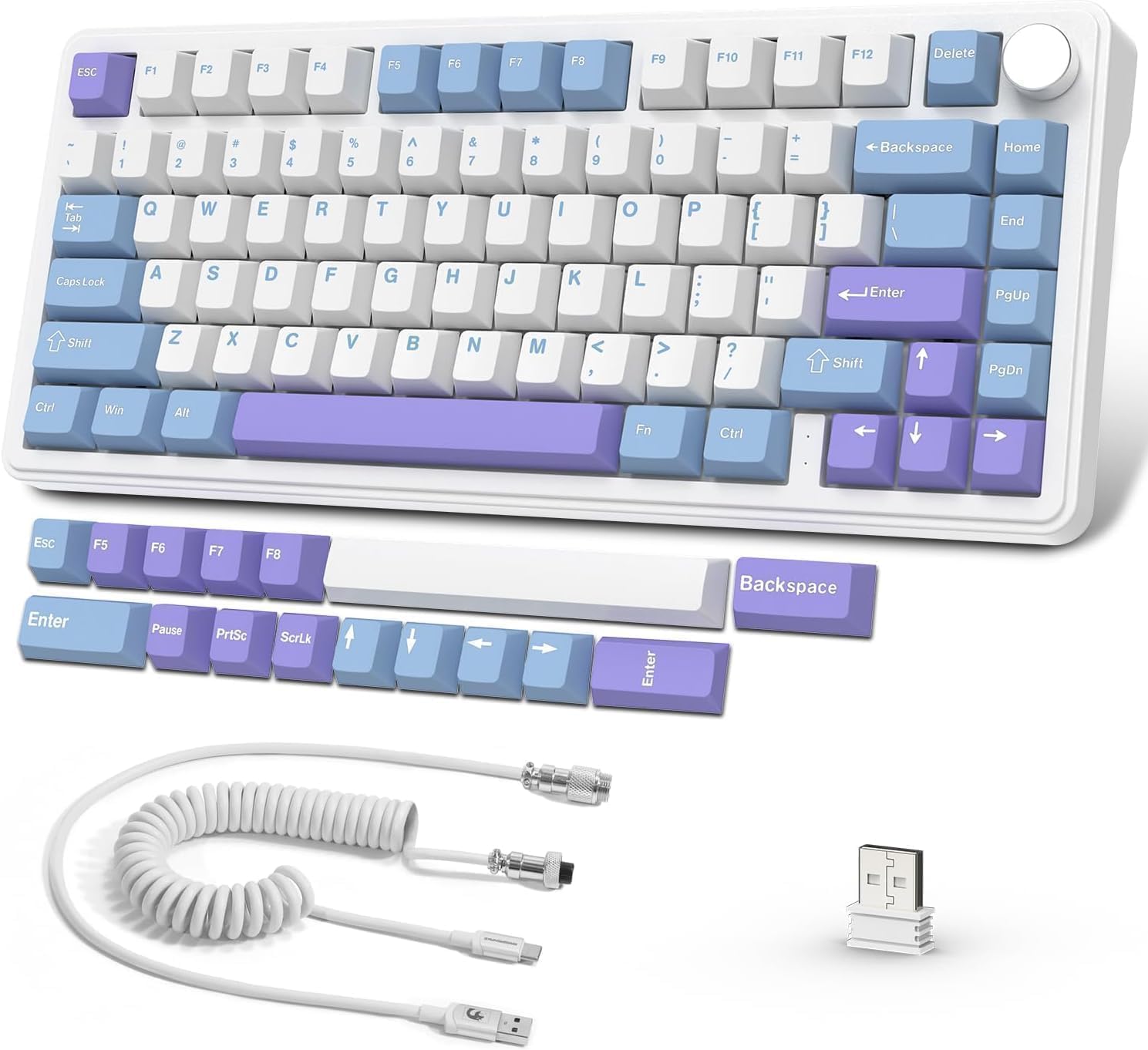
Image: The ATTACK SHARK X85 keyboard, coiled USB-C cable, 2.4GHz USB dongle, and additional keycaps.
3. Продукт закінчивсяview
The ATTACK SHARK X85 features a compact 75% layout, retaining essential keys while saving desk space. It incorporates advanced design and components for a superior user experience.
3.1 Основні характеристики
- 75% TKL Layout: Compact 81-key design for efficiency and portability.
- Комутатори з можливістю гарячої заміни: Supports 3-pin switches, allowing for easy customization and replacement. Pre-lubed linear White Jade switches provide a smooth typing feel.
- Upgraded Leaf-Spring Gasket Structure: Features 5 layers of shock-absorbing and sound-deadening foams, along with a 1.2mm single-key slotted PCB, to reduce cavity noise and enhance typing feel.
- Потрійний режим підключення: Seamlessly switch between Wired (USB-C), 2.4GHz wireless, and Bluetooth (up to 3 devices).
- Підсвічування RGB, орієнтоване на південь: 19 customizable backlight effects with adjustable brightness and speed.
- CNC Multi-function Knob: Control volume and switch RGB lighting modes with a simple press and rotation.
- Акумулятор високої ємності 10 000 мАг: Ensures long-lasting performance for extended work or gaming sessions.
- Programmable Software Support: Customize RGB effects, music rhythms, and macro keys.
- Міцні ковпачки клавіш PBT: High-grade Cherry profile PBT keycaps are resistant to wear, friction, and solvents.
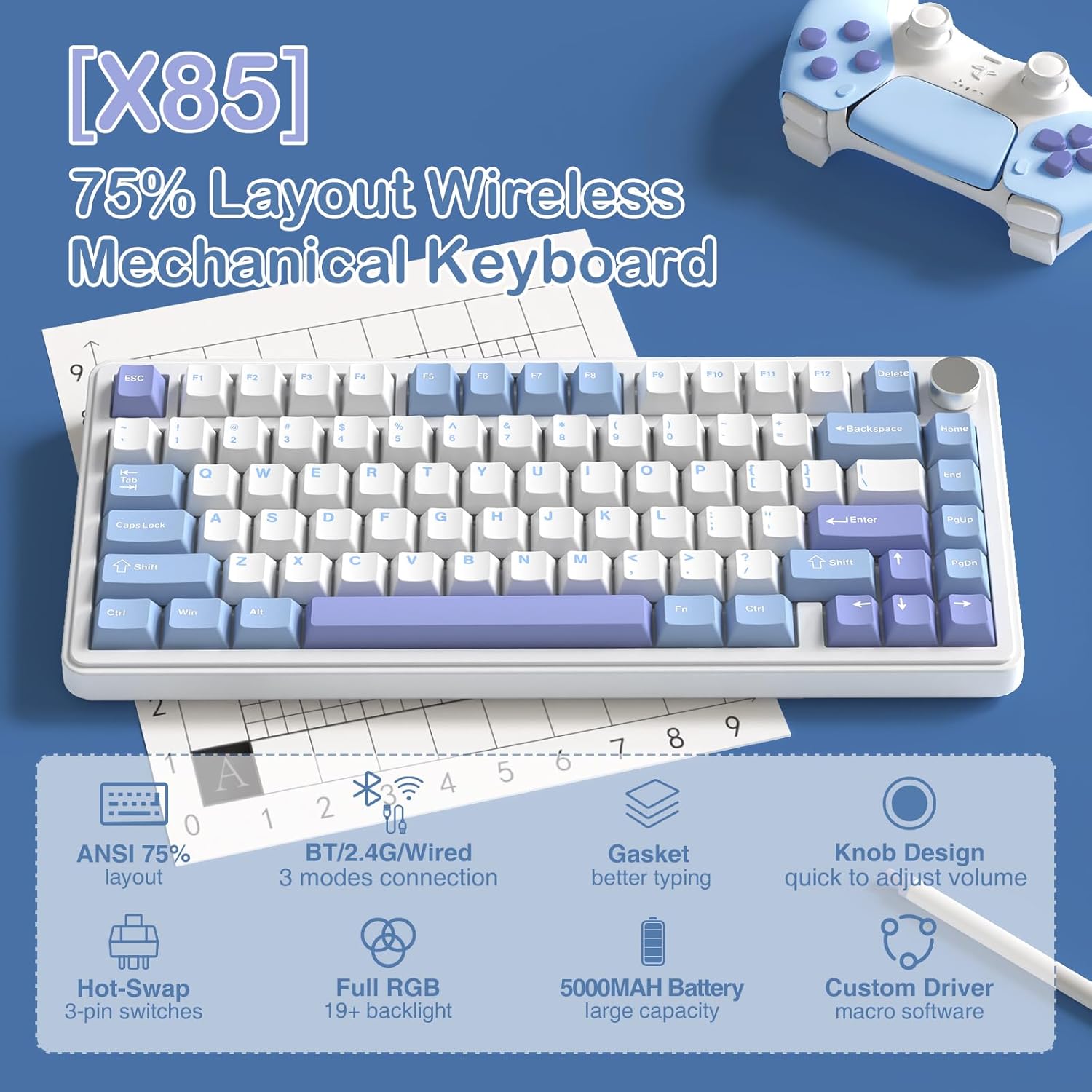
Зображення: Оверview of the X85 keyboard highlighting its 75% layout, multi-mode connection, gasket structure, hot-swap capability, RGB, knob design, and 5000mAh battery.
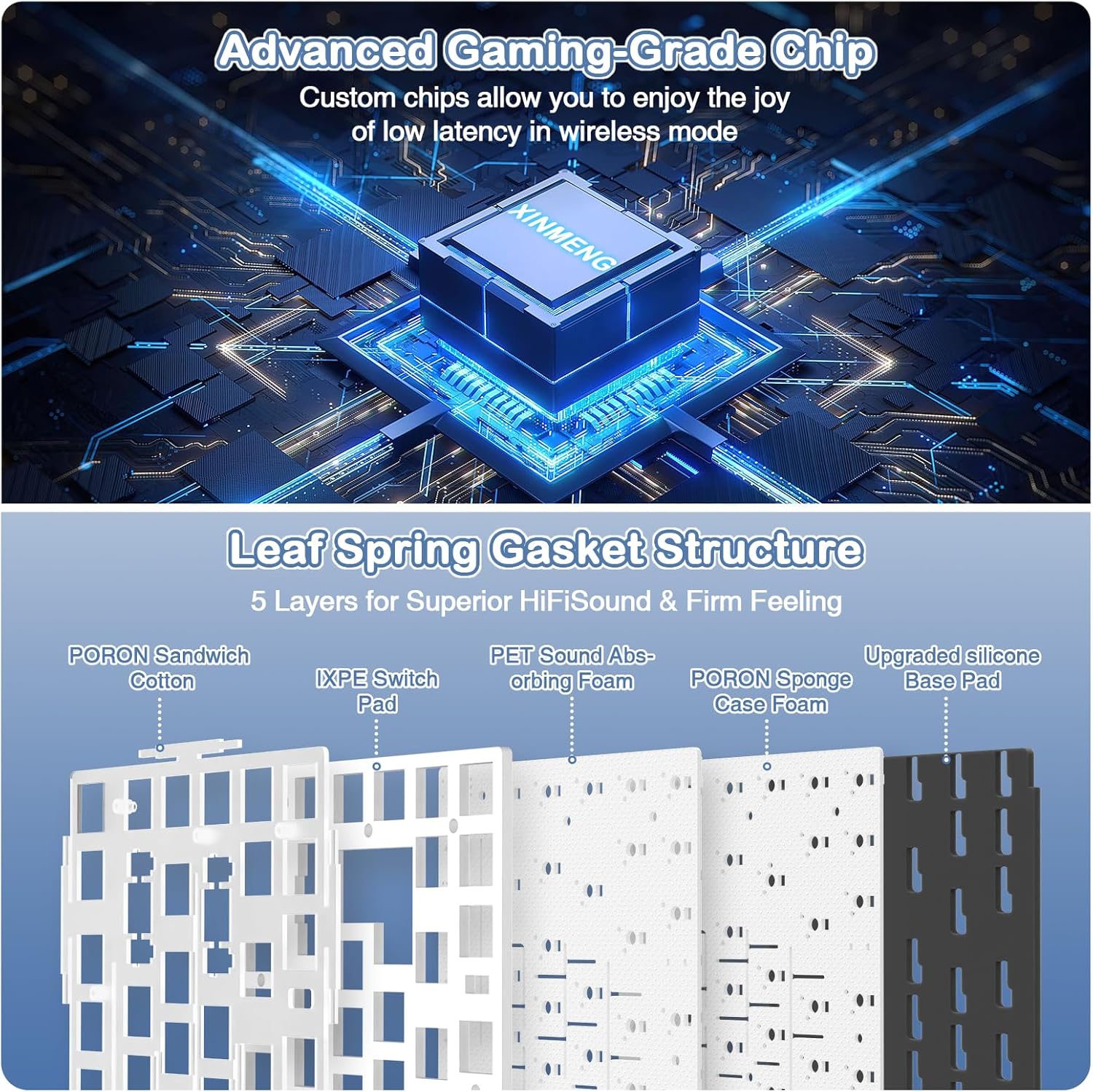
Зображення: Розгорнуте view illustrating the five-layer gasket structure for sound dampening and improved typing feel.
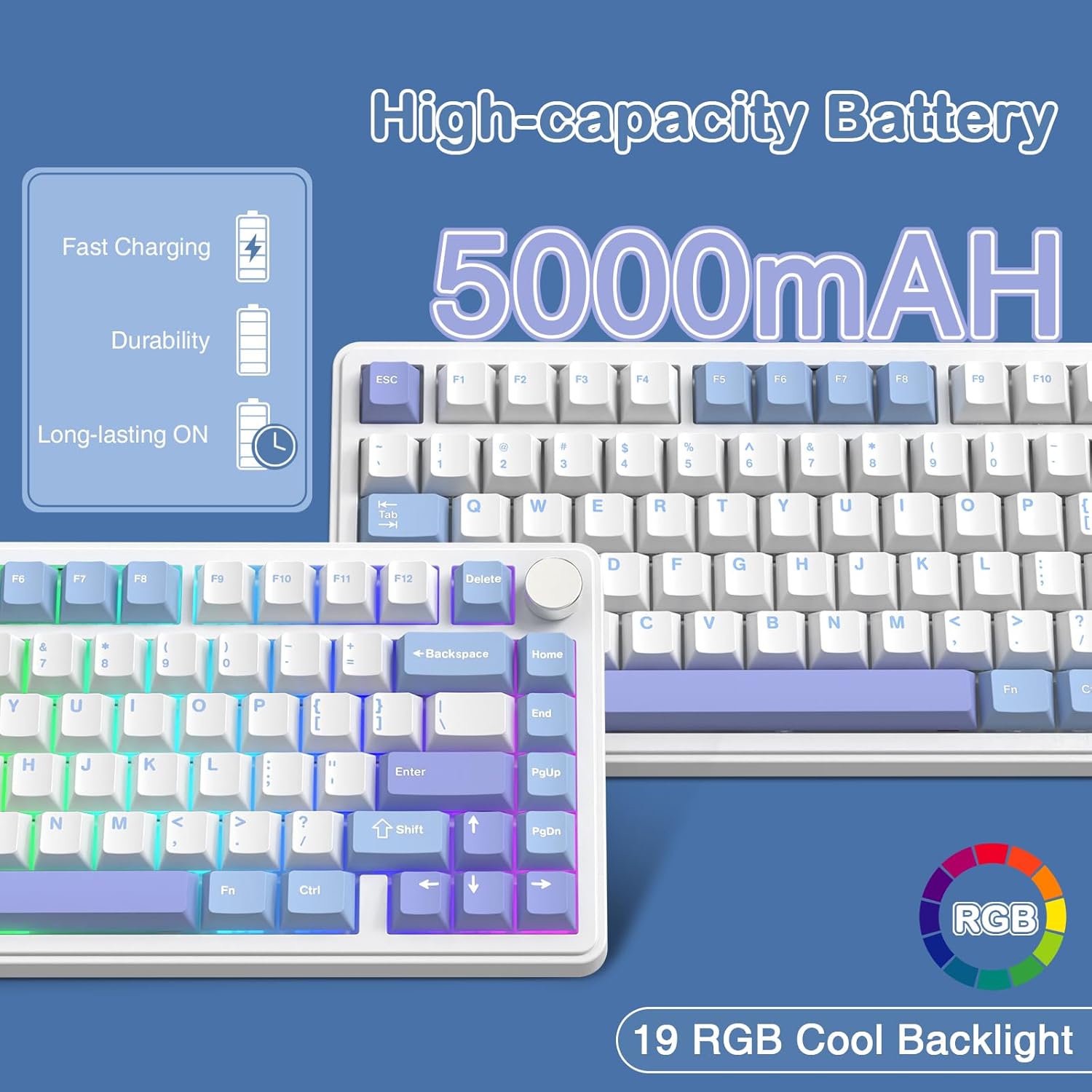
Image: Visual representation of the 5000mAh high-capacity battery and the 19 RGB cool backlight effects.
3.2 Відео продуктуview
Відео: Посадовець надview of the ATTACK SHARK X85 Mechanical Gaming Keyboard, demonstrating its features, sound, and functionality.
4. Налаштування
4.1 Режими підключення
The ATTACK SHARK X85 supports three connection modes: Wired, 2.4GHz Wireless, and Bluetooth. You can switch between these modes using the toggle switches located on the back of the keyboard.
- Дротовий режим (USB-C):
Connect the provided USB-C coiled cable to the keyboard's USB-C port and the other end to your computer's USB-A port. The keyboard will automatically be recognized and ready for use. This mode also charges the keyboard battery.
- Бездротовий режим 2.4 ГГц:
Insert the 2.4GHz USB dongle into an available USB port on your computer. Slide the switch on the back of the keyboard to the "2.4G" position. The keyboard will automatically connect to the dongle. This mode offers low latency for gaming.
- Режим Bluetooth:
Slide the switch on the back of the keyboard to the "BT" position. The keyboard can connect to up to three Bluetooth devices. To pair, press FN + Q, FN+W, або FN + E for 3 seconds until the corresponding key flashes, indicating pairing mode. On your device, search for "ATTACK SHARK X85" and connect. Once paired, you can switch between the three connected devices by pressing FN + Q/W/E коротко.
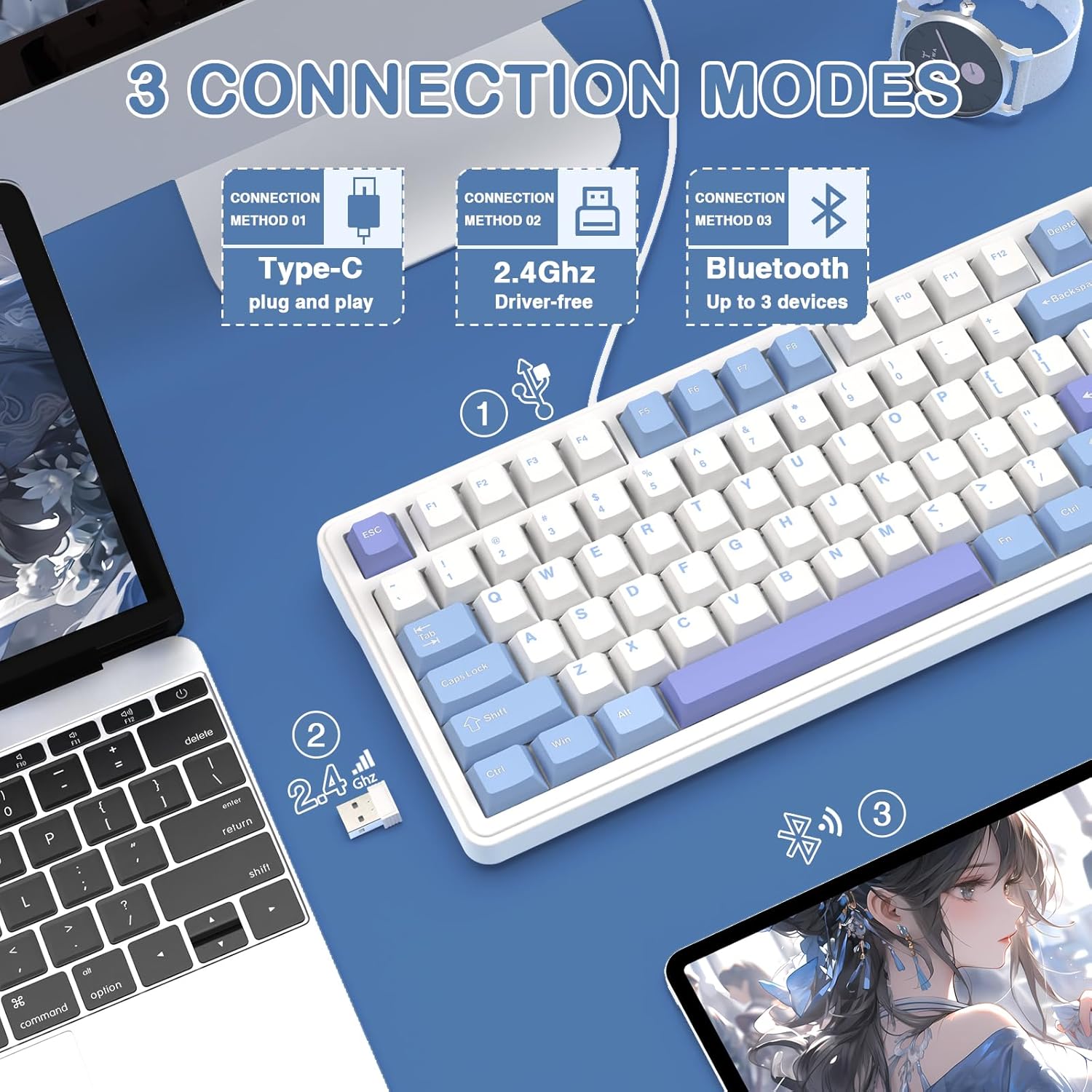
Image: Diagram showing the three connection methods: Type-C wired, 2.4GHz wireless, and Bluetooth, with corresponding devices.
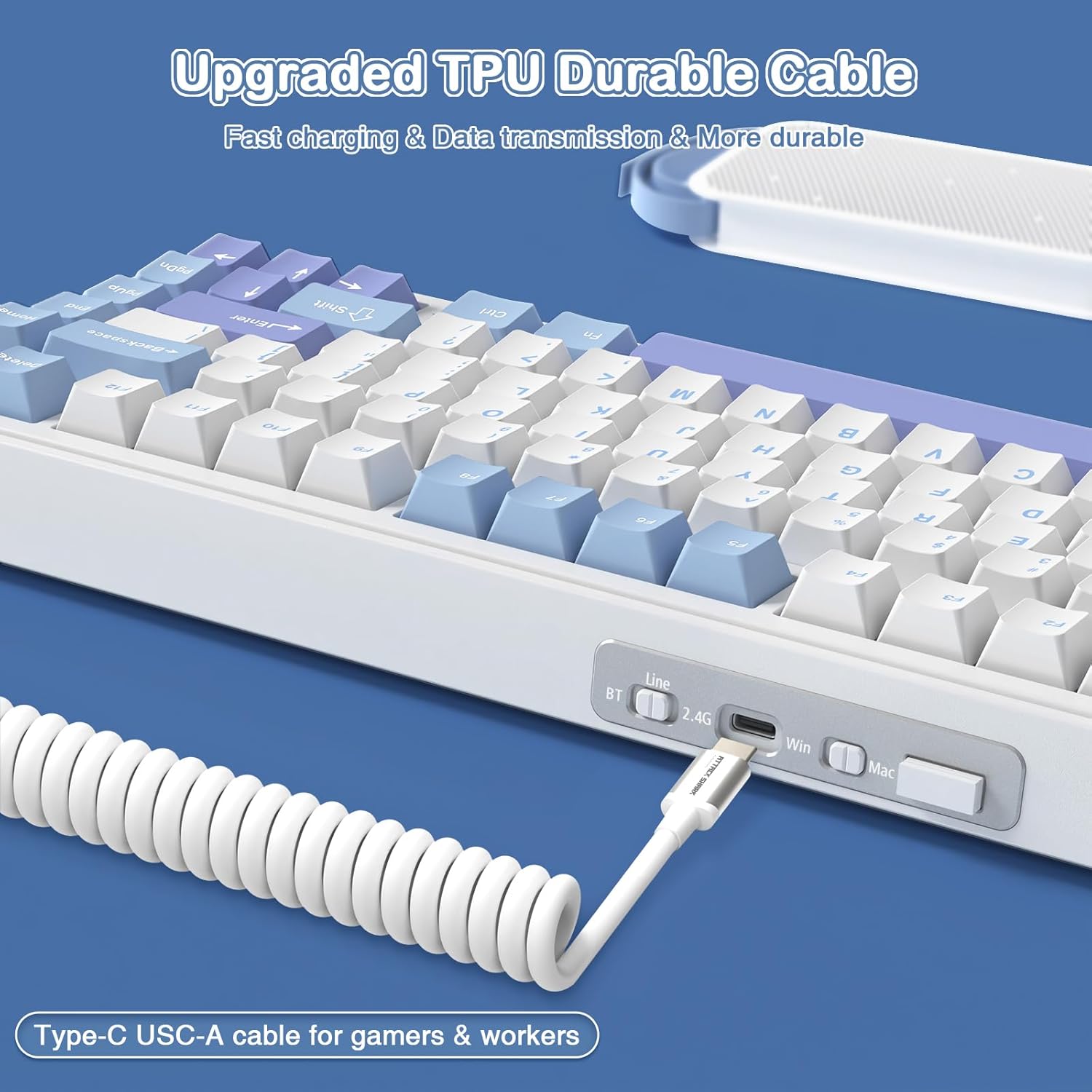
Image: Close-up of the keyboard's side, showing the USB-C port, BT/2.4G/Wired switch, Win/Mac toggle, and 2.4G receiver slot.
4.2 Сумісність з операційними системами
The keyboard is compatible with Windows (2000/XP/Vista/Win7/Win8/Win10/Win11) and MacOS. Use the dedicated Win/Mac toggle switch on the back of the keyboard to select the appropriate operating system mode. This ensures correct key mapping for your system.
4.3 Встановлення програмного забезпечення
For advanced customization of RGB lighting effects, music rhythms, and macro keys, please download the official software driver. The driver is typically available on the ATTACK SHARK official website or via a link provided in the product packaging. Ensure the keyboard is connected in 2.4GHz wireless mode when running the driver for optimal functionality.
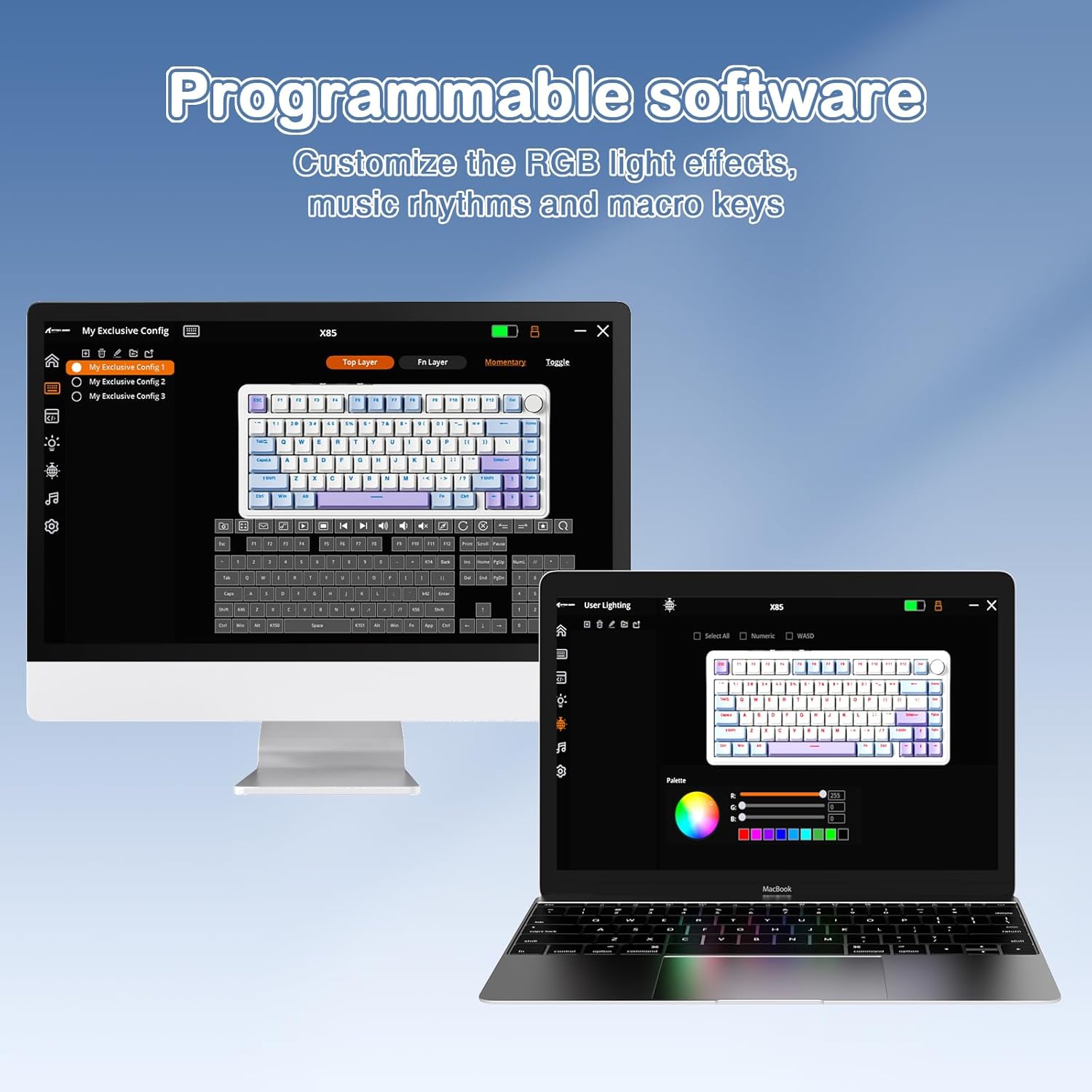
Image: Screenshot of the programmable software interface, showing options for customizing lighting and macro settings.
5. Інструкція з експлуатації
5.1 Multi-function Knob Control
The CNC multi-function knob located in the upper right corner of the keyboard provides quick access to volume and lighting controls.
- Регулювання гучності:
Long press the knob for more than 3 seconds to switch to multimedia mode. Rotate the knob to adjust the system volume (clockwise for volume up, counter-clockwise for volume down). Press the knob to play/mute audio.
- Lighting Control (Default Mode):
In default mode, press the knob once to switch between the 19 available RGB backlight effects. Rotate the knob to adjust the brightness or speed of the current lighting effect.

Image: Detailed explanation of the CNC knob's functions for adjusting volume and changing light modes.
5.2 Ефекти RGB-підсвічування
The keyboard features 19 dynamic RGB backlight effects. You can cycle through them using the multi-function knob or customize them further using the software driver. The south-facing RGB design ensures vibrant illumination.
5.3 Комутатори з можливістю гарячої заміни
The ATTACK SHARK X85 is hot-swappable, allowing you to change switches without soldering. This keyboard supports 3-pin mechanical switches.
- Використовуючи наданий знімач для ковпачків клавіш, обережно зніміть ковпачок клавіші з перемикача, який потрібно замінити.
- Use the switch puller tool to carefully grip the top and bottom clips of the switch. Pull the switch straight up to remove it from the PCB.
- Вирівняйте контакти нового перемикача з отворами на друкованій платі. Переконайтеся, що контакти розташовані прямо, щоб уникнути згинання.
- Gently push the new switch down until it clicks into place. It should sit flush with the plate.
- Знову прикріпіть ковпачок клавіші.
Note: Be careful not to bend the switch pins during installation. If a switch is not working, remove it and check if the pins are bent. Straighten them gently with tweezers if necessary.
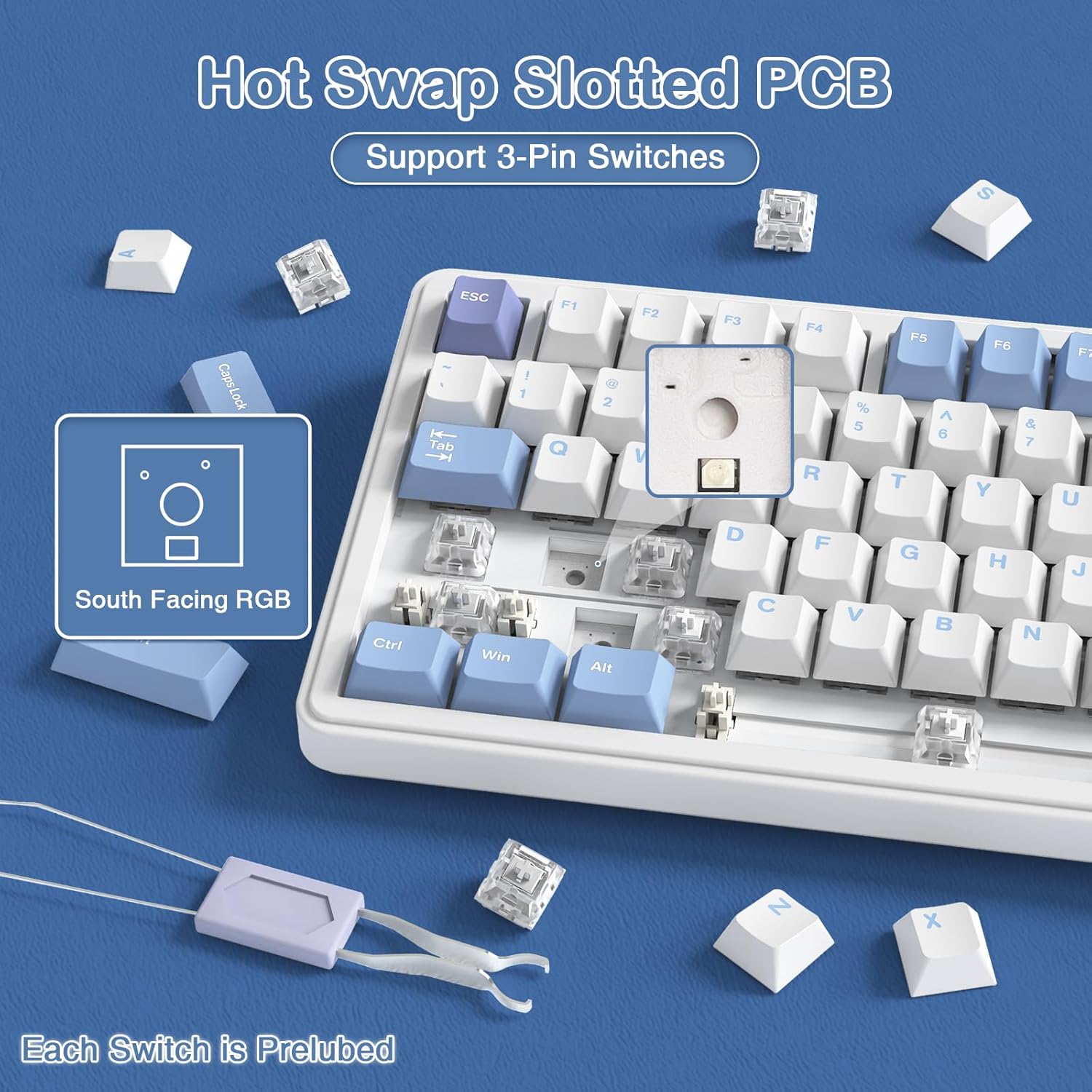
Image: Illustration of the hot-swappable PCB, showing a switch being removed and the south-facing RGB LED.
5.4 Програмування макросів
Utilize the custom software driver to program macros for specific keys. This allows you to assign complex sequences of commands or keystrokes to a single key, enhancing your gaming or productivity workflow. Refer to the software's built-in guide for detailed macro setup instructions.
6. Технічне обслуговування
Proper maintenance will extend the lifespan of your ATTACK SHARK X85 keyboard.
- Прибирання: Regularly clean the keyboard with a soft, dry cloth. For deeper cleaning, you can remove keycaps and use compressed air to clear dust and debris from between the switches.
- Зберігання: When not in use, store the keyboard in a dry, cool place away from direct sunlight and extreme temperatures.
- Уникайте рідин: Не піддавайте клавіатуру впливу рідин. У разі розливання рідин негайно від’єднайте клавіатуру та дайте їй повністю висохнути перед повторним підключенням.
- Обережно поводьтеся: Avoid dropping the keyboard or applying excessive force to the keys or knob.
7. Вирішення проблем
Якщо у вас виникли проблеми з клавіатурою, зверніться до наступних поширених рішень:
| проблема | Можлива причина / рішення |
|---|---|
| Клавіатура не реагує (дротова) |
|
| Клавіатура не реагує (бездротове з'єднання/Bluetooth) |
|
| RGB-підсвічування не працює або працює неправильно |
|
| Клавіші не реєструються або друкуються двічі |
|
| Ручка не працює |
|
If the problem persists after trying these solutions, please contact ATTACK SHARK customer support for further assistance.
8. Технічні характеристики
| Особливість | Деталь |
|---|---|
| Номер моделі | X85 |
| Макет | 75% TKL (81 клавіш) |
| Підключення | Wired (USB-C), 2.4GHz Wireless, Bluetooth |
| Перемикачі | Hot-Swappable 3-pin (Pre-lubed Linear White Jade) |
| Клавіатури | Вишневий Проfile PBT |
| Підсвічування | South-Facing RGB (19 effects) |
| Ємність акумулятора | 5000 мАг |
| Розміри | 13.98 x 7.24 x 1.97 дюймів |
| Вага товару | 3.54 фунта |
| Сумісні пристрої | Ноутбук, ПК, планшет |
| Підтримка операційної системи | Windows 2000/XP/Vista/Win7/Win8/Win10/Win11, MacOS |
9. Гарантія та підтримка
ATTACK SHARK products come with a standard manufacturer's warranty. For specific warranty terms and conditions, please refer to the warranty card included in your product packaging or visit the official ATTACK SHARK webсайт.
For technical support, troubleshooting assistance, or any inquiries regarding your ATTACK SHARK X85 keyboard, please contact our customer support team through the official channels provided on the ATTACK SHARK webсайт або ваша платформа для покупок.
Ми прагнемо надавати високоякісну продукцію та відмінне обслуговування клієнтів.


