1. Вступ
The Phomemo M950 Label Maker is a versatile, portable thermal label printer designed for both home and office use. It offers dual printing modes: direct input via its integrated keyboard and wireless printing via Bluetooth connection to a mobile application. This device utilizes thermal printing technology, eliminating the need for ink cartridges, and supports various label tape types for diverse labeling needs.
2. Інформація про безпеку
- Keep the device away from water and high humidity to prevent electric shock or damage.
- Не розбирайте та не намагайтеся ремонтувати пристрій самостійно. Зверніться по допомогу до служби підтримки клієнтів.
- Use only Phomemo-approved label tapes to ensure optimal performance and prevent damage to the print head.
- Зберігати в недоступному для дітей місці.
- Уникайте впливу на пристрій прямих сонячних променів або екстремальних температур.
- Charge the device using a compatible Type-C USB power adapter.
3. Вміст упаковки
Please check the package contents upon unboxing. If any items are missing or damaged, contact your retailer or Phomemo customer support.
- Прилад для виготовлення етикеток Phomemo M950
- 12mm Label Tape Roll (pre-installed or included separately)
- Зарядний кабель USB Type-C
- Посібник користувача (цей документ)
4. Продукт закінчивсяview
Familiarize yourself with the components of your Phomemo M950 Label Maker.

Image: Phomemo M950 Label Maker showing its main features including no ink, one-touch key, keyboard editing, app editing, 203 DPI resolution, backlight support, Type-C recharge, and built-in cutter.
Ключові характеристики:
- Введення з клавіатури: Integrated QWERTY keyboard for direct label creation.
- Підключення Bluetooth: Connects to smartphones for advanced label design via the Phomemo app.
- Термодрук: No ink required, uses thermal label tapes.
- Backlight Screen: Забезпечує видимість в умовах низької освітленості.
- Вбудований різак: For clean and precise label cutting.
- Акумуляторна батарея: Integrated 1200mAh battery, rechargeable via Type-C port.
5. Налаштування
5.1. Зарядка пристрою
Before first use, fully charge the label maker.
- Connect the provided USB Type-C cable to the charging port on the side of the label maker.
- Підключіть інший кінець кабелю до сумісного USB-адаптера живлення (не входить до комплекту) або USB-порту комп’ютера.
- The charging indicator light will show the charging status. Once fully charged, the indicator will change or turn off.

Image: Phomemo M950 Label Maker highlighting the Type-C charging port and its compact dimensions.
5.2. Завантаження етикеткової стрічки
Ensure the device is powered off before loading or replacing tape.
- Open the tape compartment cover located on the top or back of the device.
- Insert the label tape roll with the label side facing up, ensuring it sits securely in the compartment.
- Feed the end of the label tape through the tape guide until it protrudes slightly from the output slot.
- Close the tape compartment cover firmly.
5.3. Увімкнення/вимкнення живлення
Натисніть і утримуйте кнопку живлення (зазвичай позначену символом живлення) протягом кількох секунд, щоб увімкнути або вимкнути пристрій.
6. Інструкція з експлуатації
The Phomemo M950 offers two primary methods for creating labels.

Image: Phomemo M950 Label Maker illustrating the two usage modes: direct printing from the keyboard and printing via a mobile device using the 'Print Master' app.
6.1. Keyboard Printing
This mode allows you to create labels directly on the device without needing a smartphone.
- Увімкнення: Turn on the label maker. The screen will illuminate.
- Type Text: Use the QWERTY keyboard to type your desired label text. The text will appear on the display.
- Налаштувати: Use the function keys (e.g., 'Fn', 'Shift', 'Symbol', 'Caps', 'Accent') to access various customization options such as font styles, sizes, symbols, and borders. The device supports multiple languages, borders, and symbols.
- попередньоview: Use the 'Preview' button to see how your label will look before printing.
- Друк: Press the 'Print' button to print the label. The built-in cutter will automatically cut the label after printing.

Image: Phomemo M950 Label Maker showcasing its extensive features including support for 23+ languages, 103+ borders, and 790+ symbols and icons for label customization.
6.2. Bluetooth App Printing
For more advanced design options, connect your label maker to the 'Print Master' mobile app.
- Завантажити додаток: Download the 'Print Master' app from your mobile device's app store (App Store for iOS, Google Play for Android).
- Увімкнути Bluetooth: Ensure Bluetooth is enabled on your mobile device and the Phomemo M950.
- Підключити: Open the 'Print Master' app and follow the on-screen instructions to connect to your M950 label maker via Bluetooth.
- Дизайн етикетки: Use the app's interface to design your label. The app offers massive templates, additional fonts, borders, and icons.
- Друк: Once your design is complete, tap the print icon in the app to send the label to the M950 for printing.

Image: Phomemo M950 Label Maker demonstrating the use of the 'Print Master' app with numerous templates, 270+ borders, 110+ fonts, 1500 icons, and 14+ languages for creative label design.
6.3. Adjusting Print Density
For optimal print quality, especially with ribbon tapes, adjust the print density.
- Press the 'Fn' key, then select 'Pinter Densities' (Printer Densities).
- Choose 'High' for clearer prints, particularly when using ribbon tapes.

Image: Step-by-step guide on how to set the print density to 'High' on the Phomemo M950 Label Maker for clear prints, especially for ribbon tapes.
7. Технічне обслуговування
7.1. Очищення друкуючої головки
Regular cleaning ensures consistent print quality.
- Turn off the label maker and open the tape compartment.
- Gently wipe the print head with a soft, lint-free cloth dampзмішаний ізопропіловим спиртом.
- Дайте друкуючій голівці повністю висохнути, перш ніж закривати відсік і вмикати пристрій.
7.2. Стрічкове сховище
Store label tapes in a cool, dry place away from direct sunlight to preserve their quality and adhesive properties.
8. Вирішення проблем
If you encounter issues with your Phomemo M950, refer to the following common problems and solutions.
| проблема | Можлива причина | Рішення |
|---|---|---|
| Немає живлення | Низький заряд батареї; пристрій вимкнено | Charge the device; Press and hold power button to turn on. |
| Погана якість друку | Print head dirty; Incorrect print density; Low battery | Clean print head; Adjust print density to 'High'; Charge device. |
| Label not feeding | Tape incorrectly loaded; Tape jammed; Out of tape | Re-load tape correctly; Clear any jams; Replace tape roll. |
| Помилка підключення Bluetooth | Bluetooth off; Device not paired; App issue | Ensure Bluetooth is on for both devices; Re-pair in app; Restart app/device. |
| Різак не працює | Tape jammed; Cutter mechanism obstructed | Clear any tape jams; Ensure no debris is blocking the cutter. |
9. Технічні характеристики
| Особливість | Деталь |
|---|---|
| Назва моделі | M950 |
| Бренд | Фомемо |
| Технологія друку | Теплові |
| Технологія підключення | Bluetooth, Keyboard |
| Вихід на принтер | Монохромний |
| Максимальна роздільна здатність друку | 203 dpi |
| Максимальний розмір носія | 12 мм * 4000 мм |
| Сумісні пристрої | Смартфони |
| потужність | 10 Вт |
| Тип батареї | Вбудований літій-іонний 1200mAh |
| Порт зарядки | USB Type-C |
| Розміри продукту | 15.2 х 5.4 х 11.2 см |
| Вага товару | 490 грами |
| Колір | Білий |
| Особливість | Portable, Backlight Screen, Built-in Cutter |
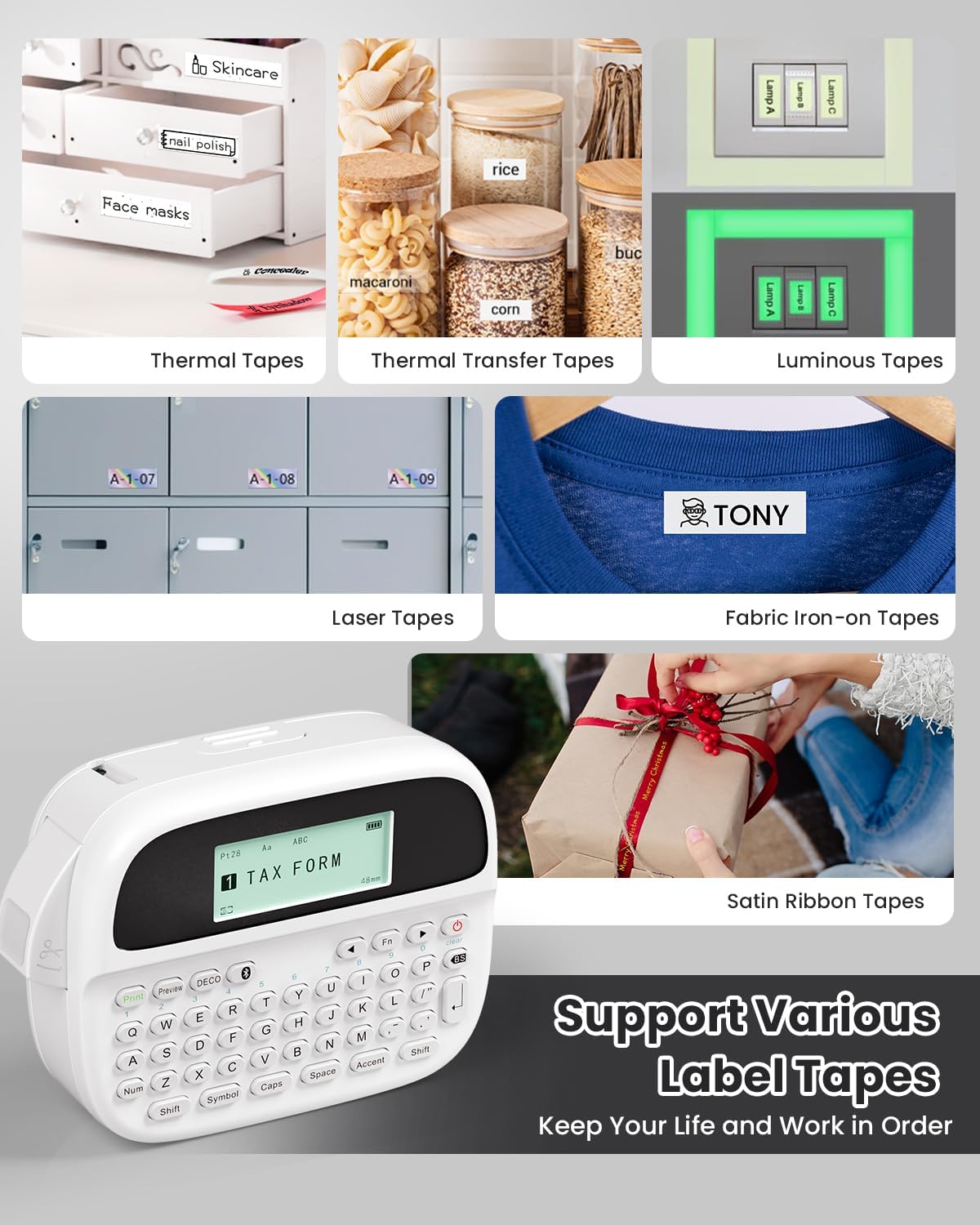
Image: Phomemo M950 Label Maker supporting various label tape types including Thermal, Thermal Transfer, Luminous, Laser, Fabric Iron-on, and Satin Ribbon tapes.

Image: Phomemo M950 Label Maker demonstrating its backlight screen feature, allowing for comfortable use even at night.
10. Гарантія та підтримка
For warranty information, technical support, or service inquiries, please refer to the official Phomemo webсайт або зверніться безпосередньо до служби підтримки клієнтів. Зберігайте чек про покупку як підтвердження покупки для гарантійних претензій.
Офіційний користувач Phomemo Webсайт: Visit Phomemo Store


