1. Вступ
This manual provides essential information for the proper setup, operation, and maintenance of your NexiGo NG17QH 4K Portable Monitor. Please read this manual thoroughly before using the device to ensure optimal performance and to prevent damage. Keep this manual for future reference.

Image: The NexiGo NG17QH 4K Portable Monitor, showcasing its sleek design and smart cover.
2. Вміст упаковки
Verify that all items listed below are included in your package. If any items are missing or damaged, please contact NexiGo customer support.
- NexiGo NG17QH 4K Portable Monitor
- Розумна кришка / підставка
- Кабель USB-C – USB-C
- Міні -кабель HDMI -HDMI
- Кабель живлення USB-A до USB-C
- Адаптер живлення
3. Продукт закінчивсяview
Familiarize yourself with the ports and controls on your NexiGo NG17QH portable monitor.
Зображення: Детальне view of the monitor's ports and controls.
Порти та кнопки:
- Повнофункціональний порт USB-C: Used for power, video, and audio transmission with compatible devices.
- Порт Mini HDMI: Used for video and audio transmission with HDMI-compatible devices.
- Кнопка живлення: Press and hold to power the monitor on or off. Short press to access the OSD menu.
- Індикатор живлення: Indicates the monitor's power status.
- Multi-Function Key: Used to navigate the OSD menu and adjust settings.
- OTG Interface (USB-C): Allows connection of USB peripherals like keyboards or mice when the monitor is connected via the full-featured USB-C port.
- Гніздо для навушників 3.5 мм: Для підключення зовнішніх аудіопристроїв.
4. Налаштування
Follow these steps to set up your NexiGo NG17QH portable monitor.
4.1 Живлення монітора
- Using a single USB-C cable (Full-Featured): If your device (laptop, smartphone) supports full-featured USB-C output, connect the monitor to your device using the provided USB-C to USB-C cable. This single cable can provide both power and display signal.
- Using an external power adapter: If your device does not provide sufficient power or if you are using the Mini HDMI port, connect the provided USB-A to USB-C power cable to the monitor's full-featured USB-C port and plug the USB-A end into the power adapter, then into a wall outlet.
4.2 Підключення до пристроїв
- Ноутбук/ПК (USB-C): Connect the monitor to your laptop/PC using the USB-C to USB-C cable. Ensure your laptop's USB-C port supports DisplayPort Alternate Mode.
- Ноутбук/ПК (HDMI): Connect the monitor to your laptop/PC using the Mini HDMI to HDMI cable. Ensure the monitor is powered externally via the USB-C power cable.
- Gaming Consoles (PS5, Xbox, Switch): Connect the monitor to your console using the Mini HDMI to HDMI cable. Ensure the monitor is powered externally via the USB-C power cable.
- смартфон: Connect the monitor to your smartphone using the USB-C to USB-C cable. Ensure your smartphone's USB-C port supports video output.
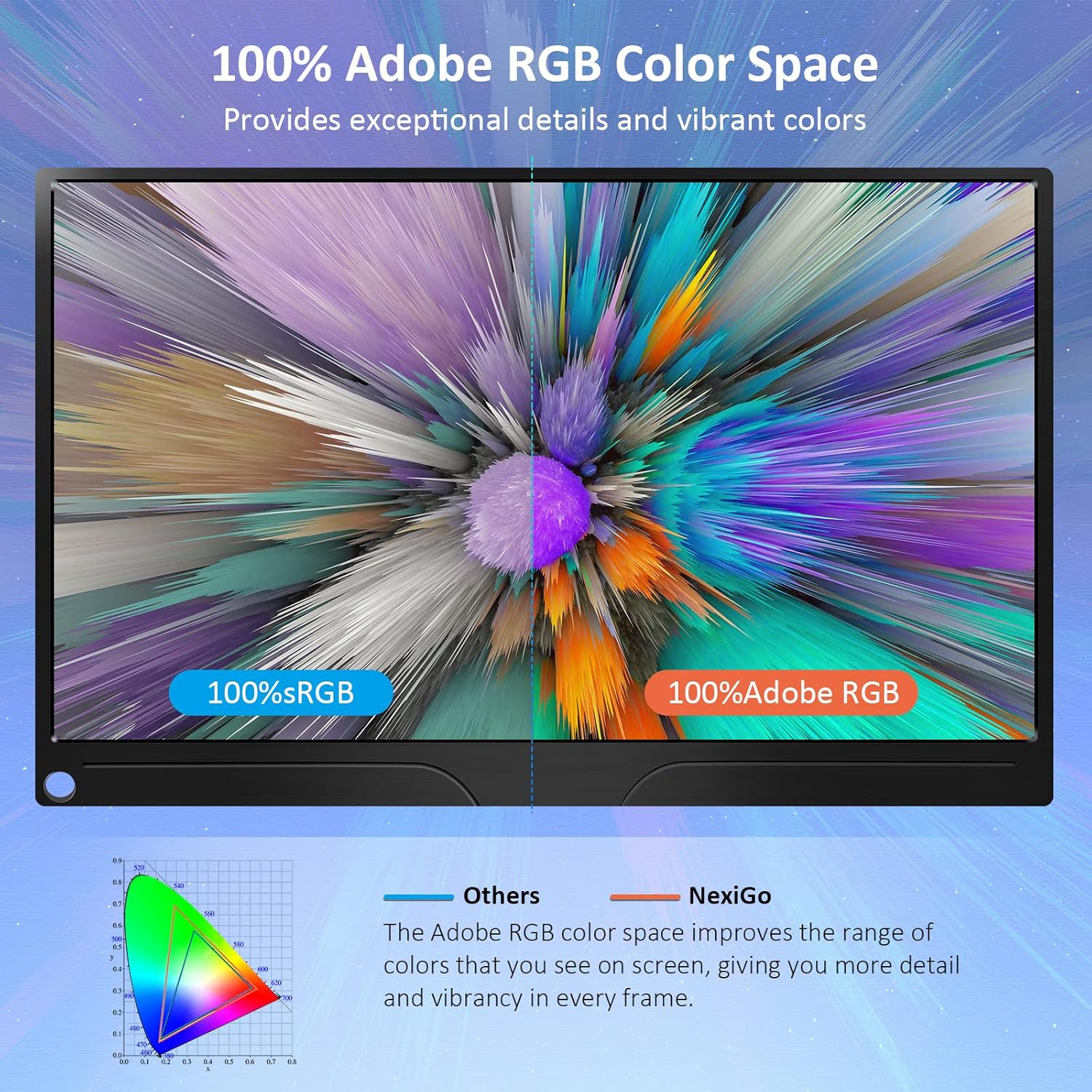
Image: The portable monitor connected to a laptop, demonstrating an extended display setup.
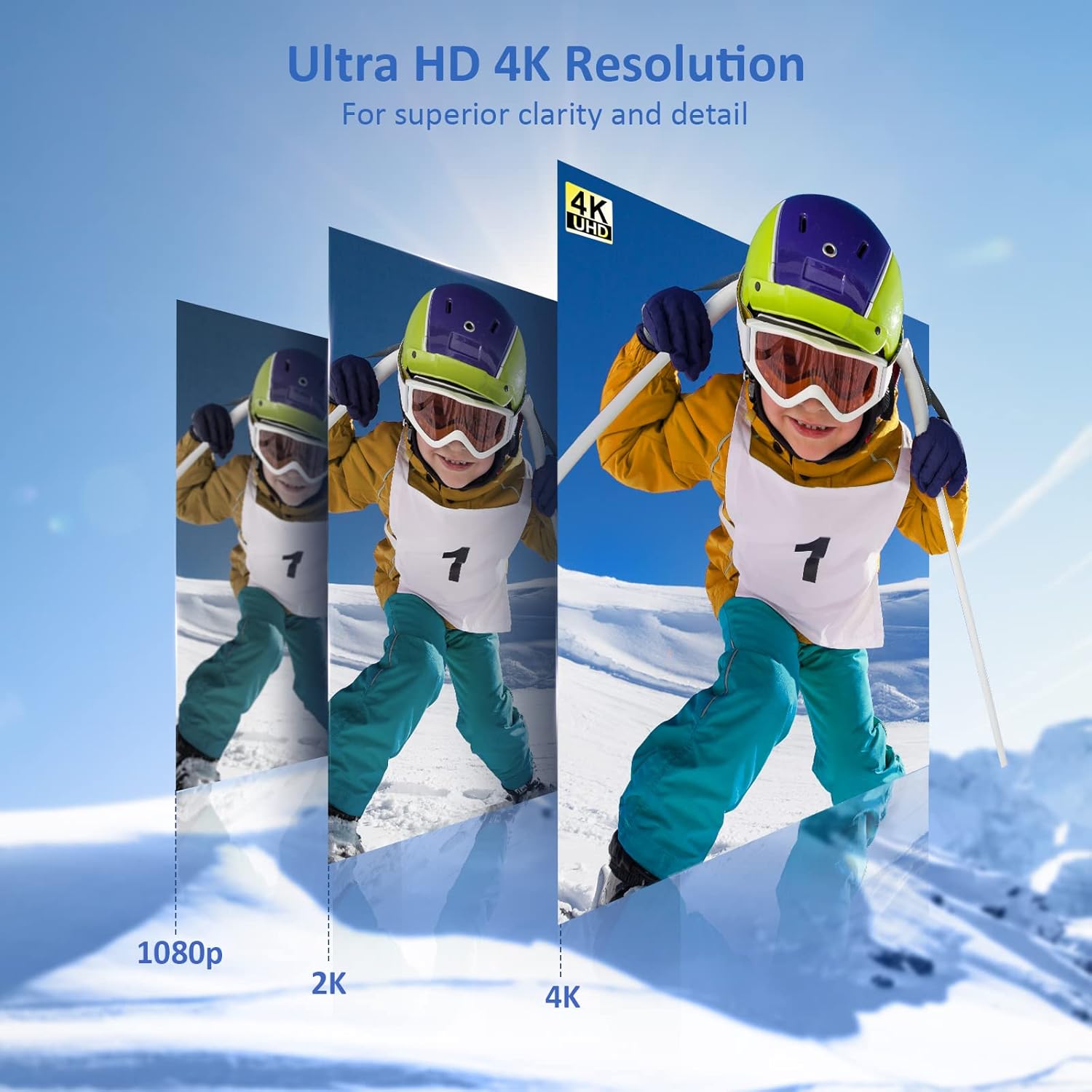
Image: The portable monitor connected to a smartphone, displaying content.
4.3 Кріплення VESA
The monitor is compatible with VESA mounts (75x75mm). To mount the monitor, remove the smart cover and attach it to a compatible VESA arm or wall mount using appropriate screws (not included).
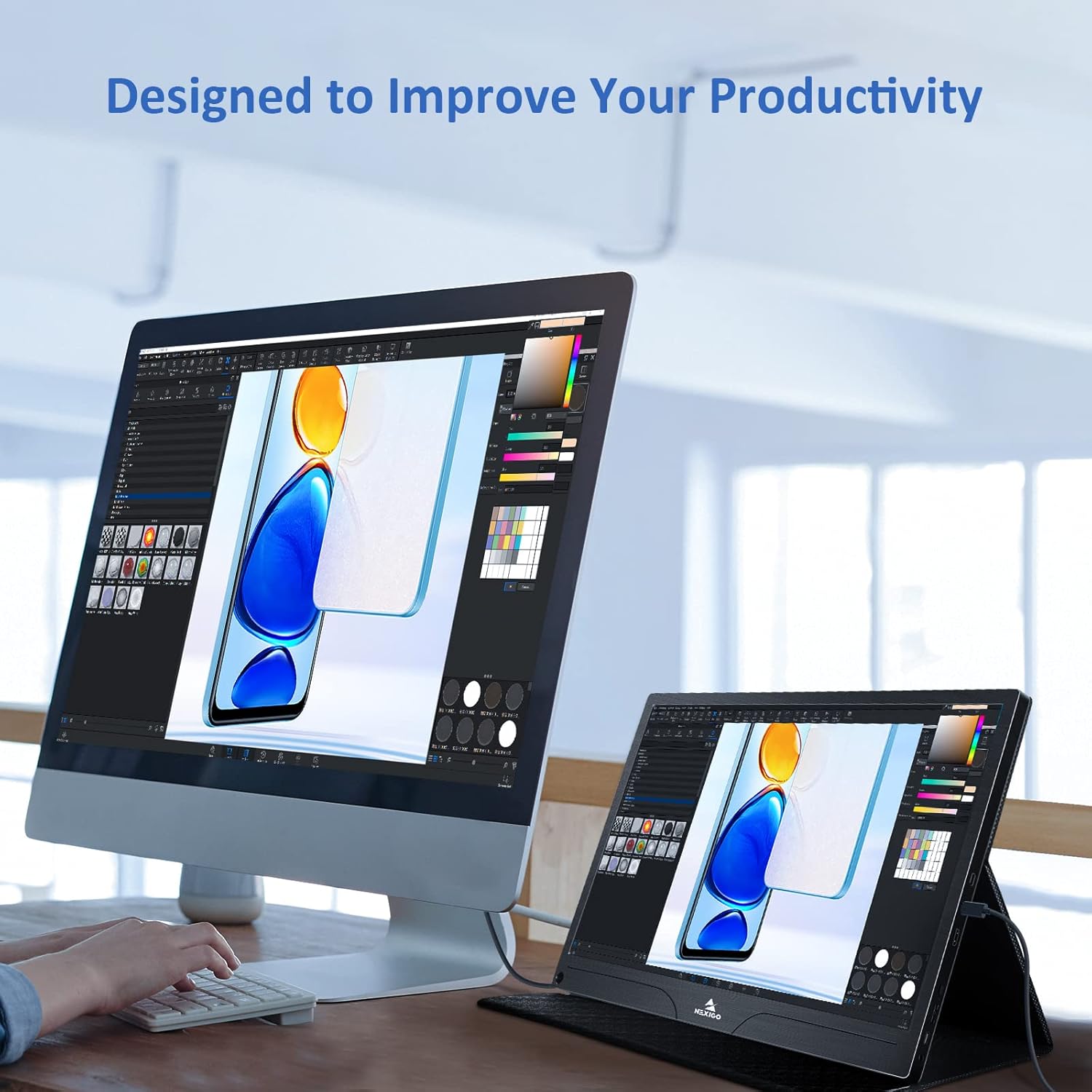
Image: The monitor mounted on a VESA-compatible desk arm.
5. Експлуатація монітора
5.1 Увімкнення/вимкнення живлення
Натисніть і утримуйте Кнопка живлення for approximately 3 seconds to turn the monitor on or off.
5.2 Екранне меню (OSD)
The OSD menu allows you to adjust various display settings. Short press the Кнопка живлення to open the OSD menu. Use the Багатофункціональна клавіша для навігації та вибору опцій.
- Вверх вниз: Move the Multi-Function Key up or down to navigate through menu options.
- Введіть: Press the Multi-Function Key inward to select an option or confirm a setting.
- Вихід: Press the Power Button to exit the current menu or the OSD.
5.3 Налаштування дисплея
- Яскравість/Контрастність: Налаштуйте загальну яскравість та контрастність дисплея.
- Параметри кольору: Змінити колірну температуру, відтінок та насиченість.
- Режим HDR: Увімкнення або вимкнення розширеного динамічного діапазону для покращеної якості зображення із сумісним контентом.
- FreeSync: Enable FreeSync for smoother gaming experiences by synchronizing the monitor's refresh rate with your GPU's frame rate.
- Співвідношення сторін: Adjust the display aspect ratio (e.g., 16:9, 4:3).
5.4 Параметри звуку
Adjust the volume of the built-in dual speakers or connected headphones through the OSD menu.
6. Технічне обслуговування
- Очищення екрану: Злегка протріть м’якою тканиною без ворсу dampводою або неабразивним засобом для чищення екранів. Не розпилюйте рідину безпосередньо на екран.
- Очищення Casing: Протріть монітор casing with a soft, dry cloth. Avoid using harsh chemicals or solvents.
- Зберігання: When not in use, store the monitor in a cool, dry place, preferably in its original packaging or smart cover to protect it from dust and scratches.
- Уникайте екстремальних умов: Не піддавайте монітор впливу екстремальних температур, вологості або прямих сонячних променів.
7. Вирішення проблем
Якщо у вас виникли проблеми з монітором, зверніться до наступної таблиці, щоб знайти поширені проблеми та способи їх вирішення.
| проблема | Можлива причина | Рішення |
|---|---|---|
| Немає дисплея / повідомлення «Немає сигналу» | Incorrect cable connection, insufficient power, incorrect input source. | Ensure cables are securely connected. Verify external power is supplied if needed. Check the input source setting in the OSD menu. |
| Монітор не вмикається | No power supply, faulty cable. | Ensure the power adapter is connected and working. Try a different USB-C cable or power source. |
| Мерехтіння екрана | Faulty cable, unstable power, incompatible resolution/refresh rate. | Replace the cable. Ensure stable power. Adjust the display resolution or refresh rate on your connected device. |
| Немає звуку | Занадто низька гучність, неправильне налаштування аудіовиходу, несправний кабель. | Increase volume via OSD or connected device. Ensure the monitor is selected as the audio output device on your source. Check cable connections. |
| OTG port not working | Monitor not powered via full-featured USB-C, device incompatibility. | Ensure the monitor is connected to a device via the full-featured USB-C port that supports OTG functionality. |
8. Технічні характеристики
Detailed technical specifications for the NexiGo NG17QH 4K Portable Monitor.
| Особливість | Специфікація |
|---|---|
| Номер моделі | NG17QH |
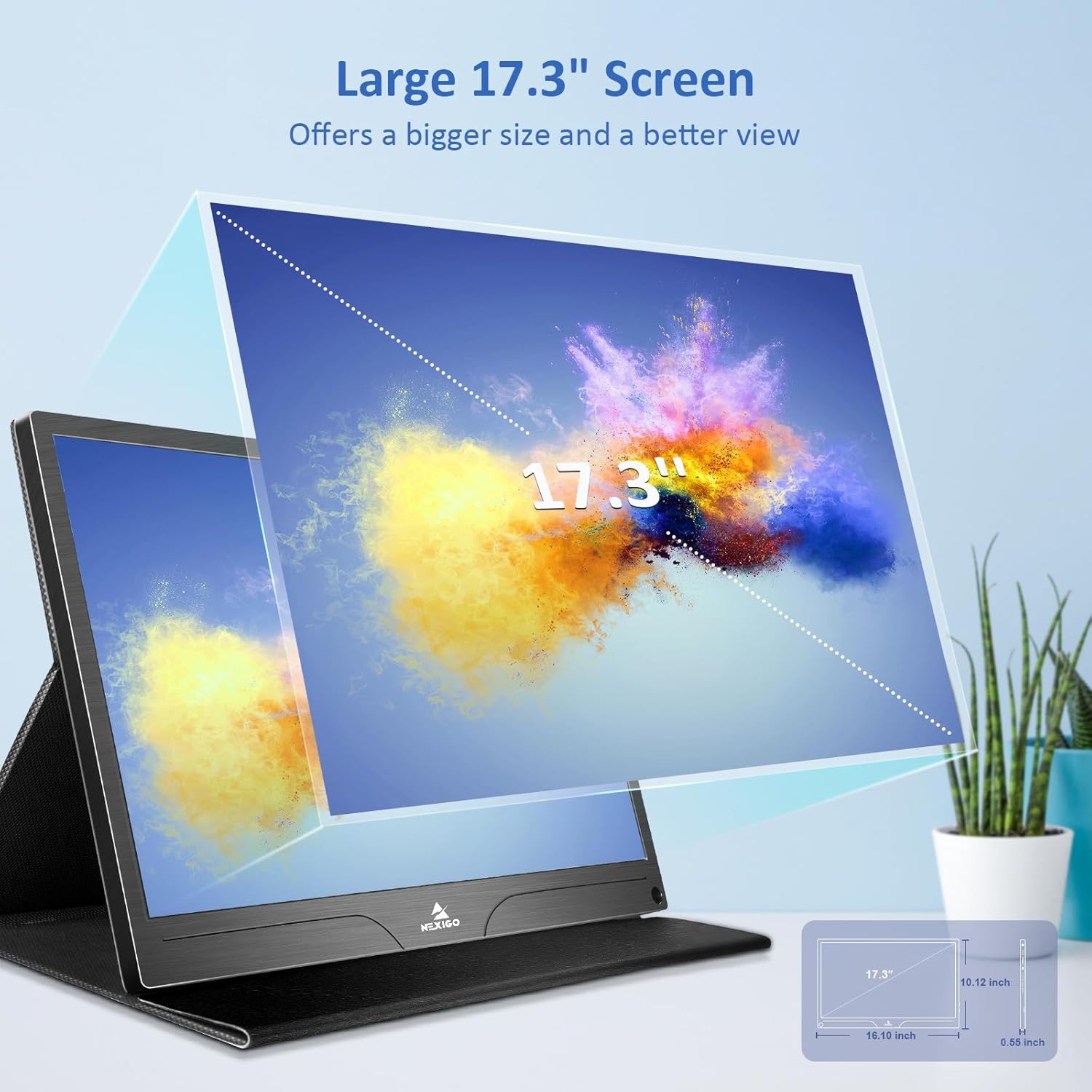
| Розмір екрана | 17.3 дюймів |
| роздільна здатність | 3840 x 2160 (4K UHD) |
| Тип панелі | IPS |
| Яскравість | 400 кд/м² |
| Колірна гамма | 100% Adobe RGB |
| Співвідношення сторін | 16:9 |
| Viewкут нахилу | 178° |
| особливості | FreeSync, HDR, Eye Care Screen |
| Доповідачі | Dual Built-in Speakers |
| Підключення | Full-Featured USB-C (x1), Mini HDMI (x1), OTG USB-C (x1), 3.5mm Audio Jack (x1) |
| Сумісність VESA | 75 х 75 мм |
| Розміри продукту | 16.1 x 10.12 x 0.55 дюймів |
| Вага товару | 6.39 фунта |

Image: Visual comparison of 1080p, 2K, and 4K resolutions, demonstrating the clarity of the 4K display.
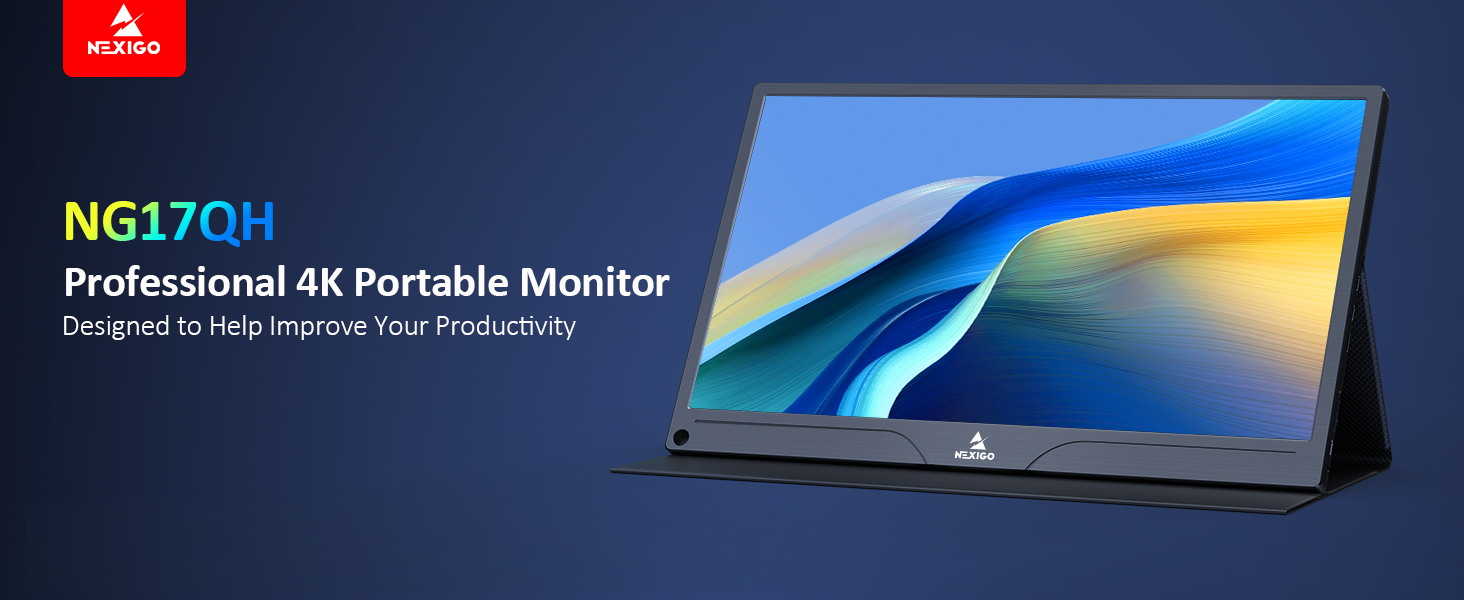
Image: A visual representation of 100% Adobe RGB color space coverage, indicating vibrant and detailed color reproduction.
9. Гарантія та підтримка
Your NexiGo NG17QH Portable Monitor comes with a manufacturer's warranty. For detailed warranty information, product registration, or technical support, please visit the official NexiGo webсайт або зверніться безпосередньо до служби підтримки клієнтів. Зберігайте чек про покупку як підтвердження покупки для гарантійних претензій.
NexiGo Official Webсайт: www.nexigo.com


