Інструкція користувача міні-проектора BlitzWolf BW-VT2
Your comprehensive guide to setting up, operating, and maintaining your BlitzWolf BW-VT2 Mini Projector.
1. Продукт закінчивсяview
1.1 Вміст упаковки
Будь ласка, перевірте наявність усіх предметів у вашій упаковці:
- BlitzWolf BW-VT2 Mini Projector
- Пульт дистанційного керування
- Адаптер живлення
- Кабель HDMI
- Посібник користувача (цей документ)
1.2 Розмітка пристрою
Familiarize yourself with the various parts and ports of your projector.
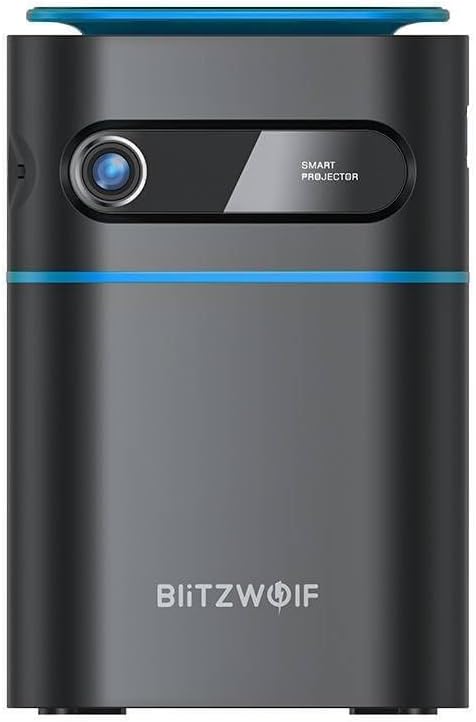
Малюнок 1.1: Спереду View. This image displays the front of the BlitzWolf BW-VT2 Mini Projector, highlighting the projection lens and the 'SMART PROJECTOR' branding.

Figure 1.2: Projector with Remote Control. This image shows the BlitzWolf BW-VT2 Mini Projector alongside its dedicated remote control, illustrating the compact size of both devices.
Малюнок 1.3: Задня частина View. The rear of the projector is shown, featuring ventilation grilles and various input/output ports.

Малюнок 1.4: Сторона View. This image highlights the side of the projector where additional connectivity options such as USB and HDMI ports are located.

Малюнок 1.5: Верх View. The top surface of the projector is visible, featuring the integrated touch control panel for direct interaction.
1.3 Порти та елементи керування
- Порт HDMI: Connect to laptops, game consoles, Blu-ray players, etc.
- Порт USB: Підключіть USB-флеш-накопичувачі для відтворення медіафайлів.
- Audio Out (3.5mm) Port: Підключіть зовнішні динаміки або навушники.
- Порт DC IN: Підключіть адаптер живлення.
- Кнопка живлення: Вмикає/вимикає проектор.
- Колесо фокусування: Регулює чіткість зображення.
- Сенсорна панель управління: Navigate menus and control playback directly on the device.
2. Посібник із налаштування
2.1 Увімкнення
- Підключіть адаптер живлення до порту DC IN на проекторі.
- Підключіть адаптер живлення до настінної розетки.
- Press and hold the Power Button on the projector or the remote control until the device powers on.
2.2 Початкове розміщення
Для оптимального viewing experience, consider the following:
- Розмістіть проектор на стійкій, рівній поверхні.
- Забезпечте достатню вентиляцію навколо проектора, щоб запобігти перегріву.
- Position the projector perpendicular to the projection surface (wall or screen) for a rectangular image.
- Adjust the distance to achieve your desired screen size.
2.3 Налаштування фокусу
After powering on, adjust the focus to ensure a clear image:
- Обертайте коліщатко фокусування, розташоване біля об'єктива, доки проектоване зображення не стане чітким і різким.
2.4 Налаштування пульта дистанційного керування
Insert batteries into the remote control before first use:
- Відкрийте кришку відсіку для батарей на задній панелі пульта дистанційного керування.
- Вставте дві батарейки типу AAA (не входять до комплекту), дотримуючись правильної полярності (+/-).
- Закрийте кришку батарейного відсіку.
3. Інструкція з експлуатації
3.1 Навігація
You can navigate the projector's interface using either the remote control or the touch control panel on top of the device.
- Пульт дистанційного керування: Use the directional buttons (up, down, left, right) to move through menus and the 'OK' button to select.
- Сенсорна панель управління: Swipe and tap on the touch-sensitive surface to navigate.
3.2 Підключення пристроїв
The BW-VT2 supports various input sources:
- Вхід через HDMI: Connect your laptop, game console, or other HDMI-enabled devices using an HDMI cable. Select the HDMI input source from the projector's menu.
- USB вхід: Insert a USB flash drive into the USB port. The projector's media player will typically detect the drive automatically, allowing you to browse and play supported media file(відео, фотографії, музика).
- З'єднання Wi-Fi: Navigate to the 'Settings' menu, then 'Network' or 'Wi-Fi'. Select your Wi-Fi network and enter the password to connect the projector to the internet. This enables access to online streaming apps and updates.
3.3 Функції ОС Android
As an Android-powered projector, the BW-VT2 offers smart functionalities:
- Доступ до програми: Download and install various streaming apps (e.g., Netflix, YouTube) directly from the pre-installed app store or by sideloading APKs.
- Налаштування: Customize display settings, audio output, network configurations, and system preferences through the Android settings menu.
- Відображення екрана: Utilize built-in screen mirroring features (e.g., Miracast, AirPlay compatible apps) to project content from your smartphone or tablet wirelessly.
3.4 Аудіовихід
The projector has built-in speakers, but you can also connect external audio devices:
- 3.5 мм аудіовихід: Connect headphones or external speakers via the 3.5mm audio jack for enhanced sound.
4. Технічне обслуговування
Правильне обслуговування забезпечує довговічність та оптимальну роботу вашого проектора.
4.1 Очищення об'єктива
To maintain clear image quality, clean the projector lens regularly:
- Використовуйте м’яку тканину без ворсу, спеціально призначену для оптичних лінз.
- Обережно протріть лінзу круговими рухами.
- Avoid using abrasive cleaners or excessive force, which can scratch the lens.
4.2 Вентиляція
Ensure proper airflow to prevent overheating:
- Do not block the ventilation vents on the projector.
- Використовуйте проектор у добре провітрюваному приміщенні.
- Periodically clean dust from the vents using a soft brush or compressed air.
4.3 Зберігання
When not in use, store your projector properly:
- Зберігайте проектор у прохолодному, сухому місці, подалі від прямих сонячних променів та екстремальних температур.
- Використовуйте оригінальну упаковку або захисний футляр, щоб запобігти накопиченню пилу та фізичним пошкодженням.
5. Вирішення проблем
Зверніться до цього розділу, щоб дізнатися про поширені проблеми та їх вирішення.
| проблема | Можлива причина | Рішення |
|---|---|---|
| Проектор не вмикається. | No power connection; faulty power adapter. | Ensure power adapter is securely connected to both projector and outlet. Try a different outlet. |
| Зображення не проєктується. | Incorrect input source selected; loose HDMI/USB cable. | Verify the correct input source is selected in the menu. Check cable connections. |
| Зображення розмите. | Focus not adjusted; projector too close/far. | Rotate the focus wheel until the image is clear. Adjust projection distance if necessary. |
| Ні звуку. | Volume too low; external audio device not connected properly. | Increase volume. Check connections to external speakers/headphones. Ensure audio output is set correctly in settings. |
| Проблеми з підключенням до Wi-Fi. | Неправильний пароль; проблеми з маршрутизатором; перешкоди сигналу. | Re-enter Wi-Fi password. Restart router. Move projector closer to router. |
| Не працює пульт дистанційного керування. | Розряджені батарейки; перешкода; пульт дистанційного керування не сполучений. | Замініть батарейки. Переконайтеся, що між пультом дистанційного керування та проектором немає перешкод. |
6. Технічні характеристики
Key specifications of the BlitzWolf BW-VT2 Mini Projector:
| Особливість | Специфікація |
|---|---|
| Бренд | BlitzWolf |
| Номер моделі | BW-VT2EU |
| Колір | чорний |
| Технологія підключення | HDMI, USB, VGA, Wi-Fi |
| Роздільна здатність дисплея | 1920 x 1080 (Full HD) |
| Тип дисплея | LCD, LED |
| Форм-фактор | Портативний |
| Особливості | Portable, Android OS, Wi-Fi, HDMI, USB, VGA |
| Сумісні пристрої | Laptops, Smartphones, Game Consoles, Blu-ray Players, Media Players, Wi-Fi enabled devices |
| Рекомендоване використання | Домашній кінотеатр |
7. Гарантія та підтримка
7.1 Гарантія виробника
The BlitzWolf BW-VT2 Mini Projector comes with a 2-річна гарантія виробникаЦя гарантія поширюється на дефекти матеріалів та виготовлення за умов нормального використання. Будь ласка, збережіть чек про покупку для пред'явлення претензій за гарантією.
7.2 Підтримка клієнтів
If you encounter issues not covered in the troubleshooting section or require further assistance, please contact BlitzWolf customer support. Refer to the product packaging or the official BlitzWolf webсайт для отримання найактуальнішої контактної інформації.


