1. Вступ
Thank you for choosing the Mecer 23.8 Inch Full HD LED Monitor. This manual provides essential information for setting up, operating, and maintaining your monitor. Please read it thoroughly before use to ensure proper functionality and longevity of your device.
This monitor features a 23.8-inch Full HD (1920 x 1080) display, offering crisp and clear visuals. It incorporates TFT LED panel technology for energy efficiency and vibrant colors, with a 16:9 aspect ratio suitable for widescreen viewing. Connectivity options include VGA and HDMI, making it compatible with various devices. Built-in speakers provide basic audio, and wide 178° viewing angles ensure comfortable use. With a 2ms response time, it is suitable for general computing and multimedia consumption.
2. Інформація про безпеку
- Джерело живлення: Використовуйте лише адаптер живлення, що постачається з монітором. Переконайтеся, що розетка живлення належним чином заземлена.
- Вентиляція: Не блокуйте вентиляційні отвори. Забезпечте достатній простір навколо монітора для належної циркуляції повітря, щоб запобігти перегріву.
- Розміщення: Place the monitor on a stable, flat surface. Avoid placing it in direct sunlight, near heat sources, or in environments with excessive dust or humidity.
- Прибирання: Disconnect the power cord before cleaning. Use a soft, dry cloth for the screen and a slightly damp cloth for the casing. Уникайте використання абразивних засобів для чищення або розчинників.
- Вплив рідини: Keep liquids away from the monitor. If liquid enters the monitor, disconnect power immediately and contact qualified service personnel.
- Розбирання: Не намагайтеся розбирати або ремонтувати монітор самостійно. Звертайтеся до кваліфікованого сервісного персоналу для будь-якого обслуговування.
3. Вміст упаковки
Будь ласка, перевірте вміст упаковки, щоб переконатися, що всі елементи присутні:
- Mecer 23.8 Inch LED Monitor
- Підставка для монітора (основа та шия)
- Адаптер живлення та кабель
- Кабель HDMI
- Кабель VGA
- Посібник користувача (цей документ)
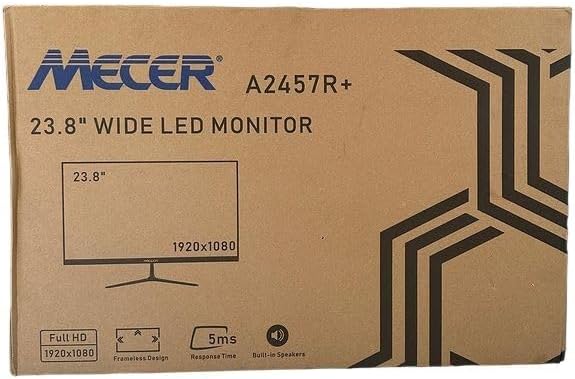
Зображення 3.1: The monitor packaging box, indicating the model A2457R+ and key features like 23.8" display, Full HD 1920x1080 resolution, frameless design, 5ms response time, and built-in speakers.
4. Налаштування
4.1. Збірка підставки для монітора
- Обережно вийміть компоненти монітора та підставки з упаковки.
- Прикріпіть шийку підставки до панелі монітора, вирівнявши виступи та міцно натискаючи, доки вона не зафіксується на місці.
- Attach the stand base to the stand neck, securing it with the provided screw (usually hand-tightened).
- Помістіть зібраний монітор на стійку, рівну поверхню.

Зображення 4.1: Фронт view of the Mecer 23.8 Inch LED Monitor with its stand assembled, ready for connection.
4.2. Підключення до комп'ютера
The monitor supports both HDMI and VGA connections. Choose the appropriate cable for your computer.
- Підключення HDMI: Connect one end of the HDMI cable to the HDMI port on your computer's graphics card and the other end to the HDMI port on the monitor. HDMI transmits both video and audio signals.
- Підключення VGA: Connect one end of the VGA cable to the VGA port on your computer's graphics card and the other end to the VGA port on the monitor. VGA transmits only video signals.

Зображення 4.2: Задня view of the Mecer 23.8 Inch LED Monitor, showing the input ports including HDMI and VGA, as well as the power input.
4.3. Підключення живлення
- Connect the power adapter cable to the DC IN port on the back of the monitor.
- Підключіть адаптер живлення до настінної розетки.
5. Інструкція з експлуатації
5.1. Увімкнення/вимкнення живлення
Press the power button, typically located on the bottom right side or rear of the monitor, to turn the monitor on or off. The power indicator light will illuminate when the monitor is on.
5.2. Вибір джерела вхідного сигналу
If you have multiple devices connected, you may need to manually select the input source. Use the monitor's control buttons (usually located near the power button) to navigate to the input selection menu and choose between HDMI or VGA.
5.3. Екранне меню (OSD).
The OSD menu allows you to adjust various display settings. Use the monitor's control buttons to:
- Доступ до екранного меню.
- Navigate through menu options (e.g., Brightness, Contrast, Color Settings, Input Source).
- Adjust values or select options.
- Вийдіть з екранного меню.
Звичайні регульовані налаштування включають:
- Яскравість/Контрастність: Налаштуйте загальну яскравість та різницю між світлими та темними ділянками.
- Параметри кольору: Adjust color temperature, RGB values, or select preset color modes.
- Співвідношення сторін: Change between 16:9, 4:3, or other available options.
- Аудіо: Adjust volume for the built-in speakers.
5.4. Вбудовані динаміки
The monitor includes built-in speakers for basic audio output. If using an HDMI connection, audio will be transmitted automatically. For VGA connections, ensure your computer's audio output is configured correctly. Adjust the volume through the OSD menu or your computer's operating system.
6. Технічне обслуговування
6.1. Очищення монітора
- Завжди відключайте монітор від розетки перед чищенням.
- екран: Обережно протріть екран м’якою тканиною без ворсу. Для стійких плям злегка протрітьampen the cloth with water or a specialized screen cleaner (ensure it's alcohol-free and ammonia-free) and wipe carefully. Do not spray liquid directly onto the screen.
- Casing: Використовуйте м’яку суху тканину для протирання монітора casing. За потреби, злегка damp можна використовувати тканину, а потім суху тканину.
6.2. Зберігання
Якщо монітор зберігатиметься протягом тривалого часу, від’єднайте всі кабелі, упакуйте його в оригінальну упаковку (за наявності) та зберігайте в прохолодному, сухому місці, подалі від прямих сонячних променів та екстремальних температур.
7. Вирішення проблем
Якщо у вас виникли проблеми з монітором, зверніться до наступних поширених проблем та способів їх вирішення:
- Немає живлення:
- Ensure the power cable is securely connected to the monitor and the wall outlet.
- Переконайтеся, що розетка працює, підключивши інший пристрій.
- Check if the power adapter is working correctly.
- Немає сигналу:
- Переконайтеся, що відеокабель (HDMI або VGA) надійно підключено як до монітора, так і до комп’ютера.
- Verify that the correct input source is selected on the monitor (via the OSD menu).
- Check if your computer is powered on and outputting a video signal.
- Спробуйте інший відеокабель, якщо він є.
- Зображення розмите або спотворене:
- Переконайтеся, що в налаштуваннях дисплея вашого комп’ютера встановлено рідну роздільну здатність монітора (1920 x 1080).
- Adjust the monitor's OSD settings for brightness, contrast, and sharpness.
- For VGA connections, use the 'Auto Adjust' function in the OSD menu if available.
- No Audio from Built-in Speakers:
- Переконайтеся, що гучність монітора не вимкнена або не встановлено занадто низький рівень в екранному меню.
- Перевірте налаштування аудіовиходу комп’ютера, щоб переконатися, що монітор вибрано як пристрій відтворення.
- If using VGA, ensure your computer's audio is routed to an external speaker system, as VGA does not carry audio.
8. Технічні характеристики
| Особливість | Специфікація |
|---|---|
| Бренд | Mecer |
| Номер моделі | A2457R+ |
| Розмір дисплея | 23.8 дюймів |
| роздільна здатність | 1920 x 1080 пікселів (Full HD) |
| Тип дисплея | LED (TFT LED Panel) |
| Співвідношення сторін | 16:9 |
| Час відгуку | 2 мілісекунд |
| Частота оновлення | 75 Гц |
| Viewкути нахилу | 178° по горизонталі / 178° по вертикалі |
| Підключення | 1x HDMI, 1x VGA |
| Вбудовані динаміки | так |
| Колір | чорний |
| Розміри продукту (Д x Ш x В) | 560 мм (Г) x 42 мм (Ш) x 410 мм (В) |
| Особливості | High performance intelligent multi-frequency scanning, Micro Computer digital technology control, no radiation, no glare, Comply with VESA DPMS international power saving regulation, Support DDC 1/2B and Windows PNP Plug and Play |
9. Гарантія та підтримка
This Mecer monitor comes with a 1 роки обмеженої гарантії з дати покупки. Будь ласка, збережіть чек про покупку для гарантійного обслуговування.
For technical support, service, or warranty inquiries, please contact your retailer or the authorized Mecer service center in your region. Do not attempt to repair the product yourself, as this may void your warranty.


