1. Вступ
This manual provides detailed instructions for the setup, operation, and maintenance of your Pisichen 16-inch 1920x1200P Touch Panel Portable Monitor. Please read this manual thoroughly before using the product to ensure proper functionality and to prevent damage.

Image 1.1: The Pisichen 16-inch Portable Monitor, showcasinйого яскравий дисплей та тонкий дизайн.
2. Інформація про безпеку
- Не піддавайте монітор впливу дощу або вологи, щоб уникнути ураження електричним струмом або пожежі.
- Не відкривайте монітор casing. Звертайтеся до кваліфікованого персоналу з усіх питань технічного обслуговування.
- Уникайте розміщення монітора під прямими сонячними променями або поблизу джерел тепла.
- Use only the power adapter and cables provided or approved by the manufacturer.
- Clean the screen with a soft, lint-free cloth. Do not use liquid cleaners or aerosol sprays directly on the screen.
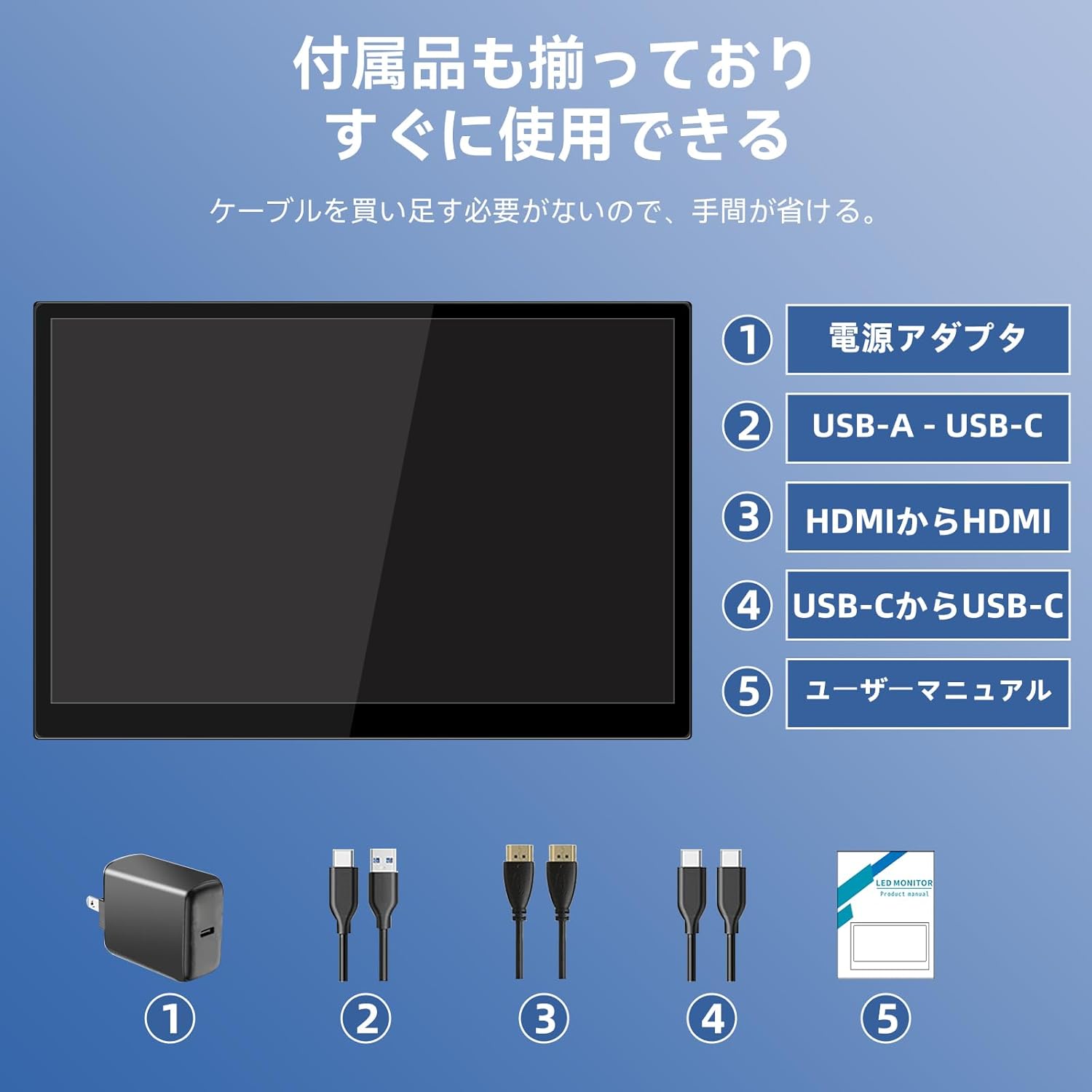
3. Вміст упаковки
Будь ласка, перевірте упаковку на наявність наступних предметів:
- Pisichen 16-inch Portable Monitor
- Адаптер живлення
- Кабель USB-A – USB-C
- Кабель HDMI на HDMI
- Кабель USB-C – USB-C
- Посібник користувача (цей документ)

Image 3.1: All items included in the product package, ready for immediate use.
4. Продукт закінчивсяview
The monitor features multiple ports for versatile connectivity and control buttons for easy navigation of settings.
4.1. Порти та кнопки
Зображення 4.1: Детальний опис view of the monitor's interfaces, including audio port, USB-C ports, HDMI port, brightness controls, menu/OK button, volume/down button, and USB-A port.
- Аудіопорт 3.5 мм: Для підключення навушників або зовнішніх динаміків.
- USB-C Port 1 (Full-function): Supports power, video, and touch signal transmission.
- USB-C Port 2 (Full-function): Supports power, video, and touch signal transmission.
- Порт HDMI: For video signal input from devices.
- Brightness Up / Power Button: Short press to increase brightness, long press to power on/off.
- Menu / OK Button: Press to open OSD menu, press again to confirm selection.
- Volume Down / Back Button: Short press to decrease volume, long press to go back in OSD menu.
- USB-A Port (OTG): Для підключення мишки або клавіатури.
5. Налаштування
Follow these steps to connect your portable monitor to various devices.
5.1. Single Cable Connection (USB-C)
For devices with a full-function USB-C port (supporting DisplayPort Alternate Mode and power delivery), a single USB-C to USB-C cable can transmit video, audio, touch signals, and power.
- Connect one end of the USB-C to USB-C cable to a full-function USB-C port on your device (e.g., laptop, smartphone).
- Connect the other end to either USB-C Port 1 or USB-C Port 2 on the monitor.
- The monitor should automatically power on and display the content. Touch functionality will also be active.
5.2. Dual Cable Connection (HDMI + USB-C for Power/Touch)
For devices with an HDMI output, or if your USB-C port does not support power delivery, you will need two cables.
- Connect one end of the HDMI to HDMI cable to your device's HDMI output.
- Connect the other end to the HDMI Port on the monitor.
- Connect the power adapter to one of the monitor's USB-C ports (Port 1 or Port 2) for power.
- For touch functionality, connect the USB-A end of the USB-A to USB-C cable to your device's USB-A port, and the USB-C end to the other available USB-C port on the monitor.

Image 5.1: Illustration of different connection methods: single USB-C cable for power, video, and touch, and dual cable setup using HDMI for video and USB-C for power and touch.
6. Інструкція з експлуатації
6.1. Увімкнення/вимкнення живлення
Long press the Brightness Up / Power Button (5) for approximately 3 seconds to power the monitor on or off.
6.2. Екранне меню (OSD).
Press the Menu / OK Button (6) to access the OSD menu. Use the Brightness Up / Power Button (5) and Volume Down / Back Button (7) to navigate through options. Press the Menu / OK Button (6) to confirm selections. Long press the Volume Down / Back Button (7) to exit the menu.
6.3. Функціональність сенсорного керування
The monitor supports 10-point capacitive multi-touch. Ensure a USB connection (via full-function USB-C or USB-A to USB-C cable) is established for touch input to work. The touch screen allows for intuitive interaction, including swiping, writing, and annotating.
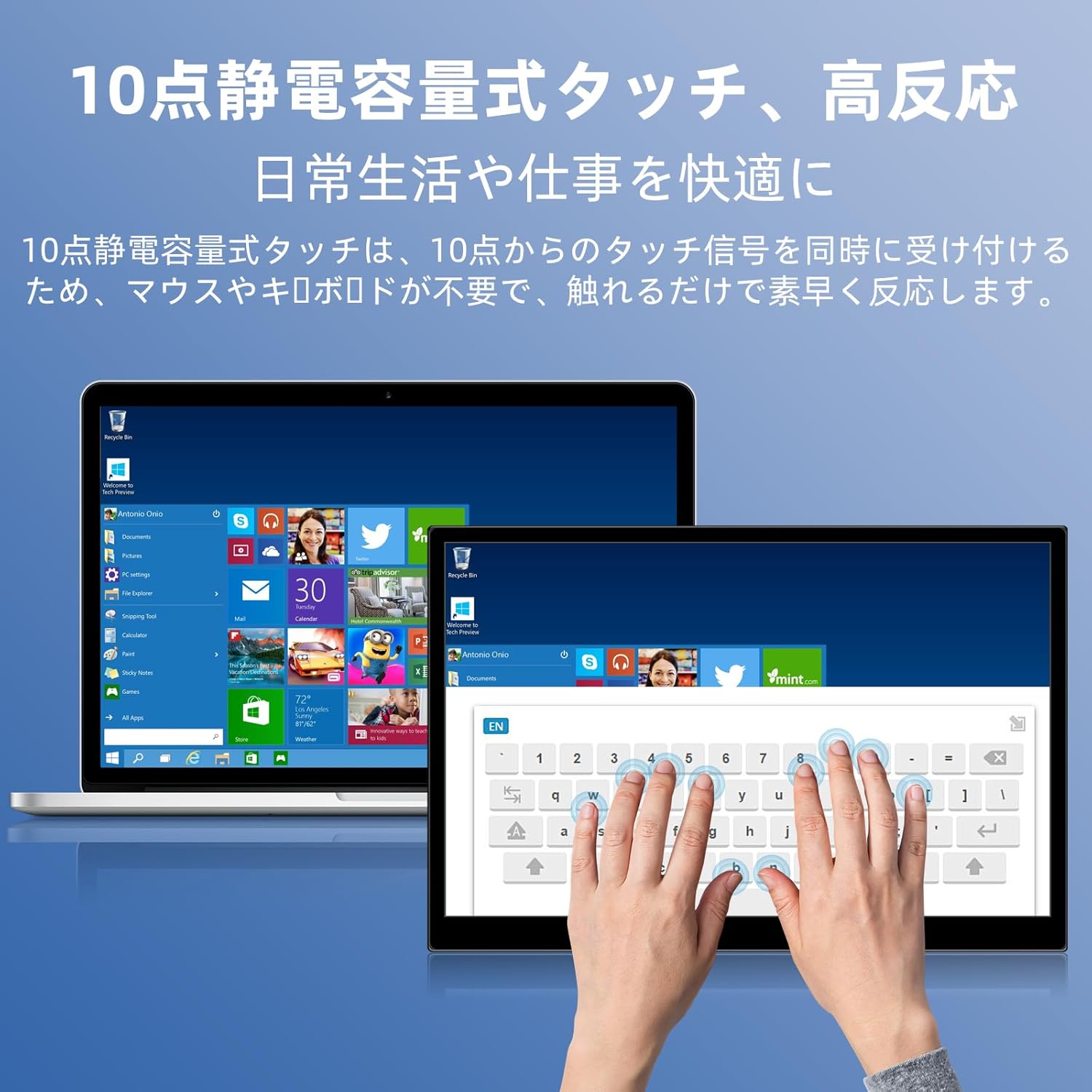
Image 6.1: A user demonstrating the responsive 10-point capacitive touch functionality on the portable monitor, enabling smooth interaction with on-screen content.
6.4. Режими відображення
Монітор підтримує різні режими відображення при підключенні до комп'ютера:
- Режим дублювання: Mirrors the content of your primary screen.
- Розширений режим: Extends your desktop, providing more screen real estate for multitasking.
- Режим другого екрана: Uses only the portable monitor as the display.
6.5. Screen Orientation
The monitor supports both landscape and portrait orientations. You can adjust the display settings on your connected device (e.g., Windows Display Settings, macOS Display Preferences) to change the orientation as needed for different tasks like document viewing or design work.
6.6. HDR Technology
The monitor features HDR (High Dynamic Range) mode, which provides deeper and more realistic colors for an enhanced visual experience. This setting can typically be toggled within the OSD menu or your device's display settings.

Зображення 6.2: Наприкладamples of the monitor's versatility, showing its use for entertainment, mobile productivity, and as an extended display for a home office.
7. Технічне обслуговування
- Очищення екрану: Обережно протріть екран м’якою, сухою тканиною без ворсу. Для стійких плям злегка протрітьampen the cloth with water or a screen-specific cleaner (apply to cloth, not directly to screen).
- Очищення Casing: Використовуйте м’яку суху тканину для протирання монітора casing. Уникайте абразивних засобів для чищення.
- Зберігання: When not in use for extended periods, store the monitor in a cool, dry place, preferably in its original packaging or a protective sleeve.
- Управління кабелем: Уникайте надмірного згинання або скручування кабелів, щоб запобігти пошкодженню.
8. Вирішення проблем
| проблема | Можлива причина | Рішення |
|---|---|---|
| Немає дисплея / повідомлення «Немає сигналу» | Incorrect cable connection, insufficient power, incorrect input source. | Ensure cables are securely connected. Verify the device's USB-C port supports video output. Connect the power adapter if using HDMI or if USB-C power is insufficient. Check OSD menu for correct input source. |
| Сенсорна функція не працює | No USB connection for touch, driver issue (rare). | Ensure the USB-C cable is full-function or that the USB-A to USB-C cable is connected for touch data. Restart the monitor and connected device. |
| Мерехтіння екрана | Unstable power, faulty cable, refresh rate mismatch. | Use the provided power adapter. Try a different cable. Adjust the refresh rate in your device's display settings. |
| Зображення спотворене або розтягнуте | Incorrect aspect ratio settings. | Adjust the aspect ratio in the OSD menu or your device's display settings to match the monitor's native resolution (1920x1200). |

Image 8.1: Demonstrating the importance of correct aspect ratio settings to avoid image distortion.
9. Технічні характеристики
| Особливість | Специфікація |
|---|---|
| Бренд | Пісичен |
| Номер моделі | 16QTHCM-1200P |
| Розмір екрана | 16 дюймів |
| роздільна здатність | 1920 x 1200 пікселів (FHD) |
| Тип панелі | IPS |
| Viewкут нахилу | 178° |
| Частота оновлення | 60 Гц |
| Коефіцієнт контрастності | 1000:1 |
| Яскравість | 300 кд/м² |
| Колірна гамма | 100% sRGB |
| Глибина кольору | 16.7 мільйонів квітів |
| Сенсорний екран | 10-точковий ємнісний сенсорний екран |
| Підключення | 2x Full-function USB-C 3.1, 1x HDMI, 1x USB-A (OTG), 1x 3.5mm Audio Jack |
| Підтримка HDR | так |
| Сумісне з кріпленням VESA | так |
| Розміри виробу (Ш x В x Д) | 350 x 230 x 10 мм |
| вага | 1.62 кг |
10. Гарантія та підтримка
For warranty information and technical support, please refer to the warranty card included in your product package or contact Pisichen customer service through their official website or the retailer where the product was purchased. Please have your model number (16QTHCM-1200P) and purchase details ready when contacting support.


