1. Вступ
This manual provides detailed instructions for the setup, operation, and maintenance of your Nitho Hexagon Wireless Gaming Controller. Please read this manual thoroughly before using the product to ensure optimal performance and longevity.
Ключові характеристики:
- Мультиплатформна сумісність: Supports Nintendo Switch, Switch Lite, Switch OLED, Windows PC, Android, and iOS devices.
- Accurate Motion Control: Integrated 6-axis gyroscope for responsive motion sensing.
- Регульоване освітлення RGB: Features 8 selectable colors and 4 lighting modes with adjustable brightness.
- Взаємозамінні компоненти: Includes replaceable mini joysticks and D-Pads for personalized control.
- Тривалий термін служби батареї: Built-in rechargeable battery provides up to 9 hours of playtime.
- Detachable Phone Clamp: For mobile gaming convenience.
- Програмовані кнопки «Назад»: M1 and M2 buttons for custom functions or macros.
2. Вміст упаковки
Перевірте, чи всі перелічені нижче предмети входять до вашої упаковки:
- Nitho Hexagon Wireless Gaming Controller
- USB-кабель для зарядки
- 2x Detachable Trigger Extensions
- 2x Interchangeable D-Pads
- 6x Interchangeable Mini-Stick Caps (3 pairs of different heights/shapes)
- Detachable Phone Clamp

Image: Nitho Hexagon Wireless Gaming Controller with all included accessories, such as the phone clamp, interchangeable D-pads, and joystick caps.
3. Розташування контролера
Familiarize yourself with the buttons and features of your Nitho Hexagon controller.

Зображення: спереду view of the Nitho Hexagon Wireless Gaming Controller, showing the joysticks, D-pad, action buttons (A, B, X, Y), N button, Turbo, Options, Share, and Capture buttons.

Image: Diagram highlighting key features of the controller, including the Phone Holder (1), M1 & M2 Back Programmable Buttons (2), RGB LED Lights (3), and USB Port (4).
4. Заряджання контролера
Before first use, fully charge the controller. A full charge provides up to 9 hours of gameplay.
- Connect the supplied USB charging cable to the controller's USB port.
- Підключіть інший кінець кабелю до джерела живлення USB (наприклад, ПК, USB-адаптера).
- The LED indicators on the controller will show charging status. They will typically stop blinking or change color when fully charged.

Image: A Nitho Hexagon controller with a phone attached, displaying a battery indicator showing high capacity and 9 hours of battery life.
5. Налаштування та підключення
The Nitho Hexagon controller supports multiple connection modes. The specific pairing method depends on the platform you are connecting to.
General Pairing Instructions:
To enter pairing mode, typically press and hold a combination of buttons (e.g., 'N' button + 'X' for Xbox/PC, 'N' button + 'A' for Switch, 'N' button + 'B' for Android, 'N' button + 'Y' for iOS) until the indicator lights begin to flash rapidly. Then, search for the controller on your device's Bluetooth settings and select it to pair.
Platform-Specific Connection:
- Nintendo Switch: Navigate to 'Controllers' > 'Change Grip/Order' on your Switch console. Press and hold the designated pairing button combination on the controller until it connects.
- ПК з Windows: For wired connection, simply plug the USB cable into your PC. For Bluetooth, ensure your PC has Bluetooth enabled. The controller may register as an Xbox controller (XInput) or a DualShock controller (DInput) depending on the pairing mode. Some users report that for Bluetooth connectivity on Windows 11, installing and running DS4Windows may be necessary to ensure proper functionality, especially if it detects as a DualShock controller.
- Android/iOS: Enable Bluetooth on your mobile device. Press and hold the appropriate pairing button combination on the controller. Select the controller from the list of available Bluetooth devices to connect.

Image: The Nitho Hexagon controller with icons indicating its multi-standard compatibility across PC, iOS, Android, and Nintendo Switch platforms.
Video: An official Nitho video demonstrating the Hexagon Controller's features and compatibility with Switch, Switch Lite, OLED, and PC.
6. Налаштування
The Nitho Hexagon controller offers several customization options to enhance your gaming experience.
Взаємозамінні компоненти:
The controller comes with 3 replaceable mini joysticks and 2 D-Pads. To change them, gently pull the existing component upwards to remove it, then align and push down the desired component until it clicks into place.

Image: An exploded diagram illustrating the various customizable components of the Nitho Hexagon controller, including different joystick caps, D-pads, and trigger extensions.
Detachable Phone Clamp:
Приєднати телефон клamp to the designated slot on the controller to securely hold your smartphone for mobile gaming. Ensure the clamp is firmly attached before placing your device.
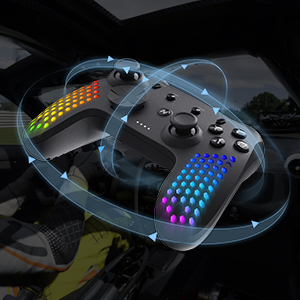
Image: A close-up of the detachable phone holder accessory, designed to integrate with the Nitho Hexagon controller for mobile gaming.
7. Розширені функції
Регульоване освітлення RGB:
The controller features RGB LED lights with 8 selectable colors and 4 lighting modes. Use the dedicated button (refer to controller layout) to cycle through colors and modes. Brightness can also be adjusted to suit your preference.

Image: Three Nitho Hexagon controllers showcasing various RGB lighting effects on their grips, illustrating the multiple light options.
6-Axis Motion Sensor:
The built-in 6-axis gyroscope and accelerometer detect motion, tilt, and rotation, providing responsive motion control for compatible games.

Image: A Nitho Hexagon controller depicted with circular arrows, symbolizing its 6-axis motion sensor capabilities for detecting movement and orientation.
Vibration Module:
The ultra-lightweight HD vibrating motors deliver realistic in-game feedback, enhancing immersion.

Image: A Nitho Hexagon controller with visual effects suggesting vibration, indicating the presence of a vibration module for haptic feedback.
Programmable Back Buttons (M1 & M2):
The M1 and M2 buttons on the back of the controller can be programmed for various functions, including rudimentary macro recording. This allows for simultaneous or sequential inputs, though joystick movements and time modulations may not be precisely recorded.
Турбо-функціональність:
The controller supports two turbo modes: on-press turbo (button rapidly repeats while held) and autoclicker turbo (button rapidly repeats without needing to be held). Consult the full online manual for specific button combinations to activate and configure these modes.
8. Технічне обслуговування та догляд
To ensure the longevity of your Nitho Hexagon controller, follow these care guidelines:
- Прибирання: Використовуйте м’яку суху тканину для очищення контролера. Для стійкого бруду злегкаamp Можна використовувати тканину, але переконайтеся, що волога не потрапляє в отвори. Уникайте агресивних хімікатів або абразивних засобів для чищення.
- Зберігання: Зберігайте контролер у прохолодному, сухому місці, подалі від прямих сонячних променів та екстремальних температур.
- Догляд за акумулятором: Не піддавайте акумулятор впливу високих температур і не намагайтеся розібрати його. Регулярно заряджайте контролер, навіть якщо він не використовується, щоб підтримувати його в робочому стані.
- Уникайте крапель: Захищайте контролер від падінь та ударів, які можуть пошкодити внутрішні компоненти.
9. Вирішення проблем
If you encounter issues with your Nitho Hexagon controller, refer to the following common solutions:
- Контролер не вмикається: Ensure the controller is sufficiently charged. Connect it to a power source using the USB cable and allow it to charge for at least 30 minutes before attempting to power it on again.
- Проблеми з підключенням:
- Verify that the correct pairing mode is selected for your device (PC, Switch, Android, iOS).
- Ensure Bluetooth is enabled on your device and the controller is within range.
- Remove any previous pairings of the controller from your device's Bluetooth list and attempt to pair again.
- For PC Bluetooth connectivity, especially on Windows 11, if the controller is detected as a DualShock, consider installing and running DS4Windows to ensure proper driver recognition.
- If wireless connection fails, try connecting the controller via USB cable to confirm basic functionality.
- Кнопки/джойстики не реагують:
- Переконайтеся, що контролер правильно підключений та заряджений.
- Test the controller on another device or game to determine if the issue is specific to one setup.
- Perform a factory reset if available (consult the full online manual for specific instructions).
- Світильники RGB не працюють: Check if the lighting feature is enabled and adjust brightness settings. Ensure the controller is charged.
If problems persist, please contact Nitho customer support or refer to the official Nitho webсайт для подальшої допомоги.
10. Технічні характеристики
| Особливість | Специфікація |
|---|---|
| Номер моделі | MLT-EXPC-K |
| Розміри | 167 x 62 x 116 мм (6.57 x 2.44 x 4.57 дюймів) |
| вага | ~165g (~0.463lb) / 10.2 ounces |
| Ємність акумулятора | Літій-іонний акумулятор 900 мАг (в комплекті) |
| Робоча температура | 5°C - 35°C |
| Потужність передачі | ≤20 дБм (EIRP) |
| Поточний і випtage | DC5V-350mA |
| Виробник | NiTHO |
| Перша доступна дата | 30 квітня 2024 р |

Image: A visual representation of the Nitho Hexagon controller's dimensions and a table summarizing its key specifications.
11. Гарантія та підтримка
The Nitho Hexagon Wireless Gaming Controller is covered by a manufacturer's warranty. For specific warranty terms, duration, and to register your product, please refer to the official Nitho webсайт або зверніться безпосередньо до служби підтримки клієнтів.
Для отримання додаткової допомоги, реєстрації продукту або view the most up-to-date information, please visit the official Nitho webсайт: Nitho Official Store


