1. Вступ
This manual provides detailed instructions for the installation, operation, and maintenance of your Kolink Unity Solar ARGB Mesh Midi Tower Case. Please read this manual thoroughly before beginning installation to ensure proper setup and safe usage. This case is designed to house standard PC components, offering efficient cooling and customizable ARGB lighting.
2. Інформація про безпеку
- Завжди від’єднуйте блок живлення від розетки перед встановленням або видаленням будь-яких компонентів.
- Поводьтеся з усіма компонентами обережно, щоб запобігти пошкодженню від електростатичного розряду (ESD). Рекомендується використовувати антистатичний браслет.
- Avoid placing the case in direct sunlight, near heat sources, or in environments with excessive dust or humidity.
- Не намагайтеся модифікувати корпус або його компоненти. Несанкціоновані модифікації можуть анулювати вашу гарантію та створити ризики для безпеки.
- Keep small parts, such as screws, away from children.
3. Вміст упаковки
Перевірте наявність усіх елементів в упаковці:
- Kolink Unity Solar ARGB Mesh Midi Tower Case
- Accessory Box (containing screws, cable ties, and standoffs)
- Посібник користувача (цей документ)
4. Продукт закінчивсяview
The Kolink Unity Solar ARGB Mesh Midi Tower Case features a mesh front panel for optimal airflow, pre-installed ARGB fans, and a tempered glass side panel to showcase your build.
4.1 Зовнішній Views

малюнок 4.1.1: Лицьова сторона view of the Kolink Unity Solar ARGB Mesh Midi Tower Case, highlighting the mesh front panel and three illuminated ARGB fans.
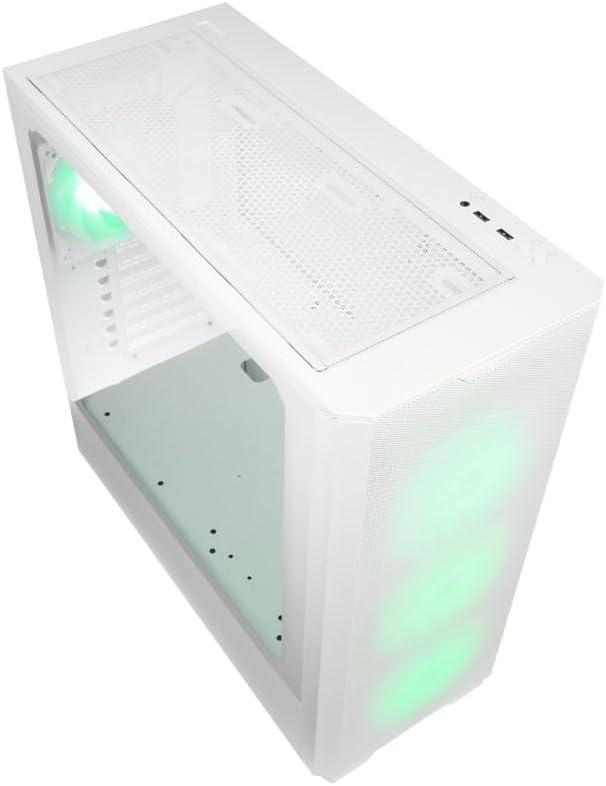
малюнок 4.1.2: Топ view of the case, showing the top mesh panel and front I/O ports.
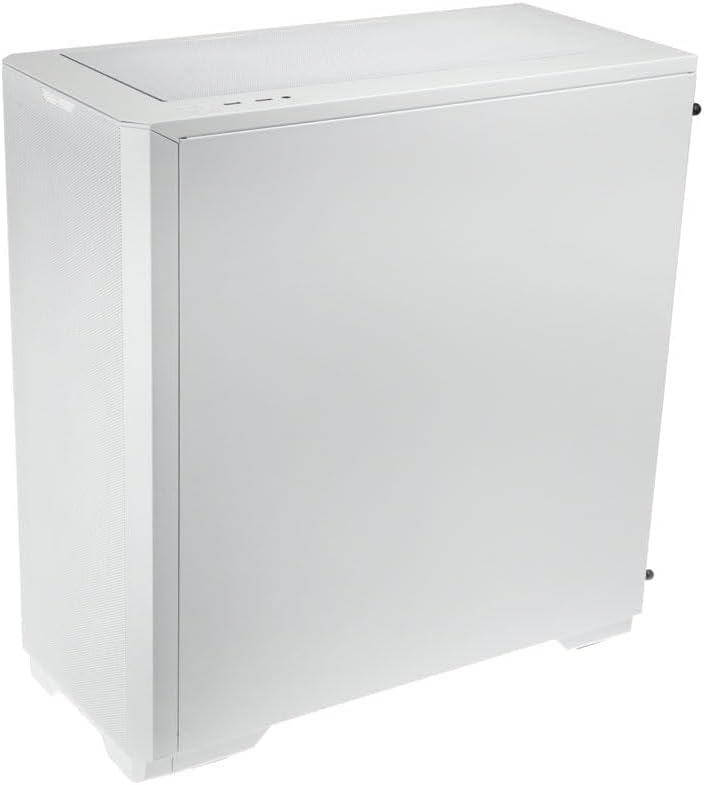
малюнок 4.1.3: Задня сторона view of the case, illustrating the solid right side panel.

малюнок 4.1.4: Composite image showing the front, rear, and tempered glass side panel of the case.
4.2 Порти введення/виведення на передній панелі

малюнок 4.2.1: Close-up of the top-mounted front I/O panel, featuring audio jacks, USB ports, and control buttons.
The front I/O panel typically includes:
- Кнопка живлення
- Кнопка скидання
- Порти USB 3.0 (x1)
- Порти USB 2.0 (x2)
- Роз'єми HD Audio (навушники/мікрофон)
- ARGB Control Button (for pre-installed fans)
4.3 Внутрішнє планування

малюнок 4.3.1: Інтер'єр view of the case, showing the motherboard tray, front fan mounts, and PSU shroud.

малюнок 4.3.2: Інший інтер'єр view, highlighting the rear fan mount and the spacious main chamber.

малюнок 4.3.3: Close-up of the pre-installed ARGB fans at the front of the case.

малюнок 4.3.4: View behind the motherboard tray, showing space for cable management and drive mounts.
5. Посібник з налаштування та встановлення
Follow these steps to install your PC components into the Kolink Unity Solar case.
5.1 Підготовка справи
- Поставте корпус на рівну, стійку поверхню.
- Remove the tempered glass side panel by unscrewing the thumbscrews at the rear and carefully pulling it away. Set it aside on a soft, non-abrasive surface.
- Remove the solid right side panel by unscrewing its thumbscrews and sliding it off.
5.2 Встановлення материнської плати
- Встановіть екран вводу/виводу (якщо є) у задній отвір корпусу.
- Ensure the correct standoffs are installed for your motherboard form factor (ATX, Micro-ATX, Mini-ITX). Adjust or add standoffs as needed using the provided tools.
- Carefully align your motherboard with the standoffs and I/O shield.
- Закріпіть материнську плату за допомогою наданих гвинтів. Не перетягуйте.
5.3 Встановлення блоку живлення (БП)
- Знайдіть місце для кріплення блоку живлення в нижній задній частині корпусу.
- Slide your PSU into the designated bay from the rear of the case.
- Align the PSU with the screw holes and secure it with the provided screws.
5.4 Storage Drive Installation (HDDs/SSDs)
The case supports multiple storage drives. Refer to the accessory box for specific mounting hardware.
- 2.5-дюймові SSD-накопичувачі: Mount directly onto the SSD trays located behind the motherboard tray or on the PSU shroud. Secure with screws.
- 3.5-дюймові жорсткі диски: Install into the drive cage located under the PSU shroud. Slide the drive into the tray and secure it.
5.5 Graphics Card (GPU) and Expansion Card Installation
- Зніміть необхідні кришки слотів PCIe із задньої частини корпусу.
- Вставте відеокарту або інші карти розширення у відповідні слоти PCIe на материнській платі.
- Secure the cards with the provided screws or retention clips.
5.6 Управління кабелями та підключення
- Connect all necessary power cables from the PSU to your motherboard, CPU, GPU, and storage drives.
- Connect the front I/O cables (USB, Audio, Power/Reset switches, ARGB control) to their respective headers on the motherboard. Refer to your motherboard manual for header locations.
- Route cables through the cutouts and tie-down points behind the motherboard tray to maintain a clean interior and optimize airflow. Use the included cable ties.
- Ensure the pre-installed ARGB fans are connected to the integrated ARGB controller or directly to an ARGB header on your motherboard (if supported).
6. Керування освітленням ARGB
The Kolink Unity Solar case comes with pre-installed ARGB fans. You can control their lighting effects in two ways:
- Case ARGB Button: Use the dedicated ARGB control button on the front I/O panel to cycle through various lighting modes and colors.
- Програмне забезпечення материнської плати: If your motherboard has a 3-pin 5V ARGB header and compatible software (e.g., ASUS Aura Sync, MSI Mystic Light, Gigabyte RGB Fusion), you can connect the case's ARGB controller to the motherboard and synchronize lighting effects with other components. Refer to your motherboard manual for instructions on ARGB header connection and software usage.
7. Технічне обслуговування
Регулярне технічне обслуговування допомагає забезпечити оптимальну продуктивність та довговічність компонентів вашого ПК.
- Пилові фільтри: The case features removable dust filters on the front, top, and bottom. Periodically remove and clean these filters with compressed air or by rinsing them with water (ensure they are completely dry before reinstallation).
- Прибирання салону: Use compressed air to remove dust from inside the case, especially from fan blades, heatsinks, and other components. Perform this cleaning in a well-ventilated area.
- Зовнішнє очищення: Протріть зовнішні поверхні м’якою, damp тканиною. Уникайте агресивних хімікатів або абразивних засобів для чищення.
8. Вирішення проблем
Якщо у вас виникли проблеми, зверніться до наступних поширених кроків усунення несправностей:
- PC not powering on: Double-check all power connections from the PSU to the motherboard, CPU, and GPU. Ensure the front panel power switch cable is correctly connected to the motherboard header. Verify the PSU switch is in the 'ON' position.
- Fans not spinning/ARGB not lighting up: Check fan power connections and ARGB connections. Ensure ARGB cables are connected to the correct 3-pin 5V ARGB headers (not 4-pin 12V RGB headers). If using the case controller, ensure it is powered.
- Немає виводу на дисплей: Ensure your graphics card is properly seated in its PCIe slot and all necessary power cables are connected. Verify your monitor cable is connected to the graphics card, not the motherboard's integrated graphics port (unless you are using integrated graphics).
9. Технічні характеристики
Key specifications for the Kolink Unity Solar ARGB Mesh Midi Tower Case:
| Особливість | Специфікація |
|---|---|
| Бренд | Я ТЕЛЕФОНУЮ |
| Назва моделі | Unity Solar |
| Номер моделі товару | UNITYSOLARWHT |
| Тип корпусу | Середній вежі |
| Колір | Білий |
| Сумісність материнської плати | ATX, Micro ATX, Mini ITX |
| Спосіб охолодження | повітря |
| Тип кріплення блоку живлення | Нижнє кріплення |
| Кількість портів USB 2.0 | 2 |
| Загальна кількість портів USB | 2 (Note: Product description indicates 1x USB 3.0, 2x USB 2.0. Please verify with product packaging.) |
| Total Internal Bays | 4 (Mixed 2.5"/3.5" support) |
| Вага товару | 2.2 фунта |
10. Гарантія та підтримка
For warranty information and technical support, please refer to the official KOLINK webсайт або зверніться до продавця. Зберігайте чек про покупку для гарантійних випадків.


