Продукт закінченийview
The CJ TECH USB C Hub 5-in-1 Adapter is a versatile docking station designed to expand the connectivity of your USB Type-C enabled devices. It transforms a single USB-C port into multiple ports, including USB 3.0, USB 2.0, USB-C for data and power delivery, and an HDMI output.
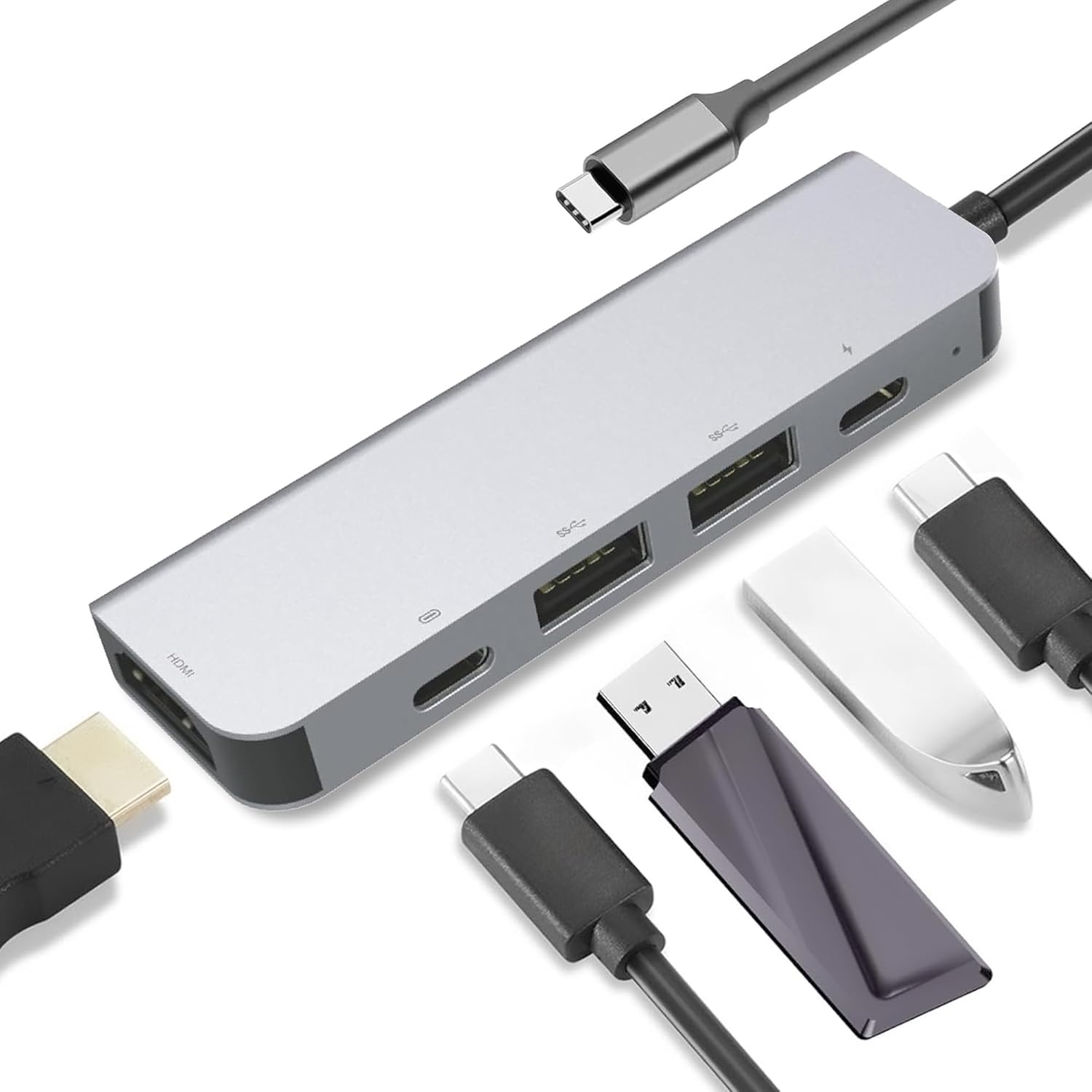
Image: The CJ TECH USB C Hub, displaying its compact silver design and various ports, including USB-A, USB-C, and HDMI, ready for connection.
This hub is ideal for laptops, MacBooks, gaming consoles like PS4 and PS5, and other devices requiring expanded USB and display capabilities. It supports fast charging and high-speed data transfer, making it a comprehensive solution for your connectivity needs.
Ключові характеристики:
- Powerful USB Hub: Transforms your USB Type-C port into a versatile docking station with expansive connectivity.
- Great for Gaming Consoles: Enhances gaming setups by connecting additional peripherals to consoles like PS4 and PS5.
- Multiple USB Ports for Laptop: Expands laptop capabilities with USB 2.0, USB 3.0, and two USB Type-C ports for efficient data transfer and charging.
- Fast Charging Hub: Equipped with a USB Type-C PD 3.0 port supporting up to 100W for fast charging multiple devices.
- USB Expansion Hub: Supports 4K HDTV and is backwards compatible with 1080P & 720P, providing a comprehensive data transfer and display solution.
Посібник із налаштування
Follow these steps to set up your USB C Hub 5-in-1 Adapter:
- Підключіть концентратор: Plug the USB Type-C male connector of the hub into an available USB Type-C port on your host device (laptop, MacBook, PS5, etc.). Ensure your device's USB Type-C port supports USB 3.0/3.1 specifications for full functionality, including video output and power delivery.
- Подача живлення (додатково): If your device requires charging through the hub, connect your original USB-C power adapter to the USB Type-C PD 3.0 port on the hub. This port supports up to 100W power input.
- Підключення периферійних пристроїв:
- USB пристрої: Connect your USB-A peripherals (e.g., mouse, keyboard, USB flash drives) to the USB 3.0 or USB 2.0 ports.
- Пристрої USB-C: Connect USB-C peripherals to the dedicated USB Type-C data port.
- HDMI-дисплей: Connect an HDMI cable from the hub's HDMI port to your monitor, TV, or projector. Ensure the display is set to the correct HDMI input.

Image: A visual representation of the USB C Hub connected to a laptop, illustrating the various ports and their functions for connecting external devices like monitors and USB drives.
The hub is plug-and-play, meaning no drivers are typically required for most operating systems.
Інструкція з експлуатації
Once connected, the USB C Hub operates seamlessly with your device. Here's how to utilize its features:
Передача даних USB:
- Порти USB 3.0: These ports support data transfer rates up to 5Gbps, ideal for external hard drives, SSDs, and high-speed flash drives.
- Порт USB 2.0: This port supports data transfer rates up to 480Mbps, suitable for keyboards, mice, and other standard USB peripherals.
- USB Type-C Data Port: This port also supports data transfer up to 480Mbps, allowing connection of USB-C peripherals.
Відео вихід HDMI:
- The HDMI port supports resolutions up to 4K (3840x2160) at 30Hz. It is backwards compatible with 1080P and 720P displays.
- To use, simply connect an HDMI cable from the hub to your display. Your device should automatically detect the external display. You may need to adjust display settings (e.g., mirror or extend desktop) in your operating system.
Подача живлення (PD):
- The USB Type-C PD 3.0 port allows you to charge your host device while using the hub. Connect your device's original power adapter to this port. It supports up to 100W power input.
- This feature is crucial for laptops and other devices that rely on USB-C for charging, ensuring continuous power supply even with multiple peripherals connected.

Image: An illustration highlighting the hub's capabilities: 4K UHD video output, fast charging, and high-speed data transfer, emphasizing its multi-functional design.
Технічне обслуговування
To ensure the longevity and optimal performance of your USB C Hub, follow these maintenance guidelines:
- Прибирання: Use a soft, dry, lint-free cloth to clean the hub's exterior. Avoid using liquid cleaners, aerosols, or abrasive solvents, as they may damage the finish or internal components.
- Зберігання: Коли концентратор не використовується, зберігайте його в прохолодному, сухому місці, подалі від прямих сонячних променів та екстремальних температур.
- Обробка: Avoid dropping the hub or subjecting it to strong impacts. Do not bend or excessively pull the integrated USB-C cable.
- Підключення: Always grasp the plug when connecting or disconnecting cables, rather than pulling on the cable itself, to prevent damage to the connectors.
Усунення несправностей
If you encounter issues with your USB C Hub, refer to the following common problems and solutions:
Немає виводу зображення через HDMI:
- Перевірте підключення: Переконайтеся, що кабель HDMI надійно підключено як до концентратора, так і до дисплея.
- Джерело введення: Verify that your display is set to the correct HDMI input source.
- Сумісність пристрою: Confirm that your host device's USB Type-C port supports DisplayPort Alternate Mode (Alt Mode) for video output. Not all USB-C ports support video.
- Параметри роздільної здатності: Try lowering the display resolution on your host device to see if the display appears. Some older displays or cables may not support 4K resolution.
- Перезапуск: Disconnect and reconnect the hub, or restart your host device.
USB Devices Not Recognized or Working:
- Повторне підключення: Disconnect and reconnect the USB device to the hub.
- Джерело живлення: If connecting high-power devices (e.g., external hard drives), ensure the hub is connected to a power source via its PD port, or that your host device can supply sufficient power.
- Спробуйте інший порт: Test the device in a different USB port on the hub or directly on your host device to isolate the issue.
- Проблеми з драйверами: While typically plug-and-play, ensure your host device's USB drivers are up to date.
Низька швидкість передачі даних:
- Тип порту: Ensure you are using the USB 3.0 ports for high-speed data transfer. USB 2.0 and USB-C data ports on this hub have lower speeds.
- Сумісність пристрою: Verify that the connected USB device itself supports USB 3.0 speeds.
- Якість кабелю: Use high-quality USB 3.0 cables for optimal performance.
Charging Issues (PD Port):
- Адаптер живлення: Ensure your USB-C power adapter is functioning correctly and provides sufficient wattagе (підтримується до 100 Вт).
- Кабель: Use a USB-C cable that supports Power Delivery.
- Сумісність пристрою: Confirm your host device supports charging via its USB-C port.
Технічні характеристики
| Особливість | Деталь |
|---|---|
| Розміри продукту | 6.69 x 2.75 x 0.63 дюймів |
| Вага товару | 1.76 унції |
| Номер моделі | 25057 - PA |
| Бренд | CJ ТЕХ |
| Колір | Срібло |
| Апаратний інтерфейс | USB, USB Type C, HDMI, USB 2.0 |
| Особливість | Швидка зарядка |
| Сумісні пристрої | PS4, PS5, Laptops, MacBooks, and other devices with USB-C ports |
| Вихід HDMI | 4K (3840x2160) @ 30Hz, backwards compatible with 1080P & 720P |
| Швидкість передачі даних USB 3.0 | До 5 Гбіт/с |
| Швидкість передачі даних USB 2.0 | До 480 Мбіт/с |
| USB Type-C PD Port | 20V@5A, Max 100W Power Input |
| USB Type-C Data Port | Max 480Mbps rate transmission |
Гарантія та підтримка
For warranty information and technical support regarding your CJ TECH USB C Hub 5-in-1 Adapter, please refer to the documentation included with your product packaging or visit the official CJ TECH webсайт. Гарантійні умови можуть відрізнятися.
If you require further assistance, please contact CJ TECH customer support through their official channels.