1. Продукт закінчивсяview
The POLONO P31S is a compact and portable thermal label printer designed for various labeling needs in home, office, and school environments. It connects wirelessly via Bluetooth to your smartphone or tablet, allowing you to design and print labels using the dedicated mobile application. This device features a built-in cutter and operates without ink, utilizing thermal printing technology for clear, durable labels.
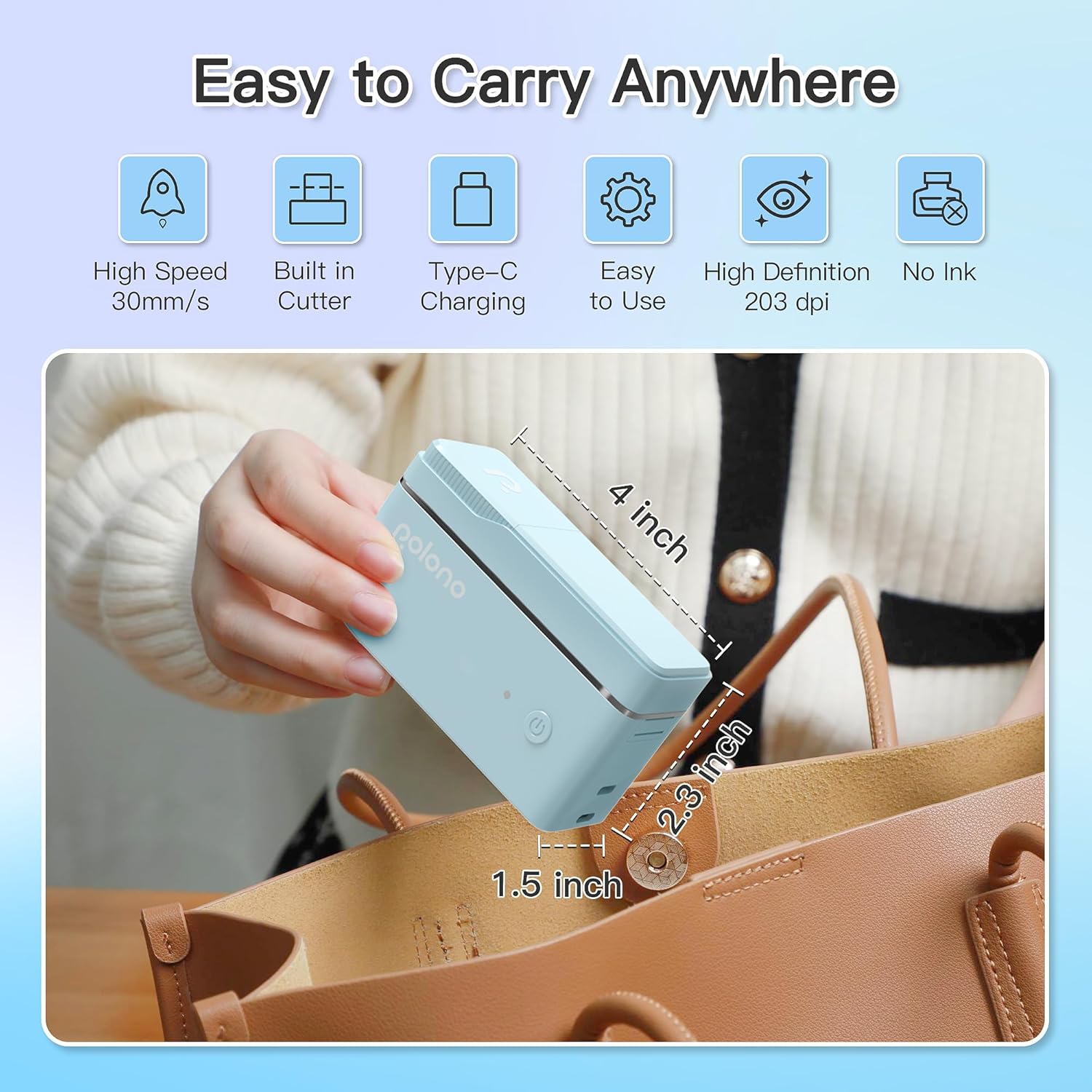
малюнок 1: POLONO P31S Label Printer highlighting its compact design and dimensions (approximately 4 inches long, 2.3 inches high, 1.5 inches wide).
Ключові характеристики:
- Портативний і легкий дизайн.
- Bluetooth connectivity for wireless printing.
- Thermal printing technology (no ink required).
- Built-in label cutter.
- Supports various label types including text, QR codes, barcodes, and images.
- Акумулятор.
2. Інформація про безпеку
Please read and understand all safety instructions before using the POLONO P31S label printer to prevent injury or damage to the device.
- Не розбирайте, не ремонтуйте та не модифікуйте пристрій.
- Тримайте пристрій подалі від води, вологи та екстремальних температур.
- Use only POLONO-approved label tapes to ensure optimal performance and prevent damage.
- Уникайте дотику до друкуючої головки одразу після друку, оскільки вона може бути гарячою.
- Зберігати в недоступному для дітей місці.
- Use the provided charging cable or a certified equivalent.
3. Вміст упаковки
Перевірте наявність усіх елементів в упаковці:
- POLONO P31S Label Printer
- Label Tape Roll (starter roll)
- USB-кабель для зарядки
- Посібник користувача (цей документ)
4. Налаштування
4.1 Зарядка пристрою
Before first use, fully charge the label printer. Connect the provided USB charging cable to the printer's charging port and to a USB power adapter (not included) or a computer's USB port. The indicator light will show charging status.
4.2 Встановлення етикеткової стрічки
- Відкрийте кришку відсіку для етикеток.
- Insert the label tape roll with the printing surface facing up, ensuring it is properly seated.
- Pull a small portion of the label tape out, extending it past the cutter blade.
- Щільно закрийте кришку відсіку для етикеток.

малюнок 2: Proper installation of POLONO P31S label tape. Ensure the green sticker on the tape is not removed or damaged, as it contains chip technology for optimal performance. Do not pull the label out directly; use the cutting blade.
4.3 Завантаження програми та підключення Bluetooth
- Download the "Labelnize" app from the Apple App Store or Google Play Store.
- Turn on the POLONO P31S label printer by pressing and holding the power button.
- Увімкніть Bluetooth на своєму смартфоні або планшеті.
- Open the "Labelnize" app. The app will prompt you to allow Bluetooth access. Grant permission.
- Within the app, search for available devices and select "P31S" to connect.
- Once connected, the app will indicate a successful connection, and you are ready to create labels.
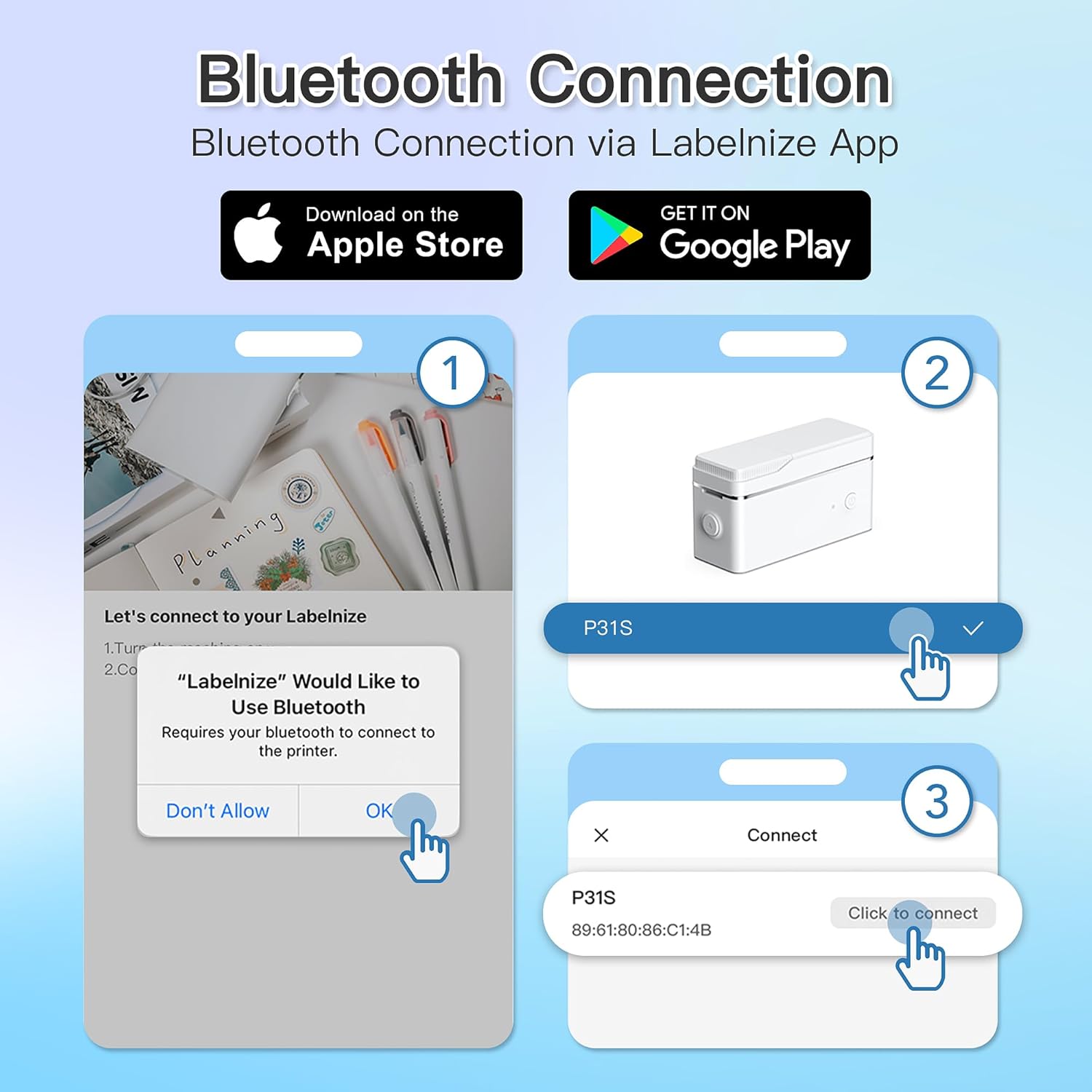
малюнок 3: Steps for Bluetooth connection via the Labelnize App. Download the app, allow Bluetooth access, select "P31S" from the device list, and click "Connect".
5. Інструкція з експлуатації
5.1 Creating Labels with the Labelnize App
The Labelnize app offers a variety of tools to design your labels:
- Текст: Enter custom text, choose from over 90 fonts, adjust size, style (bold, italic), and alignment.
- Межі: Select from over 95 border designs to frame your labels.
- Icons/Graphics: Access a library of over 670 tab icons and other graphics to enhance your labels.
- QR Code/Barcode: Generate QR codes or barcodes for various applications.
- Зображення: Insert images from your device's gallery.
- Шаблони: Utilize pre-designed templates for common labeling tasks.

малюнок 4: The Labelnize app interface for creating labels, offering extensive customization options including borders, fonts, and icons. The app supports multiple languages.
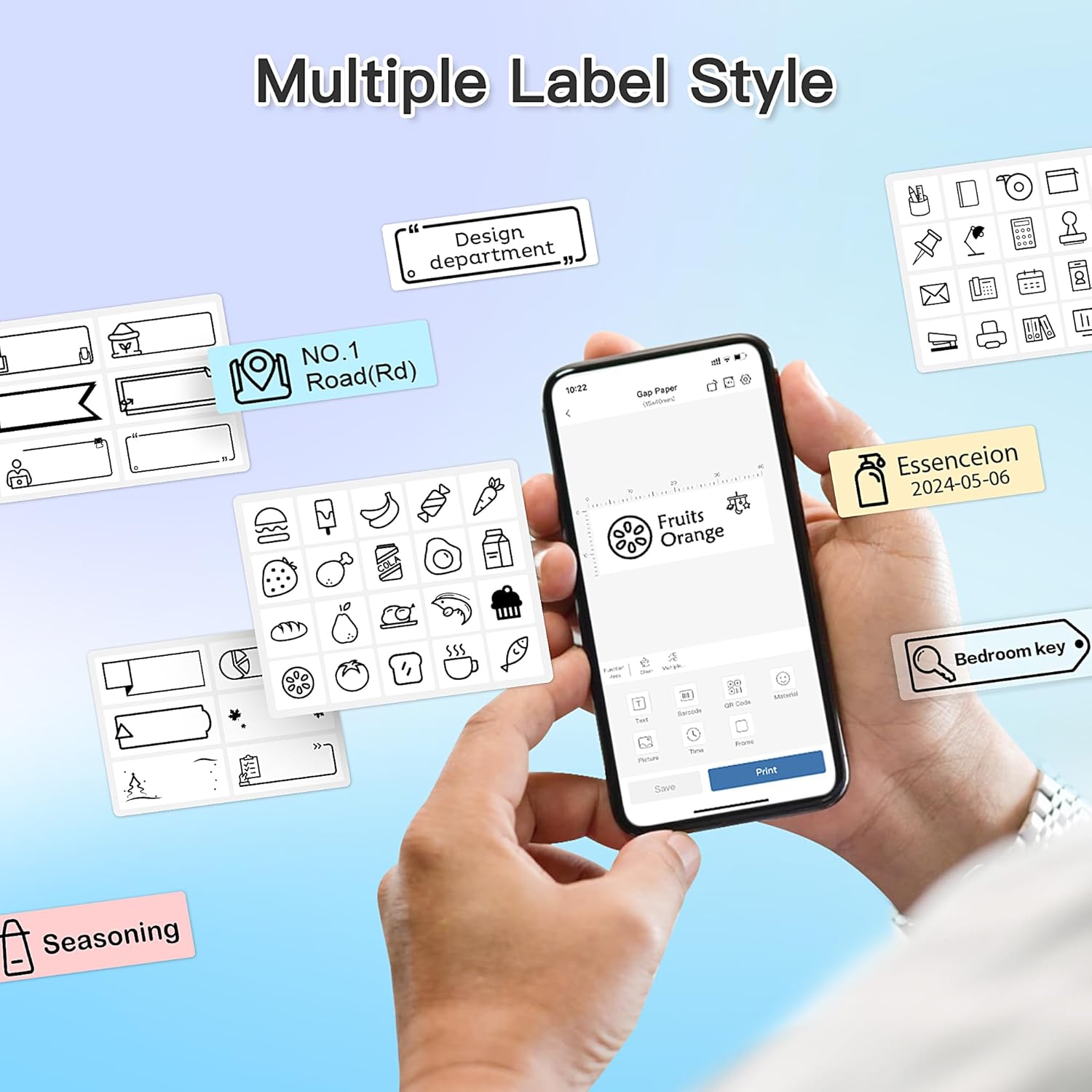
малюнок 5: Examples of diverse label styles achievable with the POLONO P31S, demonstrating the flexibility in design for different organizational needs.
5.2 Друк етикеток
After designing your label in the Labelnize app:
- Review your label design on the app screen.
- Натисніть кнопку «Друк» у додатку.
- Confirm print settings (e.g., number of copies) if prompted.
- The printer will automatically feed and print the label.
5.3 Використання вбудованого різака
The POLONO P31S features a built-in cutter for clean and precise label separation. After printing, gently press the cutter button or lever (depending on model variation) to cut the label. Do not pull the label manually to tear it, as this may damage the printer or result in uneven cuts.
6. Технічне обслуговування
6.1 Очищення друкуючої головки
To maintain print quality, clean the print head periodically:
- Вимкніть принтер і від’єднайте кабель живлення.
- Відкрийте кришку відсіку для етикеток.
- Обережно протріть друкувальну головку ватним тампоном, злегкаampзмішаний ізопропіловим спиртом.
- Allow the print head to dry completely before closing the cover and turning on the printer.
6.2 Догляд за акумулятором
- Charge the battery regularly, even if the printer is not used frequently, to prolong its lifespan.
- Уникайте повного розряджання акумулятора протягом тривалого часу.
- Зберігайте принтер у прохолодному сухому місці, коли він не використовується.
7. Вирішення проблем
| проблема | Можлива причина | Рішення |
|---|---|---|
| Принтер не вмикається. | Низький заряд батареї або відсутність живлення. | Зарядіть принтер за допомогою USB-кабелю з комплекту. |
| Не вдається підключитися через Bluetooth. | Bluetooth is off, printer is off, or app issue. | Ensure printer is on, Bluetooth is enabled on your device, and restart the Labelnize app. Try re-pairing. |
| Погана якість друку. | Dirty print head, incorrect label tape, or low battery. | Clean the print head (Section 6.1). Ensure you are using POLONO P31S compatible label tape. Charge the printer. |
| Застрягання етикетки. | Improper tape installation or foreign object. | Turn off the printer, open the cover, carefully remove any jammed tape. Reinstall tape correctly. |
| Принтер не відповідає. | Тимчасовий збій програмного забезпечення. | Restart the printer and the Labelnize app. |
8. Технічні характеристики
| Особливість | Деталь |
|---|---|
| Модель | P31S |
| Технологія друку | Теплові |
| Підключення | Bluetooth |
| Роздільна здатність друку | 203 x 203 DPI |
| Максимальна швидкість друку (монохромний) | 15 ppm |
| Максимальний розмір носія | Label rolls (2 inches / 24 millimeters) |
| Колір чорнила | Black (thermal print) |
| Джерело живлення | 1 літій-полімерна батарея (у комплекті) |
| Розміри продукту | 7.2 x 7.4 x 12.7 см; 260 g |
| Включені компоненти | етикетки |
9. Гарантія та підтримка
For warranty information and technical support, please refer to the official POLONO webсайт або зверніться до служби підтримки клієнтів. Зберігайте чек про покупку як підтвердження покупки для гарантійних претензій.
Офіційний Webсайт: www.polono.com (Примітка: Це тимчасовий фрагмент URL, будь ласка, перевірте фактичну офіційну інформацію website for POLONO products.)


