вступ
This manual provides comprehensive instructions for the HP 690 Rechargeable Wireless Mouse. It covers product features, setup procedures, operational guidelines, maintenance tips, troubleshooting solutions, and detailed specifications. Please read this manual thoroughly to ensure proper use and optimal performance of your device.

Image: The HP 690 Rechargeable Wireless Mouse being used by an individual working at a computer desk.
Налаштування
1. Заряджання миші
The HP 690 mouse offers versatile charging options: Qi wireless charging or USB-C charging. A full charge provides approximately 4 months of battery life.
- Бездротова зарядка Qi: Place the mouse on a compatible Qi wireless charging pad. Ensure the mouse is positioned correctly for charging to initiate.
- Зарядка через USB-C: Connect the provided USB-C cable to the mouse's charging port and to a USB power source.

Зображення: спереду view of the HP 690 mouse, highlighting the USB-C charging port.
2. Увімкнення/вимкнення живлення
Locate the power switch on the underside of the mouse. Slide the switch to the 'ON' position to power on the device, and to 'OFF' to power it down.

Image: Underside of the HP 690 mouse, showing the ON/OFF power switch and the Qi charging symbol.
3. Підключення до пристроїв
The HP 690 mouse supports multi-device connectivity via Bluetooth 5.3 and Microsoft Swift Pair.
- Парування Bluetooth:
- Переконайтеся, що миша увімкнена.
- На комп’ютері або пристрої перейдіть до налаштувань Bluetooth.
- Press and hold the Bluetooth pairing button on the mouse (refer to the diagram in the Operating section for button location) until the indicator light flashes, indicating pairing mode.
- Select "HP 690 Mouse" from the list of available Bluetooth devices on your computer/device to complete pairing.
- Microsoft Swift Pair:
- For Windows 10/11 devices, ensure Bluetooth is enabled.
- Power on the mouse and bring it close to your computer.
- A notification should appear on your screen prompting you to connect. Follow the on-screen instructions to pair instantly.
Керування мишею
1. Функції кнопок
The HP 690 mouse features 6 programmable buttons and a 4-D tilt wheel for enhanced productivity.

Зображення: Верх view of the HP 690 mouse, illustrating the scroll wheel, left/right click buttons, and central button.

Зображення: Збоку view of the HP 690 mouse, highlighting the two programmable thumb buttons.
- Клік лівою/правою кнопкою миші: Стандартні функції миші.
- Колесо прокрутки: Scroll vertically. The 4-D tilt wheel also allows for horizontal scrolling by tilting it left or right.
- Програмовані кнопки: The mouse includes additional buttons that can be customized for specific functions or shortcuts using compatible software (e.g., HP Accessory Center).
2. DPI Sensitivity
The mouse features a 4000 DPI sensor, providing high sensitivity and precise tracking on virtually any surface. DPI settings can often be adjusted through your operating system's mouse settings or dedicated HP software for finer control over cursor speed.
Технічне обслуговування
1. прибирання
To maintain optimal performance and hygiene, clean your mouse regularly.
- Злегка протріть м’якою тканиною без ворсу dampпромити водою або м’яким миючим розчином.
- Avoid harsh chemicals, abrasive cleaners, or spraying liquids directly onto the mouse.
- Clean the optical sensor area on the underside of the mouse periodically to prevent tracking issues.
2. Догляд за акумулятором
Щоб максимально збільшити термін служби батареї:
- Уникайте частого повного розряджання акумулятора.
- Зберігайте мишу в прохолодному, сухому місці, якщо вона не використовується протягом тривалого часу.
- If not using the mouse for a long time, power it off to conserve battery.
Усунення несправностей
1. Миша не реагує
- Перевірте живлення: Ensure the mouse is powered on and has sufficient battery charge.
- Перезарядка: Connect the mouse via USB-C or place it on a Qi charging pad.
- Повторне підключення Bluetooth: Go to your device's Bluetooth settings, remove the HP 690 mouse, and then re-pair it following the instructions in the Setup section.
- Перезавантажте пристрій: Sometimes, restarting your computer or device can resolve connectivity issues.
2. Cursor Jumps or Inaccurate Tracking
- Чистий датчик: Переконайтеся, що оптичний датчик на нижній стороні миші чистий і не містить сміття.
- Перевірка поверхні: Use the mouse on a clean, non-reflective, and uniform surface. While the mouse tracks on virtually any surface, some highly reflective or uneven surfaces may affect performance.
- Параметри DPI: Adjust the DPI sensitivity through your operating system's mouse settings.
3. Buttons Not Working
- Перевірка програмного забезпечення: Якщо програмовані кнопки не працюють належним чином, перевірте правильність налаштування програмного забезпечення HP Accessory Center.
- Перезавантаження: Перезавантажте комп'ютер і мишу.
Технічні характеристики
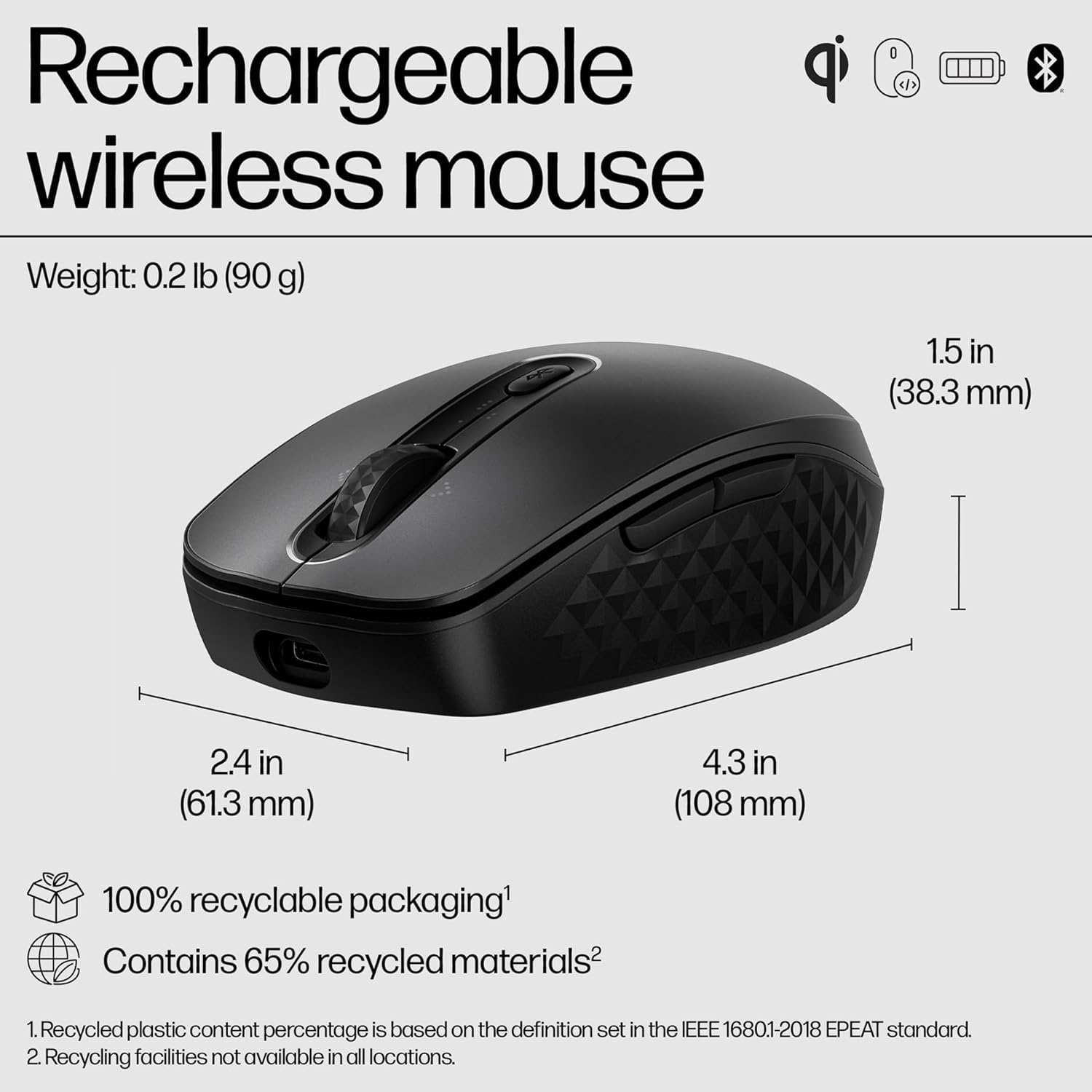
Image: Diagram illustrating the dimensions (4.3 in length, 2.4 in width, 1.5 in height) and environmental features of the HP 690 mouse.
| Особливість | Деталь |
|---|---|
| Назва моделі | HP 690 Rechargeable Wireless Mouse |
| Підключення | Bluetooth 5.3 (Multi-device), Microsoft Swift Pair |
| Зарядка | Qi Wireless Charging, USB-C Charging |
| Чутливість DPI | Up to 4000 DPI (Multi-surface tracking) |
| кнопки | 6 Програмовані кнопки |
| Колесо прокрутки | 4-D Tilt Wheel |
| Термін служби батареї | До 4 місяців (орієнтовно) |
| вага | 0.2 фунтів |
| Розміри (ДxШxВ) | 4.3 x 2.4 x 1.5 дюйма (108 x 61.3 x 38.3 мм) |
| Шифрування | AES 128 біт |
| Перероблені матеріали | Contains 65% recycled materials |
| Упаковка | Упаковка на 100% перероблена |
Гарантія та підтримка
The HP 690 Rechargeable Wireless Mouse is manufactured by HP. For specific warranty details, please refer to the warranty card included with your product or visit the official HP support website. HP provides customer support for product inquiries, technical assistance, and warranty claims.
For further assistance, please visit the official HP support page: www.hp.com/support