вступ
This user manual provides comprehensive instructions for the installation, operation, and maintenance of your Kolink Unity Arena Mid-Tower PC Case. Please read this manual carefully before beginning assembly to ensure proper setup and to maximize the performance and longevity of your system. Keep this manual for future reference.
Продукт закінченийview
The Kolink Unity Arena is a mid-tower PC case designed for high-performance gaming systems. It features a borderless glass side panel for an unobstructed view of internal components and comes with four pre-installed Kolink Umbra X ARGB/PWM fans for efficient cooling and customizable lighting. The spacious interior supports E-ATX motherboards and large graphics cards up to 420mm, including NVIDIA RTX 40 series. It also accommodates up to three radiators for advanced liquid cooling solutions and includes a dedicated half PSU shroud for clean cable management.

зображення: Передній-лівий view of the Kolink Unity Arena PC case, showcasing the borderless glass side panel and three pre-installed RGB fans on the front.
- Дизайн середньої вежі: Optimized for a balance of size and component compatibility.
- Borderless Glass Panels: Provides an uninterrupted view of your internal hardware.
- Extensive Hardware Support: Compatible with E-ATX motherboards and GPUs up to 420mm, including NVIDIA RTX 40 series.
- Покращене охолодження: Supports up to three radiators and includes four pre-installed Kolink Umbra X ARGB/PWM fans.
- Dedicated PSU Shroud: A half power supply shroud helps maintain a clean and organized interior.
Технічні характеристики
| Бренд | Колінк |
| Назва моделі | Unity Arena |
| Номер моделі | UNITYARENABLK |
| Колір | чорний |
| Тип корпусу | Середній вежі |
| матеріал | легована сталь |
| Сумісність материнської плати | Розширений ATX |
| Особливості | RGB Lighting, Pre-installed Fans |
| Сумісні пристрої | High-performance gaming components |
| Рекомендоване використання | Ігри |
| Тип кріплення блоку живлення | Нижнє кріплення |
| Спосіб охолодження | повітря |
| Розмір вентилятора | 120 міліметрів |
Налаштування та встановлення
Follow these steps to properly set up and install your components into the Kolink Unity Arena PC case.
1. Розпакування та підготовка
- Обережно вийміть корпус ПК з упаковки.
- Поставте корпус на стійку, рівну поверхню.
- Identify the accessory box, which contains screws, zip ties, and other small parts.
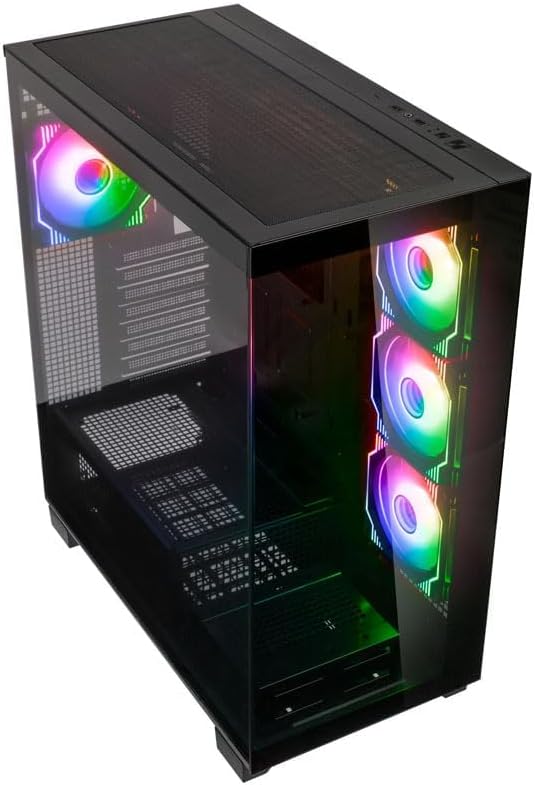
зображення: Кутова верхня передня частина view of the Kolink Unity Arena PC case, highlighting the top ventilation and the illuminated RGB fans visible through the front glass panel.
2. Removing Panels
- Glass Side Panel: The borderless glass side panel is typically secured with thumbscrews at the rear. Unscrew these and carefully slide or lift the panel off. Place it on a soft, non-abrasive surface to prevent scratches.
- Solid Side Panel: The solid right-side panel (behind the motherboard tray) is also usually secured with thumbscrews. Remove these to access the cable management area.
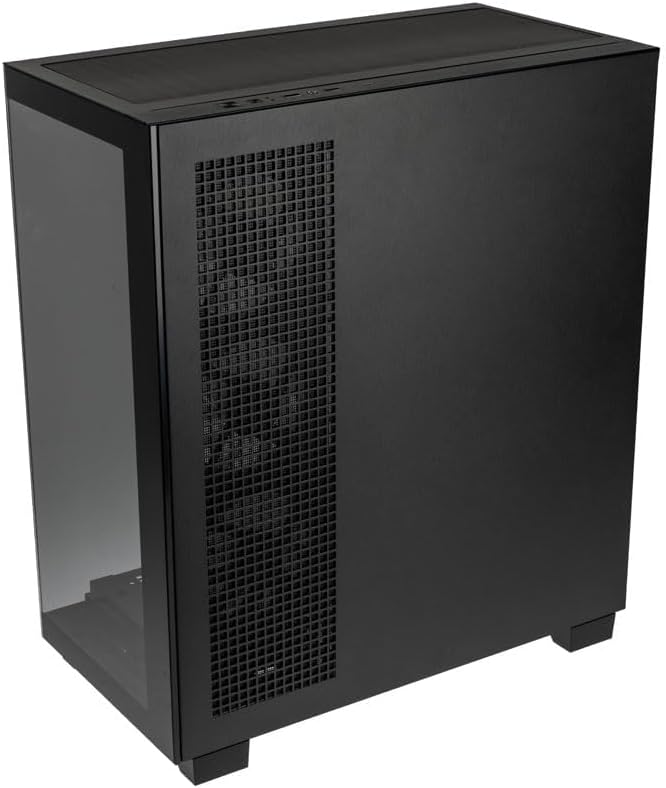
зображення: Задня-права view of the Kolink Unity Arena PC case, showing the solid right side panel and the rear exhaust fan area.
3. Встановлення материнської плати
- Встановіть панель вводу/виводу (якщо вона не попередньо підключена до материнської плати).
- Align your E-ATX or smaller motherboard with the standoffs inside the case.
- Закріпіть материнську плату відповідними гвинтами з комплекту аксесуарів.

зображення: Інтер'єр view of the Kolink Unity Arena PC case from the front, displaying the motherboard tray, the three front-mounted fans, and the PSU shroud at the bottom.
4. Встановлення відеокарти (GPU)
- Зніміть необхідні кришки слотів PCIe на задній панелі корпусу.
- Insert your graphics card into the primary PCIe slot on the motherboard.
- Закріпіть відеокарту гвинтами. Корпус підтримує відеокарти довжиною до 420 мм.
5. Storage Device Installation (HDDs/SSDs)
Refer to the case's internal layout for specific drive bay locations and mounting mechanisms. Typically, 2.5" SSDs mount on the back of the motherboard tray, and 3.5" HDDs are installed in a drive cage near the PSU shroud.
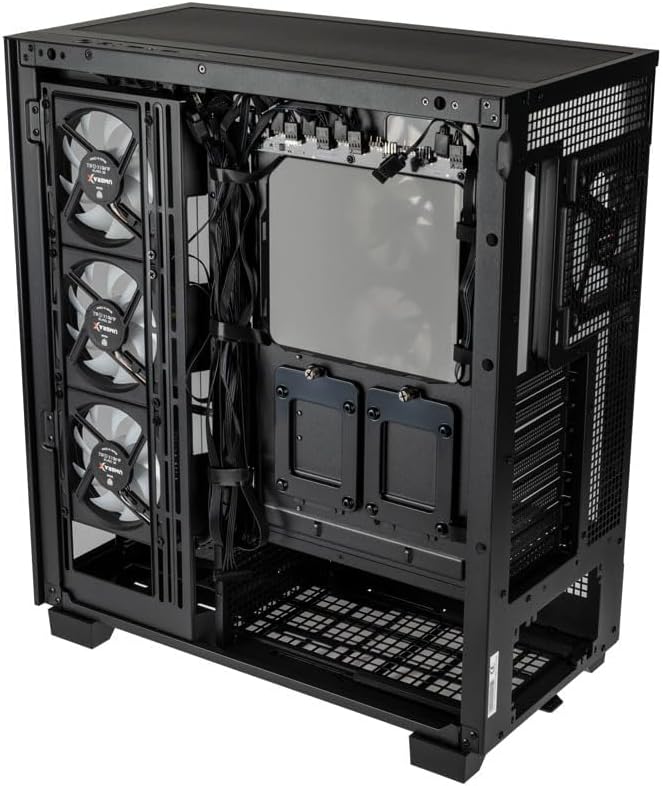
зображення: Задній салон view of the Kolink Unity Arena PC case, focusing on the cable management area behind the motherboard tray and drive mounts.
6. Встановлення блоку живлення (БЖ)
- Mount your ATX power supply into the dedicated half PSU shroud at the bottom rear of the case.
- Закріпіть його гвинтами з задньої частини корпусу.
7. Встановлення вентилятора та радіатора
- The case comes with four pre-installed Kolink Umbra X ARGB/PWM fans.
- Additional fans or radiators can be installed at the top, front, or rear depending on your cooling needs. The case supports up to three radiators.

зображення: Close-up of the three pre-installed Kolink Umbra X fans mounted at the front of the Kolink Unity Arena PC case, highlighting their design.
8. Підключення передньої панелі вводу/виводу
Connect the front panel cables (USB, audio, power switch, reset switch, LED indicators) to the corresponding headers on your motherboard. Refer to your motherboard manual for exact header locations.

зображення: Close-up of the top I/O panel of the Kolink Unity Arena PC case, featuring USB ports, audio jacks, and power/reset buttons.
9. Кабельний менеджмент
Використовуйте вирізи для прокладання кабелів та точки кріплення за лотком материнської плати для їх упорядкування. Це покращує потік повітря та естетику.
Інструкція з експлуатації
Увімкнення
Once all components are installed and connected, ensure the power supply switch is in the 'ON' position. Press the power button on the front I/O panel to start your system.
Управління освітленням RGB
The pre-installed Kolink Umbra X fans feature ARGB lighting. The case includes a built-in controller with a SATA power input. Connect this controller to your power supply. If your motherboard does not support ARGB control, you can typically manage the lighting effects using the reset button on the front I/O panel, which often doubles as an RGB mode switch when connected to the case's controller.
Технічне обслуговування
Регулярне технічне обслуговування допомагає забезпечити оптимальну продуктивність і подовжує термін служби компонентів вашого ПК.
- Пилові фільтри: The Kolink Unity Arena case is equipped with dust filters. Periodically remove and clean these filters (e.g., top, front, bottom) to prevent dust buildup inside the case. Use compressed air or wash them gently with water and allow them to dry completely before reinstallation.
- Прибирання салону: With the system powered off and unplugged, carefully open the side panels and use compressed air to remove dust from internal components, especially heatsinks and fan blades.
- Очищення вентилятора: Gently clean the blades of the pre-installed fans with a soft brush or compressed air to maintain efficient airflow.
Усунення несправностей
Якщо у вас виникли проблеми під час або після складання, розгляньте такі поширені кроки усунення несправностей:
- Система не вмикається:
- Переконайтеся, що кабель живлення надійно підключений як до блоку живлення, так і до розетки.
- Переконайтеся, що перемикач блоку живлення знаходиться в положенні «УВІМК.».
- Check all power connections to the motherboard (24-pin ATX, 8-pin CPU) and GPU.
- Переконайтеся, що кабель вимикача живлення передньої панелі правильно підключений до роз'єму материнської плати.
- Вентилятори не обертаються / RGB не працює:
- Перевірте підключення живлення вентилятора до материнської плати або контролера вентилятора.
- Ensure ARGB cables are properly connected to the motherboard's ARGB header or the case's integrated controller.
- If using the case's controller, verify it is receiving SATA power.
- Немає виводу на дисплей:
- Ensure your monitor cable is connected to the graphics card, not the motherboard's integrated graphics port (unless you are using integrated graphics).
- Перевстановіть відеокарту в слот PCIe.
- Check GPU power connections.
Гарантія та підтримка
For warranty information, please refer to the documentation provided with your purchase or contact your retailer. Kolink's official website may also provide details regarding product support and warranty terms.
- Наявність запасних частин: Інформація недоступна.
- Гарантія оновлень програмного забезпечення до: Інформація недоступна.
For technical assistance or further inquiries, please visit the official Kolink support webсайту або зв’яжіться зі своїм відділом обслуговування клієнтів.


