вступ
Welcome to the user manual for your Blackview Active 8 Pro Rugged Tablet. This device is engineered for durability and performance, designed to withstand challenging environments while providing a robust computing experience. Featuring a 10.36-inch display, a powerful MediaTek Helio G99 Octa-core processor, and a massive 22000mAh battery, the Active 8 Pro is built for extended use and demanding tasks. It is MIL-STD-810H certified and boasts IP68 & IP69K waterproof ratings, ensuring resilience against water, dust, and drops.
This manual provides essential information on setting up, operating, maintaining, and troubleshooting your tablet to ensure optimal performance and longevity.
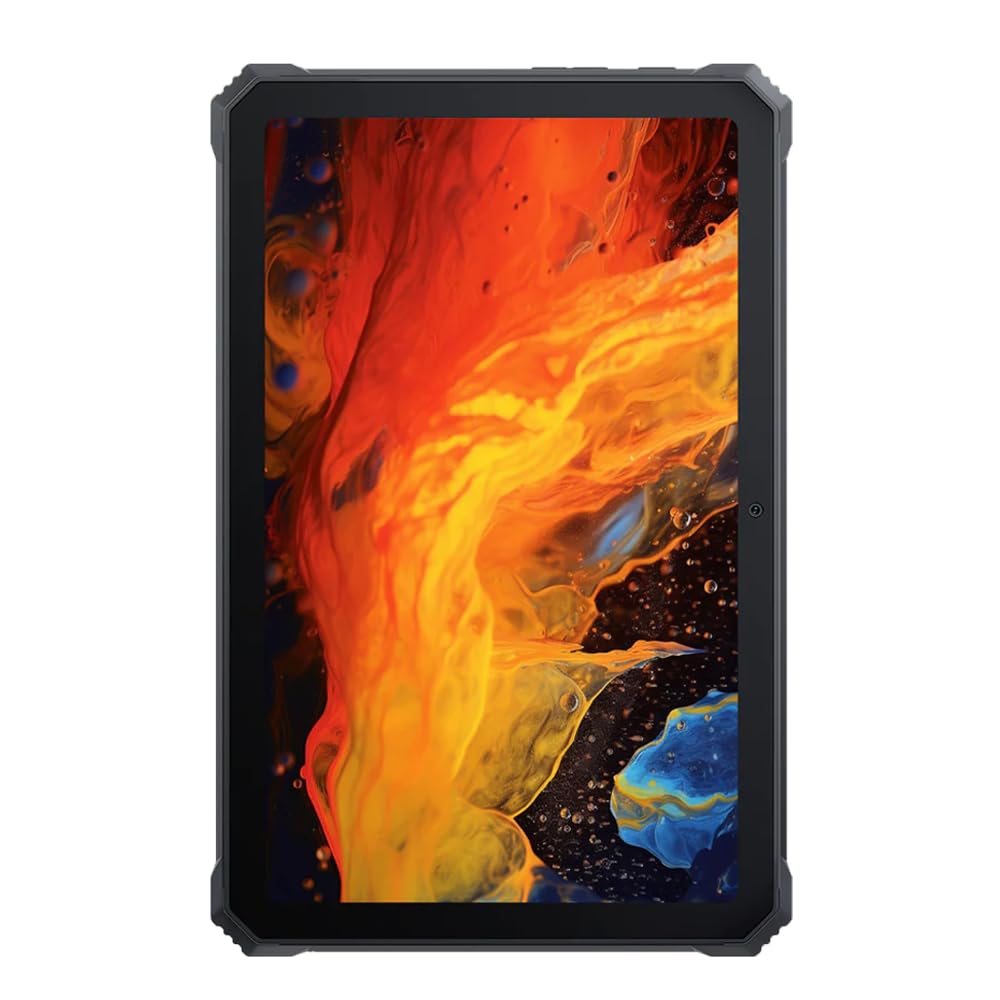
Зображення: спереду view Чорногоview Active 8 Pro Rugged Tablet, showcasing its display and robust bezel.
Вміст упаковки
Будь ласка, перевірте, чи всі елементи присутні в упаковці вашого товару:
- чорнийview Active 8 Pro Rugged Tablet
- Padded Leather Strap
- Зарядний кабель
- Адаптер живлення
- Інструмент для вилучення SIM-картки (за наявності)
- Короткий посібник
Схема пристрою
Familiarize yourself with the physical components and ports of your Active 8 Pro tablet.

Зображення: спереду view Чорногоview Active 8 Pro tablet, highlighting the display and front camera location.

Зображення: Задня частина view Чорногоview Active 8 Pro tablet, showing the camera module, speaker grilles, and the attached padded leather strap for secure handling.

Зображення: Кутова задня частина view Чорногоview Active 8 Pro tablet, providing a perspective of its ruggedized corners and the ergonomic padded leather strap.
Налаштування
1. Зарядка пристрою
Before first use, fully charge your Active 8 Pro tablet. Connect the provided charging cable to the tablet's charging port and the power adapter to a wall outlet. The tablet supports 33W fast charging for quick power replenishment.
- Use only the original Blackview charger and cable to ensure optimal charging speed and safety.
- На екрані з’явиться індикатор заряджання.
2. Увімкнення/вимкнення живлення
- Щоб увімкнути: Press and hold the Power button (typically located on the side) until the Blackview logo appears on the screen.
- Щоб вимкнути: Натисніть і утримуйте кнопку живлення, доки не з’явиться меню живлення. Виберіть «Вимкнути живлення» з опцій.
- Щоб перезапустити: У меню живлення виберіть «Перезавантажити».
3. Початкова конфігурація
Після першого ввімкнення планшет проведе вас через процес початкового налаштування. Дотримуйтесь підказок на екрані, щоб:
- Виберіть свою мову.
- Підключіться до мережі Wi-Fi.
- Увійдіть за допомогою свого облікового запису Google або створіть новий.
- Налаштуйте блокування екрана (PIN-код, графічний ключ, пароль або відбиток пальця).
- Review та прийняти умови та положення.
Інструкція з експлуатації
1. Основна навігація
Your Active 8 Pro runs on Android 14, offering an intuitive user interface. Use standard touchscreen gestures:
- Торкніться: Виберіть елемент або відкрийте програму.
- Натисніть і утримуйте: Доступ до контекстних меню або переміщення значків.
- Проведіть пальцем: Прокручуйте сторінки, списки або перемикайтеся між головними екранами.
- Масштабування за допомогою розведення пальців: Збільшення або зменшення масштабу зображень та web сторінки.
2. Підключення
- Wi-Fi: Go to Settings > Network & internet > Wi-Fi to connect to available networks. The tablet supports 802.11ac, 802.11ax, 802.11g, and 802.11n standards.
- Bluetooth: Go to Settings > Connected devices > Connection preferences > Bluetooth to pair with Bluetooth accessories like headphones or speakers.
- Mobile Data (if applicable): Insert a SIM card into the designated slot to access mobile data services.
3. Використання камери
The tablet features a 48 MP rear camera. Open the Camera app to capture photos and videos. Tap on the screen to focus, and use the on-screen shutter button to take a picture.
4. Audio Enhancement
Experience enhanced audio quality with Sound By Harman AudioEFX. Adjust audio settings in the tablet's sound preferences to optimize your listening experience for music, movies, or calls.
5. Using the Padded Leather Strap
The included padded leather strap is designed to provide extra grip and comfort, reducing hand fatigue during extended use. Securely attach the strap to the designated points on the back of the tablet. Adjust for a snug fit that allows for comfortable one-handed or two-handed holding.
Технічне обслуговування
1. Очищення планшета
- Use a soft, lint-free cloth to wipe the screen and body of the tablet.
- Для стійкого бруду злегкаampпротріть тканину водою або розчином для чищення екранів.
- Avoid using harsh chemicals, abrasive materials, or excessive moisture, especially near ports.
- Ensure all port covers are securely closed before cleaning if exposing to water.
2. Зберігання
When not in use for extended periods, store your tablet in a cool, dry place away from direct sunlight and extreme temperatures. Ensure the battery is charged to approximately 50% before long-term storage to preserve battery health.
3. Оновлення програмного забезпечення
Regularly check for and install software updates to ensure your tablet has the latest features, security patches, and performance improvements. Go to Settings > System > System update to check for available updates.
Усунення несправностей
This section addresses common issues you might encounter with your Blackview Active 8 Pro tablet.
- Пристрій не вмикається:
Ensure the tablet is sufficiently charged. Connect it to the charger for at least 30 minutes before attempting to power it on again. If it still doesn't power on, try holding the power button for 10-15 seconds to force a restart.
- Screen Unresponsive or Display Issues:
If the screen becomes unresponsive, try restarting the device. If the display fails or shows abnormalities, ensure the tablet has not sustained severe physical damage. Contact customer support if the issue persists after a restart.
- Проблеми із зарядкою:
Verify that the charging cable and adapter are securely connected and undamaged. Try using a different compatible charger and cable if available. Ensure the charging port is free of debris.
- Проблеми з підключенням Wi-Fi/Bluetooth:
Toggle Wi-Fi or Bluetooth off and on. Restart your tablet and the router/Bluetooth device. Ensure you are within range and have the correct password for Wi-Fi networks.
- Повільна продуктивність:
Close unnecessary background applications. Clear cache data for apps that are frequently used. Consider performing a factory reset as a last resort (back up your data first).
Технічні характеристики
| Особливість | Специфікація |
|---|---|
| Назва моделі | Active 8 Pro |
| Розмір дисплея | 10.36 дюймів |
| Роздільна здатність екрана | 1920 x 1080 пікселів |
| Процесор | Восьмиядерний процесор MediaTek Helio G99 (2.2 ГГц) |
| ОЗУ | 8 ГБ (DDR4 SDRAM) |
| Внутрішня пам'ять | 256 ГБ |
| Операційна система | Android 14 |
| Ємність акумулятора | 22000 мАг |
| Швидка зарядка | 33W Support |
| Рейтинги довговічності | MIL-STD-810H Certified, IP68 & IP69K Waterproof |
| Захист екрану | Corning Gorilla Glass 5 |
| Задня камера | 48 Мп |
| Бездротове підключення | 802.11ac, 802.11ax, 802.11g, 802.11n |
| Розміри (ДxШxВ) | 10.09 x 6.53 x 0.66 дюймів |
| Вага товару | 3.34 фунта |
Гарантія та підтримка
Твій Чорнийview Active 8 Pro tablet comes with a limited warranty. Please refer to the warranty card included in your package for specific terms and conditions, including coverage duration and limitations. Keep your proof of purchase for warranty claims.
For technical support, service, or warranty inquiries, please visit the official Blackview підтримка website or contact their customer service department. Contact information can typically be found on the Blackview webсайті або в документації, що надається разом із вашим продуктом.
Для отримання додаткової інформації ви можете відвідати чорнийview Магазин на Amazon.