1. Вступ
This manual provides essential information for the proper use and care of your JADENS 4x6 inch Thermal Label Paper. Designed for direct thermal printers, these labels offer reliable performance for various applications, including shipping, warehousing, and general labeling needs. Please read this manual thoroughly to ensure optimal results and longevity of your labels.

Image: JADENS 4x6 inch Thermal Label Paper Rolls.
2. Технічні характеристики продукту
| Атрибут | Деталь |
|---|---|
| Бренд | JADENS |
| Номер моделі | D261LAB01 |
| Розмір листа | 4 x 6 дюйми (101.6 x 152.4 мм) |
| Колір | Білий |
| Оздоблення паперу | Гладкий |
| Вага товару | Approximately 13.4 ounces (0.84 lbs) per 2 rolls |
| Розміри продукту | 4.53 x 2.17 x 0.1 inches (per roll) |
| Сумісність | Direct thermal printers including Nelko, Rollo, IDRPT, Zebra, Brother, MUNBYN, and JADENS C10/D261 models. |
| особливості | Waterproof, Oil-proof, Easy Peeling with Perforated Line, Fade Resistant, Scratch Resistant, BPA/BPS Free |
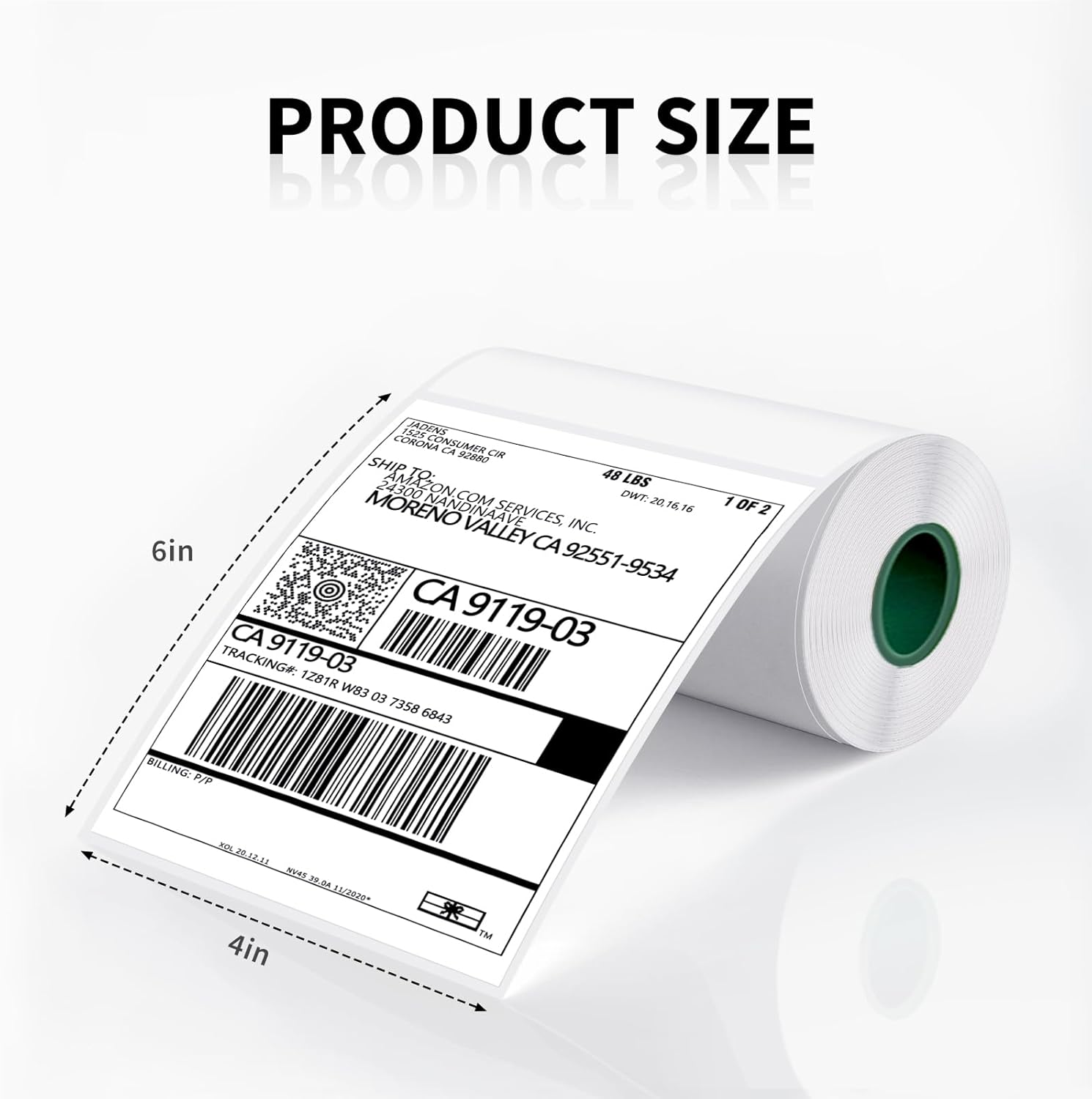
Image: Product size illustration for JADENS 4x6 inch thermal labels.
3. Налаштування та сумісність
JADENS thermal label paper is designed for ease of use with a wide range of direct thermal printers. Follow your printer's specific instructions for loading label rolls.
3.1 Сумісні принтери
These labels are compatible with most direct thermal label printers, including but not limited to:
- JADENS C10 and D261 series printers
- Nelko printers
- Rollo printers
- IDRPT printers
- Zebra printers
- Brother printers
- MUNBYN printers
- Other direct thermal printers supporting 4x6 inch labels
3.2 Loading Instructions (General)
While specific loading procedures vary by printer model, the general steps involve:
- Open the printer's label compartment or cover.
- Locate the label roll holder or spindle.
- Place the JADENS label roll onto the holder, ensuring the labels feed out from the bottom or front, depending on your printer's design. The printable side (smoother, brighter white) should face the print head.
- Feed the leading edge of the label paper through the printer's guides until it is correctly positioned for printing.
- Закрийте кришку принтера.
- Perform a test print or calibration if required by your printer model to ensure proper alignment.

Image: JADENS labels being used with a compatible printer.
4. Інструкція з експлуатації
Once the labels are loaded and your printer is ready, you can begin printing. JADENS labels are designed for clear, crisp prints and easy application.
4.1 Друк
- Ensure your printer drivers are installed and configured correctly for 4x6 inch labels.
- Create your desired label content using appropriate software (e.g., shipping software, label design software).
- Select your direct thermal printer and the correct label size (4x6 inches) in your software's print settings.
- Initiate the print job. The thermal printer will apply heat to the labels, creating the image or text without ink or toner.
4.2 Peeling and Application
JADENS labels feature a perforated line between each label for easy separation and a strong adhesive for secure attachment.
- After printing, gently tear along the perforated line to separate the label from the roll.
- Peel the label from its backing paper. The backing is designed for easy removal.
- Apply the label to a clean, dry, and smooth surface. Press firmly from the center outwards to ensure full adhesion and remove any air bubbles.

Image: Demonstrating the strong adhesive and easy peeling of JADENS labels.
5. Обслуговування та зберігання
Proper storage and handling will ensure the longevity and print quality of your JADENS thermal labels.
- Середовище зберігання: Store labels in a cool, dry place away from direct sunlight, high humidity, and extreme temperatures. Ideal storage conditions are typically between 20-25°C (68-77°F) and 40-60% relative humidity.
- Avoid Heat and Light: Prolonged exposure to heat, direct sunlight, or strong fluorescent light can cause the labels to darken or fade prematurely, even before printing.
- Хімічний вплив: Avoid contact with chemicals, oils, and plasticizers (found in some plastic wraps or folders) as these can degrade the thermal coating.
- Обробка: Handle labels by the edges to avoid transferring oils from your skin, which can affect print quality or label longevity.
- Waterproof and Oil-proof: Once printed and applied, JADENS labels are designed to be waterproof and oil-proof, providing durability in various conditions.
- Fade and Scratch Resistant: The labels are engineered to resist fading and scratching, ensuring your printed information remains legible over time.

Image: Features of JADENS labels: waterproof, oil-proof, and fade resistant.
6. Вирішення проблем
If you encounter issues while using your JADENS thermal label paper, consider the following common solutions:
| проблема | Можлива причина | Рішення |
|---|---|---|
| Faint or No Print |
|
|
| Labels Not Feeding Correctly |
|
|
| Labels Peeling Off After Application |
|
|
| Labels Fading Over Time |
|
|
7. Гарантія та підтримка
For specific warranty information regarding JADENS products, please refer to the packaging or contact JADENS customer support directly. As this product is a consumable item, warranty terms typically cover manufacturing defects.
7.1 Підтримка клієнтів
If you have any questions or require assistance with your JADENS thermal label paper, please visit the official JADENS store or contact their customer service team. You can often find support contact information on the product packaging or the JADENS official webсайт.
JADENS Store Link: Visit the JADENS Store on Amazon


