1. Вступ
This manual provides detailed instructions for the installation, operation, and maintenance of your Jennov JS7015 5MP Dual-Band Wi-Fi Outdoor Security Camera. Please read this manual thoroughly before using the product to ensure correct usage and optimal performance.

Figure 1: Jennov JS7015 Outdoor Security Camera
The Jennov JS7015 is a 5-megapixel outdoor security camera featuring dual-band Wi-Fi connectivity (2.4GHz and 5GHz). It offers 360-degree viewing capabilities, PIR human detection, auto-tracking, 24/7 recording, and two-way audio for comprehensive outdoor surveillance.
2. Вміст упаковки
Будь ласка, перевірте вміст упаковки після отримання. Якщо будь-які елементи відсутні або пошкоджені, зверніться до служби підтримки клієнтів.
- Jennov JS7015 5MP Dual-Band Wi-Fi Outdoor Security Camera
- Адаптер живлення
- Монтажні гвинти та анкери
- Посібник користувача (цей документ)
3. Продукт закінчивсяview
Ознайомтеся з компонентами камери.

Figure 2: Camera Pan and Tilt Mechanism
The camera features a motorized pan and tilt mechanism, allowing for a 355° horizontal rotation (pan) and a 60° vertical rotation (tilt). This enables comprehensive coverage of the surveillance area. The camera body houses the lens, infrared LEDs, white light LEDs, microphone, and speaker. Two external antennas provide enhanced Wi-Fi signal reception.
- Об'єктив камери: Знімає відео footage.
- Інфрачервоні світлодіоди: Provide illumination for black and white night vision.
- Білі світлодіоди: Provide illumination for color night vision and act as a spotlight.
- Мікрофон: Записує звук для двостороннього зв'язку та запису.
- Доповідач: Виводить аудіо для двостороннього зв'язку та сигналізації.
- Антени: Для підключення до Wi-Fi.
- Порт живлення: Підключається до адаптера живлення.
- Кнопка скидання: Used to reset the camera to factory settings (usually located near the SD card slot or under a cover).
- Слот для SD-карти: For local video storage (supports up to 128GB, not included).
4. Посібник із налаштування
4.1 Фізичне встановлення
The camera is designed for outdoor use and is IP66 waterproof. Choose a suitable location for mounting, ensuring a clear view of the area you wish to monitor and proximity to a power source.
- Позначте позиції буріння: Use the mounting template (if provided) or the camera base to mark the screw holes on the wall.
- Свердлити отвори: Drill holes at the marked positions. Insert wall anchors if mounting on masonry.
- Захищена камера: Attach the camera base to the wall using the provided screws.
- Відрегулювати кут: Loosen the adjustment screws (if any) to position the camera for optimal coverage before tightening.

Рисунок 3: Водонепроникний дизайн IP66
The camera is built with waterproof materials and has an IP66 rating, making it suitable for outdoor installation and resistant to dust and water jets.
4.2 Підключення живлення
Connect the provided power adapter to the camera's power port and then plug it into a power outlet. The camera will power on and initiate its startup sequence.
4.3 Завантаження програми та реєстрація облікового запису
The Jennov JS7015 camera uses the EseeCloud application for remote access and control.
- Завантажити додаток: шукати "EseeCloud" in your smartphone's app store (Google Play Store for Android or Apple App Store for iOS) and download the application.
- Реєстрація облікового запису: Open the EseeCloud app and follow the on-screen instructions to register a new account using your email address or phone number.
4.4 Додавання камери до програми
Ensure your smartphone is connected to the same Wi-Fi network (2.4GHz or 5GHz) that you intend to connect the camera to.
- Відкрити додаток: Launch the EseeCloud app and log in.
- Додати пристрій: Tap the "+" icon or "Add Device" option.
- Виберіть тип пристрою: Choose "Wi-Fi Camera" or similar option.
- Сканувати QR-код: The app may prompt you to scan a QR code located on the camera or its packaging.
- Конфігурація Wi-Fi: Follow the app's instructions to enter your Wi-Fi network name (SSID) and password. The camera supports both 2.4GHz and 5GHz Wi-Fi bands.
- Підключити: The camera will attempt to connect to your Wi-Fi network. Once connected, it will appear in your device list within the app.
- Встановити пароль: З міркувань безпеки створіть надійний пароль для вашої камери.
5. Інструкція з експлуатації
5.1 Живий View та керування панорамуванням/нахилом
From the EseeCloud app, select your camera to access the live view.
- Жива стрічка: View real-time video from your camera.
- Панорамування/нахил: Use the directional controls within the app to remotely adjust the camera's horizontal (pan) and vertical (tilt) angles.
5.2 Автоматичне відстеження
Камера може автоматично відстежувати рухомі об’єкти в межах її поля view.

Figure 4: Auto Tracking in Action
Enable the auto-tracking feature in the app settings. The camera will then detect and follow moving targets until they leave the camera's view.
5.3 Виявлення руху та сигналізація
The camera features advanced PIR (Passive Infrared) human detection to minimize false alarms.

Figure 5: PIR Human Detection and Alarm Options
When a human thermal profile is detected, the camera can trigger various alarms.
- Виявлення PIR: Activates recording and sends notifications when a human is detected.
- Звукова сигналізація: Configure the camera to emit a siren sound upon detection.
- Сигналізація прожектора: The integrated spotlight can be activated to deter intruders.
- Сповіщення: Receive instant alerts on your smartphone via the EseeCloud app.
5.4 Двосторонній аудіозв'язок
Communicate directly with individuals near the camera using the built-in microphone and speaker.

Рисунок 6: Двосторонній аудіозв'язок
Tap the microphone icon in the app to speak, and listen through the camera's speaker. This feature is useful for interacting with visitors or deterring unwanted guests.
5.5 Запис і зберігання
The camera supports continuous 24/7 recording and offers flexible storage options.
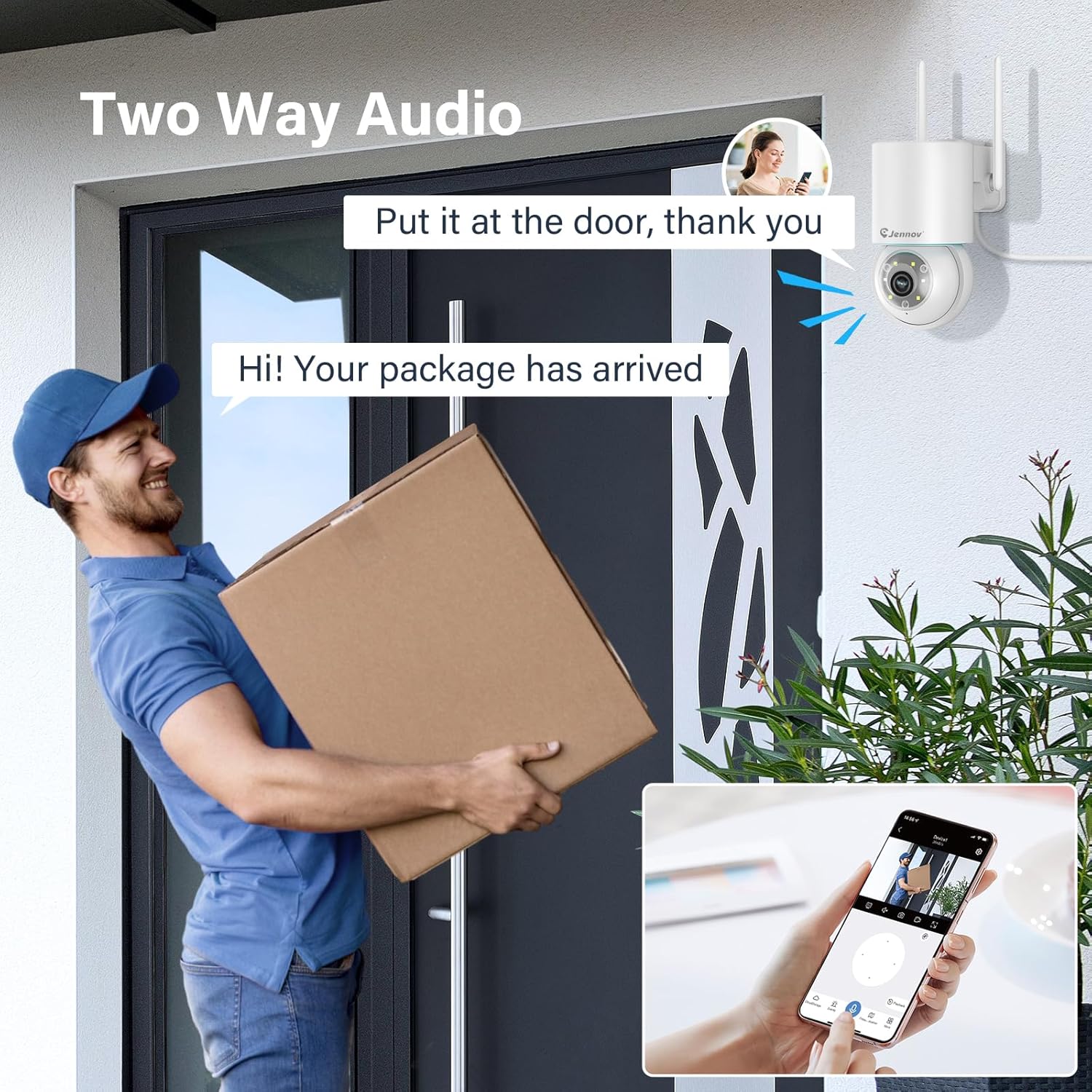
Figure 7: 24/7 Recording and Storage Options
Доступ до записаного footagчерез функцію відтворення в додатку.
- Запис 24/7: The camera can continuously record footage, ensuring no vital moments are missed.
- Локальна пам'ять: Insert a microSD card (up to 128GB, not included) into the camera's SD card slot for local storage.
- Хмарне сховище: Optional cloud storage service is available, often with a free trial period (e.g., 7 days). This provides off-site backup of your recordings.
5.6 Режими нічного бачення
The camera offers three night vision modes for clear visibility in low-light conditions.

Figure 8: 5MP Color Night Vision
The camera provides clear night vision up to 65 feet (20 meters) with 5MP resolution.
- Повнокольоровий режим: Utilizes white LEDs to provide full-color video at night.
- Чорно-білий режим: Uses infrared LEDs for traditional black and white night vision.
- Спритний режим: Automatically switches between black and white and full color based on detected motion or light conditions.
You can switch between these modes within the EseeCloud mobile application.
5.7 Customized Detection Area
Визначте конкретні області в межах камери view де має бути активне виявлення руху.

Figure 9: Customized Detection Area Settings
This feature helps reduce unwanted alerts by focusing detection on critical zones. The app typically offers "Area mode" and "Cordon mode" for defining these zones.
6. Технічне обслуговування
- Прибирання: Регулярно протирайте об’єктив камери м’якою сухою тканиною, щоб забезпечити чітке зображення. Не використовуйте агресивні хімікати.
- Оновлення прошивки: Check the EseeCloud app periodically for available firmware updates. Keeping your camera's firmware updated ensures optimal performance and security.
- Управління SD-карткою: If using local storage, periodically check the SD card's status in the app. Format the card as needed to maintain recording efficiency.
- Джерело живлення: Ensure the power adapter and cable are free from damage and properly connected.
7. Вирішення проблем
- Камера офлайн:
- Перевірте силу сигналу Wi-Fi.
- Переконайтеся, що камеру ввімкнено.
- Перезавантажте камеру та ваш Wi-Fi роутер.
- Якщо ви використовуєте Wi-Fi 5 ГГц, переконайтеся, що ваш маршрутизатор підтримує його, а камера підключена до правильного діапазону.
- Try re-adding the camera to the EseeCloud app.
- Погана якість зображення:
- Очистіть об'єктив камери.
- Ensure sufficient lighting, especially at night.
- Перевірте швидкість вашого інтернет-з’єднання.
- Виявлення руху не працює:
- Verify motion detection settings in the app are enabled.
- Відрегулюйте чутливість виявлення.
- Переконайтеся, що жодні перешкоди не блокують камеру view.
- Check if detection areas are correctly configured.
- Проблеми з двостороннім аудіо:
- Ensure microphone and speaker permissions are granted to the EseeCloud app on your smartphone.
- Check volume settings on both the app and your phone.
- Переконайтеся, що немає фізичних перешкод, що блокують мікрофон або динамік камери.
- Cannot Access SD Card Recordings:
- Переконайтеся, що SD-карту правильно вставлено.
- Check if the SD card is formatted correctly (usually FAT32).
- Verify that continuous recording or event recording to SD card is enabled in the app.
- The SD card might be full; consider formatting it or replacing it.
8. Технічні характеристики
| Особливість | Специфікація |
|---|---|
| Номер моделі | JS7015 |
| Бренд | Дженнов |
| роздільна здатність | 5 Megapixel (1920p video recording) |
| Кут панорамування/нахилу | Панорамування 355°, нахил 60° |
| Нічне бачення | Color Night Vision, Black & White Night Vision, Smart Mode (up to 65ft/20m) |
| Підключення Wi-Fi | Дводіапазонний (2.4 ГГц / 5 ГГц) |
| Аудіо | Двосторонній аудіозв'язок (вбудований мікрофон і динамік) |
| Виявлення руху | PIR Human Detection, Auto Tracking |
| Параметри зберігання | Карта MicroSD (до 128 ГБ), хмарне сховище |
| Рейтинг водонепроникності | IP66 |
| Вхідна потужність | 5 вольт |
| Споживана потужність | 24 Вт |
| Розміри (Д x Ш x В) | 12 х 8 х 16 см |
| матеріал | пластик |
| Тип монтажу | Настінне кріплення |
| Сумісні пристрої | Smartphone, Tablet, Computer |
| Контрольний додаток | EseeCloud |
9. Гарантія та підтримка
For warranty information and technical support, please refer to the warranty card included with your product or visit the official Jennov webсайт.
- Обслуговування клієнтів: Contact Jennov customer support for assistance with product issues, technical questions, or warranty claims.
- Інтернет-ресурси: Check the Jennov webсайт із поширеними запитаннями, оновленими посібниками та завантаженням програмного забезпечення.


