1. Продукт закінчивсяview
The Tenveo PTZ Camera Controller is designed for precise control of various PTZ (Pan-Tilt-Zoom) cameras. It features a 4D joystick for intuitive camera movement and zoom, multiple interface options, and support for common control protocols. This manual provides instructions for setting up, operating, and maintaining your controller.
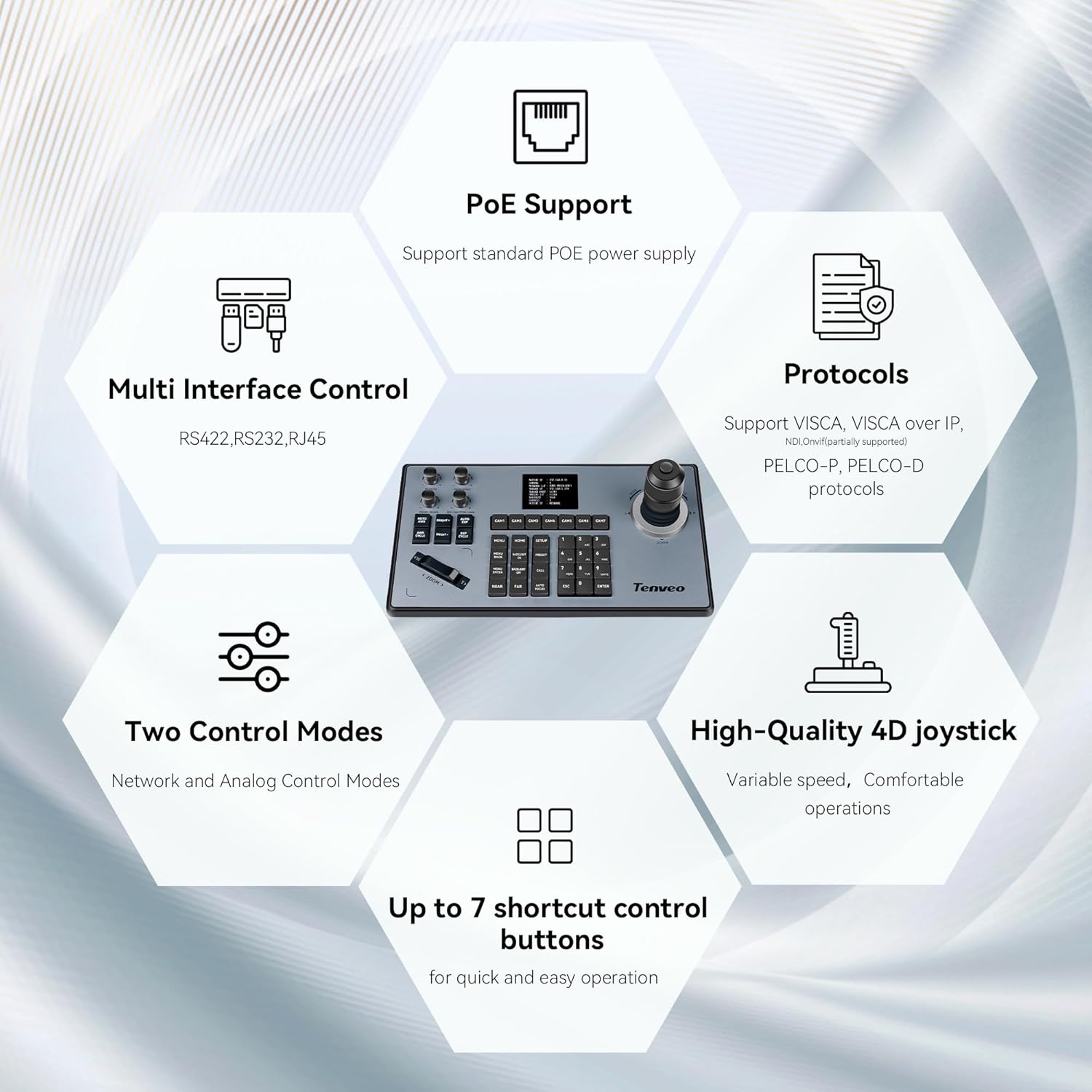
Зображення 1: закінченоview of the Tenveo PTZ Camera Controller's key features, including PoE support, multi-interface control (RS422, RS232, RJ45), protocol compatibility (VISCA, PELCO-P, PELCO-D), two control modes, a high-quality 4D joystick, and up to 7 shortcut buttons.
Ключові характеристики:
- 4D-джойстик: Provides variable speed control for pan, tilt, and zoom functions, ensuring smooth and precise camera adjustments.
- Кілька інтерфейсів керування: Supports RS232, RS422, and RJ45 (Ethernet) for versatile connectivity.
- Підтримка PoE: Compatible with standard Power over Ethernet (PoE) power supply, simplifying installation.
- Сумісність протоколу: Supports VISCA, VISCA over IP, PELCO-P, and PELCO-D protocols for broad camera compatibility.
- Подвійні режими керування: Operates in both Network and Analog control modes.
- Кнопки швидкого доступу: Up to 7 programmable shortcut buttons for quick access to frequently used functions.
2. Налаштування та встановлення
2.1 Розпакування та перевірка
Carefully unpack the controller and inspect it for any signs of damage. Ensure all components are present according to the packing list.
2.2 Підключення контролера
The controller offers various connection options to suit your setup. Refer to the rear panel diagram for port identification.
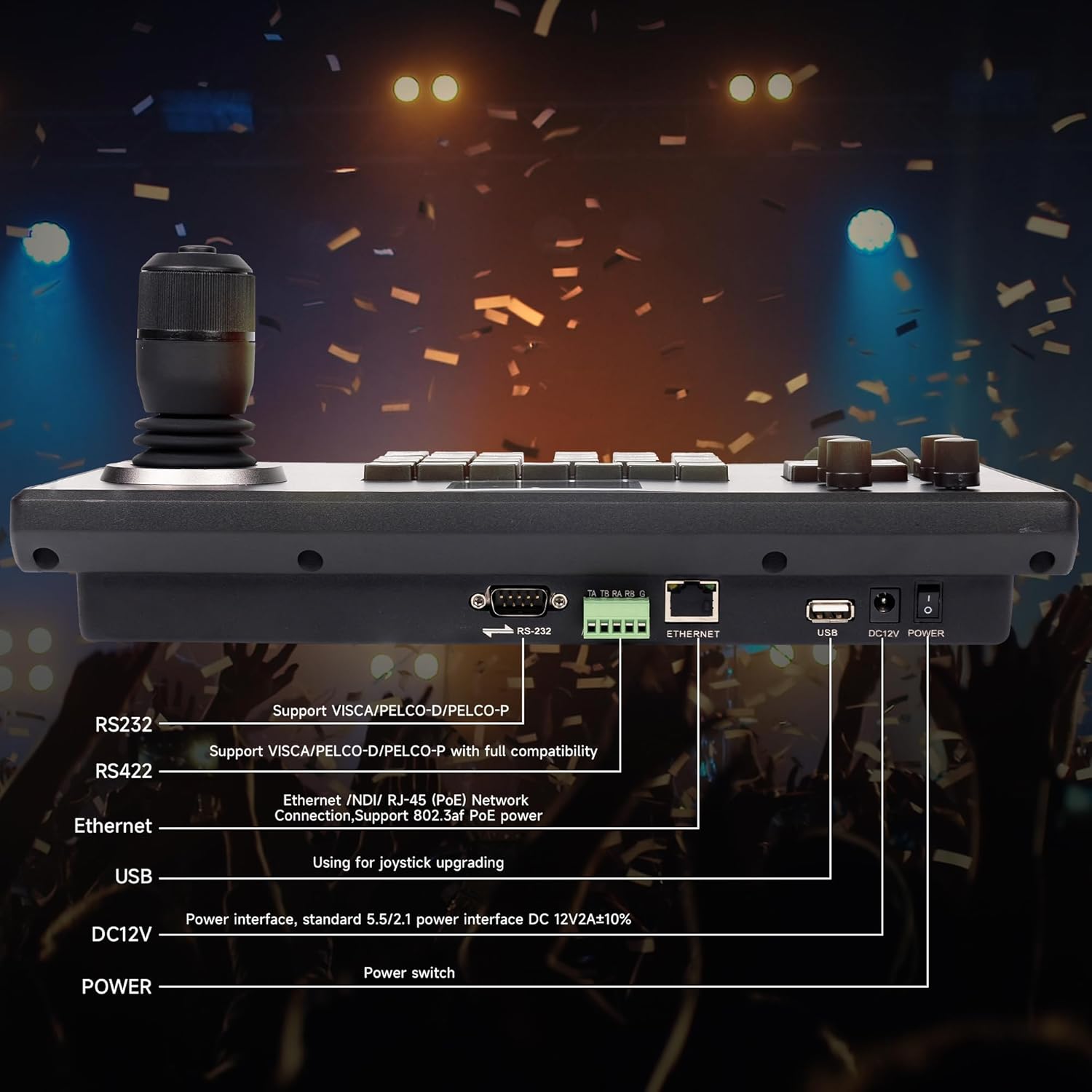
Image 2: Rear panel of the controller showing RS232, RS422, Ethernet (RJ-45), USB, DC12V Power input, and power switch.
- Підключення живлення: Connect the provided DC12V power adapter to the 'DC12V POWER' port. Alternatively, if using PoE, connect an Ethernet cable from a PoE-enabled switch to the 'ETHERNET' port.
- Підключення RS232/RS422: For serial control, connect your camera(s) to the 'RS232' or 'RS422' ports using appropriate cables. Ensure the correct wiring configuration for your camera model.
- Ethernet (IP) Connection: For IP control, connect an Ethernet cable from the 'ETHERNET' port to your network switch or directly to an IP camera.
- Порт USB: The USB port is primarily used for firmware upgrades.
2.3 Camera Connection Exampлес
The controller supports various camera types and connection methods.

Image 3: Close-up of the 4D joystick, highlighting its design for variable speed control and comfortable operation.

Image 4: Diagram illustrating how to connect conference cameras, dome cameras, and PTZ cameras via a network switch (with PoE) to the controller, supporting both network and analog control modes.

Зображення 5: Колишнійample setup showing the controller connected to a PoE switch, which in turn connects to multiple PTZ cameras, demonstrating an easy connection method.
2.4 Початкова конфігурація
After connecting, power on the controller. You may need to configure network settings (e.g., IP address) and select the appropriate control protocol for your cameras. Refer to your camera's manual for specific protocol and address settings.
3. Інструкція з експлуатації
The controller's interface is designed for efficient camera management.

Зображення 6: Детальний опис view of the control panel, identifying the LCD Screen, Function Wheel, Function Keys, Joystick, Camera Select buttons, Zoom controls, and Number Keys.
3.1 Схема панелі керування
- РК-екран: Displays current camera status, settings, and menu options.
- джойстик: Controls pan, tilt, and zoom (by twisting) with variable speed.
- Camera Select (CAM1-CAM7): Buttons to select which camera to control.
- Елементи керування масштабуванням: Dedicated 'ZOOM <' and '> ZOOM' buttons for fine-tuning zoom.
- Функціональні клавіші: Buttons for various camera functions such as MENU, HOME, SETUP, PRESET, CALL, BRIGHTNESS, FOCUS, etc.
- Цифрові ключі: Used for entering values, selecting presets, or navigating menus.
- Функціональне колесо: For adjusting specific parameters like iris or focus, depending on the selected function.
3.2 Основна операція
- Увімкнення: Flip the power switch on the rear panel. The LCD screen will illuminate.
- Виберіть камеру: Press the corresponding 'CAM' button (e.g., CAM1) to select the camera you wish to control.
- Панорамування/нахил: Move the joystick left, right, up, or down to pan and tilt the selected camera. The speed of movement is proportional to how far you push the joystick.
- Масштаб: Twist the joystick clockwise for telephoto (zoom in) and counter-clockwise for wide-angle (zoom out). Alternatively, use the dedicated 'ZOOM <' and '> ZOOM' buttons.
- Фокус: Use the 'AUTO FOCUS' button or the 'NEAR' and 'FAR' buttons to adjust focus. The Function Wheel may also be assigned for manual focus.
- Пресети: To save a preset, position the camera, then press 'PRESET' followed by a number key (0-9). To recall a preset, press 'CALL' followed by the saved number key.
- Навігація по меню: Press the 'MENU' button to access the camera's OSD (On-Screen Display) menu. Use the joystick and number keys to navigate and select options. Press 'ESC' to exit.
4. Технічне обслуговування
Правильне обслуговування забезпечує довговічність та оптимальну роботу вашого контролера.
- Прибирання: Використовуйте м’яку суху тканину для очищення зовнішньої частини контролера. Для стійкого бруду злегкаamp cloth with mild detergent can be used, ensuring no liquid enters the device. Avoid abrasive cleaners or solvents.
- Зберігання: Зберігайте контролер у прохолодному, сухому місці, подалі від прямих сонячних променів та екстремальних температур, коли він не використовується.
- Оновлення прошивки: Періодично перевіряйте офіційну інформацію Tenveo website for available firmware updates to ensure optimal performance and compatibility. Use the USB port for updates as per instructions provided with the firmware.
5. Вирішення проблем
У цьому розділі розглядаються поширені проблеми, з якими ви можете зіткнутися.
5.1 Поширені проблеми та рішення
- Контролер не відповідає:
- Ensure the power adapter is securely connected and the power switch is on.
- If using PoE, verify the Ethernet cable is connected to a PoE-enabled switch and the switch is powered.
- Check all connection cables (RS232, RS422, Ethernet) between the controller and cameras.
- Verify the correct camera is selected using the 'CAM' buttons.
- Joystick Movement is Reversed (Pan/Tilt):
- Press the 'SETUP' key.
- Navigate the LED screen menu using the joystick until you reach 'Keyboard Settings'.
- Press the small button on top of the joystick to enter the Keyboard Settings.
- Adjust the settings for Left/Right movement and Tilt movement to match the desired joystick direction.
- Camera Not Switching or Delayed Response:
- Ensure all cameras are properly connected and powered.
- Verify that each camera has a unique address if using serial control, or a unique IP address if using IP control.
- Check for network congestion or interference if using IP control.
- Confirm that the selected protocol on the controller matches the protocol of the camera.
- Limited Functionality with Camera:
- Ensure the camera's control protocol (VISCA, PELCO-P, PELCO-D) is fully compatible with the controller's implementation. Some camera-specific functions may not be universally supported.
- Refer to your camera's manual for supported control commands.
5.2 Універсальна сумісність
The controller is designed for broad compatibility with various PTZ camera protocols.

Image 7: The controller supports universal compatibility with major protocols including VISCA, VISCA over IP, PELCO-D, and PELCO-P.
6. Технічні характеристики
| Особливість | Деталь |
|---|---|
| Номер моделі | B0DK68XJF8 |
| Виробник | Tenveo |
| Інтерфейси управління | RS232, RS422, RJ45 (Ethernet) |
| Протоколи контролю | VISCA, VISCA over IP, PELCO-P, PELCO-D |
| Джойстик | 4D, Variable Speed |
| Джерело живлення | DC12V or PoE (Power over Ethernet) |
| Дата першої доступності | 11 червня 2024 р |
| Тип елемента | електроніка |
7. Гарантія та підтримка
For warranty information and technical support, please refer to the documentation included with your purchase or visit the official Tenveo webсайт. Конкретні гарантійні умови можуть відрізнятися залежно від регіону та продавця.
For further assistance, please contact Tenveo customer service through their official channels.


