1. Вступ
This manual provides comprehensive instructions for the installation, operation, and maintenance of the Teltonika RUT241 Industrial Cellular Router. The RUT241 is designed for reliable 4G LTE and 3G connectivity, featuring Wi-Fi and two Ethernet ports, along with automatic WAN failover for continuous connection. Its robust industrial design and compact size make it suitable for various IoT and M2M applications, particularly in North America, with compatibility across Verizon, AT&T, and T-Mobile networks.
2. Інформація про безпеку
- Ensure the device is powered by the specified 9-30 VDC power supply. Using an incorrect power source may damage the device and void the warranty.
- Не піддавайте пристрій впливу вологи, екстремальних температур або прямих сонячних променів.
- Уникайте розміщення пристрою поблизу джерел тепла або в погано провітрюваних приміщеннях.
- Only use accessories and antennas approved by Teltonika.
- Не намагайтеся відкривати або модифікувати пристрій. Звертайтеся до кваліфікованого персоналу для проведення будь-яких робіт з обслуговування.
- Утилізуйте електронні відходи відповідально згідно з місцевими правилами.
3. Вміст упаковки
Перевірте наявність усіх елементів в упаковці:
- Teltonika RUT241 Router
- 9 W Power Supply Unit (PSU)
- 2 x LTE Antennas (swivel, SMA male)
- 1 x Wi-Fi Antenna (swivel, RP-SMA male)
- Кабель Ethernet (1.5 м)
- SIM Adapter Kit
- Короткий посібник (QSG)
4. Пристрій закінчивсяview
The Teltonika RUT241 router features various ports, indicators, and connectors for its operation. Familiarize yourself with the device's layout before proceeding with installation.

малюнок 4.1: Фронт view of the RUT241 router, displaying the model number, Teltonika branding, power input specifications (9-30 VDC), and the default IP address (192.168.1.1).

малюнок 4.2: Під кутом view of the RUT241, highlighting the WAN and LAN Ethernet ports, the 4-pin industrial DC power socket, and LED indicators for signal strength and network status.

малюнок 4.3: Ще один кутовий view of the RUT241, showing the SMA male connectors for LTE antennas, the RP-SMA male connector for the Wi-Fi antenna, and the recessed reset button.
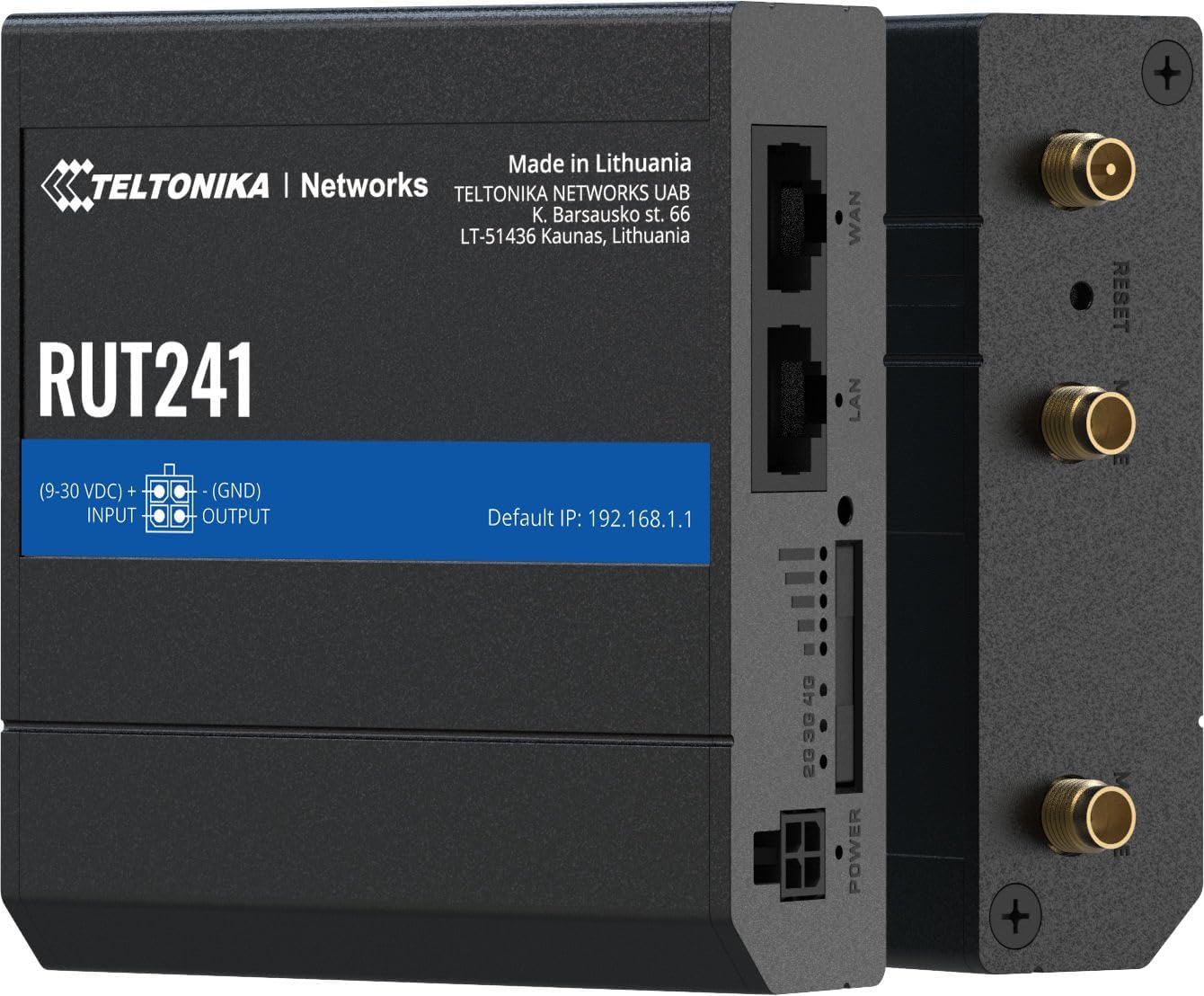
малюнок 4.4: сторона view of the RUT241, providing a clear look at the WAN and LAN ports, power input, signal strength LEDs, and antenna connectors.

малюнок 4.5: Дно view of the RUT241, showing the SIM card slot cover and mounting screw points for industrial installations.

малюнок 4.6: Топ view of the RUT241, detailing the Wi-Fi, Reset, and Mobile antenna connectors.
5. Налаштування
5.1. Встановлення SIM-карти
- Переконайтеся, що маршрутизатор вимкнено.
- Locate the SIM card slot on the bottom of the device (refer to Figure 4.5).
- Use the provided SIM adapter kit if your SIM card is not standard size.
- Insert the prepared SIM card into the slot until it clicks into place.
- Replace the SIM card slot cover securely.
5.2. Підключення антени
- Connect the two LTE antennas to the SMA male connectors labeled "MOBILE" on the device (refer to Figure 4.6).
- Connect the Wi-Fi antenna to the RP-SMA male connector labeled "WIFI" (refer to Figure 4.6).
- Розташуйте антени для оптимального прийому сигналу.
5.3. Підключення живлення
- Connect the 9 W PSU to the 4-pin industrial DC power socket on the router.
- Plug the PSU into a suitable power outlet. The router will power on automatically.
5.4. Початковий доступ
- Connect your computer to the router's LAN port using the provided Ethernet cable.
- Відкрийте a web браузер і перейдіть до IP-адреси за замовчуванням: 192.168.1.1.
- Follow the on-screen instructions to complete the initial configuration, including setting up a new password.
6. Інструкція з експлуатації
6.1. Mobile Connectivity
The RUT241 supports 4G LTE (Cat 4) and 3G connectivity. Once the SIM card is installed and the device is powered on, it will automatically attempt to establish a mobile connection. The signal strength LEDs on the device indicate the current mobile signal quality.
6.2. WAN Failover
The router is equipped with WAN failover functionality, ensuring continuous internet access. If the primary WAN connection (e.g., Ethernet WAN) fails, the router will automatically switch to the available backup connection (e.g., cellular 4G LTE) to maintain network uptime.
6.3. Точка доступу Wi-Fi
The RUT241 functions as a wireless access point, providing Wi-Fi connectivity for up to 50 simultaneous users. Default Wi-Fi credentials can be found on the device label or in the Quick Start Guide. It is recommended to change the default Wi-Fi password during initial setup for security.
6.4. Remote Management and VPN
For advanced management and secure access, the RUT241 supports Teltonika Remote Management System (RMS) and various VPN services. Refer to the Teltonika Networks Wiki for detailed configuration guides on these features.
7. Технічне обслуговування
- Оновлення прошивки: Regularly check the Teltonika Networks webсайт для отримання останніх оновлень прошивки, щоб забезпечити оптимальну продуктивність, безпеку та доступ до нових функцій.
- Прибирання: Використовуйте м’яку суху тканину для очищення пристрою. Не використовуйте рідкі засоби для чищення або аерозолі.
- Умови навколишнього середовища: Переконайтеся, що маршрутизатор працює в межах зазначених діапазонів температури та вологості, щоб запобігти пошкодженню.
- Конфігурація резервного копіювання: Періодично створюйте резервні копії налаштувань конфігурації вашого маршрутизатора через web interface to facilitate quick restoration if needed.
8. Вирішення проблем
8.1. Немає живлення
- Verify that the 9 W PSU is correctly connected to the router and a working power outlet.
- Перевірте кабель живлення на наявність пошкоджень.
- Переконайтеся, що вхід обtage is within the 9-30 VDC range if using an alternative power source.
8.2. No Internet Connection (Mobile)
- Confirm the SIM card is correctly inserted and activated with a data plan.
- Check the mobile signal strength LEDs on the router. If signal is weak, reposition antennas or the router.
- Перевірте налаштування APN у маршрутизаторі web interface. The default is "Auto", but some carriers may require specific settings.
- Ensure the cellular network is available in your location and compatible with the RUT241 (Verizon, AT&T, T-Mobile in North America).
8.3. Немає підключення до Wi-Fi
- Ensure the Wi-Fi antenna is securely connected.
- Check if Wi-Fi is enabled in the router's web інтерфейс.
- Verify Wi-Fi network name (SSID) and password.
8.4. Немає доступу Web Інтерфейс
- Ensure your computer is connected to the router's LAN port or Wi-Fi network.
- Перевірте, чи в налаштуваннях IP-адреси вашого комп’ютера налаштовано автоматичне отримання IP-адреси (DHCP).
- Confirm you are using the correct default IP address: 192.168.1.1.
- If you have changed the router's IP address, use the new address.
- If the issue persists, perform a factory reset by pressing and holding the reset button for approximately 10 seconds while the device is powered on. УВАГА: Це видалить усі користувацькі конфігурації.
9. Технічні характеристики
| Категорія | Особливість | Деталь |
|---|---|---|
| Мобільний | Мобільний модуль | 4G (LTE) - Cat 4 up to 150 Mbps, 3G - Up to 42 Mbps |
| APN | Авто | |
| Бездротовий | Бездротовий режим | IEEE 802.11b/g/n, точка доступу (AP), станція (STA) |
| Користувачі Wi-Fi | До 50 одночасних з'єднань | |
| Ethernet | Порт WAN | 1 x WAN port 10/100 Mbps |
| LAN порт | 1 x LAN port, 10/100 Mbps | |
| Мережа | Маршрутизація | Static routing, Dynamic routing (BGP, OSPF v2, RIP v1/v2, NHRP) |
| DHCP | Статичне та динамічне розподіл IP, ретрансляція DHCP, ретрансляція | |
| система | ЦП | Mediatek MIPS 24Kc 580 MHz |
| ОЗУ | 128 МБ, DDR2 | |
| ФЛЕШ-сховище | 16 Мб, SPI Flash | |
| потужність | Роз'єм | 4-контактна промислова розетка постійного струму |
| Вхідний об'ємtage Дальність | 9 - 30 В постійного струму | |
| PoE (пасивний) | Passive PoE over spare pairs. 9-30 VDC | |
| фізичний | Casing Матеріал | Алюміній |
| Розміри (ШxВxГ) | 3.26 x 0.98 x 2.91 дюйма (82.8 x 24.9 x 73.9 мм) | |
| вага | 0.27 фунтів (122.5 г) | |
| Колір | чорний |
10. Гарантія та підтримка
For warranty information and technical support, please refer to the official Teltonika Networks website or contact your authorized Teltonika Networks reseller. Detailed documentation, firmware updates, and support resources are available online.
Офіційний представник мереж Teltonika Webсайт: teltonika-networks.com


