1. Вступ
This user manual provides detailed instructions for the installation, operation, and maintenance of your Xprinter XP-D200N Thermal Receipt Printer. The XP-D200N is a high-speed thermal printer designed for reliable and efficient receipt printing in various business environments. Please read this manual thoroughly before using the printer to ensure proper functionality and to prevent damage.
2. Інформація про безпеку
Щоб забезпечити безпечну роботу та запобігти пошкодженню принтера чи травмуванню, дотримуйтесь наступних запобіжних заходів безпеки:
- Always use the provided power adapter. Using an incorrect adapter may damage the printer and void the warranty.
- Не піддавайте принтер впливу води, вологи або екстремальних температур.
- Уникайте розміщення принтера під прямими сонячними променями або поблизу джерел тепла.
- Do not attempt to disassemble or repair the printer yourself. Refer all servicing to qualified personnel.
- Переконайтеся, що принтер встановлено на стійкій, рівній поверхні.
- Keep the printer away from dust and debris to maintain optimal performance.
3. Вміст упаковки
Please check the contents of your package. If any items are missing or damaged, contact your vendor immediately.
- Xprinter XP-D200N Thermal Receipt Printer
- Адаптер живлення
- Шнур живлення
- USB кабель
- Thermal Paper Roll (starter)
- Посібник користувача (цей документ)
4. Продукт закінчивсяview
The Xprinter XP-D200N is a compact and efficient thermal receipt printer. Below are images illustrating its key components and design.
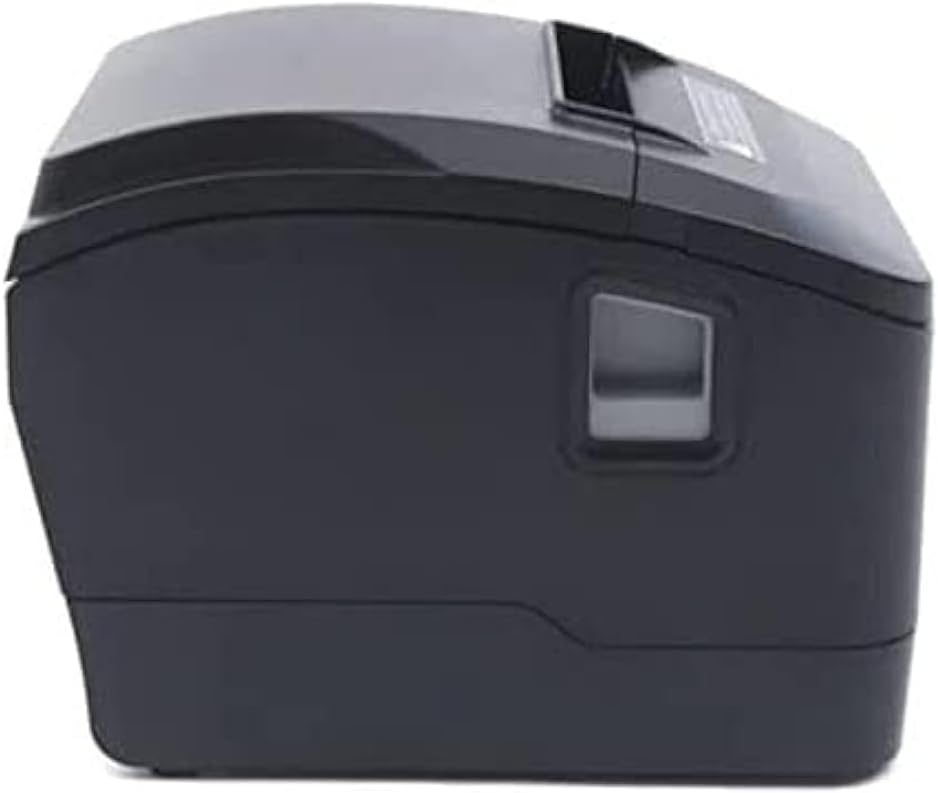
малюнок 4.1: Лицьова сторона view of the Xprinter XP-D200N Thermal Receipt Printer. This image shows the sleek, black casing and the paper output slot.
малюнок 4.2: сторона view of the Xprinter XP-D200N Thermal Receipt Printer. This perspective highlights the compact design and the power switch on the right side.

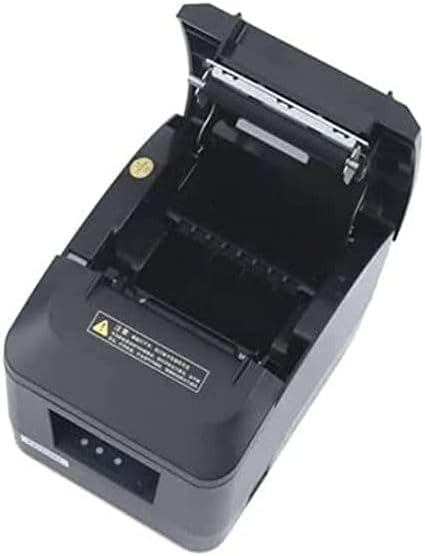
малюнок 4.3: Топ view of the Xprinter XP-D200N Thermal Receipt Printer with the cover open, revealing the thermal paper roll compartment and the print head mechanism. This view is essential for paper loading and maintenance.
5. Налаштування
5.1 Підключення живлення
- Переконайтеся, що вимикач живлення принтера знаходиться в положенні ВИМК.
- Connect the power adapter to the power input port on the back of the printer.
- Plug the power cord into the power adapter, then into a standard electrical outlet.
5.2 Підключення до комп’ютера
The XP-D200N supports both USB and LAN connectivity.
Підключення USB:
- Connect one end of the USB cable to the USB port on the printer.
- Під’єднайте інший кінець кабелю USB до вільного порту USB на комп’ютері.
LAN (Ethernet) Connection:
- Connect an Ethernet cable to the LAN port on the printer.
- Підключіть інший кінець кабелю Ethernet до мережевого маршрутизатора або комутатора.
- Refer to the printer's advanced settings or driver utility for network configuration (e.g., IP address settings).
5.3 Завантаження термопаперу
- Open the printer cover by pressing the release button or lifting the cover latch. (Refer to Figure 4.3).
- Insert the thermal paper roll into the compartment with the paper feeding from the bottom and the leading edge extending towards the front of the printer. Ensure the paper is aligned correctly.
- Витягніть невеликий шматок паперу повз різак.
- Щільно закрийте кришку принтера, доки вона не зафіксується на місці.
5.4 Встановлення драйвера
After connecting the printer, you will need to install the appropriate drivers on your computer. Drivers are typically provided on a CD included with the printer or can be downloaded from the official Xprinter webсайт. Дотримуйтесь інструкцій на екрані під час встановлення.
6. Інструкція з експлуатації
6.1 Увімкнення/вимкнення
- To power on: Ensure the power cord is connected, then flip the power switch to the ON position. The indicator light will illuminate.
- To power off: Flip the power switch to the OFF position.
6.2 Базовий друк
Once the printer is connected and drivers are installed, you can print receipts from your point-of-sale (POS) software or other applications. Select the Xprinter XP-D200N as your default printer in your application's print settings.
6.3 Індикатори стану
The printer features indicator lights (usually on the front panel) that provide information about its status:
- Індикатор живлення: Solid light indicates the printer is powered on.
- Індикатор помилки: Flashing or solid light indicates an error (e.g., paper out, cover open, print head overheat). Refer to the troubleshooting section.
- Індикатор відсутності паперу: Світиться, коли рулон паперу порожній або майже порожній.
7. Технічне обслуговування
7.1 Очищення друкуючої головки
Regular cleaning of the print head ensures optimal print quality and extends the printer's lifespan.
- Вимкніть принтер і від’єднайте шнур живлення.
- Відкрийте кришку принтера.
- Використовуйте ватний тампон, злегка промокнітьampened with isopropyl alcohol (70% or higher) to gently wipe the thermal print head surface. Avoid touching the print head with bare hands.
- Allow the print head to dry completely before closing the cover and reconnecting power (approximately 2-3 minutes).
7.2 Генеральне прибирання
Протріть зовнішню частину принтера м’якою,amp тканина. Не використовуйте абразивні засоби чи розчинники.
7.3 Replacing the Paper Roll
When the paper out indicator illuminates or print quality degrades, it's time to replace the paper roll. Follow the steps in Section 5.3 "Loading Thermal Paper".
8. Вирішення проблем
| проблема | Можлива причина | Рішення |
|---|---|---|
| Принтер не вмикається. | No power, faulty power adapter/cord. | Check power connections. Ensure power switch is ON. Test outlet. |
| Без друку. | Paper out, cover open, incorrect driver, incorrect printer selected, cable disconnected. | Load paper, close cover, check USB/LAN connection, verify driver installation, select correct printer in software. |
| Poor print quality (faint, blank lines). | Dirty print head, low quality thermal paper, print head damage. | Clean print head (Section 7.1). Replace thermal paper. If problem persists, contact support. |
| Зминання паперу. | Неправильне завантаження паперу, сторонній предмет. | Turn off printer, open cover, carefully remove jammed paper. Reload paper correctly. |
| Error indicator light is on/flashing. | General error, paper out, cover open. | Check for paper out, ensure cover is closed. Power cycle the printer. If error persists, consult manufacturer's support. |
9. Технічні характеристики
| Бренд: | Xprinter |
| модель: | XP-D200N |
| Тип принтера: | Термопринтер чеків |
| Метод друку: | Прямий термічний |
| Швидкість друку: | 220 mm/sec (as per product description) |
| Максимальний розмір носія: | 8 см (80 мм) |
| Підключення: | USB, LAN (Ethernet) |
| Споживана потужність: | 24 В – 2.5 А |
| Вихід на принтер: | Монохромний |
| Особливості: | Sleek, Compact, Lightweight Design, High Print Quality, Durability, Low Noise, Automatic Paper Cutting |
| Розміри продукту: | 18.4 х 14 х 13.5 см |
| Вага товару: | 1.63 кг |
10. Гарантія та підтримка
The Xprinter XP-D200N Thermal Receipt Printer comes with a standard manufacturer's warranty. For specific warranty terms and conditions, please refer to the warranty card included with your product or visit the official Xprinter website. For technical support, driver downloads, or service inquiries, please contact your local dealer or the Xprinter customer support team through their official channels.
Щоб отримати найновішу інформацію та ресурси підтримки, відвідайте: www.xprinter.net


