вступ
This manual provides essential information for setting up, operating, and maintaining your Microsoft Surface Studio 2+ All-In-One Desktop Computer. The Surface Studio 2+ is designed for productivity and creativity, featuring a versatile 28-inch PixelSense™ touchscreen display.
Будь ласка, уважно прочитайте цей посібник, щоб забезпечити правильне використання та максимально продовжити термін служби вашого пристрою.
Що в коробці
Перевірте наявність усіх елементів в упаковці:
- Surface Studio 2+ All-in-One Computer
- Поверхнева ручка
- Поверхнева клавіатура
- миша
- Power Cord with Grip-Release Cable
- Короткий посібник
- Керівництво з безпеки та гарантії
Налаштування
- Розпакування: Carefully remove the Surface Studio 2+ and its accessories from the packaging. Place the computer on a stable, flat surface.

Image: The Microsoft Surface Studio 2+ All-in-One computer displaying the Windows 11 desktop interface.
- Підключення живлення: Connect the power cord to the power port on the back of the Surface Studio 2+ base, then plug the other end into a wall outlet.

Зображення: Задня частина view of the Surface Studio 2+ base, highlighting the various ports including the power input.
- Підключення периферійних пристроїв: Connect the Surface Keyboard and Mouse. These devices typically connect wirelessly via Bluetooth. Follow the on-screen instructions during initial setup for pairing.
- Початкове завантаження: Press the power button, usually located on the back or side of the display. The computer will guide you through the Windows 11 Pro setup process, including language selection, network connection, and user account creation.
Інструкція з експлуатації
Налаштування дисплея
The Surface Studio 2+ features a unique Zero Gravity Hinge, allowing the display to be adjusted from an upright desktop mode to a flat studio mode for drawing and writing.

Image: A sequence showing the Surface Studio 2+ display being adjusted from an upright position to a nearly flat angle.
- Режим робочого столу: Gently push the top of the screen backward to tilt it into an upright position for traditional desktop use.
- Режим студії: Gently pull the top of the screen forward and down towards the base to transition it into a low-angle, flat position ideal for creative tasks with the Surface Pen.
Using the Surface Pen and Touchscreen
The 28-inch PixelSense™ touchscreen supports multi-touch gestures and is optimized for use with the included Surface Pen.
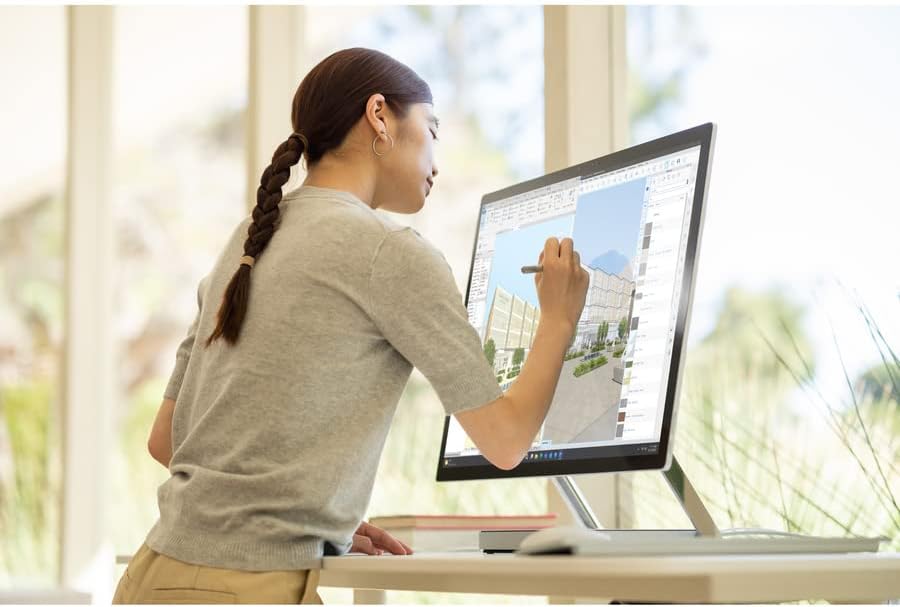
Image: A person using the Surface Pen to interact with the touchscreen of the Microsoft Surface Studio 2+ in studio mode.
- Жести дотиком: Utilize standard Windows touch gestures for navigation, zooming, and scrolling.
- Surface Pen: The Surface Pen allows for precise drawing, writing, and annotation directly on the screen. It can be magnetically attached to the side of the display for storage.
Windows 11 Pro
Your Surface Studio 2+ comes pre-installed with Windows 11 Pro. Familiarize yourself with the operating system's interface and features for optimal productivity.
- Меню Пуск: Access applications, settings, and power options from the Start Menu.
- Панель завдань: Закріпіть часто використовувані програми на панелі завдань для швидкого доступу.
- Налаштування: Customize your device, manage accounts, and configure privacy settings through the Settings app.
особливості
The Microsoft Surface Studio 2+ is equipped with advanced components for high performance:
- Процесор: Intel Core i7 3 GHz processor for demanding tasks.
- Пам'ять: 32 GB DDR4 RAM for smooth multitasking.
- Зберігання: 1 TB Solid State Drive (SSD) for fast boot times and application loading.
- Графіка: NVIDIA GeForce RTX 3060 with 6GB dedicated memory for graphics-intensive applications and gaming.
- Дисплей: 28-inch PixelSense™ touchscreen with 4500 x 3000 resolution.
- Операційна система: Windows 11 Професійна.
- Підключення: Integrated 802.11ax Wi-Fi and Bluetooth for wireless connections.
Технічне обслуговування
Очищення пристрою
- екран: Злегка протріть м’якою тканиною без ворсу dampводою або засобом для чищення екранів, спеціально призначеним для електроніки. Уникайте агресивних хімікатів.
- Тіло: Протріть зовнішні поверхні м’якою сухою тканиною.
- Вентиляція: Ensure the ventilation openings on the base are clear of dust and obstructions to prevent overheating.
Оновлення програмного забезпечення
Регулярно перевіряйте наявність оновлень Windows та встановлюйте їх, щоб переконатися, що ваша система має найновіші виправлення безпеки та покращення продуктивності.
- Перейти до Налаштування > Windows Update.
- Натисніть Перевірте наявність оновлень та встановіть усі доступні оновлення.
Усунення несправностей
| Випуск | Можливе рішення |
|---|---|
| Комп'ютер не вмикається. | Ensure the power cord is securely connected to both the computer and a working electrical outlet. Try a different outlet. |
| Дисплей порожній. | Check power connection. Ensure the computer is powered on. If connected to an external display, verify display input settings. |
| Surface Pen or Mouse not responding. | Check battery levels. Re-pair the devices via Bluetooth settings in Windows. |
| Повільна продуктивність. | Close unnecessary applications. Check for and install Windows updates. Run a disk cleanup. |
| Проблеми з підключенням до Wi-Fi. | Restart your router and the Surface Studio 2+. Check Wi-Fi settings in Windows to ensure it's enabled and connected to the correct network. |
Технічні характеристики
| Особливість | Деталь |
|---|---|
| Номер моделі | SBG-00001 |
| Розмір дисплея | 28 дюймів |
| Роздільна здатність екрана | 4500 х 3000 |
| Процесор | Intel Core i7 (3 ГГц) |
| ОЗУ | 32 ГБ DDR4 |
| Жорсткий диск | Твердотільний накопичувач на 1 ТБ |
| Графічний співпроцесор | NVIDIA GeForce RTX 3060 |
| Розмір оперативної пам'яті відеокарти | 6 ГБ |
| Операційна система | Windows 11 Pro |
| Бездротовий тип | 802.11ax, Bluetooth |
| Вага товару | 21.1 фунта |
| Розміри продукту (ДxШxВ) | 25.1 x 0.5 x 17.3 дюймів |
| Колір | Срібло |
Гарантія та підтримка
Your Microsoft Surface Studio 2+ is covered by a manufacturer's warranty. Please refer to the included "Safety and Warranty Guide" for detailed information regarding warranty terms, conditions, and registration.
For technical support, driver downloads, or further assistance, please visit the official Microsoft Support website or contact Microsoft customer service.
Інтернет-підтримка: support.microsoft.com/surface


