1. Вступ
This manual provides detailed instructions for the installation, operation, and maintenance of your NexiGo 3 Channel Dash Cam D621. Please read this manual thoroughly before using the device to ensure proper functionality and safety. Keep this manual for future reference.
2. Що в коробці
Переконайтеся, що всі предмети присутні та знаходяться у належному стані після розпакування.
- NexiGo D621 Dash Cam
- SD-карта на 128 ГБ
- Всмоктувальне кріплення
- Auxiliary Power Cable (11.5 ft)
- Rear Camera with Extension Cable (21.3 ft)
- Інструмент Прай
- Тканина для чищення
- Посібник користувача

Image: NexiGo D621 Dash Cam and its components, including the main unit, suction mount, cables, and SD card.
3. Продукт закінчивсяview
The NexiGo D621 is a 3-channel dash cam designed to record front, interior, and rear views simultaneously. It features a rotatable interior/front camera for flexible recording options.
Ключові характеристики:
- Rotatable Interior/Front Camera: Allows the interior camera to be rotated to face forward, providing dual front-facing recording.
- Запис високої роздільної здатності: Front camera records in 4K/2K, interior and rear cameras in 1080P.
- Sony STARVIS Sensors: Enhanced low-light performance for clear night vision.
- Вбудований Wi-Fi: Supports 5.0 GHz and 2.4 GHz for fast file transfer and app connectivity.
- Інтегрований GPS: Records real-time trip data including location and speed.
- Режим паркування 24 години: Monitors your vehicle when parked (requires hard-wire kit, sold separately).
- G-сенсор: Automatically locks emergency footagе при виявленні удару.
- Циклічний запис: Перезаписує найстаріший footagе. коли SD-карта заповнена.

Image: Diagram illustrating the three-channel recording capability of the NexiGo D621, showing simultaneous front, interior, and rear views.

Image: Visual representation of the optimized field of view for the front (88°) and interior (132°) cameras of the NexiGo D621.
4. Налаштування
4.1. Початкова установка
- Прикріпіть присоску: Slide the suction cup mount into the slot on the top of the dash cam until it clicks securely into place.
- Вставте SD-карту: If not already inserted, gently push the provided 128GB Micro SD card into the TF slot on the side of the dash cam until it clicks. The dash cam supports up to 256GB.
- Mount Dash Cam: Clean the desired area on your windshield. Attach the suction mount firmly to the windshield, ensuring it does not obstruct your view.
- Підключіть живлення: Plug the auxiliary power cable into the dash cam and then into your vehicle's 12V auxiliary power outlet.
- Встановлення задньої камери: Connect the rear camera to the main unit using the extension cable. Route the cable neatly along the vehicle's interior trim using the pry tool. Mount the rear camera on the rear windshield or above the license plate.
Video: Official NexiGo D621 User Guide demonstrating the physical installation of the dash cam and its components.
4.2. Увімкнення та початкові налаштування
- Після підключення до живлення відеореєстратор автоматично увімкнеться та почне запис.
- Use the physical buttons below the screen to navigate the menu.
- Access "Settings" (gear icon) to configure basic settings like date, time, and time zone.
- Ensure the date and time are correct for accurate timestampзаписування записів.
5. Інструкція з експлуатації
5.1. Режими запису
- Звичайний запис: Automatically starts when the vehicle is powered on. Footage is saved in continuous loops.
- Екстрений запис: Activated by the G-sensor upon detecting an impact. This footage is locked and will not be overwritten.
- Режим паркування: When connected to a hard-wire kit (ASIN: B0C5RYDBBD, sold separately), the dash cam can monitor your vehicle for impacts or motion while parked.
5.2. Adjusting Camera Views
The interior camera can be rotated to face forward, effectively providing two front-facing cameras. To do this:
- Physically rotate the interior camera lens until it faces forward.
- Navigate to "Camera Settings" in the menu.
- Toggle "Rear Camera: Flip Horizontally" to ON if needed to correct the image orientation.
- Set "Interior Camera Recording" to "Front" to ensure it records the forward view.
Video: Official NexiGo D621 User Guide demonstrating how to rotate the interior camera and adjust settings for dual front-facing recording.
5.3. Night Vision and Exposure
The D621 features Sony STARVIS sensors and infrared LED lights for enhanced night vision. You can adjust the exposure level for optimal clarity in low-light conditions, especially for capturing license plates.
- Press and hold the OK button to quickly access the front camera's special exposure settings.
- Use the up and down buttons to adjust the exposure level until license plates are clearly visible.
- To automate this, go to "Camera Settings" and select "Set special exposure time" to define a time range (e.g., sunset to sunrise) for automatic exposure adjustments.

Image: Comparison showing a default image versus an image with Manual Highlight Compensation (HLC) enabled, demonstrating improved readability of license plates at night.
6. Wi-Fi Connection and App Usage
The NexiGo D621 features built-in Wi-Fi (2.4 GHz and 5.0 GHz) for seamless connection to the NexiGo app on your iOS or Android device.
- Завантажити додаток: шукати "NexiGo Dash Cam" in your device's app store and install it.
- Увімкніть Wi-Fi на відеореєстраторі: On the dash cam, navigate to "Settings" > "Wi-Fi Settings" > "Wi-Fi Information" to view the Wi-Fi SSID and password.
- Connect Phone to Dash Cam Wi-Fi: On your smartphone, go to Wi-Fi settings, find the NexiGo dash cam's SSID, and connect using the provided password.
- Використовуйте додаток:
- Жити View: Транслюйте їжу в реальному часіtagз відеореєстратора на ваш телефон.
- Відтворення та завантаження: Access recorded videos and photos stored on the SD card. You can stream them directly or download them to your phone.
- Налаштування: Adjust dash cam settings directly from the app, including video resolution, loop recording duration, G-sensor sensitivity, and Wi-Fi password.

Image: Illustration of the NexiGo D621 Dash Cam wirelessly transferring data to a smartphone via Wi-Fi, showing different transfer speeds for 5G and 2.4G Wi-Fi.
Video: Official NexiGo D621 User Guide demonstrating the process of connecting the dash cam to the mobile app and navigating its features.
7. Технічне обслуговування
- Чисті лінзи: Regularly clean the camera lenses with the provided cleaning cloth to ensure clear recordings.
- Форматувати SD-карту: Format the Micro SD card periodically (e.g., once a month) to prevent data corruption and ensure optimal performance. This can be done via the dash cam's settings menu.
- Оновлення прошивки: Check the NexiGo webсайт або додаток для пошуку доступних оновлень прошивки для покращення продуктивності та додавання нових функцій.
- температура: The dash cam is designed to operate in temperatures from -4°F (-20°C) to 158°F (70°C). Avoid prolonged exposure to extreme temperatures outside this range.
Video: Official NexiGo D621 User Guide demonstrating how to format the Micro SD card.
8. Вирішення проблем
- Відеореєстратор не вмикається:
- Переконайтеся, що кабель живлення надійно підключений як до відеореєстратора, так і до розетки 12 В автомобіля.
- Check the vehicle's 12V outlet for power.
- Спробуйте інший кабель живлення або розетку, якщо такі є.
- Recording Issues (e.g., blurry footage, missing files):
- Очистіть об'єктиви камери.
- Відформатуйте карту SD.
- Ensure the SD card is properly inserted and not full. Replace the SD card if it's old or damaged.
- Check video resolution settings in the menu.
- Проблеми з підключенням Wi-Fi:
- Переконайтеся, що на відеореєстраторі та вашому смартфоні увімкнено Wi-Fi.
- Verify the correct SSID and password are being used.
- Забудьте про мережу Wi-Fi відеореєстратора на телефоні та підключіться знову.
- Перезавантажте і відеореєстратор, і смартфон.
- GPS Data Not Displaying Correctly:
- Переконайтеся, що GPS-модуль правильно підключено та має чіткий сигнал view неба.
- Check time zone settings in the dash cam menu.
- For full GPS data, download the DVPlayer app from nexigo.com/dashcam і view фуtage на комп’ютері.
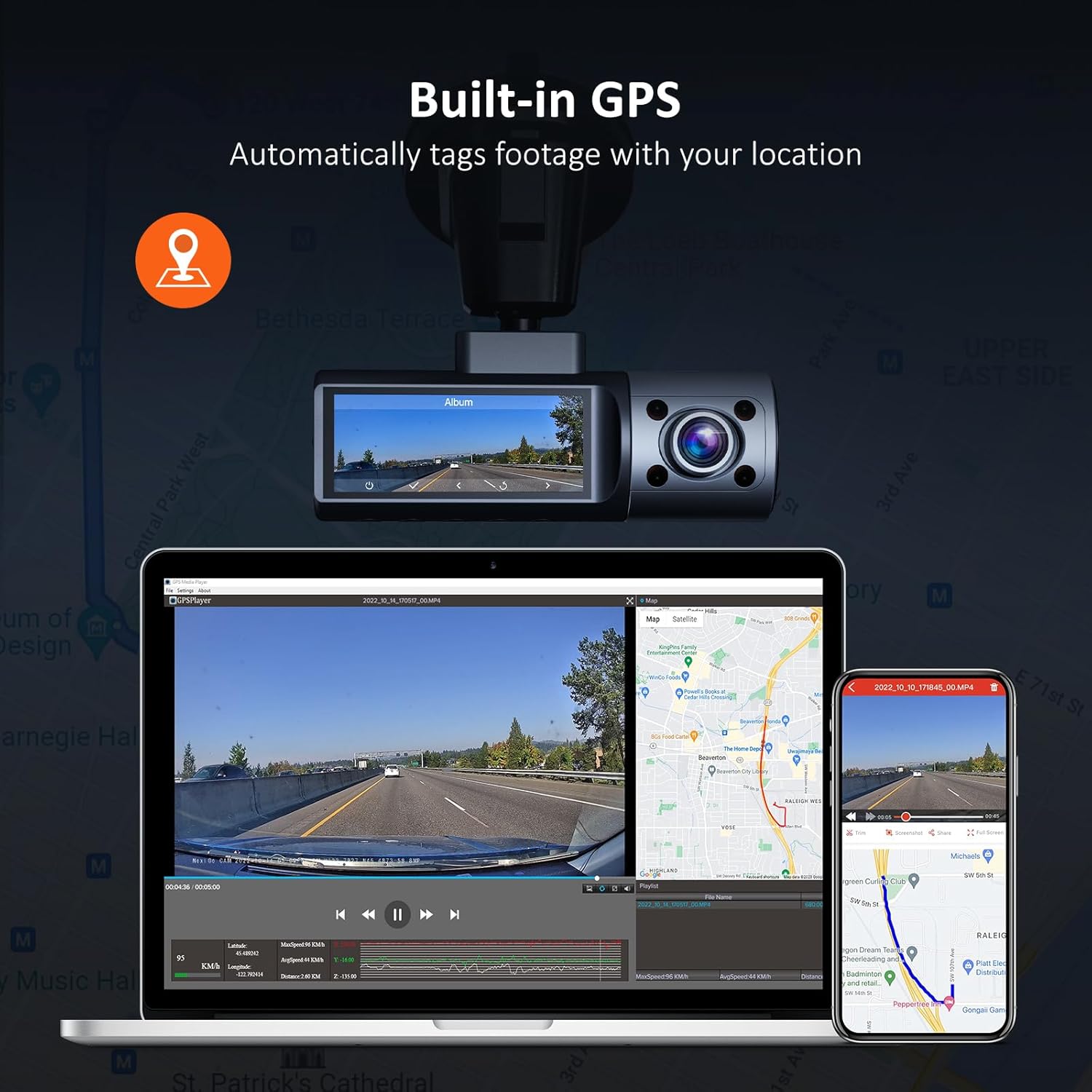
Image: Illustration of the NexiGo D621 Dash Cam's built-in GPS, showing how it tags фуtage with location data, viewable on a map via the app or desktop software.
9. Технічні характеристики
| Модель | D621 |
| Роздільна здатність відео | Front: 4K/2K (1440P), Interior: 1080P, Rear: 1080P |
| Поле в View (FOV) | Передня частина: 88°, Внутрішня частина: 132°, Задня частина: 132° |
| Датчики | Sony STARVIS IMX335 & IMX307 |
| Підключення | Wi-Fi (2.4 GHz & 5.0 GHz), GPS |
| Зберігання | Підтримка карт пам'яті Micro SD до 256 ГБ (128 ГБ в комплекті) |
| Робоча температура | Від -4°F до 158°F (від -20°C до 70°C) |
| Джерело живлення | Супер конденсатор |
| Розміри | 5 x 4 x 2 дюймів |
| вага | 1.79 фунта |
10. Гарантія та підтримка
NexiGo products come with a standard manufacturer's warranty. For specific warranty details, product registration, or technical support, please visit the official NexiGo webсайту або зв’яжіться з їхньою службою обслуговування клієнтів.
- Офіційний Webсайт: www.nexigo.com
- Електронна адреса служби підтримки: Зверніться до упаковки вашого продукту або до офіційного webсайт для контактної інформації.
Для додаткового захисту розгляньте можливість придбанняasing an extended protection plan. Options may include 2-Year or 3-Year Protection Plans, or a Complete Protect plan for broader coverage.


