1. Вступ
This manual provides detailed instructions for the IINE Wireless Pro Controller, designed for use with Nintendo Switch, Switch OLED, and Switch Lite consoles. Please read this manual carefully before use to ensure proper operation and to maximize your gaming experience.

Image 1: The IINE Wireless Pro Controller, featuring a gold and green design with various buttons and joysticks.
2. Вміст упаковки
Будь ласка, перевірте вміст упаковки після розпакування, щоб переконатися в наявності всіх елементів:
- 1 x IINE Wireless Pro Controller
- 1 x USB-C зарядний кабель
- 1 x Інструкція з експлуатації (цей документ)

Image 2: Visual representation of the controller and its packaging, indicating the included items.
3. Розташування контролера
Familiarize yourself with the buttons and features of your IINE Wireless Pro Controller:
- Лівий аналоговий стік: Для керування рухом та камерою.
- Правий аналоговий стік: Для керування камерою та прицілювання.
- Спрямований джойстик (D-Pad): Для навігації по меню та виконання певних дій у грі.
- Кнопки A/B/X/Y: Кнопки дій.
- Кнопки L/R: Плечові ґудзики.
- Кнопки ZL/ZR: Тригерні кнопки.
- Кнопка мінус (-): Кнопка «Вибрати/Назад».
- Кнопка плюс (+): Кнопка Пуск/Пауза.
- Кнопка "Додому: Returns to the Switch Home menu.
- Кнопка знімка екрана: Робить скріншоти.
- Turbo (T) Button: Активує/деактивує функцію Турбо.
- NFC Sensor: For Amiibo functionality (located near the center of the controller).
- Порт USB-C: Для зарядки та дротового підключення.
- Світлові індикатори: Відображення стану з'єднання та рівня заряду батареї.
4. Налаштування та підключення
4.1 Початкове сполучення з Nintendo Switch
- На консолі Nintendo Switch перейдіть до меню HOME.
- Виберіть «Контролери» > «Змінити хват/порядок».
- Перебуваючи на екрані «Змінити хват/порядок», натисніть і утримуйте кнопка додому on the IINE Pro Controller for 3-5 seconds until the indicator lights start flashing rapidly.
- Once the controller is successfully paired, the corresponding player indicator light(s) on the controller will remain solid.
4.2 Reconnecting to Nintendo Switch
If the controller has been previously paired, simply press the кнопка додому to wake it up. It will automatically attempt to reconnect to the last paired Switch console.
4.3 Дротове підключення
You can connect the controller to your Nintendo Switch dock using the provided USB-C cable. Ensure "Pro Controller Wired Communication" is enabled in the Switch System Settings (System > Controllers and Sensors > Pro Controller Wired Communication).
4.4 PC Steam Connection
The controller also supports PC Steam. Connect the controller to your PC via the USB-C cable. Your PC should recognize it as a gamepad. You may need to configure controller settings within Steam's Big Picture Mode or specific game settings.

Image 3: The controller shown alongside various Nintendo Switch models and a PC monitor, illustrating its broad compatibility.
5. Інструкція з експлуатації
5.1 Wake Up Function
When the Switch console is in sleep mode, press the кнопка додому on the controller to wake up the console and automatically reconnect the controller.
5.2 Функція Турбо
The Turbo function allows for rapid, automatic pressing of a button. It supports both auto-fire and manual fire dual modes.
- To set Manual Turbo: Натисніть і утримуйте кнопка T, then press any of the A/B/X/Y/L/R/ZL/ZR buttons once. The button will now activate Turbo when held down.
- To set Auto Turbo: Натисніть і утримуйте кнопка T, then press the desired A/B/X/Y/L/R/ZL/ZR button twice. The button will now continuously activate Turbo without needing to be held.
- To cancel Turbo for a specific button: Натисніть і утримуйте кнопка T, then press the desired A/B/X/Y/L/R/ZL/ZR button a third time.
- To cancel all Turbo functions: Натисніть і утримуйте кнопка T протягом 5 секунд.
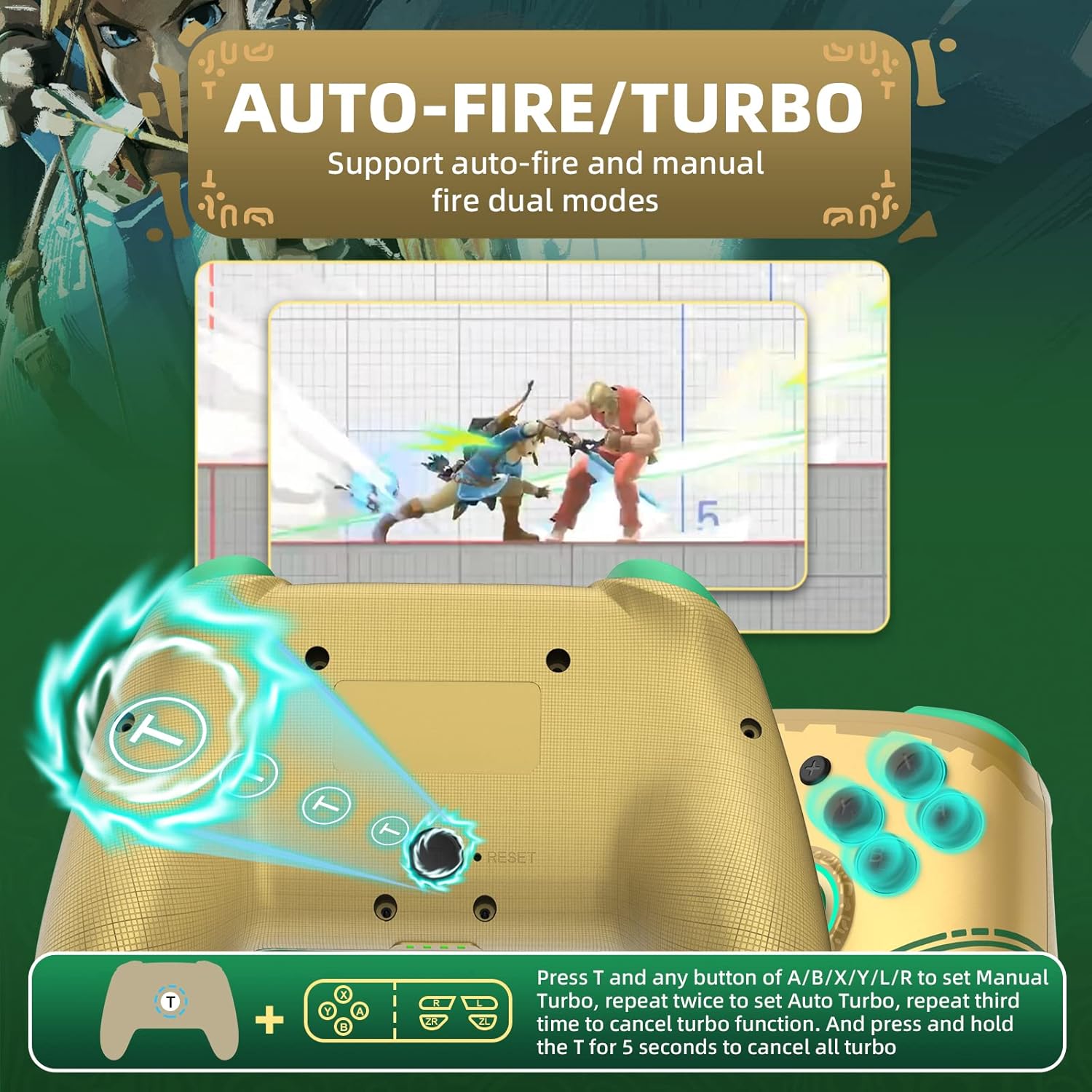
Image 4: Diagram illustrating the button combinations for setting and canceling the Turbo function on the controller.
5.3 Регулювання вібрації
The controller features dual vibration feedback with 5 adjustable levels (0%, 30%, 50%, 70%, 100%).
- Щоб налаштувати інтенсивність вібрації: Натисніть і утримуйте кнопка T, потім натисніть Directional Button Up to increase vibration or Directional Button Down to decrease vibration.
- Стандартний рівень вібрації становить 50%.

Image 5: Graphic showing the T button and directional buttons used to adjust the vibration intensity, with a scale from 0% to 100%.
5.4 Регулювання RGB-підсвічування
The controller features RGB lighting around the analog sticks, which can be customized.
- To change monochromatic light color: Натисніть і утримуйте кнопка T, потім натисніть Лівий аналоговий джойстик (L3) once. Repeat to cycle through colors.
- To activate colorful light mode: Натисніть і утримуйте кнопка T, then double-press the Лівий аналоговий джойстик (L3).
- Щоб налаштувати яскравість: Натисніть і утримуйте кнопка T, потім натисніть Правий аналоговий джойстик (R3) для налаштування рівнів яскравості.

Image 6: Instructions for changing the RGB light color and adjusting brightness using the T button and analog stick presses.
5.5 NFC/Amiibo Function
The controller supports NFC functionality for scanning Amiibo figures and cards.
- Ensure the NFC function is enabled in your game or Switch system settings.
- Place your Amiibo figure or card over the NFC sensor area, typically located near the center of the controller, between the analog sticks.
- The console will register the Amiibo data.

Image 7: Graphic highlighting the NFC area on the controller, indicating support for Amiibo scanning.
5.6 Керування рухом (6-осьовий гіроскоп)
The built-in 6-axis gyroscope provides precise motion control for compatible games, enhancing gameplay through features like visual angle adjustment, direction control, and aim shooting.

Image 8: Illustrations demonstrating the 6-axis gyro functionality for visual angle adjustment, direction control, and aim shooting in games.
6. Заряджання контролера
The controller is equipped with a 600mAh high-capacity rechargeable battery.
- Connect the provided USB-C charging cable to the USB-C port on the controller.
- Connect the other end of the cable to a USB power source (e.g., Nintendo Switch dock, USB wall adapter, computer USB port).
- The indicator lights on the controller will show charging status. They will typically blink while charging and turn solid or off when fully charged.
- Повна зарядка зазвичай займає приблизно 2-3 години.
7. Технічне обслуговування
- Тримайте контролер сухим та подалі від вологи.
- Уникайте впливу екстремальних температур на контролер.
- Протирайте контролер м’якою сухою тканиною. Не використовуйте агресивні хімікати або абразивні матеріали.
- Зберігайте контролер у безпечному місці, щоб запобігти пошкодженню від падінь або ударів.
8. Вирішення проблем
- Контролер не підключається:
- Переконайтеся, що контролер заряджений.
- Repeat the initial pairing process (Section 4.1).
- Ensure the Switch console is updated to the latest firmware.
- Try connecting the controller via USB-C cable to the Switch dock.
- Reset the controller by inserting a thin object into the small reset hole (if present, usually on the back).
- Buttons or joysticks are unresponsive:
- Перевірте, чи контролер підключено належним чином.
- Test the controller in Switch's "Calibrate Control Sticks" or "Test Input Devices" settings.
- Ensure no debris is obstructing the buttons or sticks.
- Vibration is not working:
- Check the vibration adjustment settings (Section 5.3) to ensure it's not set to 0%.
- Переконайтеся, що гра, в яку ви граєте, підтримує вібраційний зворотний зв'язок.
- NFC/Amiibo not detected:
- Ensure the Amiibo is placed correctly over the NFC sensor.
- Verify that the game or Switch system settings have NFC enabled.
9. Технічні характеристики
| Особливість | Деталь |
|---|---|
| Номер моделі | Контролер |
| Сумісність | Nintendo Switch, Switch OLED, Switch Lite, PC (Steam) |
| Підключення | Бездротовий (Bluetooth), дротовий (USB-C) |
| Ємність акумулятора | 600mAh (перезаряджається) |
| Порт зарядки | USB-C |
| Особливості | NFC, Turbo, Adjustable Vibration, RGB Lighting, Wake Up Function, 6-Axis Gyro Motion Control |
| Розміри | 16.7 x 15.6 x 6.6 см (приблизно) |
| вага | 280 г (приблизно) |
10. Гарантія та підтримка
For warranty information or technical support, please refer to the official IINE webсайт або зверніться безпосередньо до служби підтримки клієнтів. Зберігайте чек про покупку як підтвердження покупки.
For further assistance, you may visit the IINE Store on Amazon: IINE Official Store


