1. Вступ
This manual provides detailed instructions for the setup, operation, and maintenance of your VYSER F2 Projector. Please read this manual thoroughly before using the projector to ensure proper functionality and to maximize your viewing experience. The VYSER F2 Projector is a versatile device designed for various entertainment and presentation needs, offering high-definition projection with multiple connectivity options.
2. Що в коробці
Upon unboxing your VYSER F2 Projector, please verify that all the following items are included:
- VYSER F2 Projector
- Пульт дистанційного керування
- Посібник користувача (цей документ)
- Кабель HDMI
- Кабель живлення
3. Продукт закінчивсяview
Familiarize yourself with the components and ports of your VYSER F2 Projector.

Figure 3.1: VYSER F2 Projector with key features highlighted.
3.1 Спереду View
- Фокусний об'єктив: Регулює чіткість проектованого зображення.
- ІЧ-приймач: Отримує сигнали від пульта дистанційного керування.
3.2 Збоку та ззаду Views (порти та елементи керування)
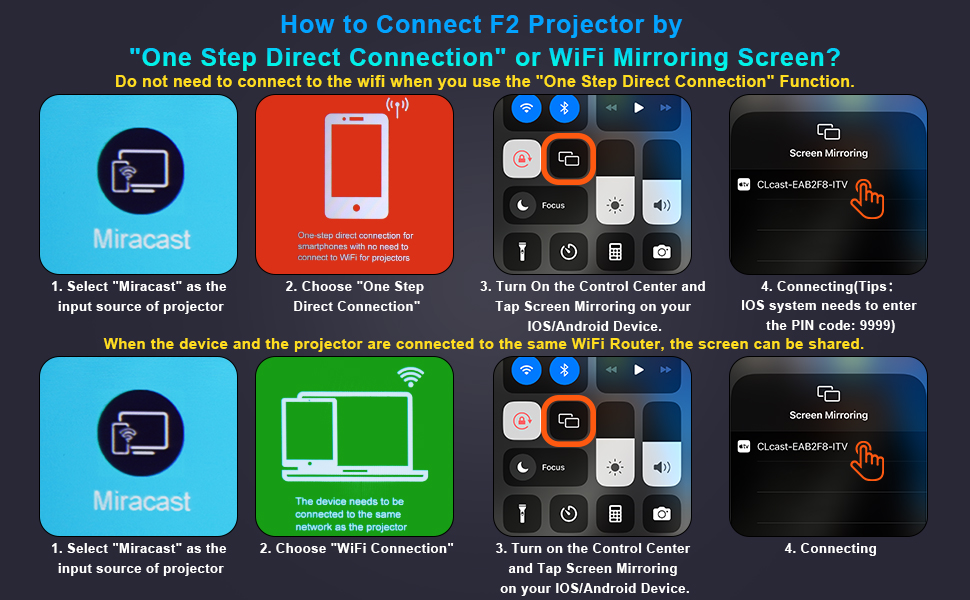
Figure 3.2: Multiple connection options on the VYSER F2 Projector.
- Порти HDMI (x2): Connect to devices like laptops, TV sticks, gaming consoles (e.g., PS5/Xbox).
- USB-порти (x2): Підключіть USB-накопичувачі для відтворення медіафайлів.
- AV-порт: Connect to older devices using an AV cable.
- 3.5 мм аудіовихід: Підключіть зовнішні динаміки або навушники.
- Споживана потужність: Підключіть кабель живлення.
- Cooling Windows: Забезпечте належну вентиляцію для розсіювання тепла.
- Бортові елементи керування: Buttons for power, menu, input source, and navigation.
3.3 360 Degree View проектора
Video 3.1: A comprehensive 360-degree view of the VYSER F2 Projector, showcasing its design and various ports from all angles.
4. Налаштування
Follow these steps to set up your VYSER F2 Projector for the first time.
4.1 Розміщення
Place the projector on a stable, flat surface. Ensure there is adequate ventilation around the projector to prevent overheating. The projection distance can range from 5-15 feet, allowing for an adjustable screen size of 50-300 inches.
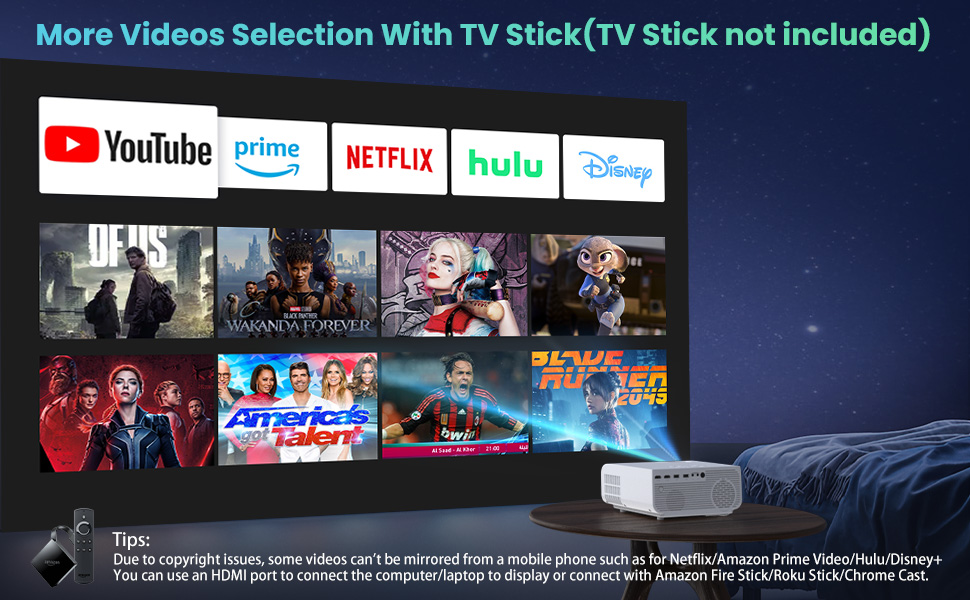
Figure 4.1: Adjustable display size from 50 to 300 inches.
The projector can be placed on a table, mounted on a tripod, or ceiling-mounted. Use the adjustable foot at the bottom of the projector to fine-tune the projection angle if needed.
4.2 Підключення живлення
- Підключіть кабель живлення до порту живлення на проекторі.
- Вставте інший кінець кабелю живлення в розетку.
- Press the Power button on the projector or remote control to turn it on.
4.3 Фокусування та корекція трапецієподібних спотворень
- Регулювання фокусу: Rotate the focus lens ring on the front of the projector until the image appears clear and sharp.
- Корекція трапецеїдальних спотворень: Use the keystone correction dial (usually on top or side) to adjust the image shape if it appears trapezoidal. The projector supports ±15° keystone correction.
5. Інструкція з експлуатації
Learn how to connect your devices and utilize the various features of your projector.
5.1 Підключення пристроїв
The VYSER F2 Projector offers multiple ways to connect your devices:
- HDMI: For high-definition video and audio from laptops, gaming consoles, TV boxes, etc.
- USB: Для відтворення медіа files безпосередньо з флеш-накопичувача USB.
- AV: Для підключення старіших пристроїв з AV-виходом.
5.2 Wireless Connectivity (Screen Mirroring)
The projector supports 5G/2.4G WiFi for seamless screen mirroring from your smartphone or tablet.
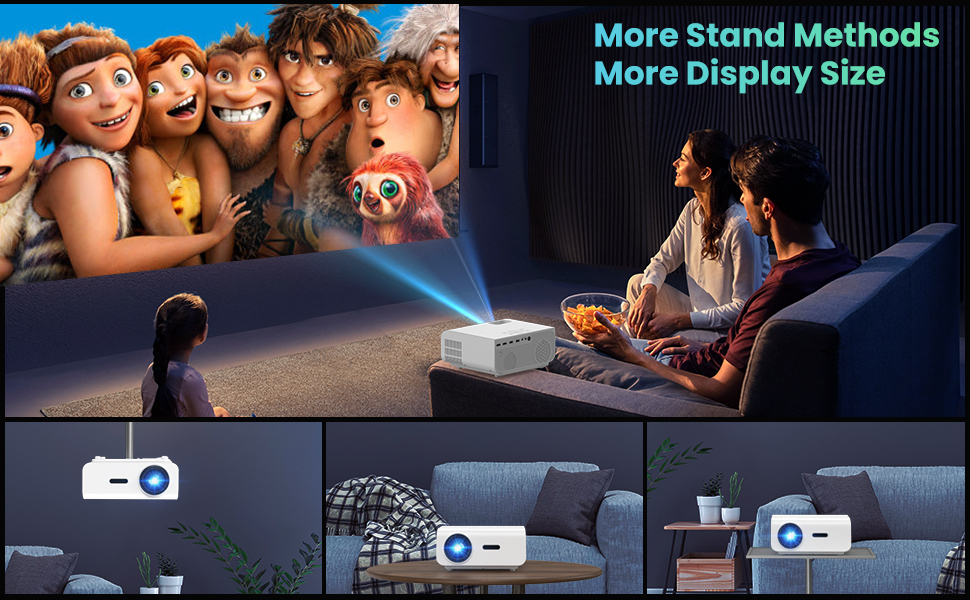
Figure 5.1: 5G/2.4G WiFi Screen Mirroring for various devices.
One-Step Direct Connection: This feature allows direct connection to your phone without needing a WiFi network. Ideal for outdoor use or when a router is unavailable.
Video 5.1: Demonstration of the F2 Projector's One-Step Direct Connection with WiFi and Bluetooth, showing quick setup for phone mirroring.
For detailed steps on screen mirroring, refer to the on-screen instructions by selecting "Miracast" from the input source menu.
Note: Due to copyright restrictions, some streaming services (e.g., Netflix, Amazon Prime Video, Hulu, Disney+) may block screen mirroring. For these services, it is recommended to use an HDMI connection with a compatible device like a Fire TV Stick, Roku Stick, or laptop.
5.3 Підключення Bluetooth
The projector features Bluetooth 5.1 for connecting to external Bluetooth speakers or headphones, enhancing your audio experience.

Figure 5.2: Bluetooth connection for external audio devices.
To connect: Navigate to the Bluetooth settings on the projector, enable Bluetooth, and select your desired audio device from the list of available devices. (Note: The projector connects to Bluetooth speakers, not directly to smartphones/tablets via Bluetooth for audio input).
5.4 Навігація по меню
Use the remote control or the on-board buttons to navigate the projector's menu. Options typically include input source selection, picture settings (brightness, contrast, color), sound settings, and system settings.
6. Технічне обслуговування
Правильне обслуговування забезпечує довговічність та оптимальну роботу вашого проектора.
- Очищення лінз: Використовуйте м’яку тканину без ворсу, спеціально призначену для оптичних лінз, щоб обережно очистити об’єктив проектора. Уникайте абразивних матеріалів або агресивних хімікатів.
- Видалення пилу: Regularly clean the cooling vents to prevent dust buildup, which can affect performance and lifespan. Use a soft brush or compressed air.
- Зберігання: Якщо проектор не використовується протягом тривалого часу, зберігайте його в прохолодному, сухому місці, в ідеалі в оригінальній упаковці або захисному футлярі.
- Правильно вимкніть живлення: Завжди вимикайте проектор за допомогою кнопки живлення та дайте йому охолонути, перш ніж відключати його від мережі або переміщувати.
7. Вирішення проблем
Якщо у вас виникли проблеми з проектором, зверніться до наступних поширених кроків усунення несправностей:
| проблема | Можлива причина / рішення |
|---|---|
| Немає зображення або повідомлення «Немає сигналу» |
|
| Розмите зображення |
|
| Трапецієподібне зображення |
|
| Немає звуку або низький звук |
|
| Screen mirroring issues (e.g., Netflix not working) |
|
| Projector overheating or shutting down |
|
8. Технічні характеристики
Key technical specifications for the VYSER F2 Projector:
| Особливість | Деталь |
|---|---|
| Бренд | ВИСЕР |
| Модель | Проектор F2 |
| Рідна роздільна здатність | 1920 x 1080 (оригінальна роздільна здатність 1080P) |
| Яскравість | 12000 Lux (350 ANSI Lumens) |
| Коефіцієнт контрастності | 10000:1 (implied from image comparison) |
| Розмір проекції | 50-300 дюймів |
| Відстань проекції | 5-15 футів |
| Технологія підключення | Wireless (5G/2.4G WiFi), Bluetooth 5.1, HDMI (x2), USB (x2), AV, 3.5mm Audio Out |
| Корекція коректури | ±15° ручний |
| Вага товару | 4.11 фунта |
| Колір | White-White |
9. Гарантія та підтримка
VYSER is committed to providing excellent customer service and technical support for your projector.
- Довічне обслуговування клієнтів: Enjoy lifetime customer service and technical support for your VYSER F2 Projector.
- For any inquiries, technical assistance, or warranty claims, please contact VYSER customer support through the platform where you purchased the product or refer to the official VYSER webсайт для контактної інформації.


