1. Вступ
Welcome to the instruction manual for your Zenwire USB-C Hub Adapter EB7. This guide provides essential information for setting up, operating, and maintaining your device to ensure optimal performance.
The Zenwire EB7 is a versatile 8-in-1 USB-C hub designed to expand the connectivity of your USB-C enabled devices. It offers a comprehensive range of ports for display output, high-speed data transfer, stable wired networking, and efficient power delivery.

малюнок 1: The Zenwire USB-C Hub Adapter EB7, shown alongside its packaging, highlighting its compact design and multiple connectivity options.
2. Особливості продукту
The Zenwire EB7 USB-C Hub Adapter offers a robust set of features to enhance your device's connectivity:
- Advanced Display Output: Supports Display Port resolutions up to 8K at 60Hz, 4K at 144Hz, 2K WQHD at 144Hz, and Full HD at 240Hz.
- Швидкий Ethernet: Забезпечує стабільне дротове мережеве з'єднання.
- Power Delivery 3.0: Supports up to 100W for efficient charging of your host device.
- Кілька портів USB: Includes 2x USB 3.0 and 1x USB 2.0 ports for various peripherals.
- Вбудований зчитувач карток: Features dedicated slots for SD and Micro SD memory cards.
- Компактний і портативний: Lightweight design (approximately 61 grams) for easy transport.
- Міцна конструкція: Розміщений у міцному алюмінієвому корпусіasing.
- Широка сумісність: Works with Windows, macOS (including Macbook M1/M2), Linux, iOS, and Android devices.

малюнок 2: Крупний план view of the Zenwire USB-C Hub Adapter EB7, demonstrating its various ports in use with connected USB drives and an HDMI adapter, along with SD and Micro SD cards.
3. Вміст упаковки
Будь ласка, переконайтеся, що всі предмети присутні у вашій упаковці:
- Zenwire USB-C Hub Adapter EB7
- Інструкція з експлуатації (цей документ)
4. Пристрій закінчивсяview і порти
The Zenwire EB7 hub integrates the following ports:
- 1x Display Port: Supports high-resolution video output up to 8K@60Hz, 5K@120Hz, 4K@144Hz, 2K WQHD@144Hz, and Full HD@240Hz.
- 2 порти USB 3.0: For connecting high-speed USB peripherals and data transfer.
- 1 порт USB 2.0: Ideal for connecting standard USB devices such as keyboards, mice, or webкулачки.
- 1 порт USB-C Power Delivery (PD): Allows charging of your host device with up to 100W power input.
- 1 слот для SD-карти: For standard Secure Digital memory cards.
- 1x Micro SD Card Slot: For smaller Micro Secure Digital memory cards.
- 1x Fast Ethernet (RJ45) Port: Provides a stable wired network connection at speeds up to 100 Mbps.

малюнок 3: Zenwire USB-C Hub Adapter EB7 with all its ports clearly labeled for identification.
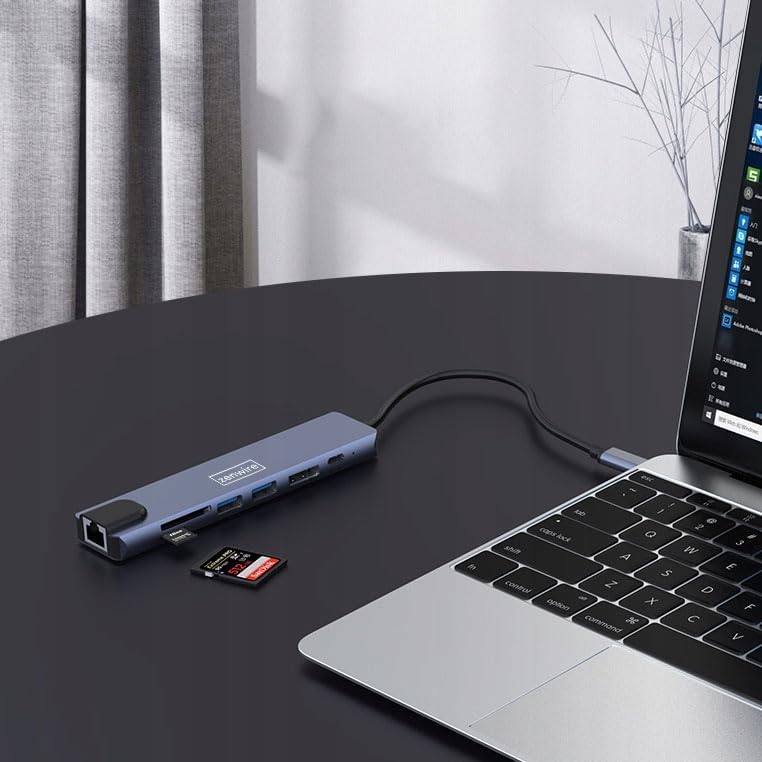
малюнок 4: The Zenwire USB-C Hub Adapter EB7 connected to a laptop, with an SD card clearly inserted into its slot, demonstrating the card reader function.
5. Посібник із налаштування
Follow these steps to set up your Zenwire EB7 hub:
- Підключіть концентратор: Plug the USB-C connector of the Zenwire EB7 hub firmly into an available USB-C port on your laptop, tablet, or smartphone. Ensure the USB-C port on your host device supports DisplayPort Alternate Mode for video output.
- Підключення периферійних пристроїв:
- Дисплей: Connect a Display Port cable from the hub's Display Port to your external monitor or TV.
- USB пристрої: Plug your USB devices (e.g., mouse, keyboard, USB drive) into the USB 3.0 or USB 2.0 ports.
- Карти пам'яті: Insert your SD or Micro SD card into the corresponding slot.
- Мережа: Connect an Ethernet cable to the RJ45 port for a stable wired internet connection.
- Потужність: If your host device requires charging, connect your USB-C power adapter to the hub's USB-C PD port. This allows your device to charge while using the hub.
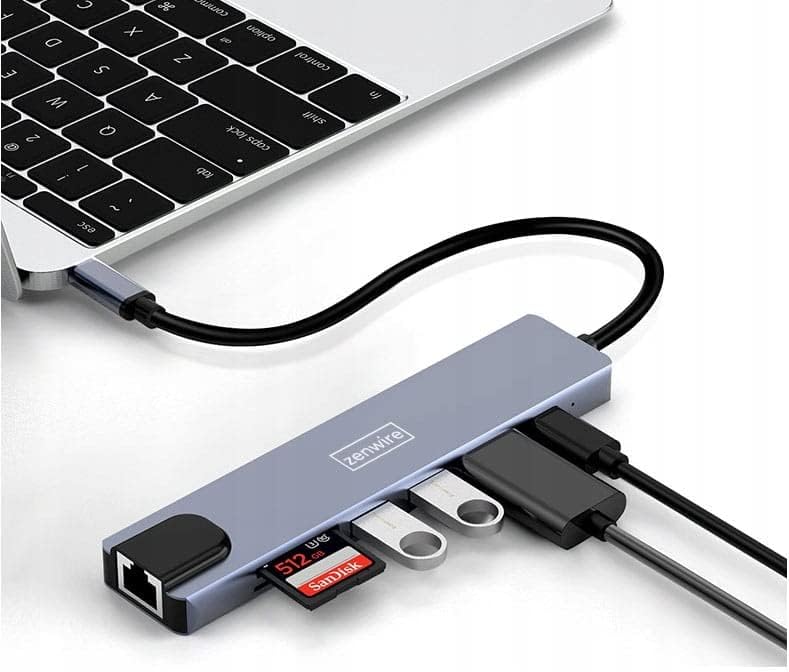
малюнок 5: The Zenwire USB-C Hub Adapter EB7 connected to a laptop, showcasing its functionality with multiple USB flash drives and an SD card inserted into its respective slots.

малюнок 6: The Zenwire USB-C Hub Adapter EB7 connected to a laptop, with a power adapter plugged into the hub's Power Delivery port and a power strip, illustrating its charging capability.
6. Інструкція з експлуатації
6.1 Відображення
The Display Port allows you to connect an external monitor or projector. The hub supports various resolutions and refresh rates. Ensure your display and Display Port cable support the desired resolution and refresh rate for optimal performance.
- Дзеркальний режим: Duplicate your host device's screen onto the external display.
- Розширений режим: Extend your desktop across multiple screens, allowing for more workspace.
To configure display settings (e.g., resolution, refresh rate, mirror/extend), refer to your operating system's display preferences (e.g., Windows Display Settings, macOS System Preferences).

малюнок 7: A laptop connected to a large external monitor via the Zenwire USB-C Hub Adapter EB7, illustrating its display output capability for an extended or mirrored desktop.
6.2 Передача даних
Utilize the USB 3.0 ports for high-speed data transfer with compatible devices such as external hard drives or high-speed flash drives. The USB 2.0 port is suitable for standard peripherals that do not require high bandwidth.
6.3 Card Reader Functionality
Insert your SD or Micro SD cards into their respective slots. The cards will appear as removable drives on your host device, allowing you to access, transfer, and manage files.
6.4 Мережеве підключення
The Fast Ethernet port provides a stable wired network connection. Once an Ethernet cable is connected, your host device should automatically detect the network and establish an internet connection.
6.5 Подача живлення
The USB-C PD port allows you to charge your host device while simultaneously using the hub's other functions. Connect your original USB-C power adapter to this port. The hub supports up to 100W power delivery, ensuring efficient charging for most compatible devices.
7. Сумісність
The Zenwire EB7 USB-C Hub Adapter is designed for broad compatibility with various devices and operating systems:
- Операційні системи: Windows, macOS (including Macbook M1/M2), Linux, iOS (for compatible iPad models), Android (for compatible smartphones and tablets, including Samsung DEX).
- Пристрої: Laptops, tablets, and smartphones equipped with a full-featured USB-C port that supports DisplayPort Alternate Mode and Power Delivery.

малюнок 8: The Zenwire USB-C Hub Adapter EB7 connected to both a smartphone and a tablet, highlighting its compatibility with mobile devices for expanded connectivity.
8. Технічні характеристики
| Особливість | Деталь |
|---|---|
| Display Port Resolution | 8K@60Hz, 5K@120Hz, 4K@144Hz, 2K WQHD@144Hz, Full HD@240Hz |
| USB порти | 2x USB 3.0, 1x USB 2.0 |
| Зчитувач карток | Слот для SD-карти, слот для Micro SD-карти |
| Ethernet | Fast Ethernet (100 Mbps) |
| Електропостачання | USB-C PD 3.0, up to 100W |
| Розміри (Д x Ш x В) | прибл. 142 мм х 32.4 мм х 11 мм |
| Довжина кабелю | прибл. 150 мм |
| вага | прибл. 61 грам |
| матеріал | Алюміній |
| Колір | Космічний сірий |
| Підтримувані операційні системи | Windows, macOS, Linux, iOS, Android |

малюнок 9: A technical diagram illustrating the precise dimensions of the Zenwire USB-C Hub Adapter EB7, including its length, width, height, and cable length.
9. Технічне обслуговування
To ensure the longevity and optimal performance of your Zenwire EB7 hub, please follow these maintenance guidelines:
- Прибирання: Keep the hub clean and free from dust. Use a soft, dry, lint-free cloth for cleaning. Avoid using liquid cleaners or abrasive materials.
- Умови навколишнього середовища: Уникайте впливу екстремальних температур, високої вологості або прямих сонячних променів на пристрій.
- Обробка: Handle the hub with care. Do not drop it or subject it to strong impacts.
- Розбирання: Do not attempt to disassemble or repair the hub yourself. This may void your warranty and could cause damage.
- Зберігання: Disconnect the hub from your devices and store it in a cool, dry place when not in use for extended periods.
10. Вирішення проблем
If you encounter issues with your Zenwire EB7 hub, please refer to the following troubleshooting tips:
10.1 Немає виводу на дисплей
- Перевірка підключення: Ensure the USB-C connection to your host device is secure and fully inserted.
- Перевірка кабелю: Verify that the Display Port cable is correctly connected to both the hub and the external monitor. Try a different cable if available.
- Host Device Support: Переконайтеся, що порт USB-C вашого хост-пристрою підтримує відеовихід (альтернативний режим DisplayPort). Не всі порти USB-C мають таку можливість.
- Моніторний вхід: Ensure your monitor is set to the correct input source (e.g., Display Port).
- Оновлення драйвера: Update your graphics drivers on your host device to the latest version.
10.2 USB Devices Not Recognized
- Правильна вставка: Переконайтеся, що USB-пристрої правильно вставлено в порти концентратора.
- Тест прямого підключення: Try connecting the USB device directly to your host device to confirm its functionality.
- Вимоги до живлення: Some high-power USB devices may require external power. Ensure the hub's Power Delivery port is connected to a power source if needed.
10.3 Низька швидкість мережі
- Обмеження швидкості: The Fast Ethernet port supports speeds up to 100 Mbps. If you require Gigabit Ethernet speeds, this hub may not meet that requirement.
- Кабель і підключення: Check your Ethernet cable for damage and ensure a secure connection to both the hub and your router/modem.
- Оновлення драйвера: Ensure network drivers are up to date on your host device.
10.4 Host Device Not Charging
- Підключення адаптера живлення: Переконайтеся, що ваш адаптер живлення USB-C підключено до порту USB-C PD концентратора.
- Power Adapter Functionality: Перевірте, чи ваш адаптер живлення справний і забезпечує достатню потужність.tage (up to 100W supported by the hub).
- Host Device Support: Check if your host device supports charging via its USB-C port.
11. Гарантія та підтримка
For detailed warranty information and technical support, please refer to the official Zenwire website or contact your retailer. It is recommended to retain your proof of purchase for any warranty claims.


